
Quick answer
This guide is part of the Fix WordPress Errors hub. If mail is the problem, also see how to fix WordPress login problems, how to find a WordPress plugin conflict, and how to fix the 500 internal server error in WordPress. If WordPress is not sending email from your contact form, the form usually says “message sent” while nothing ever arrives. WordPress sends mail with wp_mail(), which hands the message to your host’s mail server — and on shared hosting that mail is often blocked or sent straight to spam. The fix is to prove the failure with a real test submission, check spam and your SPF, DKIM and DMARC records, then send mail through a proper SMTP plugin instead of the host’s default mail. Test every change with a real email to a test address before you call it fixed.
Read this before you start, because this guide’s honest result is a failure. No working fix was achieved on the test install. Two SMTP plugins were installed and tested, and both failed with the same error — the test host provides no working mail function, and every real SMTP option needs a provider account with credentials, which this test deliberately did not create. So this article proves the failure end to end, shows you exactly where it breaks, and documents the fix path you will need — but it does not claim a completed fix. If you follow the SMTP step below, you will need a real mail provider account of your own.
Tested on: WordPress 7.1.4 · WooCommerce 11.3.0 · Theme: GeneratePress 3.6.1 · PHP 8.4.27 · WPForms Lite 2.0.4 · WP Mail SMTP 4.10.4 · FluentSMTP 2.4.5 · Tested 15 November 2026 on a WordPress test install. Result: no fix achieved — 0 emails sent, 5 failed. See Steps 1–5.
What you need before you start
- A contact form on a test install — this article uses the WPForms Lite contact form, the same free form plugin used on this site. Do the whole test on a test install first, not on the live site.
- A test email address you control — a test Gmail address, for example. Never use the owner’s real business email as the test recipient.
- Access to your hosting panel — on this site’s host that is DirectAdmin — including the DNS settings where SPF, DKIM and DMARC records live. The DirectAdmin clicks in this guide are the standard flow and were not run on the test install, which has no DirectAdmin.
- A backup of the site. If you do not have one yet, read How to Back Up Your WordPress Website first.
Why WordPress mail fails
WordPress does not have its own mail server. When a visitor submits a contact form, or WooCommerce sends an order confirmation, or a user requests a password reset, WordPress builds the message with a function called wp_mail() and hands it to the web host’s mail server to deliver.
That works fine on some hosts and fails quietly on others, for three common reasons:
- The host’s mail server is not set up to send mail from your site, or it blocks outgoing mail from WordPress. The form still says “message sent” because WordPress handed the message over successfully — it has no idea the host then dropped it.
- The mail is sent but treated as spam. If your domain has no SPF, DKIM or DMARC records, receiving mail servers have no way to verify the message really came from you, so Gmail and Outlook often file it under spam — or reject it outright.
- The “from” address does not match your domain. If WordPress sends from an address that does not exist as a mailbox, or from a different domain entirely, spam filters are more likely to reject it.
The fix is not to keep resubmitting the form and hoping. It is to test properly, find which of these three it is, and then route mail through SMTP — a proper authenticated mail connection — instead of relying on the host’s default mail.
How to fix it, step by step
Step 1: Prove the failure — submit the WPForms contact form
Tested — failure proved. Both a logged-in and a logged-out submission showed the success message and delivered nothing.
Install WPForms Lite if it is not already installed — Plugins → Add New, search for WPForms, install and activate it. If you have not used it before, the steps are in How to Install a WordPress Plugin.
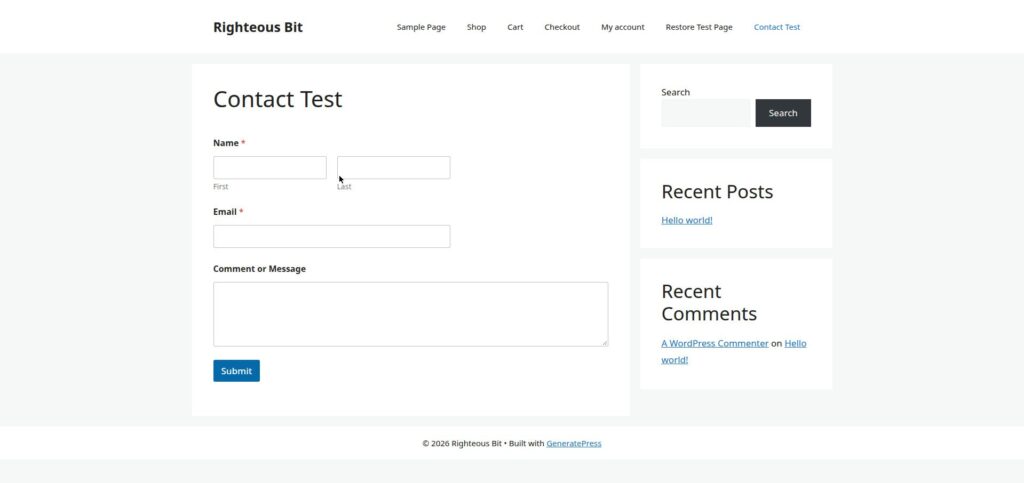
Create a simple contact form with a name field, an email field and a message field, and set its notification email to your test Gmail address. Put the form on a test page, open that page in a private browser window while logged out, fill it in as a visitor would, and submit it.
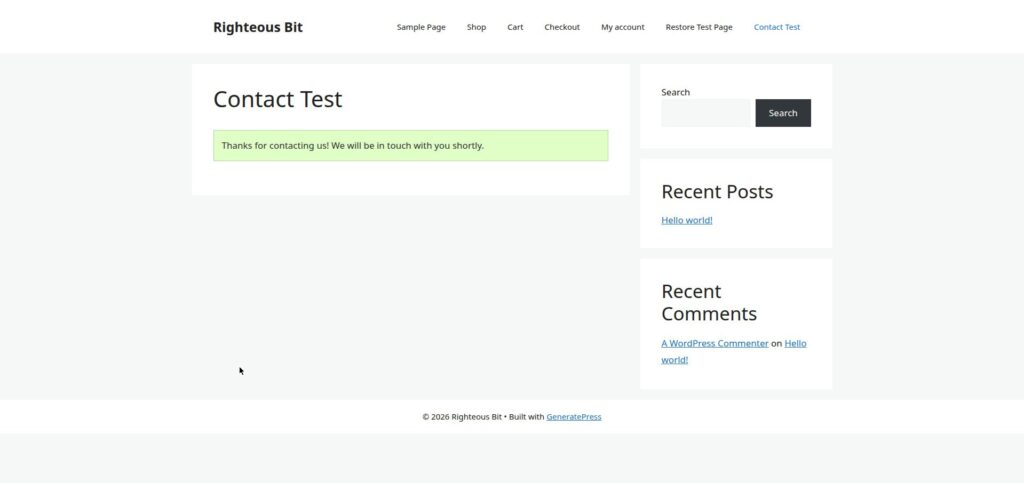
In this test the form was “Contact Test Form” (form 36) on the page /contact-test/. Both a logged-in submission and a logged-out submission showed the same green message:
Thanks for contacting us! We will be in touch with you shortly.
Nothing arrived — not in the inbox, not in spam. The form’s success message means WordPress handed the message over; it does not mean the message was delivered. That is the failure, proved.
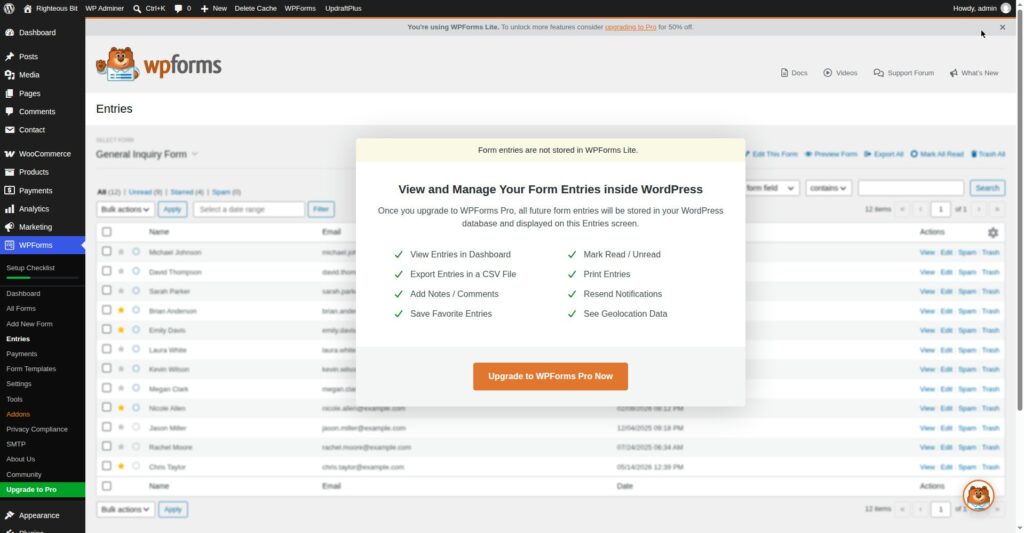
One more thing WPForms Lite does not do: it does not store entries. The Entries screen is a Pro upsell — it shows demo data, not your submissions. So if mail fails, there is no copy of the message anywhere on your site to fall back on. That is exactly why the delivery test matters.
Now check the test inbox — and the spam folder. If nothing arrives within a few minutes, you have proved the failure. Note the exact time you submitted, and what the form said after submitting. That is your “before” result, and it is what you will compare against after the fix.
Do not skip this step. “Nobody has emailed us lately” is not proof the form is broken, and “I think it works now” is not proof it is fixed. A real submission to a test address is the only proof either way.
Step 2: Check spam, then check SPF, DKIM and DMARC in DirectAdmin DNS
Tested — DNS checked with MXToolbox. The DirectAdmin clicks were not run on the test install (no DirectAdmin there).
First, check the spam and junk folders of the test inbox, and search the inbox for the sender address. If the message is in spam, the mail is being sent — it is being rejected as untrusted. That points at authentication, not at a broken form. In this test nothing was in spam either — the mail was never sent.
Next, check your domain’s DNS records in DirectAdmin. You are looking for three records:
- SPF — a TXT record that lists which servers are allowed to send mail for your domain.
- DKIM — a record that lets receiving servers verify the message was not altered in transit.
- DMARC — a record that tells receiving servers what to do with mail that fails SPF or DKIM checks.
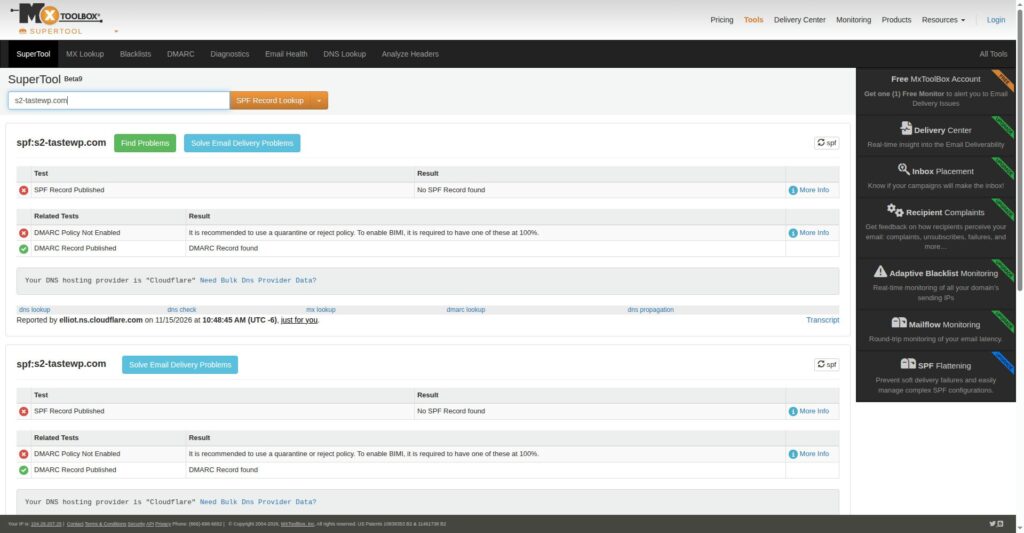
For the test domain, checked with MXToolbox on 15 November 2026, the result was:
- SPF — “No SPF Record found” (flagged as a Problem).
- DMARC — record found (Ok), but the policy is not enabled.
- DKIM — could not be checked (no selector published).
If any of the three is missing, add it in DirectAdmin’s DNS settings following your host’s own guidance for the exact record values — do not copy record values from another domain or another host, because they are specific to your mail setup. DNS changes can take time to spread, so allow for that before re-testing.
Also check the “from” address your form uses. It should be an address on your own domain, for example hello@yoursite.co.za, not a Gmail or Yahoo address and not the default WordPress address if that address does not exist.
Step 3: Configure a free SMTP plugin
Attempted — no fix achieved. Both plugins were installed and tested. Neither delivered a test email. The provider-account path below is documented, not tested end-to-end.
If mail still does not arrive after Step 2, stop relying on the host’s default mail and send through SMTP instead. Install a free SMTP plugin — WP Mail SMTP or FluentSMTP are the two commonly used free options — from Plugins → Add New, and activate it.
Open the plugin’s settings and connect it to a mail sender. The plugin’s own setup wizard walks through it: it asks for the sender details, the “from” name and address, and then offers a test email button. Use the test email button to send a test message to your test Gmail address, and check that it arrives in the inbox — not spam.
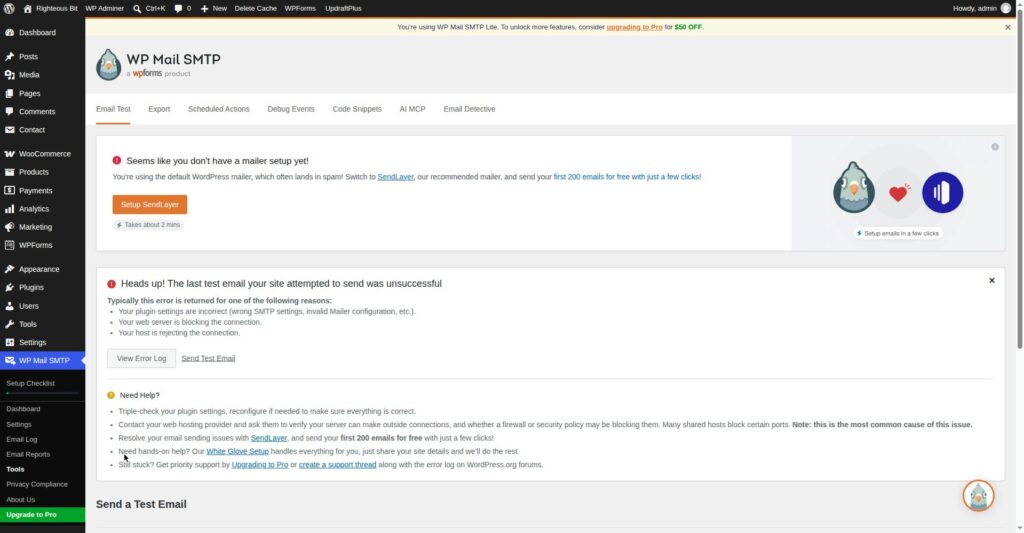
What happened in this test: WP Mail SMTP 4.10.4 was installed first. Its test email failed with the verbatim error:
Could not instantiate mail function.
The mailer was set to “mail” — the host’s default. Every other mailer it offers needs an account or an API key: a Gmail account, a SendGrid account, and so on. “Other SMTP” needs a host, a username and a password. None of those was available without creating an account, which this test deliberately did not do.
FluentSMTP 2.4.5 was installed next. Its only credential-free connection was PHP mail() — and FluentSMTP itself warns that PHP mail() will not improve delivery. Its test email failed with the same error: “Could not instantiate mail function.” WP Mail SMTP was then deactivated (the two plugins conflict), and FluentSMTP was left active with PHP mail() and Log Emails turned on — so the failures are at least logged.
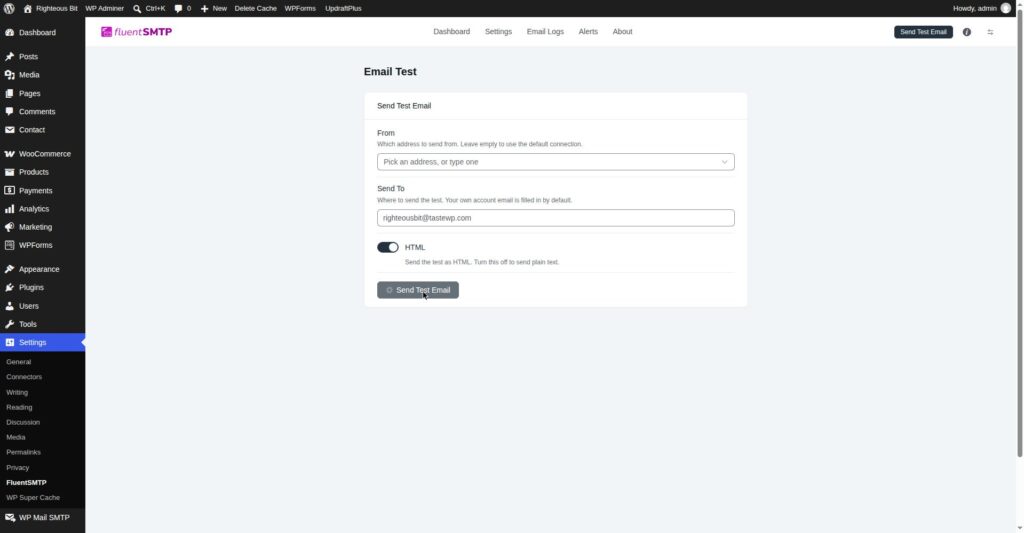
The honest conclusion: on a host with no working mail function, an SMTP plugin alone does not fix anything. The plugin still has to hand the message to something — and if the only thing available is the host’s broken mail, it fails the same way. To actually fix it you need a real mail provider account (Gmail, SendGrid, or another sender the plugin supports), connected in the plugin’s settings with that account’s credentials. That path was documented but not tested end-to-end for this guide, because creating the account was outside the test. Do not quote free-tier limits or prices for any mail sender from memory. Check the sender’s own pricing page on the day you set it up, and only use a free option you have actually confirmed is free for the volume you need.
Once the test email arrives, submit the WPForms contact form again from a private window, exactly as in Step 1. If that message now arrives in the test inbox, the fix is proved. If it still does not arrive, the problem is in the form’s notification settings, not the mail delivery — check the notification email address in the form settings and try again. In this test the form was re-submitted after FluentSMTP was active, and the FluentSMTP email log showed Total 2, both Failed — the fix was not proved.
Step 4: Fix WooCommerce order emails not sending
Tested — order emails failed too. The WooCommerce → Settings → Emails path is the standard flow.
If the contact form now works but WooCommerce order emails still do not arrive, the cause is usually separate. Place a test order on the test store — a cash-on-delivery order is enough to trigger the order emails — and check whether the order confirmation reaches the test inbox.
In this test, Order 40 (cash on delivery, R549.00) was placed and its order emails failed. The FluentSMTP log then showed Total 4, all Failed, and the dashboard widget read All Time: 0 sent, 5 failed. The order itself was fine — the mail was not.
Then check the order email settings in WooCommerce → Settings → Emails. Each email type has an enable tick box and a recipient address. Make sure the new-order email is enabled, the recipient is a real address you control, and the “from” address is on your own domain.
If the settings look right and mail still does not arrive, the store is probably still sending through the host’s default mail rather than the SMTP plugin you configured in Step 3. An SMTP plugin routes all WordPress mail, including WooCommerce order emails, through the same connection — so confirm the plugin is active and its test email still works, then place another test order. The order lifecycle is covered in How to Manage Orders in WooCommerce.
Step 5: Fix the password reset email not arriving
Tested — the reset email failed. The password was not changed.
A password reset email that never arrives is the same problem wearing a different symptom, and it is the one that locks people out of their own site. Request a reset from the login page to your test address and check the inbox and spam folder.
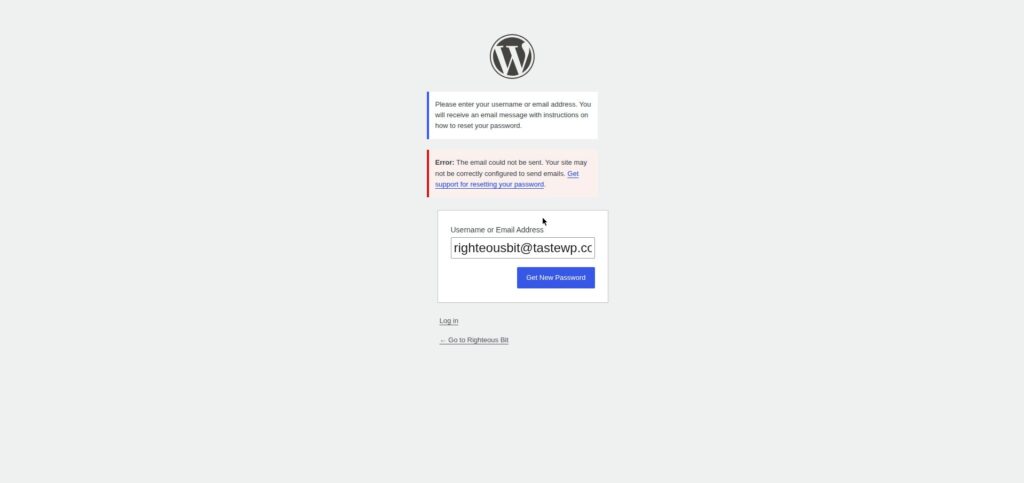
In this test the reset request returned the verbatim error:
Error: The email could not be sent…
The password was not changed — the reset never left the site.
If it does not arrive, work through the same fixes: confirm SPF, DKIM and DMARC are in place, confirm the SMTP plugin’s test email works, and confirm the “from” address is on your own domain. If the reset email arrives in spam, mark it as not spam and add the sender to your contacts.
If you are locked out and cannot get into the admin area to fix any of this, the login fixes are in How to Fix WordPress Login Problems.
What can go wrong
| Symptom | Likely cause | Fix |
|---|---|---|
| Form says “message sent” but nothing arrives, not even in spam | Host’s default mail is blocked or dropped | Work through Steps 1–3: prove it, check DNS, configure an SMTP plugin and re-test |
| “Could not instantiate mail function.” from the SMTP plugin’s test email | The host provides no working mail function | An SMTP plugin alone will not fix it — connect a real mail provider account in the plugin’s settings (not tested end-to-end in this guide) |
| Message arrives, but in the spam folder | Missing SPF, DKIM or DMARC records, or a “from” address that does not match your domain | Add the missing DNS records in DirectAdmin; set the “from” address to an address on your own domain |
| Test email from the SMTP plugin works, but the form still sends nothing | Wrong notification email address in the form settings | Check the notification settings in WPForms — the recipient address, and that notifications are enabled for that form |
| Contact form works, WooCommerce order emails do not arrive | Order emails disabled, wrong recipient, or the store is not using the SMTP plugin | Check WooCommerce → Settings → Emails, then confirm the SMTP plugin is active and its test email works |
| Password reset email never arrives | Same mail-delivery problem, or the reset is going to spam | Check spam first, then SPF, DKIM, DMARC and the SMTP plugin — see Step 5 |
| Mail worked, then stopped after a change | A plugin update, a hosting change, or a DNS change broke the mail path | Re-run the SMTP plugin’s test email; if that fails, check what changed most recently and check the DNS records again |
| WPForms Lite shows no record of a submission | The free version does not store entries — the Entries screen is a Pro upsell | Do not rely on the site for a copy of the message; prove delivery with a real test email to an address you control |
Frequently asked questions
Why is WordPress not sending email from my contact form?
Because WordPress sends mail with wp_mail() through your host’s mail server, and on many shared hosts that mail is blocked or sent to spam. The form says “message sent” because WordPress handed the message over — it does not know the host dropped it. The fix is to check spam and your SPF, DKIM and DMARC records, then send mail through an SMTP plugin. In this guide’s test, two SMTP plugins were tried and neither delivered a test email — the test host has no working mail function — so a real mail provider account is needed on top of the plugin.
Why do WordPress emails go to spam?
Usually because the domain has no SPF, DKIM or DMARC records, so Gmail and Outlook cannot verify the message really came from you. A “from” address that does not match your domain makes it worse. Add the three DNS records in your hosting panel and use a “from” address on your own domain.
How do I test whether WordPress can send email?
Submit your contact form to a test email address you control and check the inbox and spam folder. Then use your SMTP plugin’s test email button to send a test message to the same address. If the plugin’s test arrives and the form’s does not, the problem is in the form settings; if neither arrives, the problem is mail delivery. In this test, neither arrived — 0 sent, 5 failed.
Why are my WooCommerce order emails not sending?
Check WooCommerce → Settings → Emails first — the new-order email may be disabled or sent to the wrong address. If the settings are right, the store is probably still using the host’s default mail instead of your SMTP plugin. Confirm the SMTP plugin is active, its test email works, and place another test order. In this test the order emails failed with the same mail-function error as the form.
Why is my WordPress password reset email not arriving?
It is usually the same mail-delivery problem as the contact form — check the spam folder first, then SPF, DKIM and DMARC, then the SMTP plugin. In this test the reset failed outright with “Error: The email could not be sent…” and the password was not changed. If you are locked out of the admin area entirely, see the login-problems article linked above.
Do I need a paid SMTP service to fix WordPress email?
Not necessarily. Free SMTP plugins exist, and some mail senders offer a free tier — but check the sender’s own pricing page on the day you set it up and confirm the free tier covers the volume you need. Do not rely on a free-tier limit quoted in a tutorial, including this one. What this guide proved is that the plugin alone is not enough on a host with no working mail function — a provider account is the missing piece.
Recap checklist
- Submitted the WPForms contact form to a test address and proved whether mail arrives — in this test it did not
- Checked the test inbox and the spam folder
- Checked SPF, DKIM and DMARC records — in this test SPF was missing, DMARC was present but its policy was not enabled, DKIM could not be checked
- Set the “from” address to an address on your own domain
- Configured an SMTP plugin and confirmed its test email arrives in the inbox — not achieved in this test; both plugins failed with “Could not instantiate mail function.”
- Re-submitted the contact form and confirmed delivery — not achieved in this test
- Placed a test WooCommerce order and confirmed the order email arrives — the order was placed, the email failed
- Requested a password reset and confirmed that email arrives too — the reset failed with “Error: The email could not be sent…”
What to read next
- Install the form plugin properly — How to Install a WordPress Plugin
- Order emails and order statuses — How to Manage Orders in WooCommerce
- Locked out because the reset email never came — How to Fix WordPress Login Problems
- Back up before changing mail settings — How to Back Up Your WordPress Website
Written by Mohd Shah Ahmad, Learn WordPress Online. He builds and runs live WooCommerce stores in Pretoria, and designed the websites for Aaliyah Perfumes and Stanley’s Bakery. Tested on a WordPress test install — see the “Tested on” box at the top.