
Quick answer
To back up your WordPress website, install the free UpdraftPlus plugin, click Backup Now, tick both boxes — Include your database and Include your files — and click Backup Now again. That makes a complete backup of your database and files. Download the backup files to your computer so you can restore the site from them any time.
Do it before every big change — a plugin update, a theme switch, or any fix that edits files.
This is part of the Grow and Protect Your WordPress Site hub, which covers keeping a WordPress site fast, backed up and up to date. A backup is the safety net for everything else in this hub: make one before you speed up WordPress or update WordPress safely, and once the site is protected, see what visitors do on it with how to add Google Analytics to WordPress.
Tested on: WordPress 7.1.4 · Theme: GeneratePress 3.6.1 · PHP 8.4.27 · UpdraftPlus 1.26.14 · Tested 15 November 2026 on a WordPress test install. The backup AND the restore were both tested end to end — the restore failed once, and the fix is in Step 6.
What you need before you start
- Admin access to WordPress. Only an administrator can install plugins and run a backup.
- The free UpdraftPlus plugin. This guide uses UpdraftPlus because it is free, it is the most-installed backup plugin, and it does both the backup and the restore. Install it first if you have not already — the steps are in How to Install a WordPress Plugin.
- A test install if possible. Practise the restore on a test install first, so you know the steps work before you ever need them for real.
What a WordPress backup actually is
A WordPress site has two halves, and a backup must cover both:
- The database — posts, pages, comments, settings, users, products and orders. It is a single file in the backup.
- The files — WordPress itself, your theme, your plugins, and everything in the uploads folder (images and media). UpdraftPlus splits these into four files: plugins, themes, uploads, and everything else.
UpdraftPlus produces five files in total: one database file and four files files. That is why the Restore screen shows five parts ticked. Do not confuse the five files with the Backup Now dialog, which has only two tick boxes — “Include your database” and “Include your files”. The two boxes produce the five files.
How to back up your WordPress website, step by step
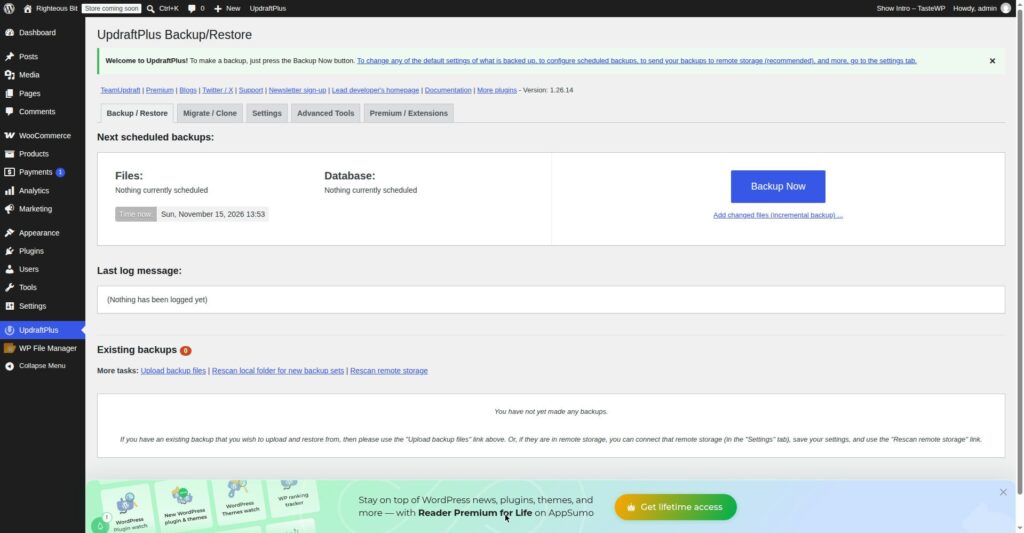
Step 1: Open UpdraftPlus and click Backup Now
In the dashboard, go to Settings → UpdraftPlus Backups. Click the big Backup Now button.
Step 2: Tick both boxes and run the backup
The Backup Now window has two tick boxes: Include your database and Include your files. Tick both. Then click Backup Now.
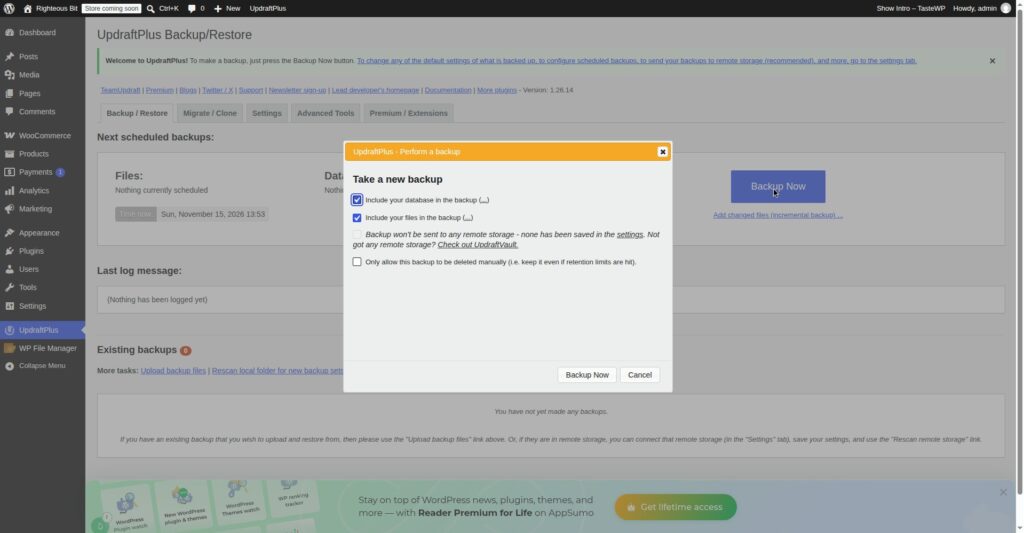
UpdraftPlus will back up the database first, then the files. Wait for it to finish — do not close the tab while it runs. When it is done, the backup appears in the Existing Backups list.
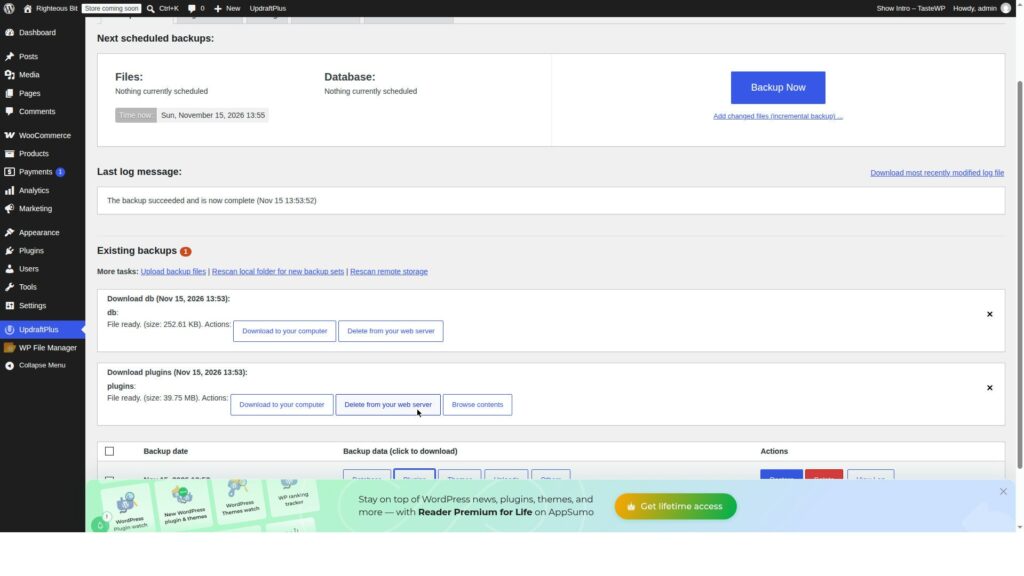
Step 3: Check the backup — all five parts
In the Existing Backups list, the new backup should show all five parts, each with a date:
- Database
- Plugins
- Themes
- Uploads
- Others
If any part is missing, the backup is incomplete — run it again before you rely on it.
Step 4: Download the backup files to your computer
Click the Database button (and the other four parts) to download each file to your computer. Store them somewhere safe — not only on the same server as the site. A backup that lives only on the server it backs up is no backup at all if that server fails.
In this test only the Database file was downloaded to the local computer — the browser used for this test can save only one file per download action, so the four files parts were left on the test install. On a normal computer, download all five.
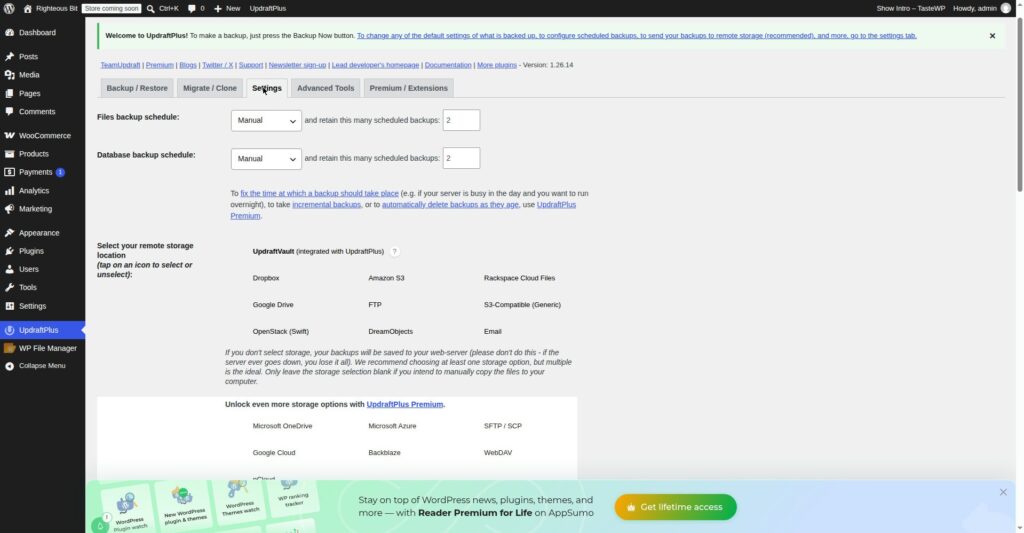
Step 5: Check the Settings tab — schedules and how many backups to keep
Click the Settings tab. Two things matter here:
- File backup schedule and Database backup schedule — both were set to Manual in this test, which means backups only run when you click Backup Now. If you want automatic backups, set a schedule (for example, weekly) instead.
- Retain this many scheduled backups — set to 2 in this test. That means UpdraftPlus keeps the two most recent backups and deletes older ones. Two is the minimum you should keep; more is safer if you have the space.
The Settings tab also lists the remote storage options — Google Drive, Dropbox, Amazon S3 and others. Sending backups to one of those is the proper way to keep them off the server. That was not set up in this test, because it needs an account with the storage provider.
Step 6: Break something, then restore it — the real test
A backup you have never restored is a hope, not a backup. So this guide broke the test site on purpose, then restored it.
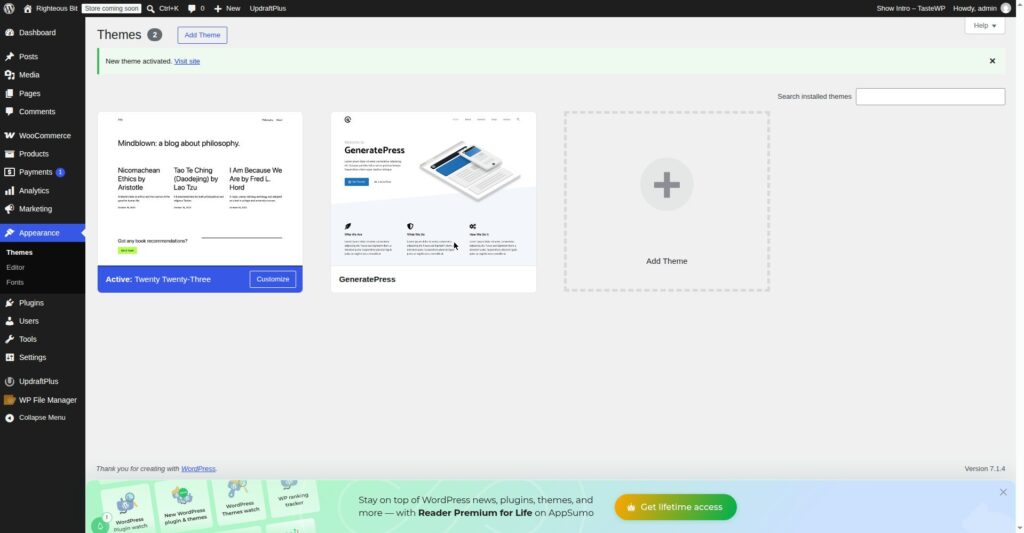
The break: the active theme was switched from GeneratePress to Twenty Twenty-Three. The Themes page confirmed it: “New theme activated” and Twenty Twenty-Three shown as Active instead of GeneratePress.
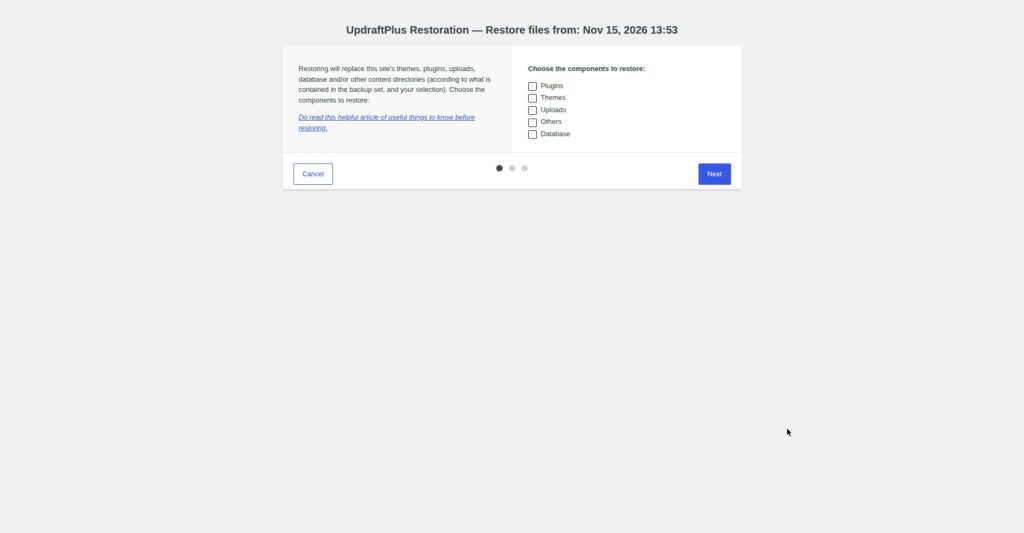
The restore: back in Settings → UpdraftPlus Backups, click Restore next to the backup. The Restore screen shows all five parts ticked — Database, Plugins, Themes, Uploads, Others. Click Restore.
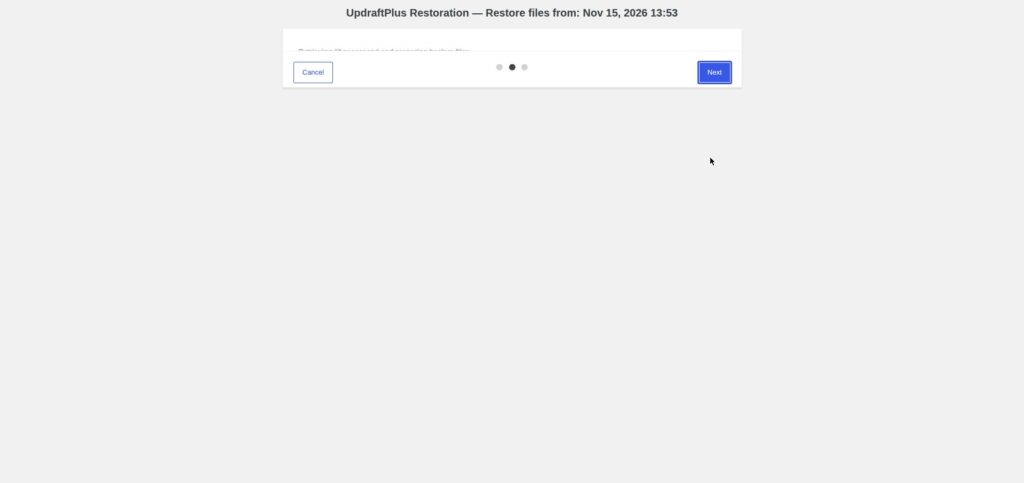
The restore failed the first time. It stopped with a database error. The fix was one line added to wp-config.php, above the line that says “That’s all, stop editing!”:
define( 'UPDRAFTPLUS_ALLOW_SQL_MODE_FAILURE', true );That line tells UpdraftPlus to continue past a strict-mode SQL error during the restore. With it in place, the restore was run again and completed. If your restore fails with a database error, add that line and try again — and remember it is there, in case you ever need to remove it.
After the restore: the front page loaded normally, back on GeneratePress, with the site looking exactly as it did before the break.
What can go wrong
| Symptom | Likely cause | Fix |
|---|---|---|
| Backup runs but a part is missing from Existing Backups | The backup did not finish — the tab was closed, or the server timed out | Run the backup again and wait for all five parts to appear |
| Restore fails with a database error | Strict SQL mode on the server | Add define( 'UPDRAFTPLUS_ALLOW_SQL_MODE_FAILURE', true ); to wp-config.php above “That’s all, stop editing!” and restore again — this happened in this test |
| Only some files were downloaded | The browser saved one file at a time | Download each of the five parts separately, and store them off the server |
| Backup schedule never runs | Schedule set to Manual | Set a file and database backup schedule on the Settings tab, and set how many backups to retain |
| Restore brings back the wrong theme or content | You restored an older backup than you meant to | Check the date on the backup in Existing Backups before clicking Restore |
Frequently asked questions
How do I back up my WordPress website for free?
Install the free UpdraftPlus plugin, go to Settings → UpdraftPlus Backups, click Backup Now, tick Include your database and Include your files, and click Backup Now again. Then download the five backup files to your computer.
How do I restore a WordPress backup with UpdraftPlus?
Go to Settings → UpdraftPlus Backups, click Restore next to the backup you want, check all five parts are ticked, and click Restore. If the restore fails with a database error, add define( 'UPDRAFTPLUS_ALLOW_SQL_MODE_FAILURE', true ); to wp-config.php and try again.
How often should I back up WordPress?
Before every change — a plugin update, a theme switch, or any fix that edits files. For a site that changes often, set a schedule in UpdraftPlus (weekly is a reasonable starting point) and keep at least two backups. A backup taken after the problem started is no help.
Where should I store WordPress backups?
Not only on the same server as the site. Download the files to your computer, or send them to remote storage — Google Drive, Dropbox or Amazon S3 — from the UpdraftPlus Settings tab. A backup on the same server disappears with the server.
Does UpdraftPlus back up the database and the files?
Yes. One backup produces five files: the database, plus plugins, themes, uploads and everything else. The Backup Now dialog has two tick boxes — database and files — and those two boxes produce the five files.
Recap checklist
- UpdraftPlus installed (free version)
- Backup Now run with BOTH boxes ticked — database and files
- All five parts present in Existing Backups, with a date
- Backup files downloaded and stored off the server
- A schedule set on the Settings tab, and at least 2 backups retained
- A restore practised on a test install — including the
UPDRAFTPLUS_ALLOW_SQL_MODE_FAILUREfix if the first restore fails
What to read next
- Restore a broken site after a bad plugin — How to Find a WordPress Plugin Conflict
- Fix a site that shows nothing at all — How to Fix the WordPress White Screen of Death
- Install the plugin this guide uses — How to Install a WordPress Plugin
- Keep the site working after a theme change — How to Install a WordPress Theme
Written by Mohd Shah Ahmad, Learn WordPress Online. He builds and runs live WooCommerce stores in Pretoria, and designed the websites for Aaliyah Perfumes and Stanley’s Bakery. Tested on a WordPress test install — see the “Tested on” box at the top.