
Quick answer
This is part of the Grow and Protect Your WordPress Site hub, which covers keeping a WordPress site fast, backed up and up to date. The first step here is a backup — see how to back up your WordPress website — and updates also keep the site fast, as covered in how to speed up WordPress; once the site is updated, check what visitors do on it with how to add Google Analytics to WordPress. To update WordPress safely: back up your site first, then update in this order — plugins first, then your theme, then WordPress itself — and check your front end and admin area after each step. Never update everything at once without a backup, because if one update breaks the site you will not know which one caused it. If an update does break something, restore the backup and update one item at a time until you find the culprit.
One honest limit from this test: on the test install, everything was already up to date, so there was no update button to click — the backup and the Updates screen were tested for real, and the update clicks below are the standard flow for when an update is offered. The order and the backup step are what make an update safe, and both are covered here.
Tested on: WordPress 7.1.4 · Theme: GeneratePress 3.6.1 · PHP 8.5.12 · UpdraftPlus 1.26.14 · Tested 16 November 2026 on a WordPress test install. See “What was not tested” at the end.
What you need before you start
- Access to the WordPress admin (an Administrator, or a role that can update).
- A backup of the site. If you do not have one yet, read How to Back Up Your WordPress Website first and take a backup before you update anything. An update that goes wrong is exactly the situation a backup is for.
- A few quiet minutes. Do not start an update five minutes before you need to leave. Most updates take under a minute, but if one fails you will want time to restore the backup calmly.
How to update WordPress, step by step
Step 1: Back up the site
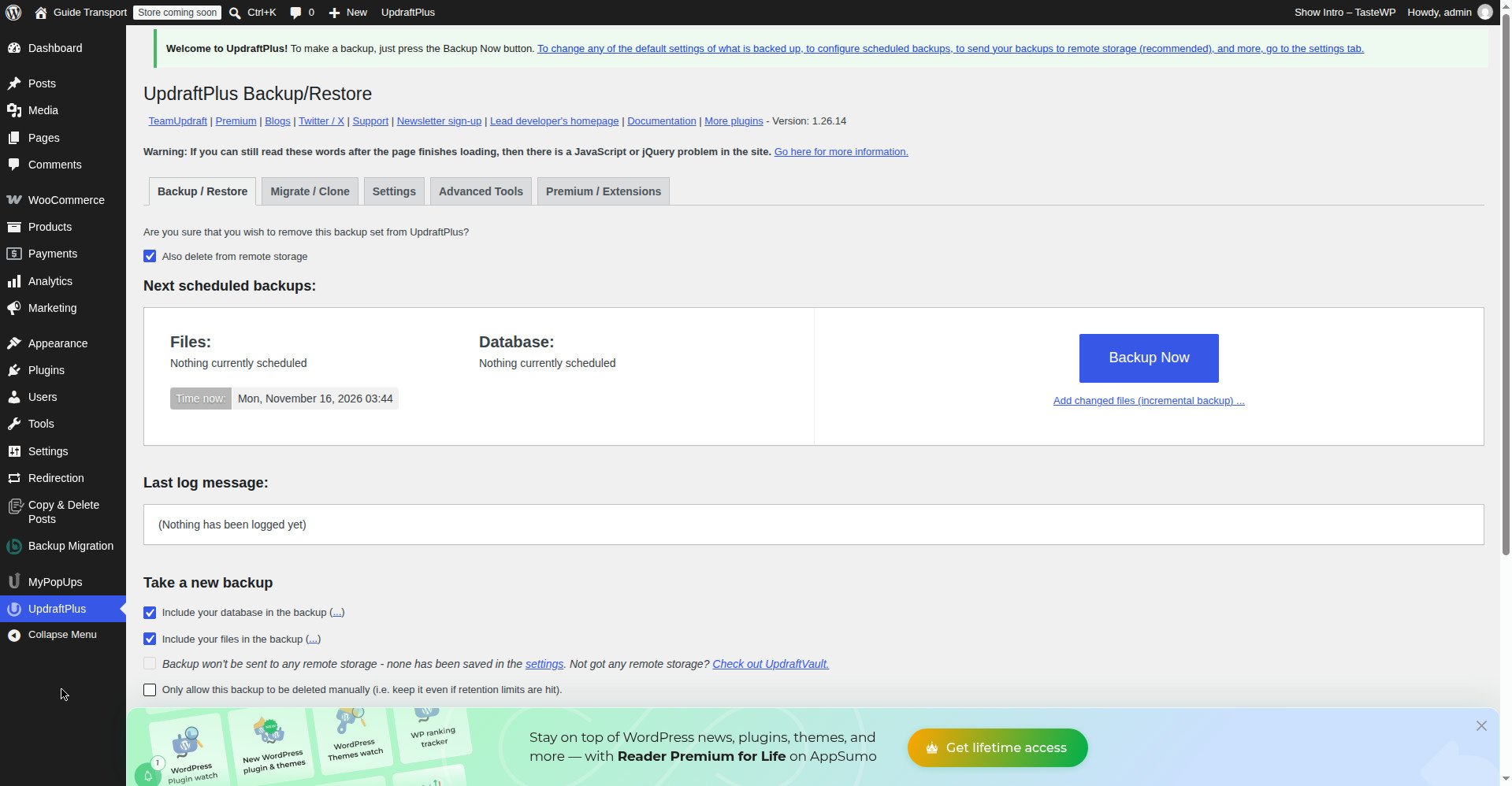
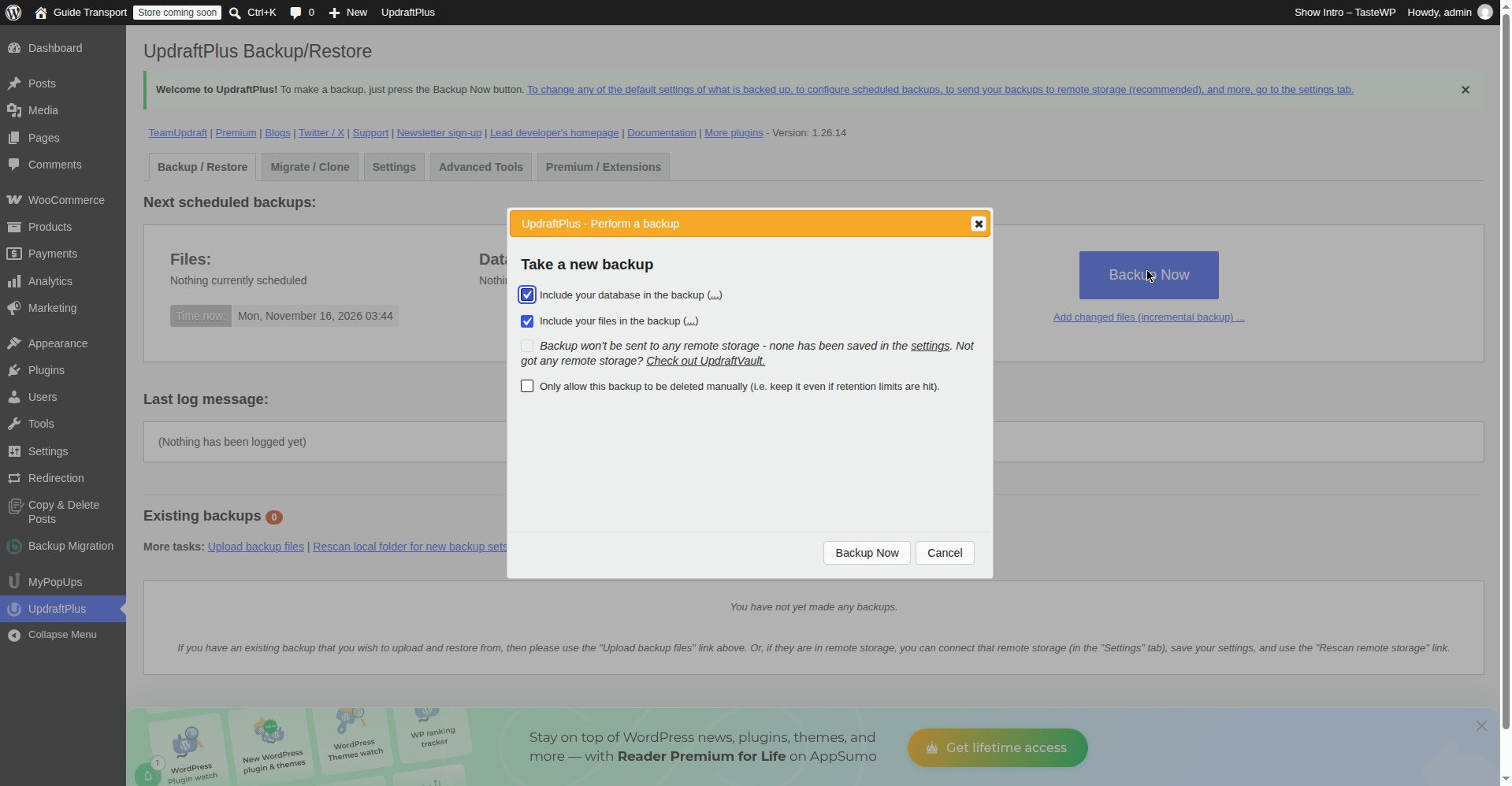
Take a full backup — database and files — with your backup plugin, and confirm the backup actually completed before you go on. On the test install this was done with UpdraftPlus: UpdraftPlus → Backup/Restore → Backup Now, with both “Include your database” and “Include your files” ticked. The backup completed with the message “The backup succeeded and is now complete (Nov 16 03:45:16)”. Do not skip this because “it is only a small update” — small updates break sites too.
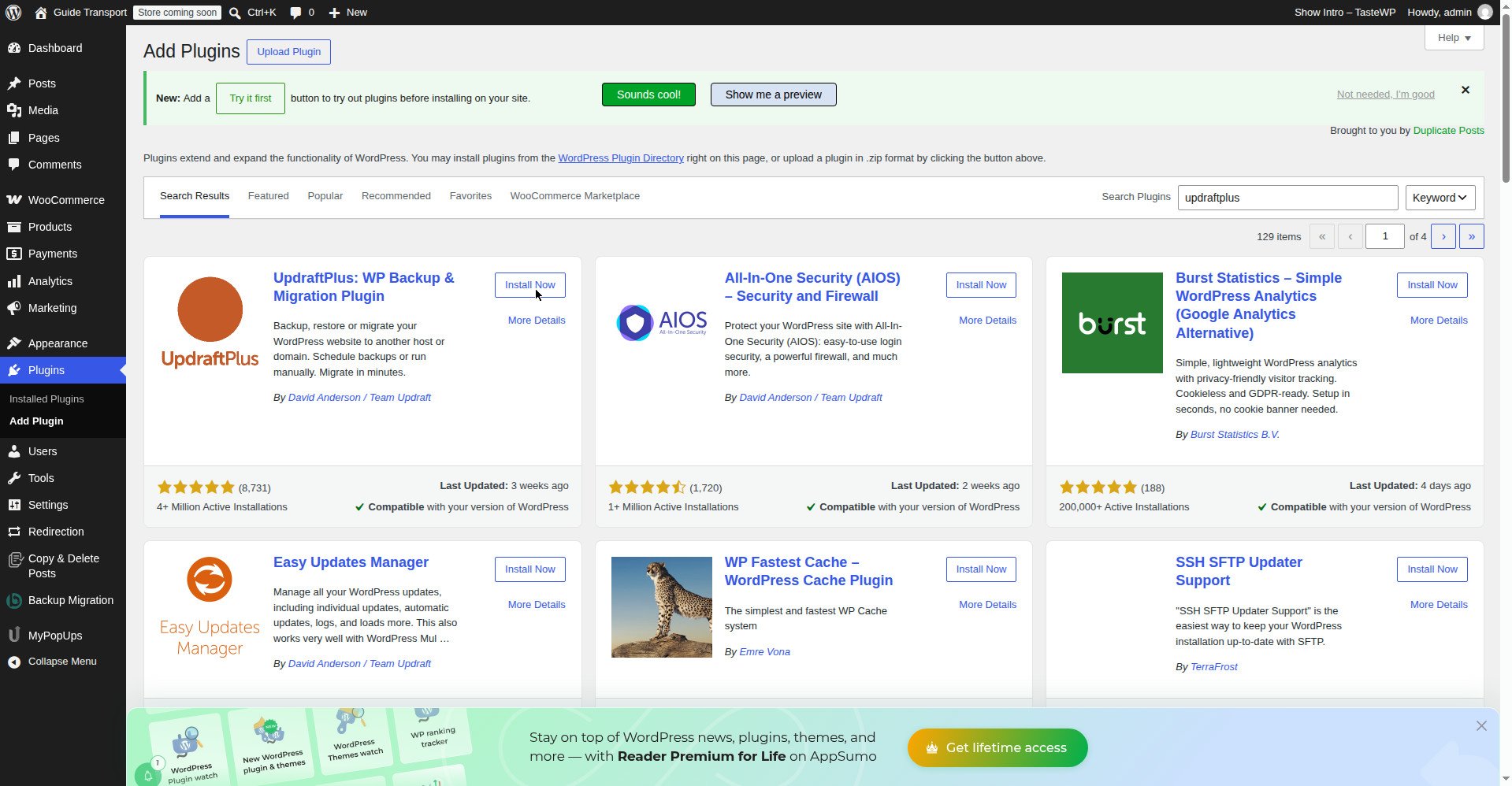
UpdraftPlus is free to install from Plugins → Add New — search for “updraftplus” and install it from the results.
Step 2: Check what updates are waiting
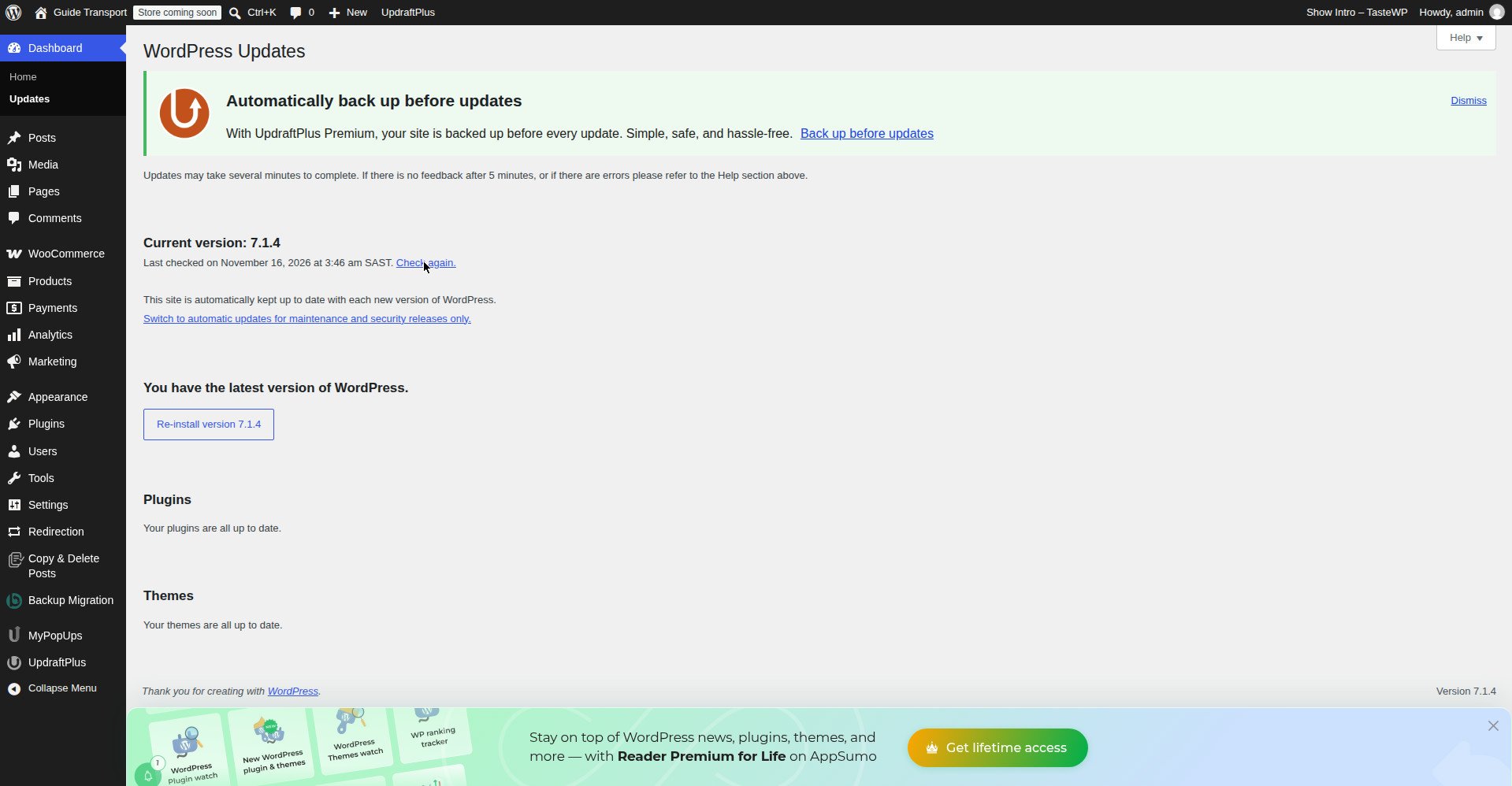
Go to Dashboard → Updates. WordPress lists everything with an update available: the WordPress version itself, plugins, and themes, each with its current version and the new version. Read the list before you click anything. Note how many plugins have updates, and whether your theme has one. If WordPress itself has an update, note the version number — the update screen tells you what version you are on and what version you are moving to.
On the test install, the Updates screen showed that nothing was waiting: “You have the latest version of WordPress.” / “Current version: 7.1.4”, “Your plugins are all up to date.” and “Your themes are all up to date.” That is normal on a fresh install — the installer already puts the latest versions on. The only button offered was “Re-install version 7.1.4”, which is NOT an update, so it was not clicked.
Step 3: Update the plugins first
When updates ARE offered, update the plugins first — tick them on Dashboard → Updates, or update them one at a time from Plugins → Installed Plugins using the “Update now” link under each one. Updating one at a time is slower but it tells you exactly which plugin breaks the site if one does. After each plugin update, open your site’s front end in a new tab and check it still loads and looks right. If a plugin update shows an error, or the front end goes blank, stop — do not update anything else until that plugin is sorted. The fix for a broken plugin update is in How to Find a WordPress Plugin Conflict.
Step 4: Update the theme
Next, update the theme from Dashboard → Updates or Appearance → Themes. Only update the active theme and any theme you actually use — there is no need to update themes you have installed but never activate, and it is better to delete those (see How to Install a WordPress Theme). After the theme update, open the front end again and check the menu, the sidebar and the footer are all as they were. A theme update can change how those look.
Step 5: Update WordPress itself
Now update WordPress core. On Dashboard → Updates, click Update to version X (the version number shown on your screen). WordPress downloads the new version, installs it, and shows a welcome screen when it is done. The site goes into maintenance mode for a few seconds during the update — visitors see a brief “Briefly unavailable for scheduled maintenance” message, which is normal. If the site stays stuck on that message for more than a few minutes, see How to Fix WordPress Stuck in Maintenance Mode.
Step 6: Check the site after the update
After the update, check three things: (1) the front end loads and looks right — open the homepage and one article; (2) the admin area loads — open the Dashboard and one post in the editor; (3) anything the site must do still works — on a shop, place a test order; on a site with a contact form, submit a test message. If all three pass, the update is done. If the front end is blank, see How to Fix the WordPress White Screen of Death. If you see a 500 error, see How to Fix the 500 Internal Server Error in WordPress.
What was not tested
On the test install, no plugin, theme or core update was available, so the update button clicks in Steps 3, 4 and 5 were not performed in this test — there was nothing to click. The backup (Step 1) and the Updates screen check (Step 2) were tested for real, and the order in Steps 3–5 is the safe order to follow when updates are offered. Do not mistake the “Re-install version 7.1.4” button for an update — it reinstalls the same version and is not what you click to update.
What can go wrong
| Symptom | Likely cause | Fix |
|---|---|---|
| Front end goes blank after an update | A plugin or theme is not compatible with the new version | Restore the backup, then update one item at a time to find the culprit; or enable Troubleshooting Mode in the Health Check plugin |
| “Briefly unavailable for scheduled maintenance” stays for minutes | The update was interrupted and the .maintenance file was left behind | Wait a few minutes first; if it stays, remove the .maintenance file — see the Maintenance Mode article |
| A plugin shows “Update failed” | A file permission problem, or the update was interrupted | Try the update again; if it keeps failing, check the plugin’s own support page for that version |
| The site works but a feature is broken (form, checkout, menu) | One updated plugin changed how it works | Check that plugin’s changelog, roll it back from the backup if needed, and report the problem to the plugin author |
| WordPress says an update is available but the button does nothing | A caching or permissions problem on the host | Clear the cache, log out and back in, and try again; if it still fails, ask your host |
| The admin area is slow or shows errors after the update | A plugin is conflicting with the new version | Deactivate plugins one at a time (or use Troubleshooting Mode) until the admin is fast again |
Frequently asked questions
How do I update WordPress?
Go to Dashboard → Updates, back up first, then update plugins, then the theme, then WordPress itself using the “Update to version X” button. Check the front end and admin area after each step.
Is it safe to update WordPress?
Yes, if you back up first and update in the right order. Most updates go smoothly. The risk is a plugin or theme that is not compatible with the new version — the backup is what makes that risk safe, because you can restore it in minutes.
Should I update plugins before WordPress itself?
Yes. Update plugins first, then the theme, then WordPress. That way, if something breaks, you know it was the last thing you updated, and the plugins are already on versions built for the new WordPress.
What happens if a WordPress update fails?
The site may show a maintenance message, a white screen or a 500 error. Do not panic and do not keep clicking update. Restore the backup you took in Step 1, then update one item at a time to find which one failed.
How often should I update WordPress?
Check Dashboard → Updates once a week. Small security updates can be applied as soon as they appear. For a big version update, back up first and update when you have a few quiet minutes to check the site afterwards.
Do I need to update themes I am not using?
No — delete themes you do not use instead. An unused theme still needs updating to stay secure, and it is one more thing that can break. Keep one spare theme installed as a fallback.
Recap checklist
- Backed up the site and confirmed the backup completed
- Checked Dashboard → Updates and read what is waiting
- Updated plugins first, checking the front end after each one
- Updated the theme, checking the menu, sidebar and footer
- Updated WordPress itself and waited for the welcome screen
- Checked the front end, the admin area and one key feature (form or checkout) after the update
What to read next
- Back up first, every time — How to Back Up Your WordPress Website
- If an update breaks a plugin — How to Find a WordPress Plugin Conflict
- If the site goes blank after an update — How to Fix the WordPress White Screen of Death
- If the site gets stuck in maintenance mode — How to Fix WordPress Stuck in Maintenance Mode
Written by Mohd Shah Ahmad, Learn WordPress Online. He builds and runs live WooCommerce stores in Pretoria, and manages the live stores Stanley’s Bakery (stanleysbakery.co.za) and Aaliyah Perfumes (aaliyahperfumes.co.za). Tested on a WordPress test install — see the “Tested on” box at the top.