
Quick answer
This guide is part of the Fix WordPress Errors hub. If the maintenance message is not your error, also see how to fix the 500 internal server error in WordPress, how to fix the WordPress white screen of death, and how to find a WordPress plugin conflict. When WordPress updates a plugin, theme or WordPress itself, it briefly shows “Briefly unavailable for scheduled maintenance. Check back in a minute.” If the update is interrupted — the tab is closed, the connection drops, or the server times out — that message can stick, and the site stays locked. The fix is usually to delete the .maintenance file from the site’s root folder, then finish the interrupted update from the dashboard.
Read this before you start, because this guide is honest about what was and was not reproduced. The stuck message itself was NOT reproduced in this test. The file manager on the test host rejects filenames starting with a dot, so no .maintenance file could be created, and re-running an update left no .maintenance file behind — so the stuck message, the file-deletion fix and the interrupted-update finish were not run. What was tested is the healthy side of it: a site with no .maintenance file loads normally, the Updates screen shows nothing interrupted, WooCommerce offered no database-update notice, and a test order placed cleanly. The file-deletion steps below are the documented procedure, labelled as not run in this test.
Tested on: WordPress 7.1.4 · WooCommerce 11.3.0 · Theme: GeneratePress 3.6.1 · PHP 8.4.27 · Tested 15 November 2026 on a WordPress test install. The stuck message, the
.maintenancefile deletion and the interrupted-update finish were not reproduced — see above.
What you need before you start
- Access to the file manager in your hosting panel, so you can see and delete the
.maintenancefile. On this site’s host that is DirectAdmin’s file manager. - A backup of the site. If you do not have one yet, read How to Back Up Your WordPress Website first. Deleting the wrong file in the site root can break the site.
- A test install if possible. Practise the file deletion there first.
What maintenance mode is
When WordPress runs an update, it creates a file called .maintenance in the site’s root folder, shows visitors the “Briefly unavailable for scheduled maintenance” message, and deletes the file when the update finishes. The whole thing normally takes seconds.
The file starts with a dot, which means it is a hidden file — some file managers hide it by default, so turn on “show hidden files” in your file manager if you cannot see it.
If the update is interrupted, the file is left behind, and the message stays. Visitors see the maintenance message, and you cannot log in to the dashboard either — because the dashboard is behind the same maintenance check.
What was actually tested
Because the stuck message was not reproduced, here is exactly what the test did show, so you can tell the difference between a healthy site and a stuck one:
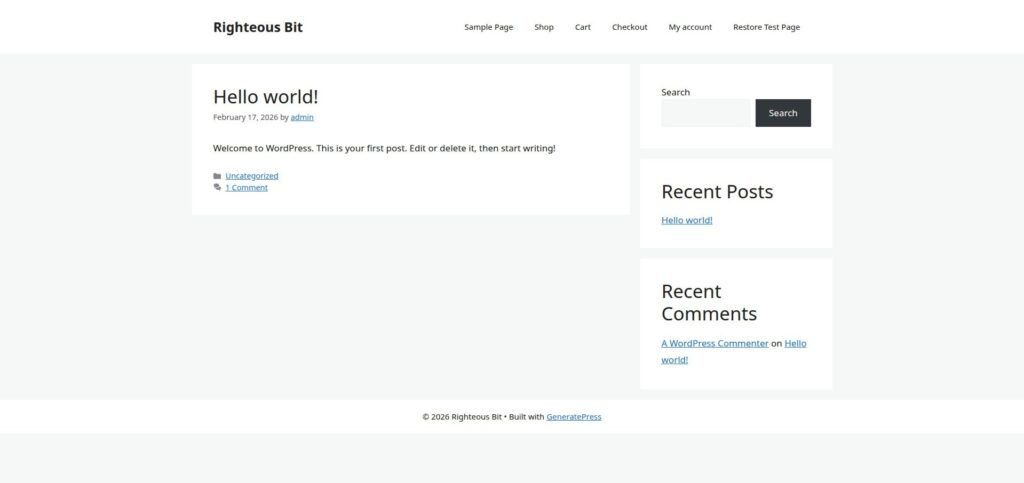
- No
.maintenancefile, site loads normally. With no.maintenancefile present, the front page of the test install loaded normally.
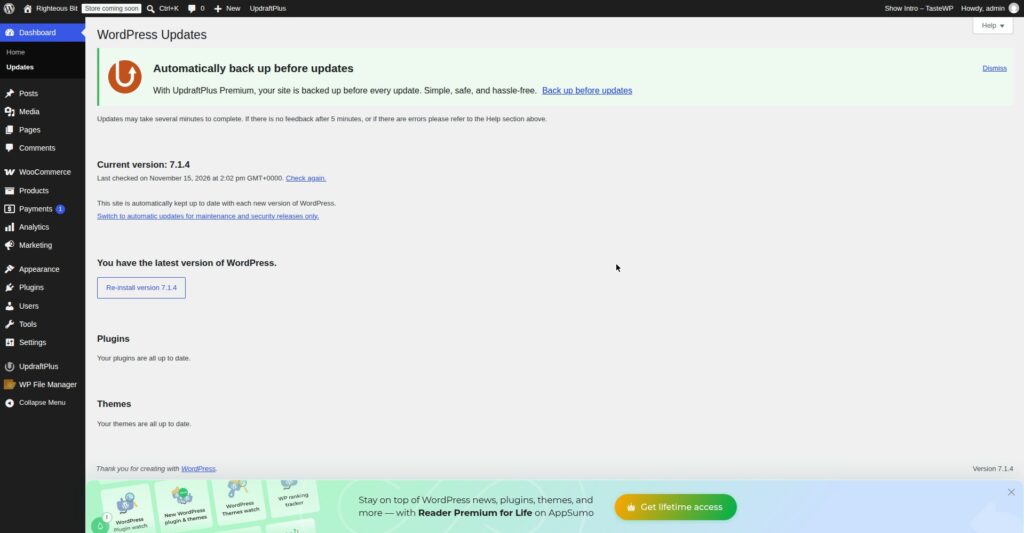
- Dashboard → Updates: nothing interrupted. The Updates screen showed the site on the latest version, with no update offered and no interrupted update waiting to be finished.
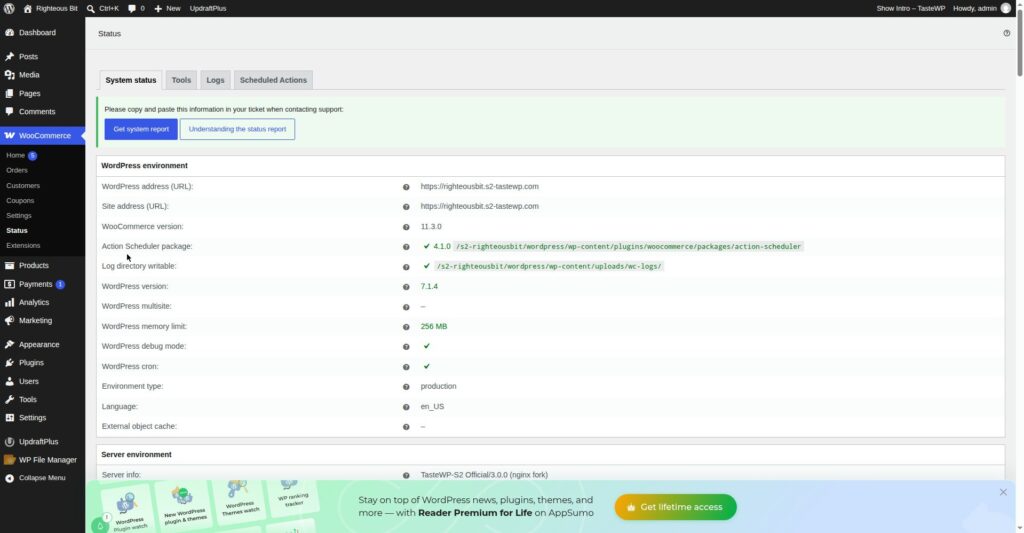
- WooCommerce → Status: no database-update notice. The Status screen showed WordPress 7.1.4 and WooCommerce 11.3.0, with no database-update notice offered. If WooCommerce had a pending database update, it would appear here.
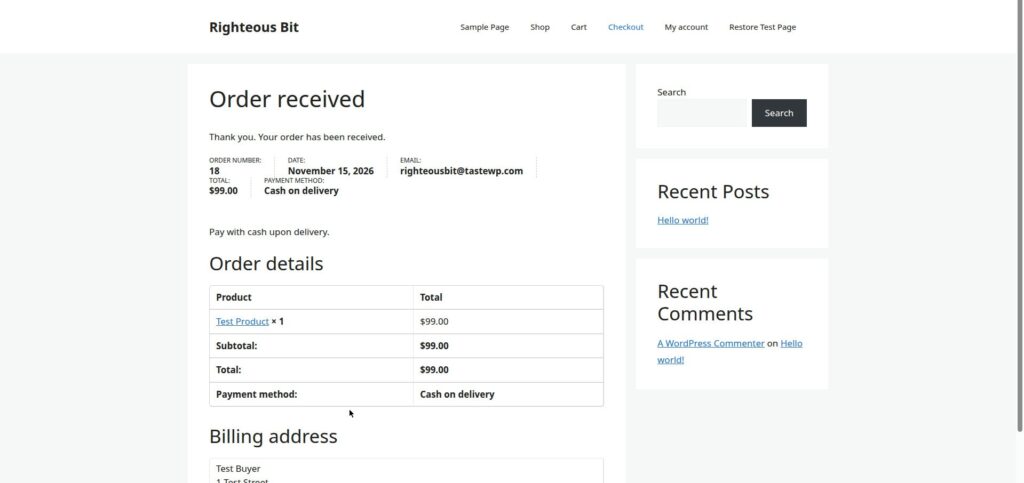
- A test order placed cleanly after re-running an update. After the update was re-run, a test order was placed on the test store — Order 18, $99, cash on delivery — and the “Order received” page loaded normally.
If your site looks like the four screenshots above, it is not stuck in maintenance mode — the problem is something else. If it shows the maintenance message, work through the steps below.
How to fix it, step by step
Step 1: Wait a minute, then check again
The message says “Check back in a minute” for a reason — most updates finish in seconds. Wait a full minute, then reload the site. If the message is gone, the update finished and there is nothing to fix.
Step 2: Delete the .maintenance file — documented procedure, not run in this test
Not run in this test. The file manager on the test host rejects filenames starting with a dot (“.maintenance” — “Invalid file name”), so the file could not be created and this deletion could not be run. The steps below are the documented procedure.
Open the file manager in your hosting panel and go to the site’s root folder — the folder that contains wp-config.php. Turn on “show hidden files” if the file manager has that option, because .maintenance starts with a dot.
Find the file called .maintenance and delete it — only that file. Do not delete anything else in the root folder. Then reload the site. It should load normally.
Step 3: Finish the interrupted update — partly tested
Partly tested. Re-running the update was tested and left no
.maintenancefile behind; the “finish an interrupted update” flow itself was not run, because no update was interrupted.
Go to Dashboard → Updates. If an update is listed as interrupted or waiting, run it now and let it finish completely — do not close the tab while it runs. In this test the Updates screen showed nothing interrupted, and re-running the update left no .maintenance file behind. After the update, place a test order or load a few pages to confirm the site is working — the test order placed after the re-run (Order 18, $99) loaded its confirmation page normally.
Step 4: Check for a stuck database update — tested, none offered
Tested. WooCommerce offered no database-update notice on the test install.
If the stuck message came from a WooCommerce update, there may also be a pending database update. Go to WooCommerce → Status and look for a database-update notice. If one is offered, run it. In this test no notice was offered — the Status screen showed WordPress 7.1.4 and WooCommerce 11.3.0 with nothing pending.
What can go wrong
| Symptom | Likely cause | Fix |
|---|---|---|
| “Briefly unavailable for scheduled maintenance” for more than a minute | .maintenance file left behind by an interrupted update | Delete the .maintenance file from the site root (Step 2 — documented, not run in this test) |
Cannot see the .maintenance file in the file manager | Hidden files are not shown, or the file manager rejects dot-files | Turn on “show hidden files”; if the file manager rejects dot-files, as the test host’s did, use FTP or ask your host to delete it |
| Message returns after deleting the file | The update is still running, or it failed part-way | Finish the update from Dashboard → Updates and let it complete (Step 3) |
| WooCommerce shows a database-update notice | A WooCommerce update needs its database update run | Run it from WooCommerce → Status (Step 4) |
| Site loads but a plugin still shows as updating | That plugin’s update was the one interrupted | Update that plugin again from Dashboard → Updates |
Frequently asked questions
How long does WordPress maintenance mode last?
Normally seconds — the length of the update. If the message is still there after a minute, the update was interrupted and the .maintenance file was left behind. Delete the file (Step 2) and finish the update.
Where is the .maintenance file in WordPress?
In the site’s root folder, next to wp-config.php. It starts with a dot, so it is a hidden file — turn on “show hidden files” in your file manager. If your file manager rejects dot-files, as the test host’s did, use FTP or ask your host.
Can I just delete the .maintenance file?
Yes — that is the fix, and deleting only that file is safe. Do not delete anything else in the root folder. After deleting it, finish the interrupted update from Dashboard → Updates so the update does not stay half-done.
Why does WordPress get stuck in maintenance mode?
The update was interrupted — the browser tab was closed, the connection dropped, or the server timed out mid-update. The .maintenance file is then left behind. Slow or unreliable hosting makes it more likely, which is also why updates should be run when the site is quiet.
Recap checklist
- Waited a full minute and reloaded — the message may clear on its own
- Found and deleted only the
.maintenancefile in the site root (documented procedure — not run in this test, because the file manager rejects dot-files) - Finished the interrupted update from Dashboard → Updates and let it complete
- Checked WooCommerce → Status for a pending database update — none was offered in this test
- Loaded the front page and placed a test order to confirm the site works — Order 18 placed cleanly in this test
What to read next
- Back up before you update anything — How to Back Up Your WordPress Website
- When the site shows nothing at all — How to Fix the WordPress White Screen of Death
- If a plugin update caused the problem — How to Find a WordPress Plugin Conflict
- If you cannot log in after the update — How to Fix WordPress Login Problems
Written by Mohd Shah Ahmad, Learn WordPress Online. He builds and runs live WooCommerce stores in Pretoria, and designed the websites for Aaliyah Perfumes and Stanley’s Bakery. Tested on a WordPress test install — see the “Tested on” box at the top.