
Quick answer
This guide is part of the Fix WordPress Errors hub. If you can log in but mail is the problem, also see how to fix WordPress not sending email, how to fix WordPress stuck in maintenance mode, and how to find a WordPress plugin conflict. If you cannot log in to WordPress, the fix depends on what is actually wrong: a wrong password, a changed login address, a lockout, or a redirect loop. Work through the steps below in order — most login problems are one of these four, and each has a different fix. The two that were tested hardest here are the database password reset (which works) and the renamed-login recovery (which works), plus a lockout that lasted about an hour, not five minutes.
Tested on: WordPress 7.1.4 · Theme: GeneratePress 3.6.1 · PHP 8.4.27 · All-in-One WP Security (AIOS) for the renamed login · Database Manager – WP Adminer 4.3.4.1 for the database reset (the test host has no phpMyAdmin — on your host, use phpMyAdmin; the steps are the same) · Tested 15 November 2026 on a WordPress test install.
What you need before you start
- Access to the hosting file manager or the database, for the password reset and the plugin-folder rename. On this site’s host that is DirectAdmin’s file manager and phpMyAdmin.
- A backup of the site. If you do not have one yet, read How to Back Up Your WordPress Website first. You will be editing the database, and a backup is how you get back if a wrong value is saved.
- A test install if possible. Practise the database reset there first, so you know the steps before you need them on a live site.
How to fix it, step by step
Step 1: Check the obvious — browser, cookies and caps lock — NOT tested
Not tested. The browser used for this test has no private window, so the cookies and logged-out-view steps could not be run. The steps below are the standard checks.
Before you touch anything else: check caps lock, check you are typing the right username (not the email address, unless your site accepts it), and try a private or incognito window. A private window loads the login page with no cookies and no saved password, which rules out a stale cookie or a browser autofill problem in one step. If the private window works, clear your normal browser’s cookies for the site and try again.
Step 2: The redirect loop — NOT reproduced
Not reproduced. Setting
WP_HOMEandWP_SITEURLinwp-config.phpoverrides the database values, so a wrong address in the database did not cause a loop on the test install.
If the login page keeps reloading, or bounces between the login page and the dashboard, the site address and the WordPress address disagree. Check Settings → General — the WordPress Address and the Site Address should both be the same, correct address for the site.
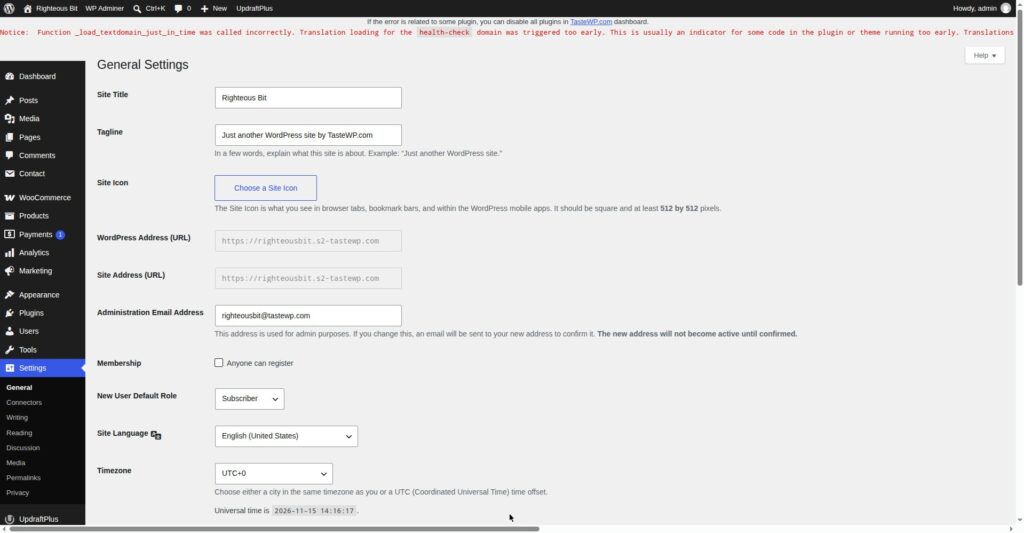
If you cannot reach the dashboard to check, look at the same two values in the database (Step 4 below shows how to open it) — the siteurl and home rows in the wp_options table.
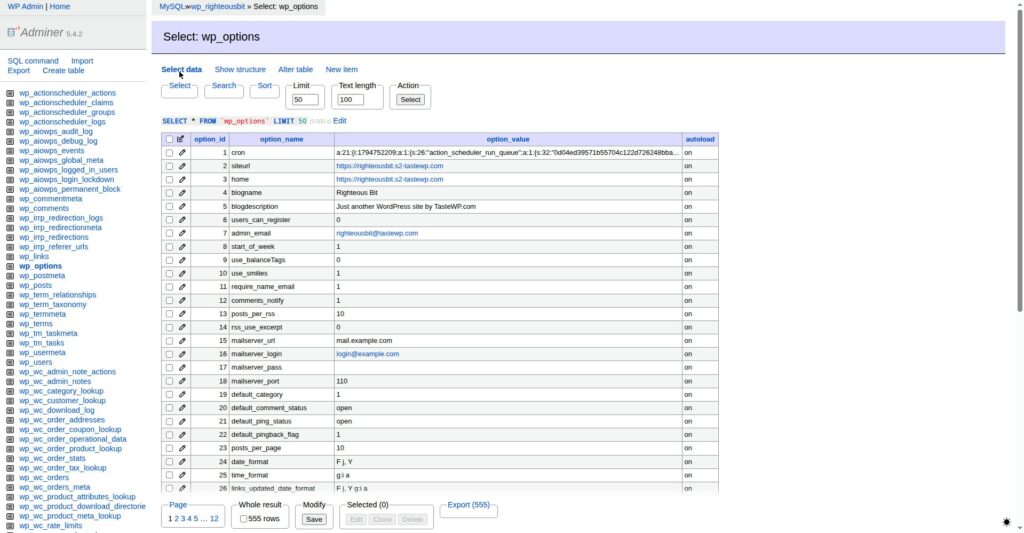
On the test install, wp-config.php sets WP_HOME and WP_SITEURL directly, and those values override whatever is in the database — so a wrong database value did not cause a loop here. If your wp-config.php does not set them, the database values are the ones that matter, and a wrong one there will cause the loop.
Step 3: Reset the password by email — FAILED in this test
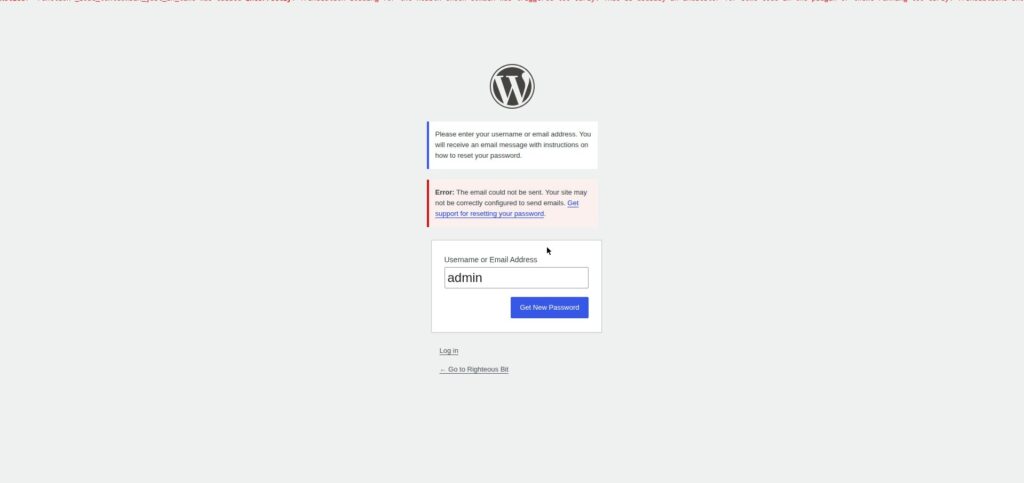
Tested — and it failed. The reset email was never sent, because the test host has no working mail function.
Click Lost your password? on the login page, enter your username or email address, and check your inbox (and spam) for the reset link. In this test the request returned, verbatim:
Error: The email could not be sent…
The password was not changed. No reset email exists to click. If the reset email never arrives on your site either, the problem is mail delivery, not your password — see How to Fix WordPress Not Sending Email — and use the database reset in Step 4 instead.
Step 4: Reset the password in the database — TESTED, works
Tested. The password was reset in the database and the new password logged in. One side effect: it instantly invalidated all existing login sessions — every logged-in browser was logged out.
If the email reset does not work, reset the password directly in the database. The test host has no phpMyAdmin, so this was done with the WP Adminer plugin — on your host, use phpMyAdmin; the steps are the same, and the table and field names are identical.
- Open the database and find the
wp_userstable. - Find your user row and click Edit.
- Find the
user_passfield. Next to it there is a Function dropdown — set it to MD5 before you type the new password. (The dropdown value is small in the screenshot below — check it reads MD5 before saving, or the password will be stored as plain text and will not work.) - Type the new password in the
user_passfield. - Save. Log in with the new password.
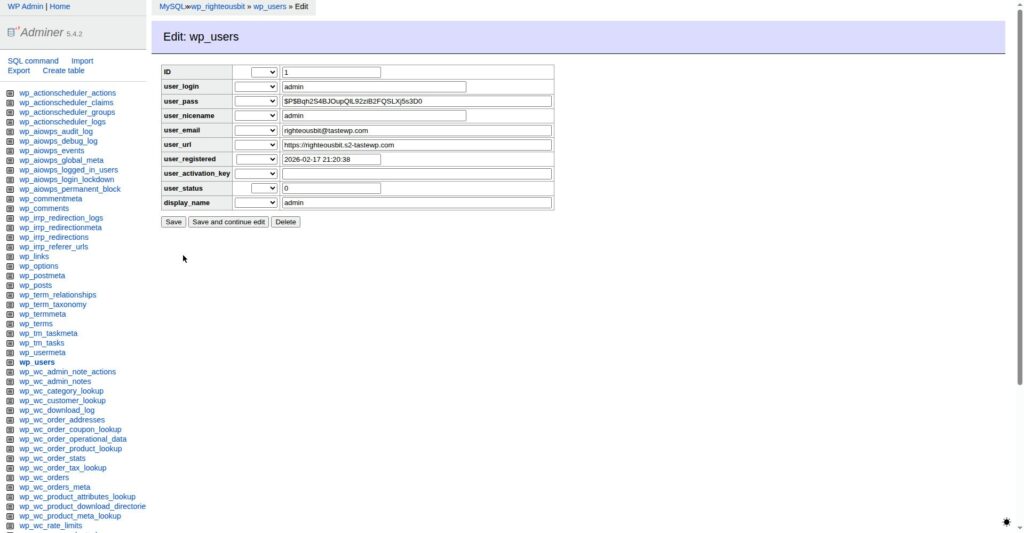
The new password worked immediately. The side effect to know about: resetting the password this way instantly invalidates all existing login sessions, so every browser logged in as that user is logged out at once. That is expected — it is also why this method is safe to use if you suspect someone else has the old password.
Step 5: The login page moved — renamed login, TESTED
Tested. The login was renamed with All-in-One WP Security, and the recovery by renaming the plugin folder worked.
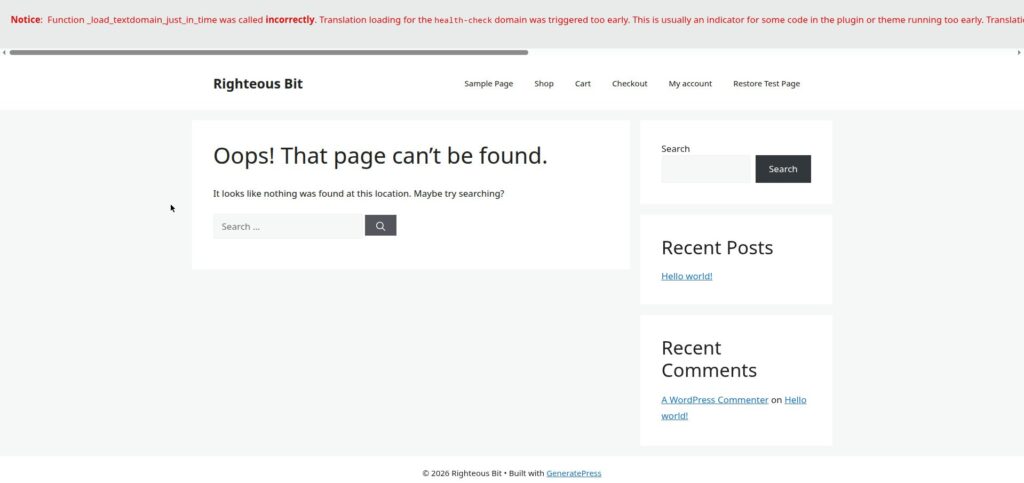
Some security plugins rename the login page — for example, from /wp-login.php to /my-secure-login/ — so bots cannot find it. If that is set up and you forget the new address, the normal login page will not work. Correction from this test: the two addresses do not fail the same way. With AIOS renaming the login to my-secure-login, /wp-admin/ showed an error, not a 404 — and /wp-login.php showed the theme’s 404 page (“Oops! That page can’t be found.”). If you see the theme 404 on /wp-login.php, the login has probably been renamed — do not keep trying the old address.
To get back in, rename the security plugin’s folder in the file manager — for example, rename all-in-one-wp-security-and-firewall to all-in-one-wp-security-and-firewall-off. That deactivates the plugin, and the normal login page comes back.
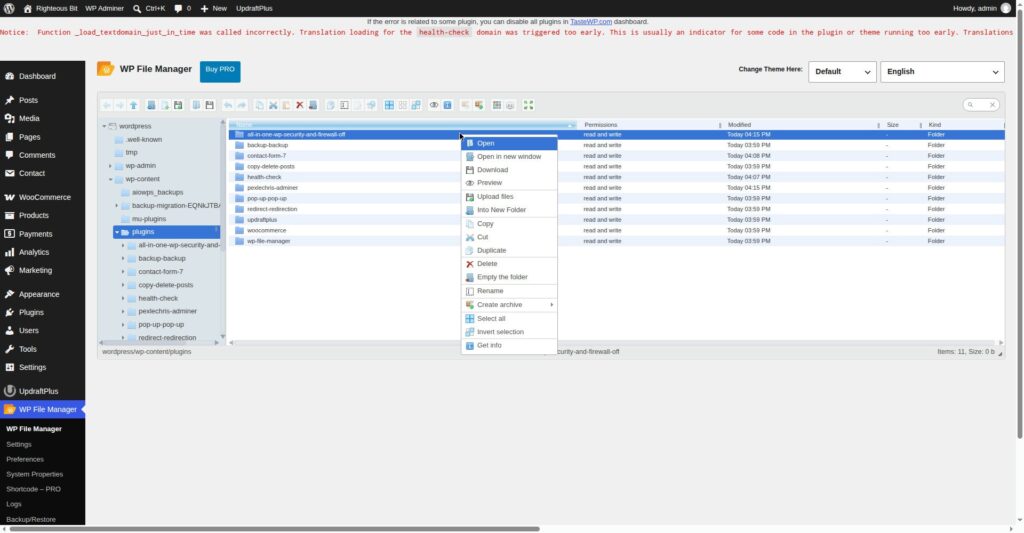
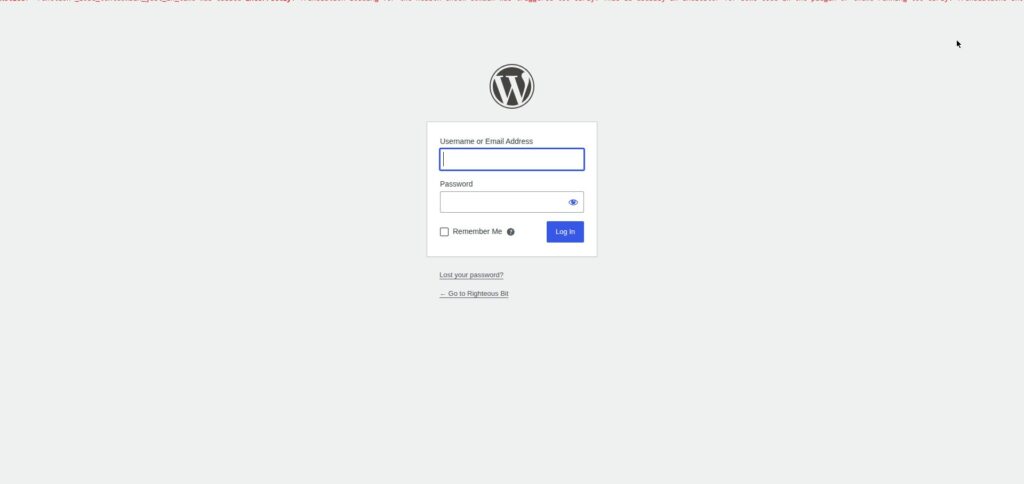
After the rename, the normal login form was back at /wp-login.php.
The 404 page itself, for reference:
Once you are logged in, rename the folder back, open the security plugin’s settings, and write the custom login address down somewhere safe.
Step 6: Locked out — it lasts about an hour, not five minutes
Tested. The lockout worked, but it took about 60 minutes to clear — not 5.
Too many failed login attempts can lock the account. In this test the lockout was still in force at 58 minutes, and the login form was back at 68 minutes. Attempts made while locked out extend the lockout, up to the 60-minute maximum — so do not keep trying the password while you are locked out; it only makes the wait longer. Wait the full hour, then try once.
If you cannot wait, the lockout is stored by the security plugin — deactivating that plugin by renaming its folder (Step 5) also clears the lockout.
What can go wrong
| Symptom | Likely cause | Fix |
|---|---|---|
| “Error: The email could not be sent…” on the reset form | The host has no working mail function | Reset the password in the database (Step 4) — the email reset cannot work until mail does |
| New password does not work after a database reset | The Function dropdown was not set to MD5 | Edit the user again, set Function to MD5, retype the password, save |
/wp-login.php shows the theme 404 page | A security plugin renamed the login page | Rename the plugin’s folder to deactivate it (Step 5), then log in at the normal address |
/wp-admin/ shows an error, not a 404 | Same renamed-login cause — the two addresses fail differently | Same fix as above — this was the behaviour in this test |
| Locked out after failed attempts | Too many failed logins | Wait the full hour (about 60 minutes in this test, not 5); do not keep trying, or the lockout extends |
| Login page reloads forever | Site address and WordPress address disagree | Check Settings → General, or the siteurl and home rows in wp_options (Step 2) — not reproduced in this test |
| Password reset logs everyone out | Resetting the password invalidates all sessions | Expected — log in again in each browser; it is also a security benefit |
Frequently asked questions
I forgot my WordPress password — how do I reset it?
Use Lost your password? on the login page first. If the email never arrives — in this test it failed with “Error: The email could not be sent…” — reset the password in the database instead: open wp_users, edit your user, set the Function dropdown next to user_pass to MD5, type the new password, and save.
Why does /wp-login.php show a 404 page?
Usually because a security plugin renamed the login page. With AIOS in this test, /wp-login.php showed the theme 404 while /wp-admin/ showed an error. Rename the security plugin’s folder in the file manager to deactivate it, and the normal login page comes back.
How long does a WordPress login lockout last?
About an hour in this test — still locked at 58 minutes, form back at 68 minutes — not the five minutes some guides claim. Do not keep trying while locked out; failed attempts extend the lockout to the 60-minute maximum.
Will resetting my password in the database log everyone out?
Yes — it instantly invalidates all existing login sessions for that user. Every browser logged in as that user is logged out at once. Log in again in each browser.
Recap checklist
- Tried a private window and checked caps lock (not tested in this guide — the test browser has no private window)
- Checked Settings → General — WordPress Address and Site Address match (no loop was reproduced in this test)
- Tried the email reset — failed in this test with “Error: The email could not be sent…”
- Reset the password in the database with Function set to MD5 — worked, and logged all sessions out
- Recovered a renamed login by renaming the security plugin’s folder — worked, normal login form restored
- Waited out the lockout — about 60 minutes, not 5
What to read next
- When the reset email never arrives — How to Fix WordPress Not Sending Email
- Back up before you touch the database — How to Back Up Your WordPress Website
- When the site shows nothing at all — How to Fix the WordPress White Screen of Death
- If a plugin update caused the problem — How to Find a WordPress Plugin Conflict
Written by Mohd Shah Ahmad, Learn WordPress Online. He builds and runs live WooCommerce stores in Pretoria, and designed the websites for Aaliyah Perfumes and Stanley’s Bakery. Tested on a WordPress test install — see the “Tested on” box at the top.