
Quick answer
This is part of the Grow and Protect Your WordPress Site hub, which covers keeping a WordPress site fast, backed up and up to date. Analytics tells you what visitors do on the site you have built, so it pairs with how to speed up WordPress — a faster site keeps more of the visitors you measure; before you install anything, make a backup with how to back up your WordPress website, and keep the site running well with how to update WordPress safely. The simplest free way to add Google Analytics to WordPress is Google’s own Site Kit plugin: install it, sign in with your Google account, and let it create the Analytics property and add the tracking code for you. No code needs to be pasted anywhere, and no paid plugin is needed. After setup, open your site once so Analytics has something to record, then check the Site Kit dashboard — data takes a few hours to appear, and a new property starts at zero, which is normal.
One honest limit from this test: connecting Analytics needs a Google sign-in, and on the test install Google stopped at a “Verify that it’s you” phone check that only the site owner can complete, so the test-install connection was not finished. The steps below were tested on a WordPress test install, and the screenshots of the connected account are from this live site.
The steps in this guide were tested on a WordPress test install
Tested on: WordPress 7.1.4 · Theme: GeneratePress 3.6.1 · PHP 8.5.12 · Site Kit by Google 1.191.0 · Tested 16 November 2026. The test-install attempt is described in Step 2.
What you need before you start
- Access to the WordPress admin (an Administrator).
- A Google account you control. This is the account Analytics will belong to. Use the account you want the site’s data under — moving Analytics to another account later is work you do not want.
- A backup of the site. If you do not have one yet, read How to Back Up Your WordPress Website first. Installing a plugin is low risk, but back up anyway.
- A few minutes and a phone nearby. Google may ask you to verify the sign-in on your phone during setup.
How to add Google Analytics, step by step
Step 1: Install Site Kit by Google
Go to Plugins → Add New, search for “Site Kit by Google”, install it and activate it. Site Kit is Google’s own free plugin — it connects WordPress to Analytics, Search Console and PageSpeed Insights from one dashboard. If you have not installed a plugin before, the steps are in How to Install a WordPress Plugin.
Step 2: Sign in with Google and let Site Kit set up Analytics
Open Site Kit → Dashboard (or click “Start setup” after activation). Site Kit asks you to sign in with Google — use the Google account you want the data under — and then asks for permission to manage Analytics, Search Console and PageSpeed on your behalf. Accept the permissions. Site Kit then checks whether an Analytics property already exists for your site: if one does, it offers to connect it; if none does, it creates a new GA4 property for you and adds the tracking snippet to your site automatically. This live site runs Site Kit with GA4 (property 564301426, measurement ID G-MEYXDX9R22), with Search Console and PageSpeed Insights connected as well. You do not paste any tracking code yourself.
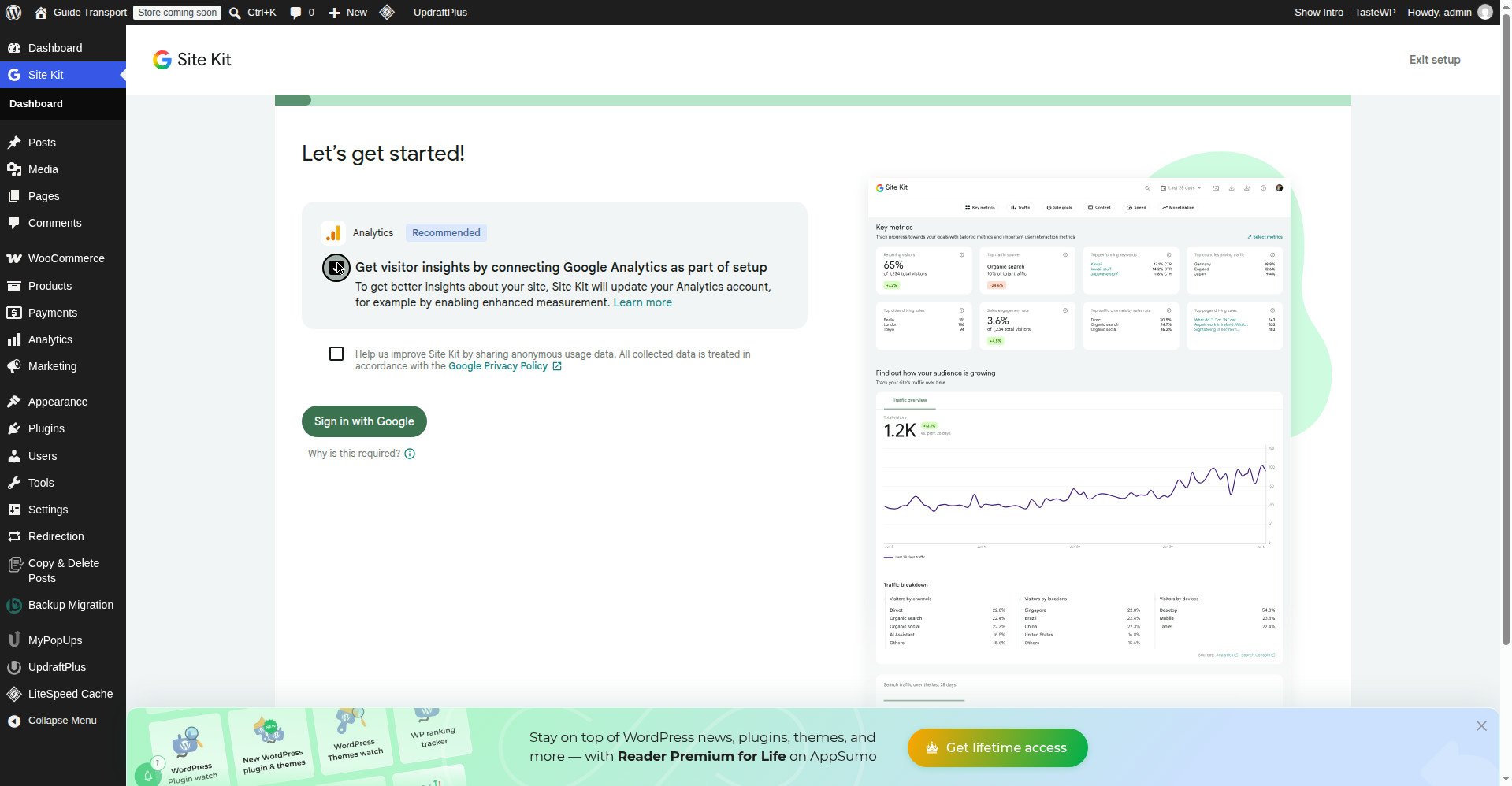
What happened on the test install: after clicking “Sign in with Google”, Google’s account chooser offered the signed-in account, and then Google stopped at a “Verify that it’s you” screen — it sent a notification to the owner’s iPhone and asked them to tap Yes and then tap the number shown on screen. That check can only be done by the account owner on their own phone, so the test-install connection stopped there. If Google asks you to verify during your setup, approve it on your phone and the setup continues to the consent screen, then back to Site Kit.
Step 3: Confirm the tracking code is on your site
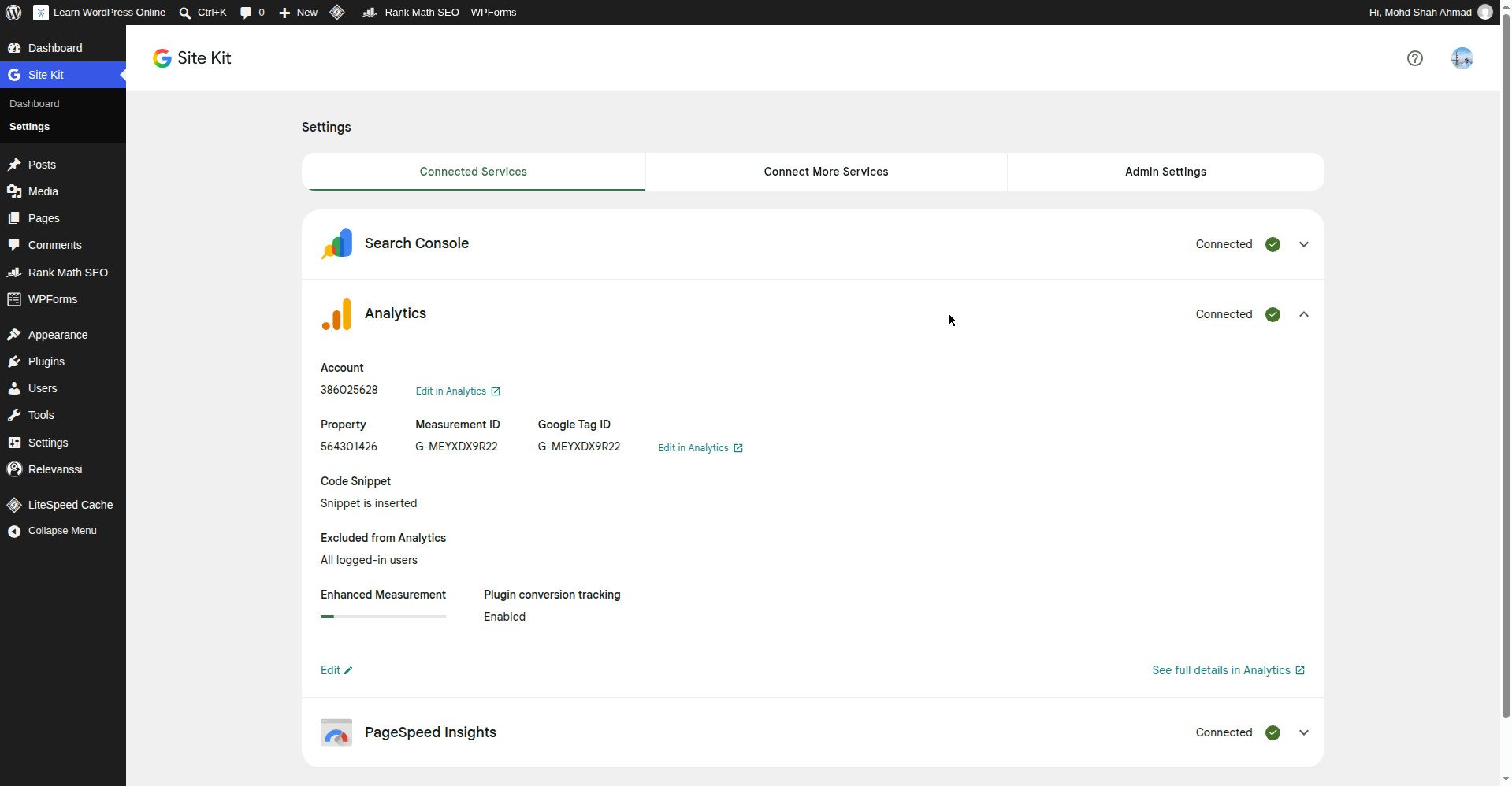
After setup, Site Kit’s dashboard should show Analytics as “Connected”. The surest check is Site Kit → Settings → Connected Services: on this live site, Search Console, Analytics and PageSpeed Insights all show “Connected” with green ticks, and expanding Analytics shows Account 386025628, Property 564301426, Measurement ID G-MEYXDX9R22, and “Code Snippet: Snippet is inserted” — meaning the tracking code is on the live site.
Open your site’s homepage in a new tab — that visit is the first thing Analytics records. Then, in the WordPress admin, open Site Kit → Dashboard again: the Analytics section should show that data is being collected, even if the numbers are still zero. If Site Kit says Analytics is connected but shows an error, check the connection status in Site Kit → Settings → Connected Services and reconnect it from there.
Step 4: Check the data in Analytics
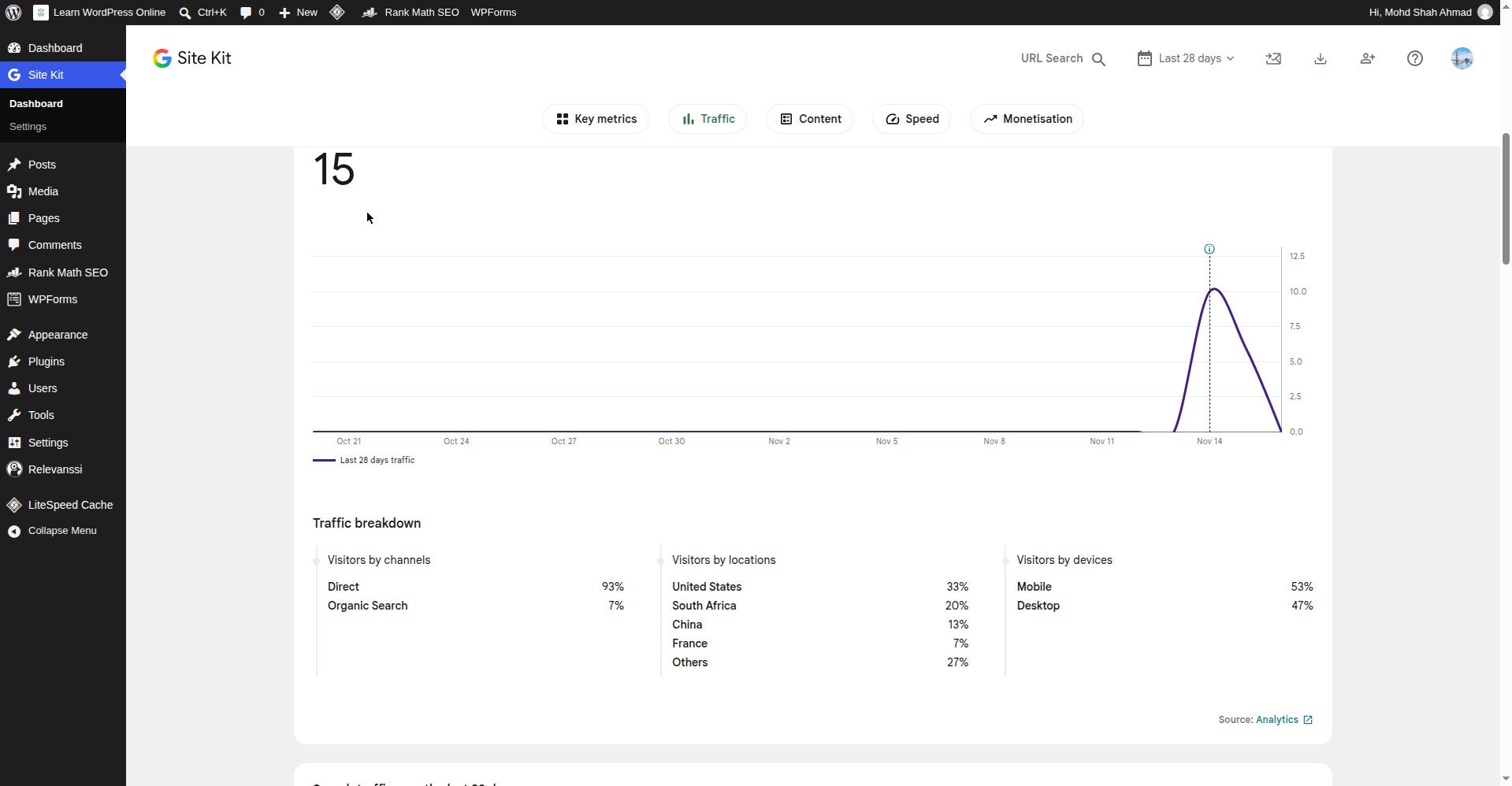
Data does not appear instantly. Open Google Analytics itself (analytics.google.com) and select your new property. For the first few hours you will see little or nothing — that is normal for a new property. After a day, the Reports snapshot should show your visits: how many users, which pages they viewed, and where they came from. The first numbers on this site were 14 active users and 21 sessions in the first two days, with 7 sessions from Google search — small, but real, and the first proof the tracking works. Site Kit’s own dashboard showed the same story: 15 total visitors over the first days (10 on 14 November, 6 on 15 November), 93% direct visits and 7% from Google search.
Step 5: What to look at first
Once data is flowing, the three reports worth checking weekly are: (1) Traffic acquisition — where visitors come from (Google search, direct visits, social media); (2) Pages and screens — which pages people actually read; (3) Demographics overview — which countries visitors are in. Those three tell you what to write more of. Do not check Analytics every hour — the numbers move too slowly for that, and a new site’s early numbers will look small. Check weekly, and compare each week with the one before.
One more early sign worth watching: Search Console, which Site Kit connected at the same time, already showed this site appearing in Google Search within two days — 11 impressions and 3 clicks in the first days, for queries like “how to change default product image in woocommerce”. Impressions mean the site is showing up in results; clicks mean people are choosing it. That is the traffic Analytics will count once it grows.
What can go wrong
| Symptom | Likely cause | Fix |
|---|---|---|
| Site Kit says Analytics is not connected | The Google sign-in was not completed, or the wrong Google account was used | Open Site Kit → Settings → Connected Services and reconnect Analytics with the right account |
| Google asks to verify it is you during setup | Normal Google security check | Approve it on your phone (tap Yes, then the number shown); the setup continues after that |
| Analytics shows 0 users after a day | The tracking snippet is not on the site, or no one has visited yet | Visit the site yourself, wait a few hours, then check again; confirm Site Kit still shows “Connected” and “Snippet is inserted” |
| Data appears in Site Kit but not in Analytics | Analytics processing delay | Wait 24–48 hours — Analytics data is not real-time except in the Realtime report |
| Two Analytics properties exist for one site | Site Kit created one, and another was created by hand or by another plugin | Use only one — disconnect the duplicate in Site Kit settings so data is not split across two properties |
| Site Kit says the web data stream is no longer available | The stream was removed or changed in Google Analytics | Open Site Kit → Settings → Analytics → Edit and select a new web data stream so data collection continues |
| The Site Kit dashboard shows an error after setup | A permission was declined during sign-in | Reconnect the service in Site Kit settings and accept all the permissions it asks for |
Frequently asked questions
How do I add Google Analytics to WordPress for free?
Install the free Site Kit by Google plugin, sign in with your Google account, and let Site Kit create the Analytics property and add the tracking code. No paid plugin and no pasted code are needed.
Do I need to paste the Google Analytics tracking code myself?
No, not with Site Kit — it adds the snippet for you when it connects Analytics. Pasting the code by hand is the old way, and doing both (Site Kit plus a pasted snippet) double-counts your visitors, so use one method only.
How long does Google Analytics take to show data?
A few hours for the first visits to appear, and 24–48 hours before the reports look complete. A brand-new property starts at zero, which is normal — the first visits on this site took two days to show 14 users.
What is the difference between Google Analytics and Search Console?
Analytics shows what visitors do on your site (pages viewed, time spent, where they came from). Search Console shows how your site appears in Google Search (which queries show it, clicks, impressions, and whether pages are indexed). This site uses both: Site Kit connected them at the same time.
Can I use Google Analytics without a plugin?
Yes — you can paste the tracking snippet into your theme — but Site Kit is simpler and avoids double-counting. If you already use a plugin that adds Analytics, do not also install Site Kit for Analytics, or your numbers will be wrong.
Is Google Analytics free?
Yes, the standard version is free. There is a paid version (Analytics 360) for very large sites, which a small tutorial site does not need.
Recap checklist
- Installed Site Kit by Google and activated it
- Signed in with the Google account you want the data under
- Let Site Kit create (or connect) the Analytics property — no code pasted by hand
- Confirmed Analytics shows “Connected” in Site Kit settings, with “Snippet is inserted”
- Visited the site once so Analytics has something to record
- Checked the Analytics reports after 24 hours and noted the first numbers
What to read next
- Back up before installing any plugin — How to Back Up Your WordPress Website
- Install a plugin properly — How to Install a WordPress Plugin
- Speed up the site you are now measuring — How to Speed Up WordPress
- Keep the site updated — How to Update WordPress
Written by Mohd Shah Ahmad, Learn WordPress Online. He builds and runs live WooCommerce stores in Pretoria, and manages the live stores Stanley’s Bakery (stanleysbakery.co.za) and Aaliyah Perfumes (aaliyahperfumes.co.za). The steps in this guide were tested on a WordPress test install (see the “Tested on” box at the top).