
Quick answer
This guide is part of the Fix WordPress Errors hub. If this does not fix your site, also see how to fix the WordPress white screen of death, how to fix the 500 internal server error in WordPress, and how to find a WordPress plugin conflict. “Error establishing a database connection” means WordPress cannot reach its database. Most often the cause is wrong database credentials in wp-config.php, a database server that is down, or corrupted database tables. Check the database name, username, password and host in wp-config.php against the values in your hosting panel first — that one check fixes most cases. Back up before you change anything, and practise on a test install if you can.
Read this before you start, because two parts of this guide were deliberately not tested. Breaking the database password or host on purpose — to see the 1045 and 2002 errors — would have bricked the only healthy test install, with no file manager or login left to fix it from, and would have stopped the other articles in this set from being tested at all. So those two breaks were not attempted, and the error page itself was not reproduced. What was tested is the rest: the backup, the debug logging, the credential check, and the full WP_ALLOW_REPAIR flow on a healthy database — all 22 tables reported fine, and the repair page was confirmed blocked again after the line was removed.
Tested on: WordPress 7.1.4 · Theme: GeneratePress 3.6.1 · PHP 8.4.27 · Tested 15 November 2026 on a WordPress test install. The “Error establishing a database connection” page itself, the wrong-password (1045) break and the wrong-host (2002) break were not reproduced — deliberately, see above. The repair flow was tested on a healthy database, not a corrupted one.
What you need before you start
- Access to your hosting panel — on this site’s host that is DirectAdmin — and to the file manager, so you can edit
wp-config.php. - Access to phpMyAdmin, from inside your hosting panel. The test install used for this guide has no DirectAdmin or phpMyAdmin; its database work was done with the WP Adminer plugin instead, and the DirectAdmin clicks below are the standard flow for a host that has it.
- A backup of the site. If you do not have one yet, read How to Back Up Your WordPress Website first. Do not edit
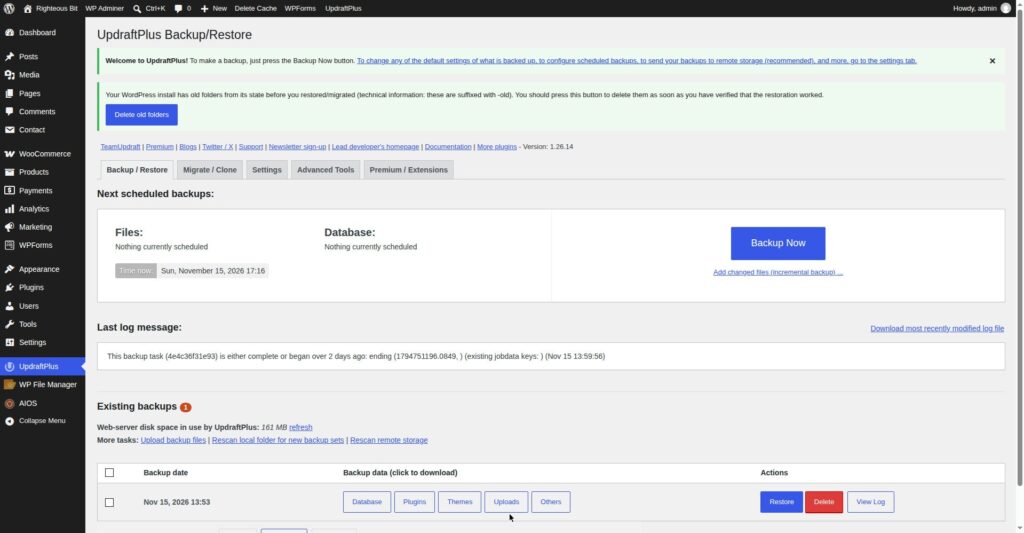
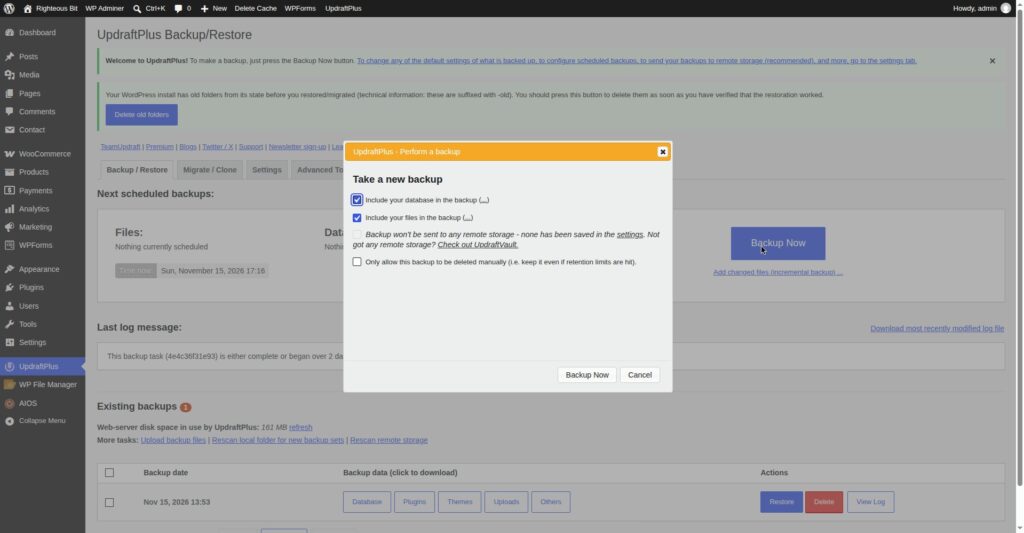
wp-config.phpor repair database tables without a backup you can restore from. A fresh backup was taken on the test install before this guide’s work began — the UpdraftPlus backup run completed at 17:16:53 on 15 November 2026, and the existing backups were verified first.
What the error means
WordPress stores almost everything — posts, pages, settings, users, products and orders — in a MySQL database. Every time a page loads, WordPress connects to that database using four details stored in wp-config.php: the database name (DB_NAME), the database username (DB_USER), the database password (DB_PASSWORD) and the database host (DB_HOST).
When the connection fails, WordPress cannot load anything, so it shows a plain white page with one line:
Error establishing a database connection
There is no dashboard, no front end and no detail on that page. The detail is in the error log, which is why the first real step is to read the log rather than guessing.
The causes, in the order to check them: wrong credentials in wp-config.php (most common — after a migration, a password change, or a typo while editing the file); the database server down, or DB_HOST pointing at the wrong server; corrupted database tables; and MySQL error 1045, “Access denied for user”, which means the username or password is wrong or that user has no permission on the database.
How to fix it, step by step
Step 1: Read the real error with WP_DEBUG_LOG
Open wp-config.php in your hosting file manager and find the line define( 'WP_DEBUG', false );. Change it temporarily to:
define( 'WP_DEBUG', true );
define( 'WP_DEBUG_LOG', true );
define( 'WP_DEBUG_DISPLAY', false );
Save the file, load your site once, then open wp-content/debug.log and read the last few lines. Look for the MySQL error number: 1045 means access denied, 2002 or “Connection refused” points at the host or a down server, and a table name with “is marked as crashed” points at corrupted tables.
When you have the error, turn debugging off again by setting WP_DEBUG back to false. Leaving it on writes to the log on every page load.
Correction from this test — which log file is the live one. With WP_DEBUG_LOG set to true, WordPress writes to wp-content/debug.log — a new file inside wp-content. On the test install there was also a debug.log in the site root, 199 KB, left over from an earlier session — and that file was stale: it did not grow while logging was on. If you open the wrong one, you will read old errors and miss the new ones. Check the file’s modified time: the live log is the one that grows when you load a page.
The log line captured in this test was a notice, not a MySQL error — the test database was healthy, so no connection error appeared. The line read, verbatim:
PHP Notice: Function _load_textdomain_just_in_time was called incorrectly. Translation loading for the health-check domain was triggered too early.That is a plugin notice, not a database error, and it is the kind of line you learn to ignore once you know the log format: date, time, the error level, and the file and line it came from. In this test the same notice appeared on screen as well, with a different line number — the log said line 6260, the screen said line 6121 — so quote the log’s version, not the screen’s, when you report an error.
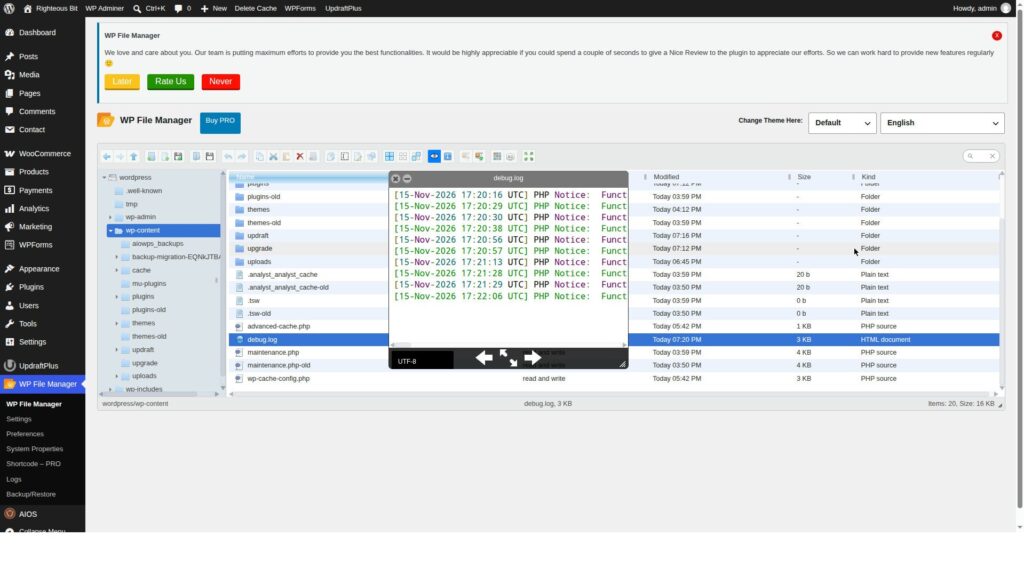
After the checks, WP_DEBUG and WP_DEBUG_LOG were set back to false, and logging stopped — the home page and dashboard loaded clean afterwards, with no new log entries.
Step 2: Check the credentials in DirectAdmin, then test them in phpMyAdmin
Partly tested. The four
DB_lines were checked on the test install (screenshot below, password blacked out). The wrong-password and wrong-host breaks were deliberately not attempted — they would have bricked the only healthy test install. The DirectAdmin and phpMyAdmin clicks below are the standard flow and were not run on this host.
Open DirectAdmin and find your database details — the database name, the database user and the host. Compare each one, character by character, with the four lines in wp-config.php:
define( 'DB_NAME', 'your_database_name' );
define( 'DB_USER', 'your_database_username' );
define( 'DB_PASSWORD', 'your_database_password' );
define( 'DB_HOST', 'localhost' );
The values in quotes are examples — yours will be different. What matters is that the values in wp-config.php match what DirectAdmin shows exactly, including capital letters. On the test install the four lines were present and correct — database name and username wp_righteousbit, host 127.0.0.1 — with the password blacked out in the screenshot below for obvious reasons. Never publish a screenshot that shows a real database password.

Then test the credentials: log in to phpMyAdmin from DirectAdmin with the same database username and password. If phpMyAdmin logs in and shows your database and its tables, the credentials are correct and the problem is elsewhere. If phpMyAdmin refuses the same login, the password is wrong or the user has lost access — reset the database user’s password in DirectAdmin, update DB_PASSWORD in wp-config.php to match, and load the site again.
If DB_HOST is not localhost on your host, do not change it to localhost on a guess. Use exactly the host value your hosting panel shows for that database. On the test install the host was 127.0.0.1, not localhost.
Step 3: Repair the tables with WP_ALLOW_REPAIR — then remove the line
Tested — on a healthy database. The full flow was run: the line was added, the repair page loaded, “Repair Database” ran, and the line was removed with the page confirmed blocked again. No tables were corrupted, so this proves the flow works — not that it fixes corruption.
Only do this step if the error, or the debug log, points at corrupted or unavailable tables. The message to look for is:
One or more database tables are unavailable. The database may need to be repaired.
Add this line to wp-config.php, above the line that says “That’s all, stop editing!”:
define( 'WP_ALLOW_REPAIR', true );Save the file, then visit https://yoursite.co.za/wp-admin/maint/repair.php in your browser, replacing yoursite.co.za with your own domain. Click Repair Database and wait for it to finish — it reports which tables were repaired and which were already fine.
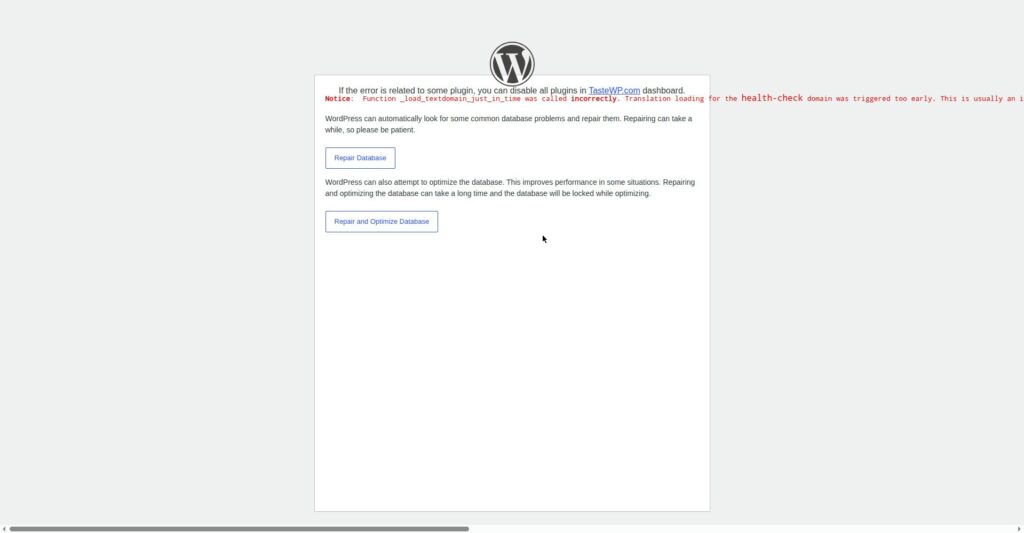
In this test the repair ran on the healthy database and reported all 22 tables fine — every line read “The wp_… table is okay.” That is the result you want to see when the tables are not the problem.
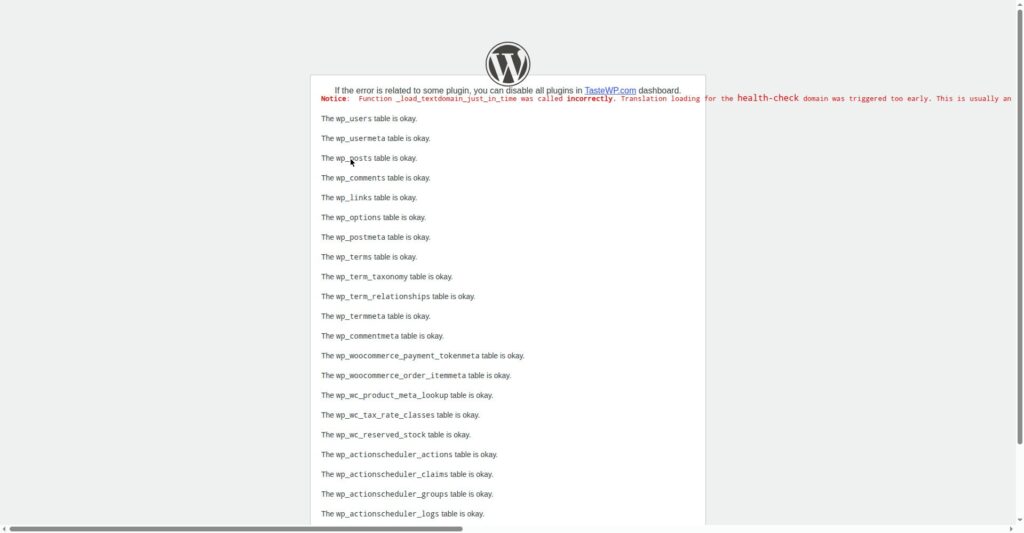
Then go back to wp-config.php and remove the WP_ALLOW_REPAIR line completely. This is not optional. While that line is in place, anyone can visit the repair page and run a repair on your database. Remove it, save the file, and load your site to check it is back. In this test the line was removed and the repair page was confirmed blocked again — it returned “Sorry, you are not allowed to access this page.” That confirmation matters: do not assume the line is gone, check the page is blocked.
Step 4: Check the database server status in the hosting panel
Not tested on this host — the test install has no DirectAdmin panel to check. The steps below are the standard flow.
If the credentials are correct, phpMyAdmin works, and there are no corrupted tables, the database server itself is the likely problem. Check the database server status in your hosting panel, and check whether your host has reported an outage or maintenance. If the server is down, there is nothing to fix inside WordPress — contact support with the exact error from your debug log.
Also note whether the error comes and goes. A server that is briefly overloaded can produce this error for a few minutes and then recover. If it keeps coming back, that is a hosting problem to raise with support, not a setting to keep changing in WordPress.
What can go wrong
| Symptom | Likely cause | Fix |
|---|---|---|
| “Error establishing a database connection” on every page | Wrong credentials in wp-config.php, or database server down | Work through Steps 1 and 2, then Step 4 |
| Error appears right after a migration or password change | Credentials changed, wp-config.php still has the old ones | Update DB_NAME, DB_USER, DB_PASSWORD and DB_HOST to the new values |
| MySQL error 1045, “Access denied for user” in the log | Wrong username or password, or the user has no permission on that database | Test the same login in phpMyAdmin; reset the database user password in DirectAdmin and update wp-config.php — the 1045 break was not reproduced in this test, deliberately |
| “One or more database tables are unavailable” | Corrupted database tables | Run the repair in Step 3, then remove the WP_ALLOW_REPAIR line |
| Error 2002 or “Connection refused” in the log | Wrong DB_HOST, or the database server is not reachable | Use the exact host value from your hosting panel; check the server status in Step 4 — the 2002 break was not reproduced in this test, deliberately |
| Error comes and goes | Database server overloaded, or hosting limits being hit | Note when it happens and contact your host with the times and the debug log lines |
| The debug.log you open shows only old errors | You opened a stale log file — on this test install the site-root debug.log was 199 KB and did not grow | Open wp-content/debug.log (when WP_DEBUG_LOG is true) and check the file’s modified time |
Frequently asked questions
What does “Error establishing a database connection” mean?
It means WordPress tried to connect to its MySQL database and failed. WordPress stores your content and settings in the database, so without that connection it cannot load any page. The usual causes are wrong credentials in wp-config.php, a database server that is down, or corrupted tables.
How do I fix “Error establishing a database connection” in WordPress?
Check the four database details in wp-config.php against your hosting panel first, test the same login in phpMyAdmin, then read wp-content/debug.log for the real MySQL error. Repair corrupted tables with WP_ALLOW_REPAIR only if the log points at damaged tables, and remove that line afterwards. The credential breaks and the error page itself were deliberately not reproduced for this guide — see the note at the top.
What is MySQL error 1045 in WordPress?
Error 1045 means “Access denied for user” — the database username or password WordPress is using is wrong, or that user does not have permission on that database. Test the same username and password in phpMyAdmin. If phpMyAdmin refuses them too, reset the database user’s password in your hosting panel and update wp-config.php. This error was expected but not reproduced in this guide’s test, deliberately — breaking the password would have bricked the only healthy test install.
What does “One or more database tables are unavailable” mean?
It means WordPress connected to the database but found one or more tables damaged or unreadable. Add define( 'WP_ALLOW_REPAIR', true ); to wp-config.php, visit /wp-admin/maint/repair.php, click Repair Database, then remove the line from wp-config.php as soon as the repair is done. The repair flow was tested on a healthy database for this guide — all 22 tables reported fine.
Should I contact my host about this error?
Yes, if the credentials are correct, phpMyAdmin works, and the tables are not corrupted. Give them the exact error from debug.log, the time it started, and what you have already checked. That saves a round of “have you checked your password” replies and gets you to the server-side answer faster.
Recap checklist
- Backed up the site before changing anything
- Turned on
WP_DEBUG_LOG, readwp-content/debug.log, and found the real MySQL error - Checked
DB_NAME,DB_USER,DB_PASSWORDandDB_HOSTinwp-config.phpagainst DirectAdmin, character by character - Tested the same credentials in phpMyAdmin
- Repaired tables with
WP_ALLOW_REPAIRonly if the log showed damaged tables — and removed the line afterwards - Checked the database server status in the hosting panel, and turned
WP_DEBUGback off
What to read next
- Back up first, every time — How to Back Up Your WordPress Website
- Another site-down error — How to Fix the WordPress White Screen of Death
- If the problem started after a plugin update — How to Find a WordPress Plugin Conflict
Written by Mohd Shah Ahmad, Learn WordPress Online. He builds and runs live WooCommerce stores in Pretoria, and designed the websites for Aaliyah Perfumes and Stanley’s Bakery. Tested on a WordPress test install — see the “Tested on” box at the top.