
Quick answer
Adding a coupon code in WooCommerce takes about two minutes: go to Marketing → Coupons, create the coupon, set the discount type and amount, add any usage restrictions, and test it at checkout before telling customers about it. Always test the coupon with a real checkout before you publish the code anywhere.
This is part of the Build a WooCommerce Store hub, which walks through setting up your shop, adding products and taking payments. A coupon needs a product with a price behind it, so make sure you know how to add products in WooCommerce and how to set a sale price in WooCommerce first — coupons do not apply to products already on sale — and see how to manage orders in WooCommerce for what happens once customers start using the code. The most common reason a coupon “does not work” is a restriction you set yourself — an expiry date, a minimum spend, a product it does not apply to, or a usage limit that has already been reached.
Tested on: WordPress 7.1.4 · WooCommerce 11.3.0 · Theme: GeneratePress 3.6.1 · PHP 8.4.27 · Tested 15 November 2026 on a WordPress test install. The three upload errors in the troubleshooting table were not triggered — they only arise from a ZIP upload, which cannot be tested in this environment. The “Usage restriction” and “Usage limits” tabs were described from the test record; no screenshot frame shows those tabs.
What you need before you start
- A WooCommerce store with at least one product that has a price. This guide’s test store had one product, “Test Product R499”, priced at R499.00 with 20 in stock. If you do not have a store yet, start with How to Set Up WooCommerce for the First Time.
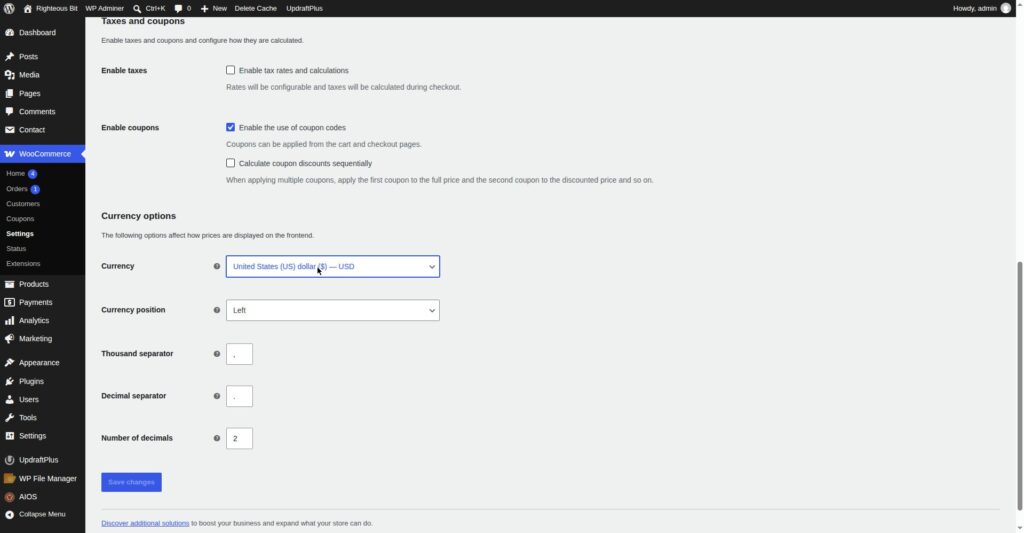
- Coupons enabled in WooCommerce. In WooCommerce → Settings → General, under “Taxes and coupons”, tick “Enable coupons”. If that box is unticked, the whole coupon system disappears — the “Add coupons” section is gone from checkout, and there is no Coupons menu at all. The box was ticked in this test, as the screenshot below shows.
- A backup of the site. If you do not have one yet, read How to Back Up Your WordPress Website first. Creating a coupon is low risk, but back up before you change store settings anyway.
How to add a coupon code, step by step
Step 1: Open Marketing → Coupons
In the WordPress admin, go to Marketing → Coupons. The direct path is /wp-admin/edit.php?post_type=shop_coupon. On WooCommerce 11.3.0, “Coupons” is the menu item under Marketing — if you are on an older WooCommerce version you may find it under WooCommerce → Coupons instead.
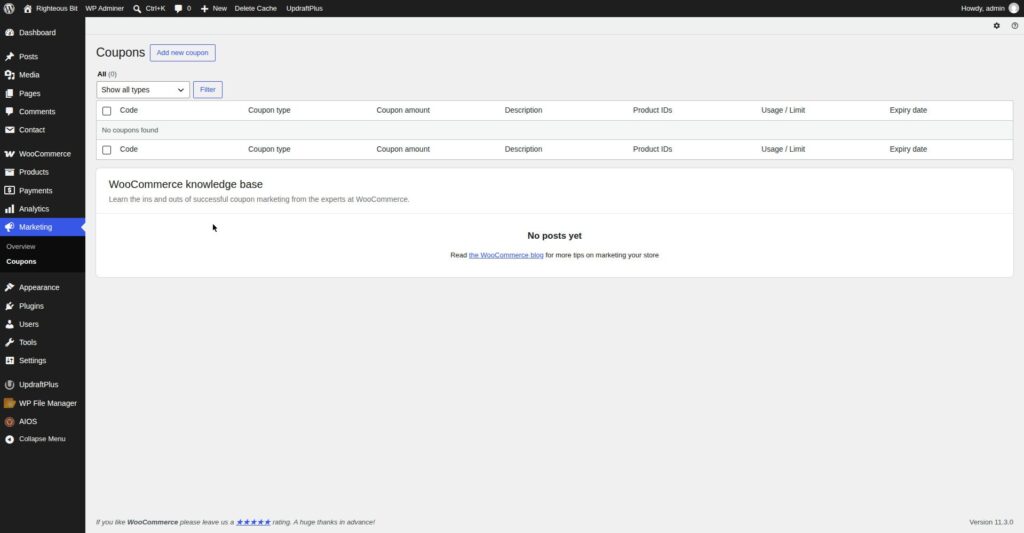
Click Add coupon. The new coupon screen opens on the General tab.
Step 2: Set the coupon code, discount type and amount
In the General tab:
- Coupon code — the code customers type at checkout. Use something short and readable, for example
SAVE10. Coupon codes are case-insensitive: typingsave10at checkout applied the coupon in this test. - Description — a note for yourself, for example “10% off everything”. Customers do not see this.
- Discount type — choose one:
- Percentage discount — a percentage off the cart.
- Fixed cart discount — a fixed amount off the whole cart, for example R100 off the order total.
- Fixed product discount — a fixed amount off each product it applies to.
- Coupon amount — the number that goes with the discount type:
10for 10%, or100for R100. - Allow free shipping — tick this if the coupon should also make shipping free. A free-shipping coupon is a separate coupon type in older WooCommerce; on 11.3.0 it is a tick box on the coupon itself.
- Expiry date — leave blank for a coupon that never expires, or set a date. An expired coupon is one of the most common “it doesn’t work” complaints, and the error message tells you exactly that (see the troubleshooting table below).
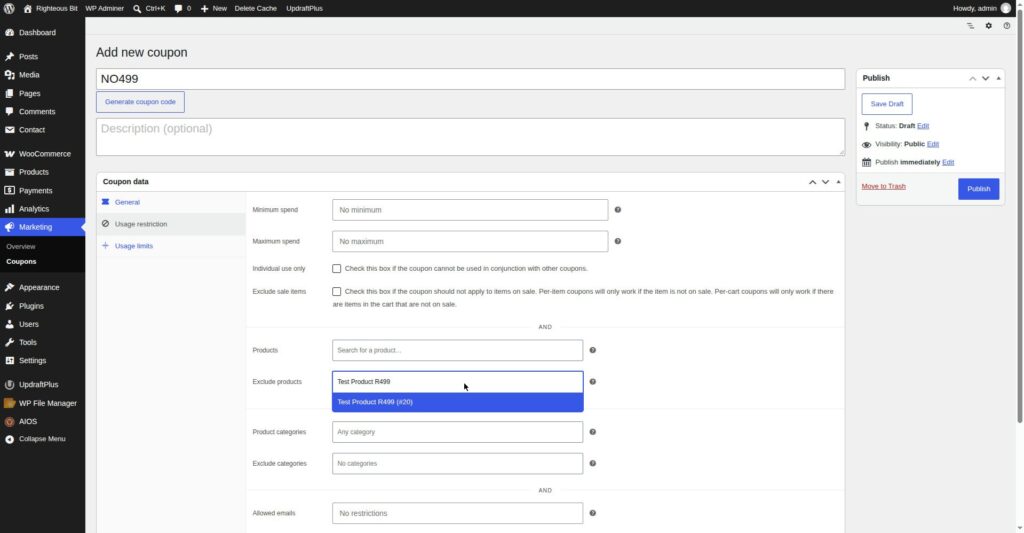
Click Publish to save the coupon.
Step 3: Add usage restrictions (optional)
Still on the coupon edit screen, the Usage restriction tab is where most “coupon doesn’t work” problems are created, usually by accident:
- Minimum spend — the cart must reach this amount before the coupon applies. A minimum spend of R500 on a R499 cart means the coupon will not apply, and the error message says so.
- Maximum spend — the cart must stay below this amount.
- Individual use only — the coupon cannot be combined with another coupon.
- Exclude sale items — the coupon does not apply to products already on sale.
- Products — the coupon only applies to the products you list here. If the product is not listed, the coupon will not apply to it — and the error message names the product.
- Exclude products — the coupon applies to everything except the products listed here.
- Product categories — limit the coupon to one or more categories.
- Allowed emails — only the email addresses listed here can use the coupon.
No screenshot: no frame shows the Usage restriction tab — every coupon edit frame in the test shows the General tab. The fields above are described from the test record.
Step 4: Add usage limits (optional)
On the Usage limits tab:
- Usage limit per coupon — how many times the coupon can be used in total. Set
1for a one-use coupon; leave blank for unlimited. - Usage limit per user — how many times one customer can use it.
- Limit usage to X items — how many items the coupon can apply to in one order.
No screenshot: no frame shows the Usage limits tab either. The per-user limit was tested in the next step — a coupon with a per-user limit of 1 was applied once, then rejected on the second attempt with the exact message quoted below.
Step 5: Test it at checkout before you publish the code
Add the product to the cart, go to checkout, and type the coupon code in the “Add coupons” box. The discount should appear immediately, with the new total shown below it.
In this test the SAVE10 coupon (10% off) was applied to a R499.00 product with R50.00 flat-rate shipping. The discount was −R49.90 and the total became R499.10 — that is R499.00 minus R49.90 plus R50.00 shipping. Do not forget shipping when you check the total: the draft of this guide originally said R449.10, which was wrong because it assumed no shipping.
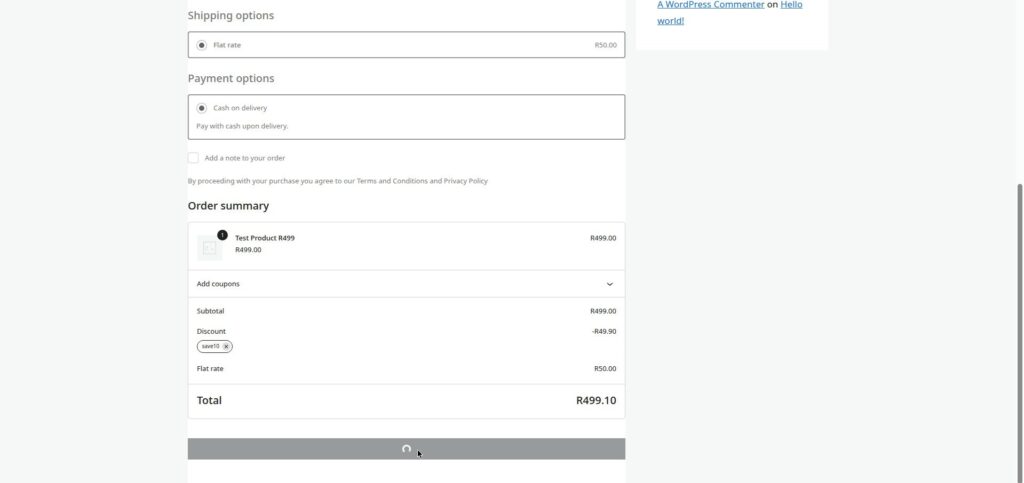
A free-shipping coupon was tested the same way. With the FREESHIP coupon applied, shipping was auto-selected as free and the total was R499.00 — product only, no shipping charge.
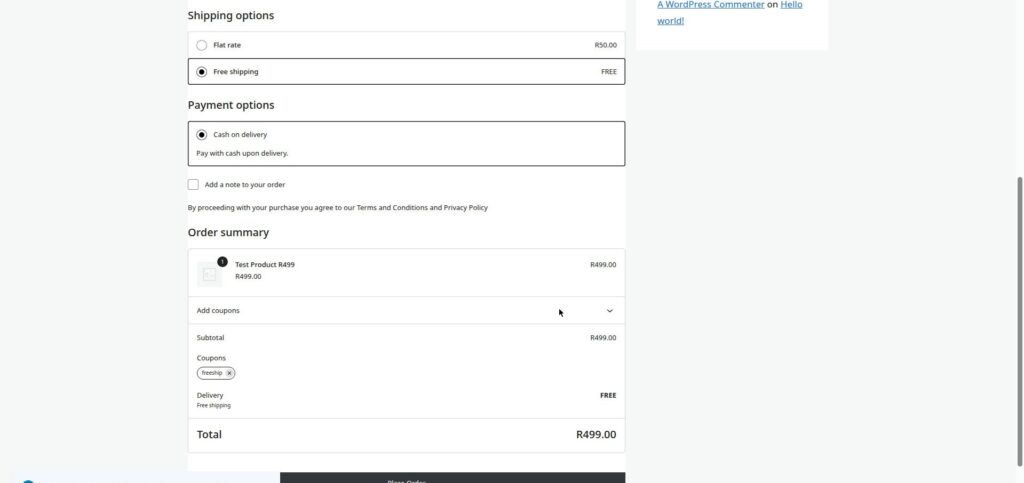
Removing a coupon works the same way: click the × on the coupon chip at checkout and the discount disappears, with the total going back to the full amount. That is worth testing too, because a customer who cannot remove a coupon they typed by mistake will leave the checkout.
Do not publish the coupon code anywhere — on social media, in an email, on a flyer — until you have done this test yourself. A code that does not apply at checkout is worse than no code at all.
The five error messages, word for word
Each of these was triggered in the test, so the message below is the exact text WooCommerce shows:
| Situation | What WooCommerce shows |
|---|---|
| Coupon expired | Coupon "expired10" has expired. |
| Cart below the minimum spend | The minimum spend for coupon "min500" is R500.00. |
| Coupon does not apply to the product in the cart | Sorry, coupon "no499" is not applicable to selected products. |
| Per-user usage limit already reached | Usage limit for coupon "once1" has been reached. |
| Coupon code does not exist (coupons enabled) | Coupon "save99" cannot be applied because it does not exist. |
Two things worth knowing about that last one:
- The “does not exist” message appears only for a mistyped code while coupons are enabled. If coupons are disabled entirely, the “Add coupons” section disappears from checkout altogether — there is no box to type the code into, and no error message at all.
- Coupon codes are case-insensitive, so
save10andSAVE10are the same coupon. If a customer says the code “doesn’t work”, check the spelling against the coupon list before anything else.
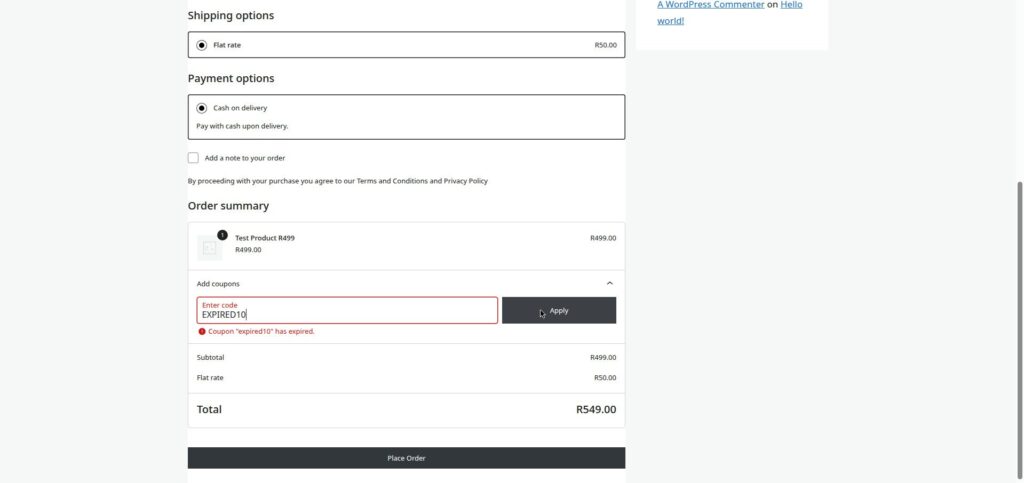
The other four error frames — MIN500, NO499, ONCE1 on second use, SAVE99 — were captured during the test and are quoted verbatim in the table above.
What can go wrong
| Symptom | Likely cause | Fix |
|---|---|---|
| Coupon code does not apply at checkout | Minimum spend, expiry date, product restriction or usage limit you set | Read the exact error message — it names the reason — then check the coupon’s Usage restriction and Usage limits tabs |
| “Coupon does not exist” | Mistyped code, or the coupon was never created | Check the spelling against Marketing → Coupons; remember codes are case-insensitive |
| No “Add coupons” box at checkout | Coupons are disabled | Tick “Enable coupons” in WooCommerce → Settings → General |
| Coupon applies to the wrong product | The Products list on the Usage restriction tab is empty or wrong | List the exact products the coupon should apply to, or leave the list empty for “all products” |
| Coupon was used once and now fails | Usage limit per coupon or per user has been reached | Check the Usage limits tab; raise the limit or create a new coupon |
| Free shipping coupon does not remove the shipping charge | “Allow free shipping” is not ticked on the coupon, or the shipping method does not support it | Tick Allow free shipping on the coupon and re-test at checkout |
| Discount total looks wrong | You forgot the shipping charge in the total | Work out product minus discount plus shipping — in this test SAVE10 on R499.00 with R50.00 shipping gave R499.10, not R449.10 |
Frequently asked questions
How do I add a coupon code in WooCommerce?
Go to Marketing → Coupons, click Add coupon, set the coupon code, discount type and amount, add any usage restrictions or limits, and publish. Then test it at checkout with a real product in the cart before you share the code. Make sure coupons are enabled first in WooCommerce → Settings → General.
Why is my WooCommerce coupon code not working?
Read the exact error message at checkout — it names the reason. The five messages in this guide are: expired, below minimum spend, not applicable to the product, usage limit reached, or the code does not exist. The most common cause is a restriction you set yourself on the coupon’s Usage restriction or Usage limits tab. If there is no “Add coupons” box at checkout at all, coupons are disabled in WooCommerce settings.
How do I create a percentage discount coupon in WooCommerce?
Create the coupon in Marketing → Coupons, set Discount type to “Percentage discount” and Coupon amount to the percentage, for example 10 for 10% off. In this test a 10% coupon on a R499.00 product gave a discount of R49.90.
Can I make a coupon for free shipping in WooCommerce?
Yes. Create the coupon and tick Allow free shipping on the General tab. When the coupon is applied at checkout, shipping is auto-selected as free. In this test the FREESHIP coupon brought the total to R499.00 — product only, no shipping charge.
Are WooCommerce coupon codes case-sensitive?
No. Coupon codes are case-insensitive — typing save10 applied the SAVE10 coupon in this test. If a customer says the code does not work, check the spelling and the coupon’s restrictions before assuming the code itself is wrong.
How do I limit a coupon to one use per customer?
On the coupon’s Usage limits tab, set Usage limit per user to 1. In this test a coupon with that limit applied once, then on the second attempt WooCommerce showed Usage limit for coupon "once1" has been reached.
Recap checklist
- Coupons enabled in WooCommerce → Settings → General
- Coupon created in Marketing → Coupons with the right discount type and amount
- Usage restrictions and limits set — and double-checked, because they cause most failures
- Tested at checkout with a real product in the cart, and the discount and total checked against product minus discount plus shipping
- Coupon removal tested (click the × on the coupon chip)
- Only after the test passed, the code shared with customers
What to read next
- Set up the store first — How to Set Up WooCommerce for the First Time
- Add and price products — How to Add Products in WooCommerce and How to Set Sale Price in WooCommerce
- After a sale, manage the order — How to Manage Orders in WooCommerce
- Back up before changing store settings — How to Back Up Your WordPress Website
Written by Mohd Shah Ahmad, Learn WordPress Online. He builds and runs live WooCommerce stores in Pretoria, and designed the websites for Aaliyah Perfumes and Stanley’s Bakery. Tested on a WordPress test install — see the “Tested on” box at the top.