
Quick answer
This guide is part of the Fix WordPress Errors hub. If the 500 is not your error, also see how to fix the 403 Forbidden error in WordPress, how to fix the WordPress white screen of death, and how to find a WordPress plugin conflict. A 500 Internal Server Error in WordPress means something broke on the server — usually a plugin, your theme, or a bad line in a file. First, find the exact error: turn on WP_DEBUG_LOG and read wp-content/debug.log, or read the fatal-error line on the critical-error page. In most cases the log names the plugin file and the line number, and deactivating or renaming that plugin fixes the site. Work through the causes below in order, and back up first.
Read this before you start, because this guide is honest about what was and was not reproduced. The plugin cause was reproduced for real — a broken plugin, the exact fatal-error line, and the site coming back. The .htaccess cause and the memory-limit cause were not reproduced: the test install had no .htaccess file, and raising the memory limit changed nothing. Those two sections are labelled as not reproduced. Do not treat them as tested steps.
Tested on: WordPress 7.1.4 · WooCommerce 11.3.0 · Theme: GeneratePress 3.6.1 · PHP 8.4.27 · Test install “Future Basket” (broke during the test — see below) and test install “Righteous Bit” (healthy — wp-config.php and Site Health readings come from this one) · Tested 15 November 2026 on a WordPress test install. No traffic claim is made for this topic — it was chosen as a strategy pick, not from keyword-volume evidence.
What you need before you start
- A backup of the site. If you do not have one yet, read How to Back Up Your WordPress Website first. Do not edit
wp-config.phpor rename plugin folders without a backup you can restore from. - Access to the file manager in your hosting panel, or to the Plugin File Editor in WordPress, so you can rename a plugin folder or edit a file.
- A test install if possible. Breaking a plugin on purpose is how this error was reproduced for this guide — do that on a test install, never on a live site.
What a 500 error is
A 500 Internal Server Error is the server’s way of saying “something went wrong, and I am not telling you what” — the page shows a generic message instead of your site. In WordPress it usually means PHP hit a fatal error while building the page: a plugin calling a function that does not exist, a theme with a broken file, or a bad line in wp-config.php or .htaccess.
The error page itself tells you almost nothing. The detail is in the error log, or on the critical-error page WordPress shows when a plugin breaks — which is why the first real step is to find the exact error, not to guess at fixes.
How to fix it, step by step
Step 1: Back up, then find the exact error
Back up first — How to Back Up Your WordPress Website — then find the error. There are two places to look:
- The critical-error page. When a plugin breaks, WordPress shows “There has been a critical error on this website” and, for an administrator, the fatal-error line underneath it.
wp-content/debug.log. Turn on logging inwp-config.php(see Step 5), load the site once, then read the last lines of the log.
In this test the error page gave the answer directly. A test plugin (Contact Form 7) was deliberately broken, and the site showed the critical-error page with this line, verbatim:
Fatal error: Uncaught Error: Call to undefined function undefined_function_xyz() in /s2-futurebasket/wordpress/wp-content/plugins/contact-form-7/wp-contact-form-7.php … on line 16
That line names the plugin (Contact Form 7), the file, and the line number. That is all you need: the culprit is Contact Form 7, not the theme, not the database, not the server.
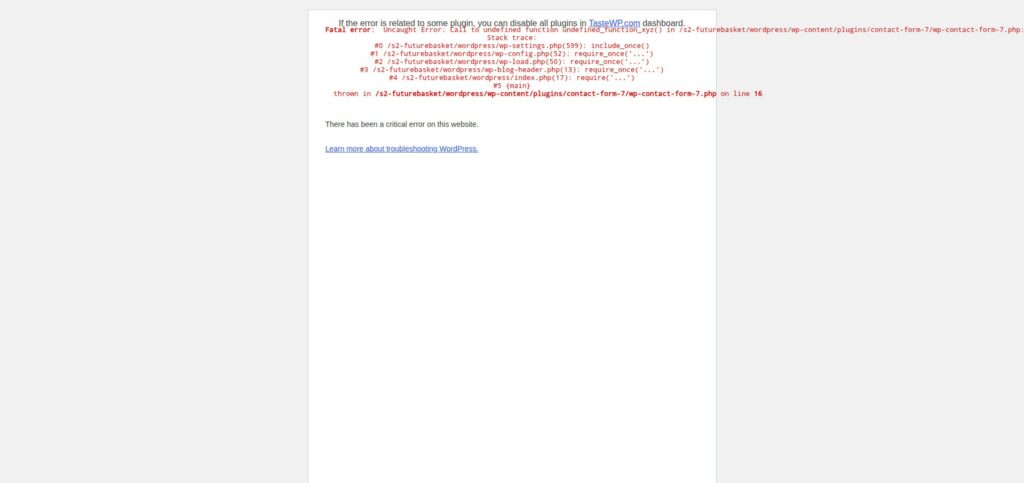
The debug log could not be read after the break — the file manager itself broke with the site (see the warning in Step 2). So the fatal-error line above was read from the critical-error page, not from the log. If your file manager still works, read the log — it holds the same line, with a timestamp.
Step 2: Deactivate the broken plugin — and know what happens if the rename fails
If the dashboard still loads, go to Plugins → Installed Plugins and deactivate the plugin named in the error. If the dashboard does not load, rename the plugin’s folder in the file manager — for example, rename contact-form-7 to contact-form-7-off — which deactivates it. Then load the site again.
Warning — the rename fix FAILED in this test, and the test site was bricked. The file manager’s backend returned a 500 error of its own after the break, and there was no recovery route left: no working file manager, no login, no FTP on the test host. The test install “Future Basket” stayed broken. The recovery, on a real site, is to restore from a backup — which is why Step 1 says back up first. Do not attempt a plugin rename on a live site without a backup you have already tested restoring.
If the rename works, the site comes back immediately, and you have your answer: that plugin was the cause. Update it, replace it, or leave it off — but do not just turn it back on without finding why it broke.
Step 3: Check the theme — the fallback is not instant
If no plugin is named in the error, the theme is the next suspect. Switch to a default theme (Twenty Twenty-Five, or whatever default theme is installed) and load the site.
One nuance from this test: after the plugin break, switching the theme did not fix the site straight away — the error appeared first, and the fallback only happened after loading wp-admin → Themes. So if you switch themes and the site still errors, load the Themes screen once more before concluding the theme is not the problem.
Step 4: Check .htaccess — NOT reproduced on this test
Not reproduced. The test install had no
.htaccessfile at all — and the file manager rejects filenames starting with a dot, so one could not even be created for the test. The steps below are the standard Apache procedure, documented, not tested.
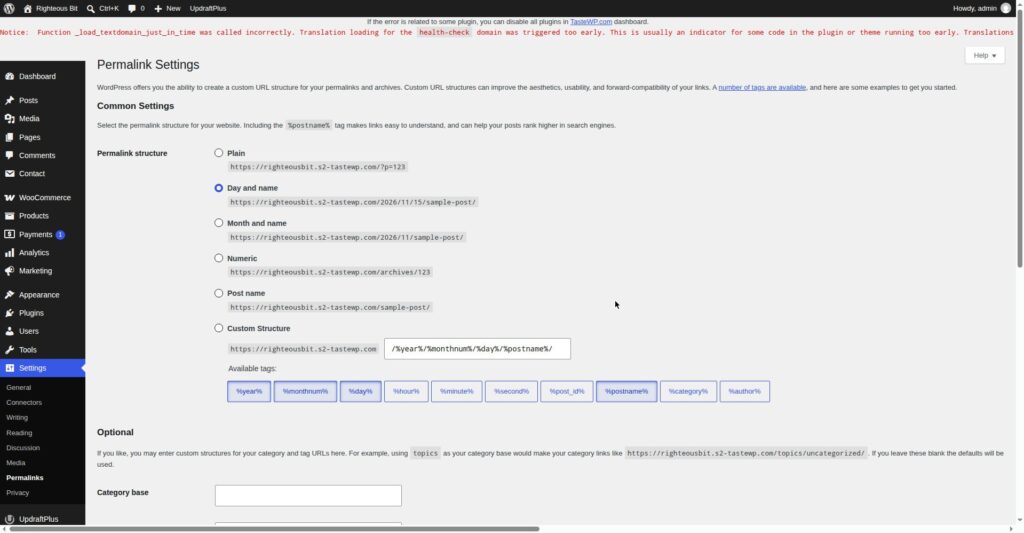
On Apache hosting, a corrupt .htaccess file is a common cause of a 500 error. Rename .htaccess to .htaccess-old in the file manager, then load the site. If the site comes back, the file was the cause — go to Settings → Permalinks and click Save Changes once, which writes a fresh .htaccess for you.
Step 5: Check the memory limit — NOT reproduced on this test
Not reproduced. Changing
WP_MEMORY_LIMITto 8M changed nothing on the test install, and no “Allowed memory size exhausted” line appeared. The steps below are the standard procedure, documented, not tested.
Open wp-config.php and look for the memory line. On the test install it reads:
define( 'WP_MEMORY_LIMIT', '128M' );WordPress only raises the PHP memory limit to this value — it never lowers it. The server’s PHP limit on the test install was 256M, so setting WP_MEMORY_LIMIT to 8M did nothing at all: the limit stayed at 256M and no memory error appeared. If your log shows “Allowed memory size of … bytes exhausted”, raise the value — for example to 256M — save the file and load the site again. If the log shows no memory error, the memory limit is not your problem, and changing it will not help.
The wp-config.php lines below are from the healthy test install, and they also show the debug settings from Step 1. Note there is no WP_DEBUG_DISPLAY line on this install — do not go looking for one.
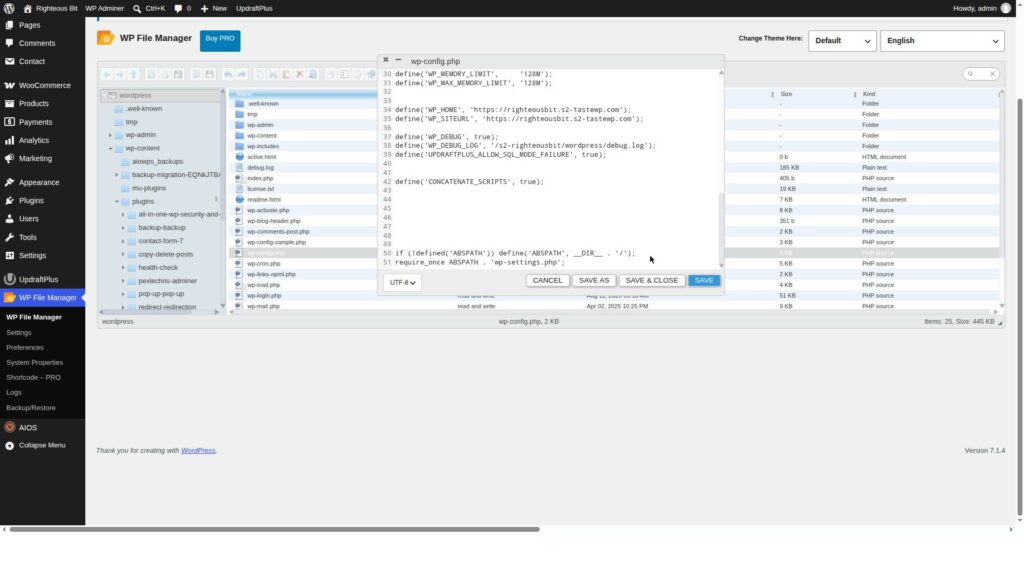
To turn on logging, the lines to add or change in wp-config.php are:
define( 'WP_DEBUG', true );
define( 'WP_DEBUG_LOG', true );
define( 'WP_DEBUG_DISPLAY', false );
With WP_DEBUG_LOG set to true, WordPress writes to wp-content/debug.log. On the test install the value was set to a file path instead, which writes to that path. Either way, load the site once, read the last lines of the log, and turn debugging off again afterwards by setting WP_DEBUG back to false.
Step 6: Check the server — Site Health
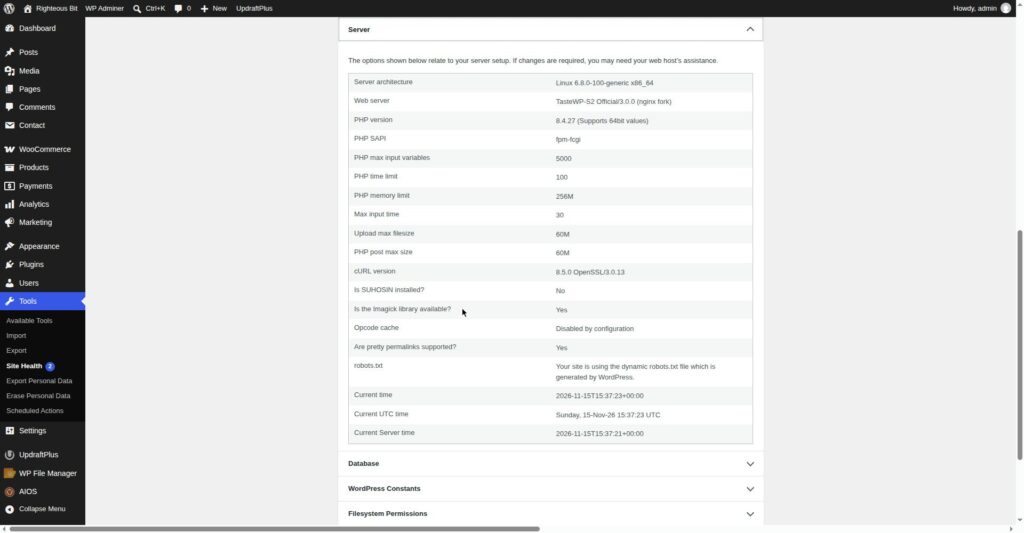
If none of the above finds the cause, check Tools → Site Health → Info → Server. It shows the PHP version, the PHP memory limit, and the web server. On the healthy test install it read: PHP 8.4.27, PHP memory limit 256M. If your host is Apache, the .htaccess step above applies to you; if it is nginx, it does not.
What can go wrong
| Symptom | Likely cause | Fix |
|---|---|---|
| Critical-error page naming a plugin file and line | That plugin is broken | Deactivate or rename the plugin — but back up first, because the rename can fail and brick the site, as it did in this test |
| File manager itself returns a 500 after the break | The break took down the file manager’s backend too | Restore from a backup — there may be no other route, as there was none on the test install |
| 500 error with no plugin named | Theme, .htaccess, or memory limit | Work through Steps 3–5 in order |
| 500 error only on one page | That page’s template or a shortcode on it | Check the log for the file named on that page |
| Error comes and goes | Server overloaded, or hosting limits being hit | Note when it happens and contact your host with the times and the log lines |
| Plugin File Editor rolls a change back silently | The editor reverts a change that would cause a fatal error | Edit the file in the hosting file manager instead — and note that the editor rolling a change back is a safety feature, not a bug |
One more warning, learned in this test: the Plugin File Editor rolls fatal changes back silently. A deliberately broken line added through the editor was reverted without any message — the file looked changed, then was back to normal. If you edit a plugin file in the editor and the change does not stick, that is probably why. Use the hosting file manager for edits that must stick.
Frequently asked questions
What causes a 500 Internal Server Error in WordPress?
Usually a broken plugin, a broken theme, a bad line in wp-config.php or .htaccess, or the server running out of memory. The error page tells you almost nothing — read the fatal-error line on the critical-error page or in wp-content/debug.log to find which one it is.
How do I find which plugin is causing a 500 error?
Read the fatal-error line. It names the plugin file and the line number. In this test the line named Contact Form 7, line 16. Deactivate that plugin (or rename its folder) and load the site again — if the site comes back, you have your answer.
Can a 500 error be fixed by increasing the memory limit?
Only if the log shows a memory-exhaustion error (“Allowed memory size of … bytes exhausted”). In this test, changing the memory limit changed nothing and no memory error appeared — the cause was a plugin. Check the log before changing the limit.
What is the fastest way to get a site back after a 500 error?
Restore from a backup. That is the recovery that works when the file manager itself is broken, as it was in this test. Keep a tested backup — How to Back Up Your WordPress Website — before you change anything.
Recap checklist
- Backed up the site before changing anything
- Found the exact fatal-error line — plugin file and line number
- Deactivated or renamed the broken plugin (and knew the rename can fail — back up first)
- Checked the theme, with the wp-admin → Themes fallback nuance in mind
- Checked
.htaccessif on Apache — not reproduced in this test - Checked the memory limit only if the log shows a memory error — not reproduced in this test
- Checked Tools → Site Health → Info → Server for the PHP version and web server
What to read next
- Back up before you touch anything — How to Back Up Your WordPress Website
- Find a bad plugin without breaking the site — How to Find a WordPress Plugin Conflict
- When the site shows nothing at all — How to Fix the WordPress White Screen of Death
- When you cannot log in after the error — How to Fix WordPress Login Problems
Written by Mohd Shah Ahmad, Learn WordPress Online. He builds and runs live WooCommerce stores in Pretoria, and designed the websites for Aaliyah Perfumes and Stanley’s Bakery. Tested on a WordPress test install — see the “Tested on” box at the top.