
This guide is part of the Fix WordPress Errors hub. If the 403 is not your error, also see how to fix the 404 error in WordPress, how to fix the 500 internal server error in WordPress, and how to fix the WordPress white screen of death. A 403 Forbidden error means the server understood your request and refused it. It is not a wrong password and it is not a missing page — something between your browser and WordPress said no. That something could be a security plugin, your host’s firewall, a rule in .htaccess, or wrong file permissions. The fix depends entirely on which layer is doing the blocking, so the first job is to work that out. Then you fix that one thing.
This guide walks through the fixes in order, from the least invasive to the most. The plugin and file-manager steps were tested on 17 November 2026, and the steps that could not be tested on our test install are marked clearly — we do not pretend a test ran when it did not.
Tested on: WordPress 7.1.4, Twenty Twenty-Three theme version 1.7, PHP 8.5.12. Tested on 17 November 2026 on a WordPress test install. Plugin used: WP File Manager 8.0.7. Note: the test install runs on an nginx server, so it has no .htaccess file — the .htaccess step below is marked where it only applies to Apache servers, and it was not tested on this install.
Before you start
- Make a backup. Several fixes below change files and folders. If anything goes wrong you can put it back in minutes. See our guide on how to back up your WordPress website.
- Work out what is blocked. Is the whole site showing a 403, or only wp-admin? Can you still log in? A 403 on wp-admin only points at a security plugin or firewall rule; a 403 on every page points at file permissions or a server rule.
- Read the error page before you change anything. Its look tells you who sent it. A page with Cloudflare branding and a Ray ID comes from Cloudflare. A message like “A potentially unsafe operation has been detected” comes from a Wordfence firewall block. A plain server error page comes from your host.
One honest note up front: we could not produce a real 403 error page on our test install. The test install runs on nginx and has no .htaccess file, and there was no way to make it return a 403. So this guide has no screenshot of a 403 error page — the screenshots show the steps we did test. The .htaccess and file-permission fixes below are the standard, documented steps for Apache servers, and they are marked as not tested on this install.
Fix 1: Check whether it is just you
Before touching the site, check whether the block affects everyone or only you.
- Open the site in a private or incognito window. If it loads there, the problem is in your browser — stale cookies or cache — and Fix 2 will sort it.
- Open the address on another network, for example mobile data instead of Wi-Fi. If it loads there, your IP address may be blocked by the host’s firewall.
- Check a tool like Down for Everyone or Just Me. If the site is down for everyone, the problem is on the server, not your browser.
Fix 2: Clear the site’s cookies and cache
A stale cookie is the usual cause when the site works for everyone else but not for you — for example, an expired login link, or a loop left over from a security plugin that has already been fixed.
- In your browser, clear cookies for your domain only, so you stay signed in everywhere else.
- Clear your browser cache, or hard-refresh the page (Ctrl + Shift + R on Windows, Cmd + Shift + R on Mac).
- Try the page again.
If the site loads in a private window but not in your normal browser, this is almost certainly the fix.
Fix 3: Deactivate your plugins
Security plugins and firewalls are the most common cause of a 403 in WordPress. Wordfence, All In One WP Security, and similar plugins block requests they consider suspicious, and false positives are common — especially on wp-login.php and wp-admin.
If you can still log in
Go to Plugins > Installed Plugins and deactivate your security plugins one at a time, testing the blocked page after each one. When the page loads, you have found the culprit. Check that plugin’s firewall or blocking log before you turn it back on, and whitelist the action that was blocked.
If you cannot log in
Rename the plugins folder, which switches every plugin off at once:
- Open your host’s file manager or connect over FTP/SFTP and go to wp-content.
- Rename the plugins folder to plugins-off.
- Try the blocked page again. If it loads, a plugin was the cause. Rename the folder back to plugins, then deactivate the plugins one at a time from the dashboard until you find the one that blocks you.
We tested the folder rename on 17 November 2026, and it worked to switch the plugins off — the homepage still loaded with every plugin disabled.
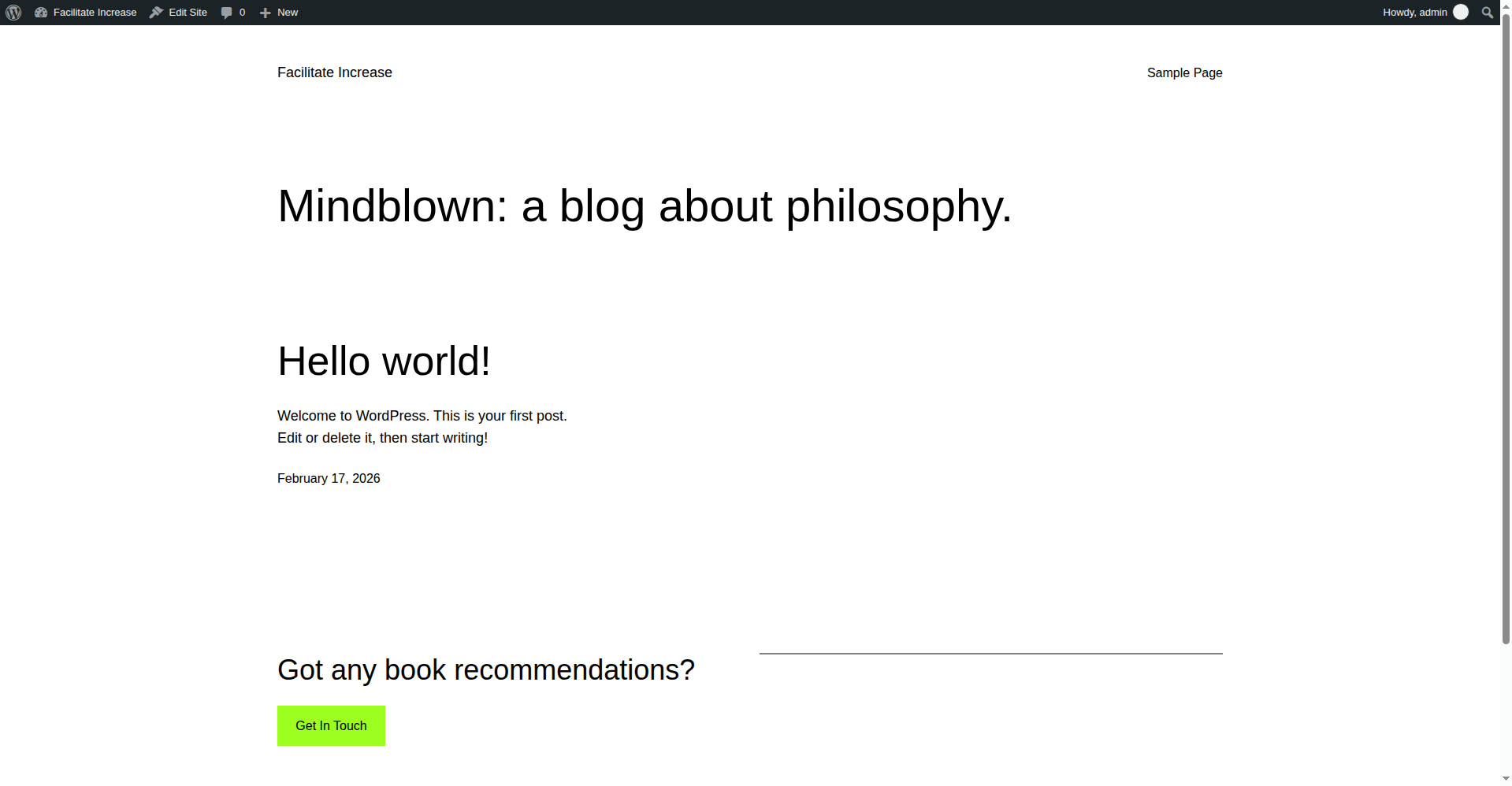
But there is a trap here, and we fell into it during the test. We renamed the folder back using the same file-manager plugin — WP File Manager — and it failed with “Unable to connect to backend. HTTP error 400”. The file manager plugin itself lives inside the folder we had renamed, so once the folder was renamed its own backend was unreachable. The Plugins page then showed all six plugins as deactivated, with “Plugin file does not exist”, and reinstalling the file manager failed because WordPress does not recreate a missing wp-content/plugins folder. We recovered by installing a theme and using the Theme File Editor to rename the folder back, then reactivating all six plugins in bulk.
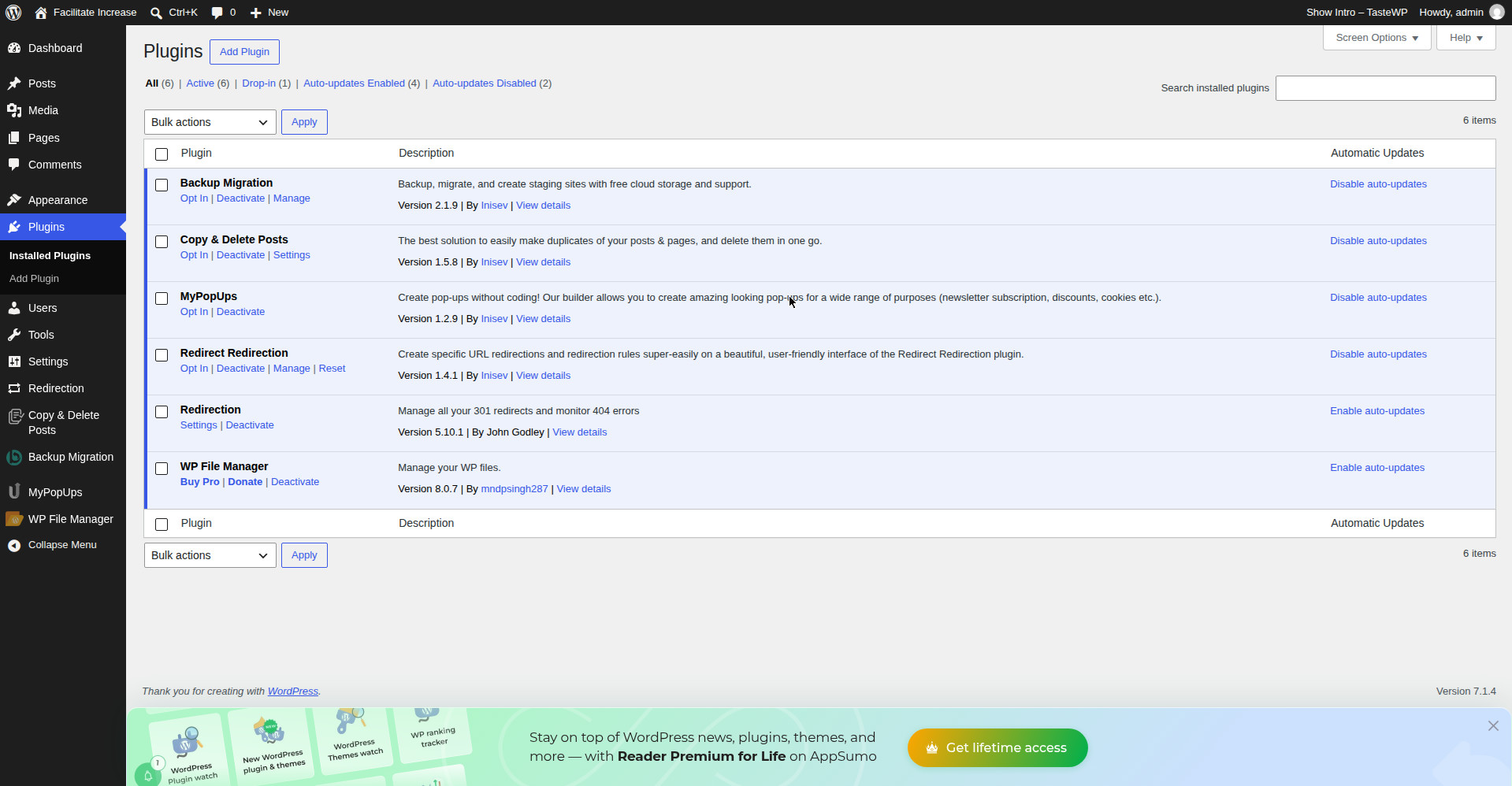
So the practical advice is: rename the plugins folder back with your host’s file manager or FTP, not with a file-manager plugin that lives inside the folder. A plugin cannot manage the folder it sits in once that folder has been renamed. And if you use this method, rename the folder back before you try reinstalling anything.
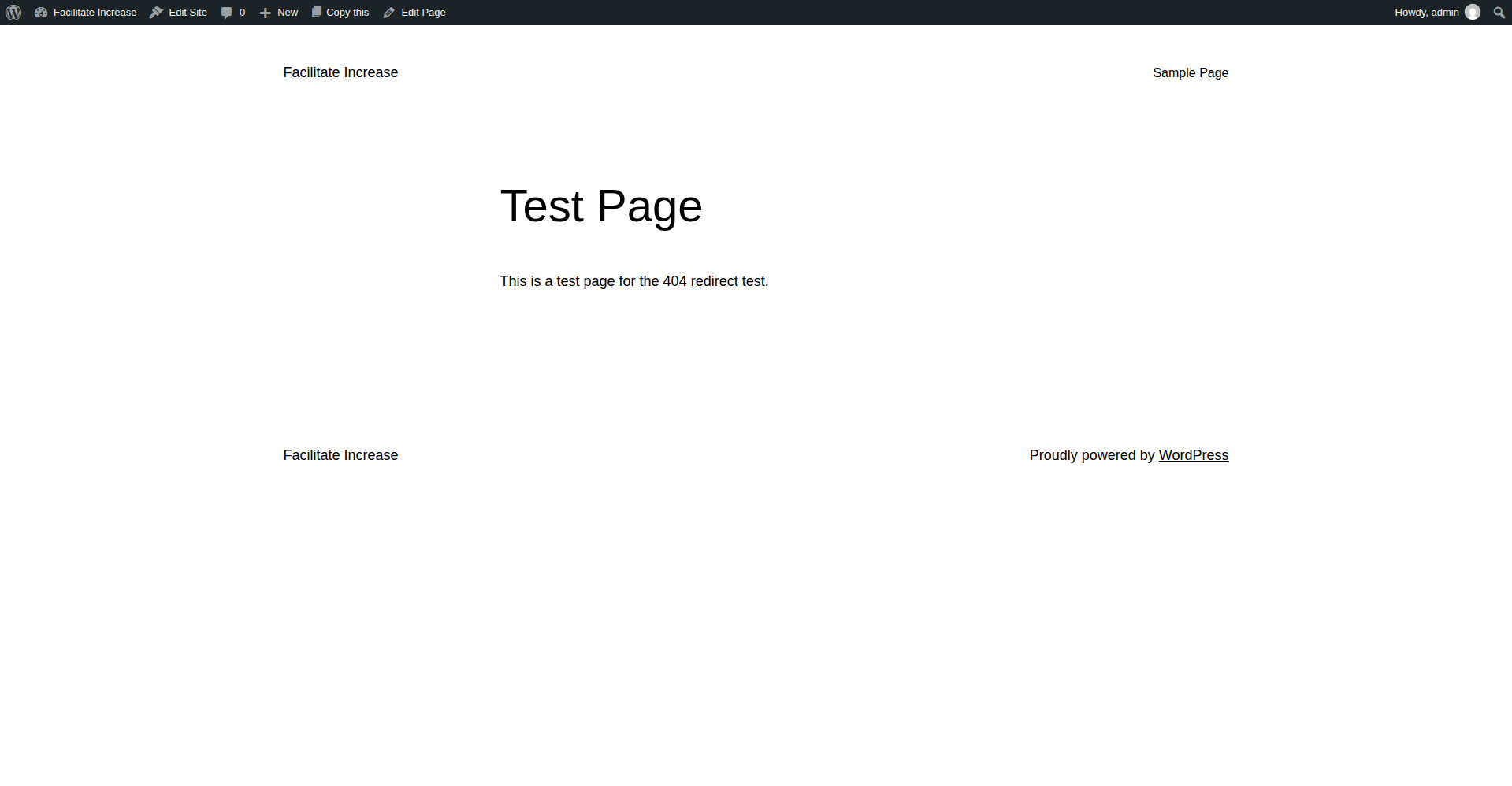
Our full plugin-conflict process is in how to find a WordPress plugin conflict.
Fix 4: Switch to a default theme
A theme can also trigger a 403, usually through a security rule in its code or a bad update. If you can log in, go to Appearance > Themes and activate a default theme such as Twenty Twenty-Three, then test the blocked page. If you cannot log in, rename your theme’s folder in wp-content/themes the same way as the plugins folder in Fix 3 — WordPress will fall back to a default theme.
We did switch themes during the test (Twenty Twenty-Four was installed and activated, then Twenty Twenty-Three was reactivated), so we can confirm the switch itself works cleanly — but we did not test it as a fix for a 403, because no 403 could be produced on this install.
Fix 5: Check and regenerate .htaccess (Apache servers only)
A damaged or over-strict .htaccess file is a classic WordPress 403 cause on Apache servers. It can block whole folders, deny access to wp-admin, or redirect requests into a loop.
- Download a copy of your current .htaccess file first, so you can put it back.
- Rename it to .htaccess_old, or replace its WordPress section with the default rules.
- Go to Settings > Permalinks and click Save Changes without changing anything. WordPress writes a fresh default .htaccess for you.
- Test the blocked page.
This step was not tested on our test install, and here is why. The test install runs on nginx, which does not use .htaccess at all. Its root folder listing shows 24 items — including wp-admin, wp-content and wp-includes — and there is no .htaccess file among them. We also tried to create one in the file manager, and it refused with “Unable to create file ‘.htaccess’. Invalid file name.”
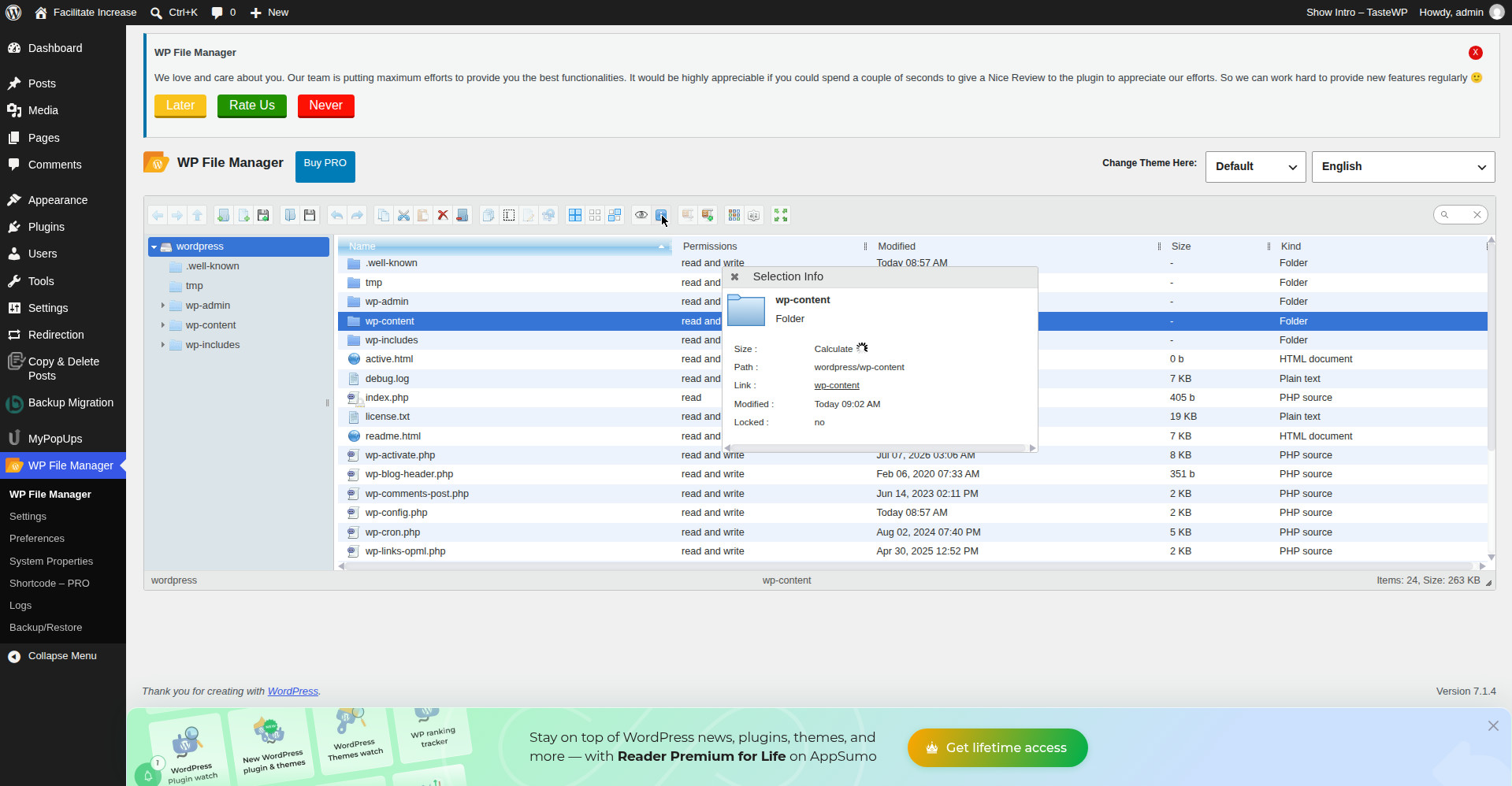
So if your host runs nginx, skip this step entirely — there is no .htaccess file to fix, and the rewrite rules live in the server configuration, which only your host can change. If your host runs Apache and this step fixes the error, keep your host’s own rules: only replace the WordPress section, not any lines your host added.
Fix 6: Check your file permissions
Wrong file permissions are another common cause. WordPress expects folders to be 755 and files to be 644, with wp-config.php at 440 or 400. A folder set to 744, or a file set so the server cannot read it, gives a 403. Never set anything to 777 — that lets anyone write to your files.
This step was not fully tested on our test install either. The free file manager we used, WP File Manager 8.0.7, shows only “read and write” for folders and “read” for some files in its Permissions column — it shows no numeric values like 755 or 644, and its right-click menu has no permissions or chmod option. So we could not check or change the numeric permissions on this install.
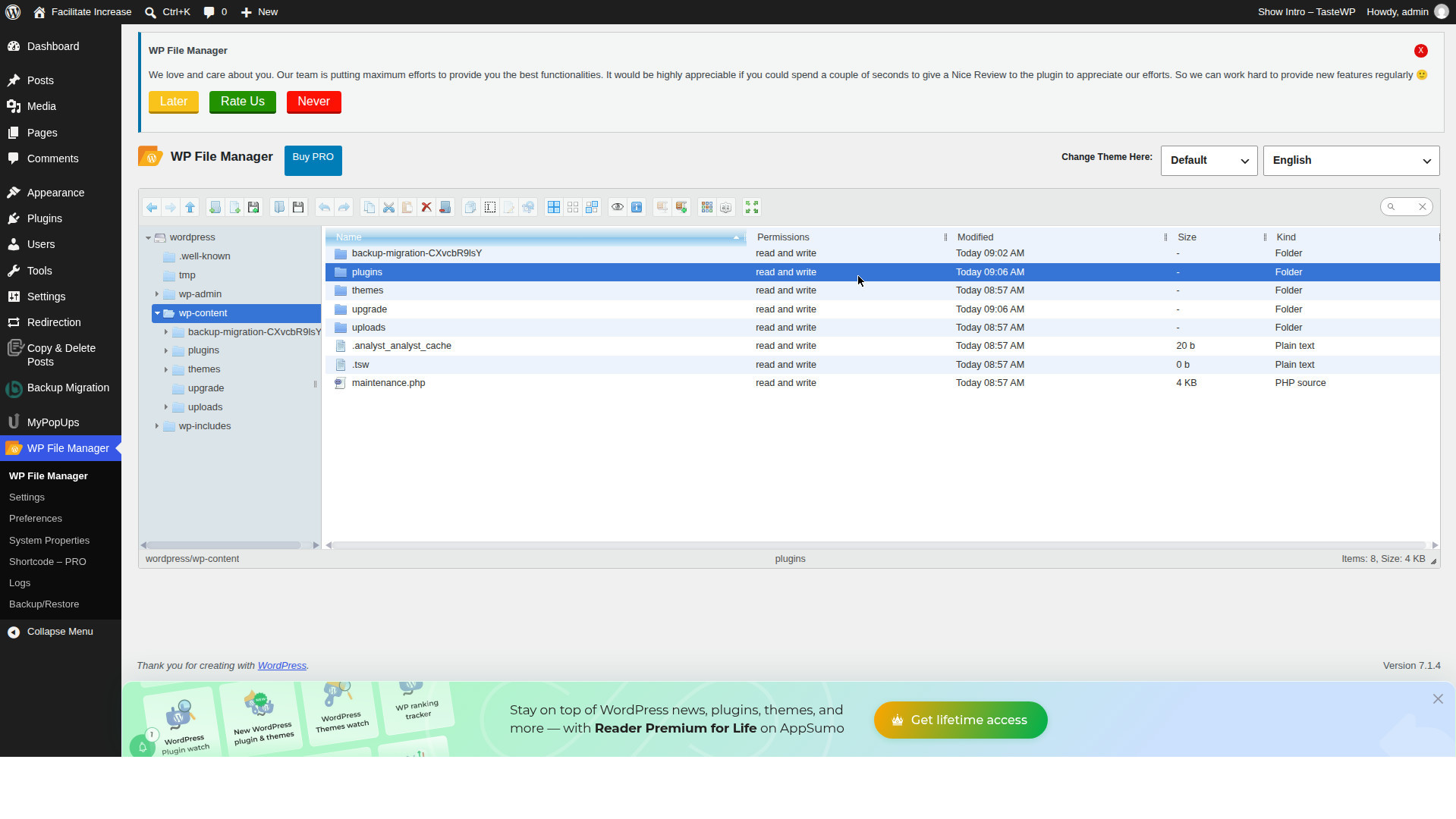
To check or change numeric permissions, use your host’s file manager or an FTP client such as FileZilla, which both show and set the numbers. Set folders to 755, files to 644, and wp-config.php to 440 or 400 — then test the blocked page again.
Fix 7: Ask your host about the firewall
If plugins, the theme, .htaccess and permissions are all clean, the block is at the host or CDN level. Managed hosts run their own firewalls, and Cloudflare or Sucuri can block wp-login.php or wp-admin with a WAF rule.
Send your host the blocked address, the time it happened, and your IP address, and ask which firewall or ModSecurity rule blocked it. If you use Cloudflare, check Security > Events for the time you tried to log in — the blocked request will be listed there with the rule that stopped it.
What we tested, and what we did not
- Tested on 17 November 2026: renaming the wp-content/plugins folder switches all plugins off and the site still loads; renaming it back with a file-manager plugin that lives inside the folder fails (HTTP 400) and needs recovery through the host’s file manager, FTP, or the Theme File Editor; all six plugins reactivated cleanly in bulk afterwards; switching themes (Twenty Twenty-Four, then back to Twenty Twenty-Three) works; the free file manager shows no numeric permissions and cannot change them; the test install has no .htaccess file and the file manager refuses to create one.
- Not tested in this run: producing a real 403 error page (not possible on this nginx install, so there is no screenshot of one); the .htaccess fix (Apache only); changing numeric file permissions (the file manager used cannot do it); a security-plugin block (no security plugin was installed on the test install).
- Unexplained: the Site Health info initially listed Twenty Twenty-Five among the themes, but the Themes page later showed only Twenty Twenty-Four and Twenty Twenty-Three. No theme was deleted during the test. It did not affect any result.
What can go wrong
You renamed the plugins folder and cannot rename it back. Do not reinstall the file manager — WordPress will not recreate the missing folder. Rename it back with your host’s file manager or FTP. If you only have a file-manager plugin, use the Theme File Editor to run a one-time rename, as we did in the test, then remove that code immediately afterwards.
The 403 only appears on wp-login.php or wp-admin. That points at a firewall or security plugin, not at file permissions. Start with Fix 3 and Fix 7, and check your security plugin’s block log before changing any files.
The 403 appears after a migration. Migrations are the usual time for permissions to break. Check Fix 6 first — folders 755, files 644 — and check that .htaccess (Apache) or the server rules (nginx) came across from the old host.
You suspect the site was hacked. A 403 can be a symptom of a compromise — malware that changed rules, dropped deny files, or triggered blocks. If the 403 appeared suddenly and nothing was updated or changed, treat it as a possible hack: run a malware scan before you start editing files.
Frequently asked questions
Is a 403 the same as a 404?
No. A 404 means the page does not exist. A 403 means the page exists but the server refuses to serve it to you. The fixes are completely different.
Is a 403 the same as “incorrect password”?
No. A wrong password gives you a login error on the login page. A 403 stops the login page itself from loading.
Will a 403 hurt my search rankings?
Yes, if it affects public pages. Google drops pages that return a 403 from its index, so fix public pages fast and re-request indexing in Search Console once they load again.
Can a 403 fix itself?
Sometimes. A temporary IP block or a caching plugin’s stale rule can clear on its own. But a 403 caused by a plugin, .htaccess rule or permissions will stay until you fix it — do not wait it out if it has lasted more than a few hours.