
You need a copy of a page — a second version of a sales page, a template to reuse, or a safe draft to edit without touching the live page. The first thing to know is that WordPress does not have a Duplicate button. We looked for one on our WordPress test install before anything else, and it is not there: the Pages list shows Edit, Quick Edit, Trash and View on each row, and nothing that duplicates. So you either install a plugin that adds the button, or you copy the page’s blocks by hand. All three ways below were tested on 18 November 2026, and the one step we could not finish is marked honestly.
Tested on: WordPress 7.1.4, Twenty Twenty-Three theme version 1.7, PHP 8.5.12. Tested on 18 November 2026 on a WordPress test install. Plugins used: Copy & Delete Posts 1.5.8 (already installed on the test install) and Yoast Duplicate Post 4.7 (installed during the test).
Before you start
- Work on a copy, not the live page. Every method below creates the copy as a draft, so nothing changes on your live site until you publish the copy yourself.
- Decide what the copy is for. If it will become a new live page, it needs its own title and address — two pages with the same title and address will confuse your visitors and search engines.
- One plugin is enough. Methods 1 and 3 do the same job with different plugins. Pick one and stick with it; running two duplicate plugins together only adds two sets of links to every row.
Method 1: Copy a page with the Copy & Delete Posts plugin
This was the quickest method we tested. The plugin was already installed on our test install; if it is not on yours, install it first — see our guide on how to install a WordPress plugin.
- Go to Pages > All Pages.
- Hover over the page you want to copy and click Copy — the link the plugin adds to each row.
- The screen shows “Please wait, copying in progress…” for a moment, then the copy appears in the list as a draft.
On our test install, copying the published Sample Page created “Sample Page #2” as a draft, dated 18 November 2026. Opening it in the editor showed the same content as the original — same 155 words, same text — so the copy is a real copy, not a blank page.
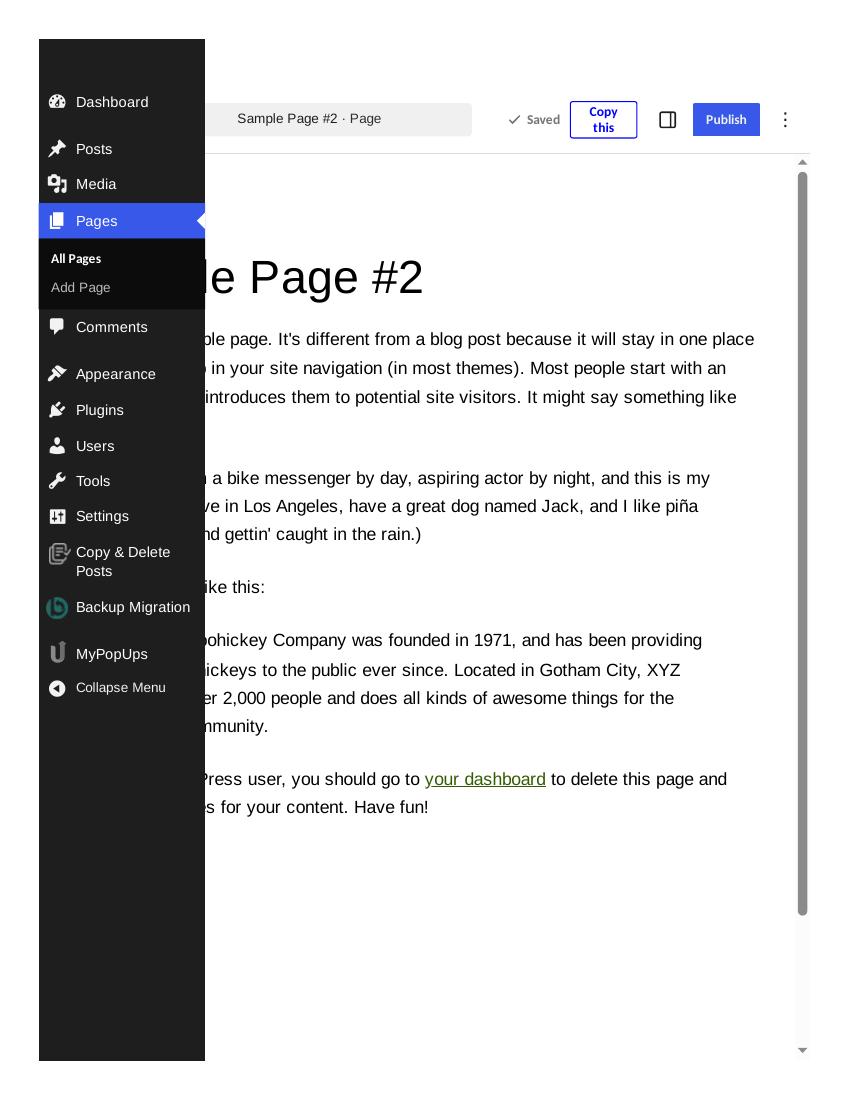
The plugin adds “#2” to the title, which is handy: you can tell the copy from the original at a glance. The copy keeps the original’s address (slug) too, so change the slug before you publish it, or WordPress will add a number to it for you.
Method 2: Copy several pages at once with Bulk Actions
The same plugin can copy more than one page in one go.
- Go to Pages > All Pages and tick the checkbox next to each page you want to copy.
- Open the Bulk actions dropdown, choose Copy, and click Apply.
- A dialog headed “Elements to copy” appears. Title, Slug, Excerpt, Content, Featured image, Template and others are ticked; Date, Status, Children, Comments and Attachments are not. Leave the defaults unless you have a reason to change them, and set how many copies you want — we left it at “Copy 1 time(s)”.
- Click “Copy it!”.
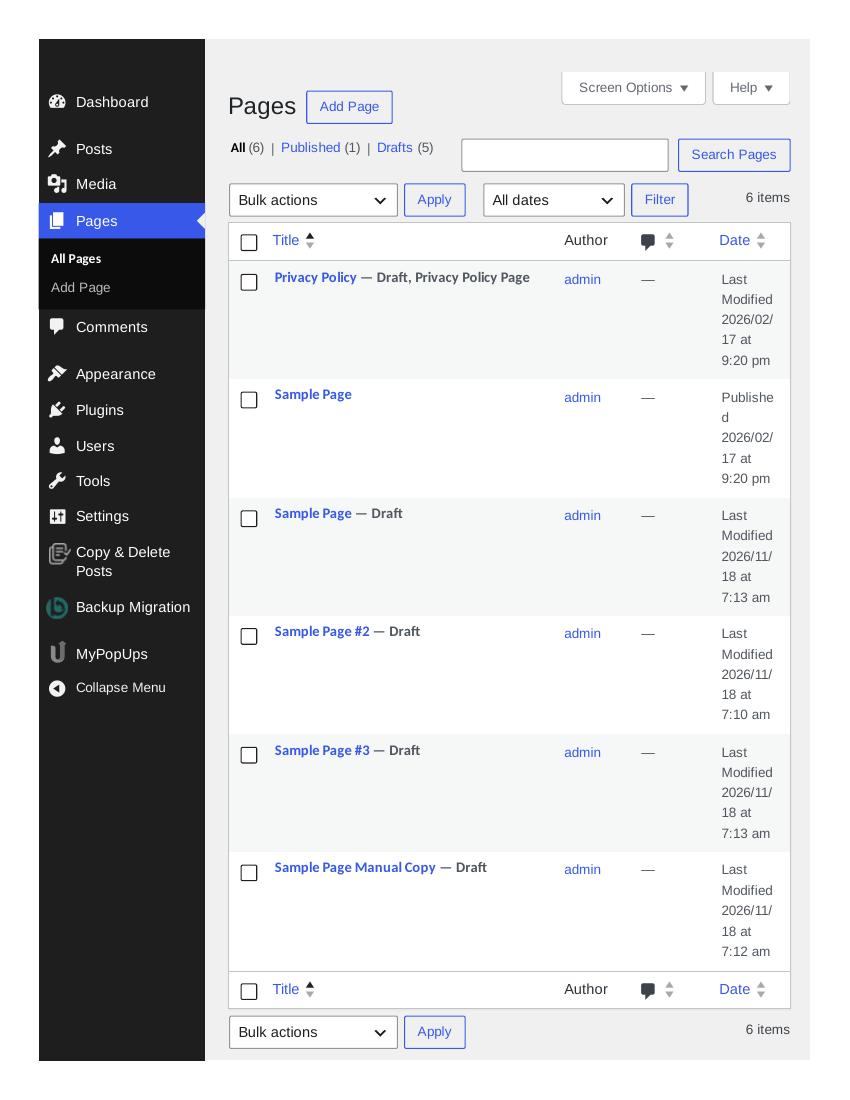
We copied the Sample Page this way and it created “Sample Page #3” as a draft, dated 18 November 2026. The dialog’s defaults are sensible: the copy gets the content and the featured image, but not the original’s date or published status, so it always starts life as a new draft.
Method 3: Clone a page with Yoast Duplicate Post
Yoast Duplicate Post is the best-known plugin for this job, and it is free. We installed version 4.7 from Plugins > Add Plugins during the test — search for “Duplicate Post”, click Install Now, then Activate.
Once active, the plugin adds three links to every page row: Clone, New draft and Rewrite & Republish. It also adds Clone and Rewrite & Republish to the Bulk Actions dropdown.
- Go to Pages > All Pages.
- Hover over the page and click Clone.
- A copy appears in the list as a draft.
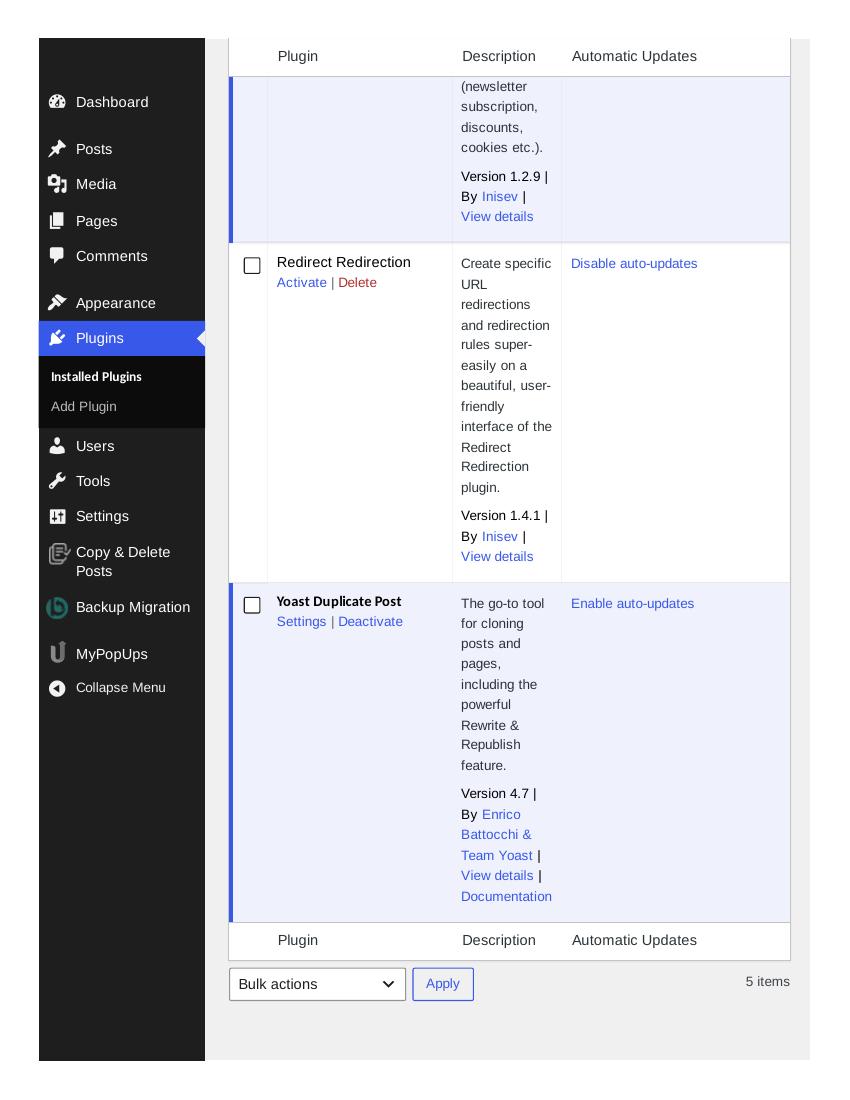
Clicking Clone on our Sample Page created a second page also called “Sample Page” as a draft, dated 18 November 2026. Note the difference from Method 1: Yoast Duplicate Post keeps the exact same title, so you must rename the copy yourself before you publish it — otherwise you will have two live pages with the same title. “New draft” and “Rewrite & Republish” were not tested separately; Rewrite & Republish is for editing a live page safely and republishing it, which is a different job from making a copy.
Method 4: Copy a page by hand, with no plugin
If you would rather not install a plugin, you can copy the page’s blocks into a new page. This works, but it has a step we could not finish in our test — read the honest note below.
- Open the original page in the block editor.
- Click the Options menu (the three dots, top right) and choose “Copy all blocks”. The editor shows “All content copied.”
- Go to Pages > Add Page and give the new page its title.
- Click into the empty first block and paste with Ctrl + V (Windows) or Cmd + V (Mac).
- Save the new page as a draft, then check it against the original before publishing.
What we could not verify: the copy step worked on our test install — “All content copied.” appeared — and we created the new page, titled “Sample Page Manual Copy”, which saved as a draft. But the paste step could not be completed in our browser session: the keyboard shortcut was not available there, right-clicking the empty block opened no paste menu, and the block toolbar offers no paste option. So the manual-copy page was left as a draft with its title only and empty content, and the paste itself was not verified by us. On a normal computer with a keyboard, Ctrl + V or Cmd + V is the standard way to paste, and it is the step to expect — we just did not get to confirm it ourselves.
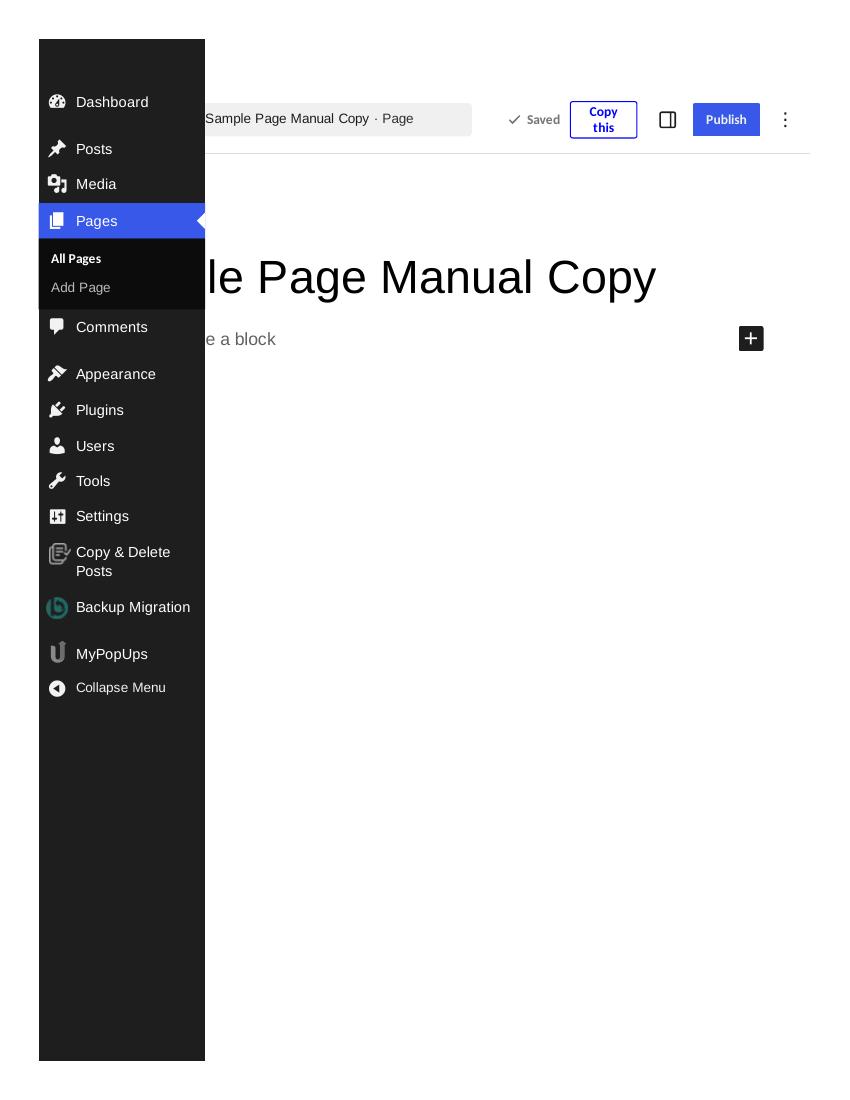
The manual method also copies only the content. It does not copy the featured image, the page template, or any custom fields — you have to set those on the new page yourself. A plugin is the better choice if you copy pages often.
After duplicating: the checks before you publish
- Rename the copy and change its address. Go to the copy’s editor, fix the title, and check the address in the page settings. The Copy & Delete Posts plugin numbers the title for you (#2, #3); Yoast Duplicate Post does not.
- Check the copy against the original. Open both side by side and confirm the text, images and links all came across.
- Add it to your menu only if it should be public. A copied draft is not on your site until you publish it, and publishing does not add it to your navigation — see our guide on how to create a menu in WordPress.
- Delete copies you no longer need. In our test the Pages list grew from two pages to six in a few minutes. Old drafts are harmless, but they make the list harder to read.
What about Elementor?
The most common related search we saw was for duplicating a page in Elementor. If you build pages with Elementor, it has its own duplicate option inside the page builder. We did not test Elementor on this install, so we do not cover its steps here — the methods above are for the standard WordPress block editor.
Which method should you use?
- One copy, quickly: Method 1, the Copy link from Copy & Delete Posts.
- Several pages at once: Method 2, the same plugin’s Bulk Actions copy.
- You already use Yoast plugins, or you want the Rewrite & Republish option too: Method 3, Yoast Duplicate Post — but remember to rename the copy, because it keeps the original’s title.
- No new plugin, and only the text matters: Method 4, copy all blocks by hand — with the paste step untested by us, as noted above.
Whichever method you pick, the rule is the same: WordPress will not stop you publishing two pages with the same title and nearly the same content, so the rename-and-check step is yours, every time.