
There are two different situations here, and they need different fixes. If you can still log in, you change the password from your profile in the dashboard — that is the quick method, and it worked first time when we tested it. If you are locked out, you use the “Lost your password?” link on the login page — and that one failed on our WordPress test install, for a reason that matters. Both are covered below, plus the two fallback methods for when email does not work at all. The fallbacks are documented steps, not tested ones, and they are marked as such.
Tested on: WordPress 7.1.4, Twenty Twenty-Three theme version 1.7, PHP 8.5.12. Tested on 18 November 2026 on a WordPress test install. Plugins on the test install: Backup Migration 2.1.9, Copy & Delete Posts 1.5.8, MyPopUps 1.2.9, Redirection 1.4.1 (inactive), Yoast Duplicate Post 4.7.
Before you start
- Use a password you do not use anywhere else. Your admin password protects the whole site. A password manager is the practical way to keep a long, unique one.
- Stay logged in while you change it. The dashboard method needs you logged in. If you log out first, you will need the reset method instead.
- Changing another user’s password is different. The steps below change the password of the account you are logged in as. To change someone else’s, go to Users > All Users, hover over their name and click Edit, then use the same Account Management section on their profile.
Method 1: Change your password from the dashboard (tested, worked)
This is the method to use when you can log in.
- Log in to your WordPress dashboard.
- Go to Users > Profile. (If you are changing another user’s password, go to Users > All Users and click Edit on their row instead.)
- Scroll down to the Account Management section.
- Click Set New Password. WordPress generates a strong password for you. You can keep it, or type your own in the field instead.
- Click Update Profile at the bottom of the page.

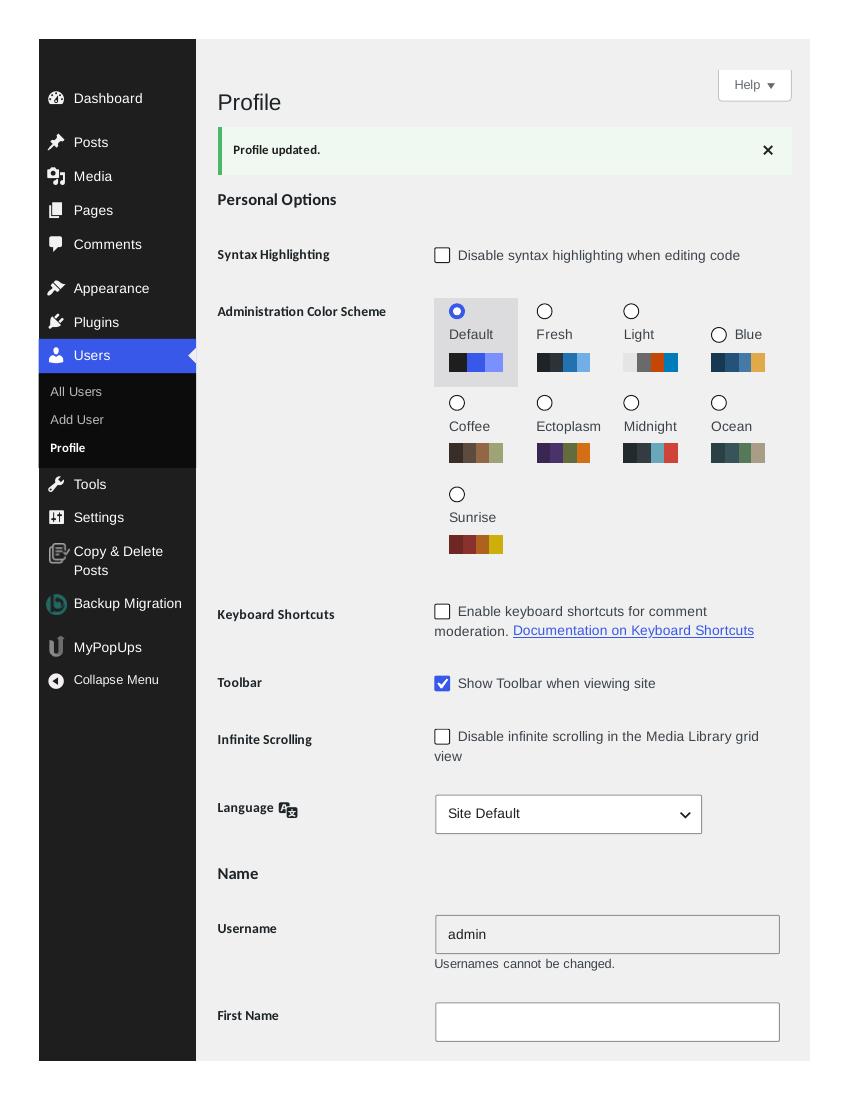
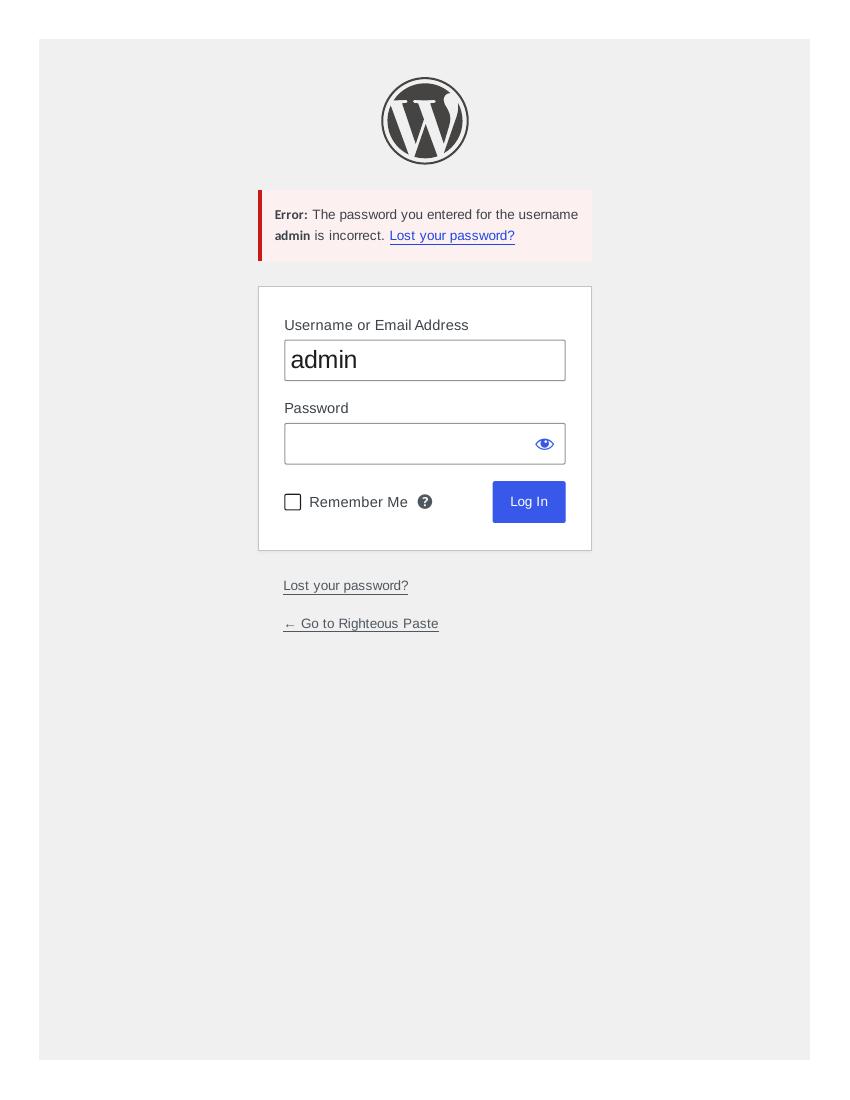
We tested this on 18 November 2026. After clicking Update Profile, the page showed “Profile updated.” We then logged out and logged back in with the new password, and reached the dashboard normally. To be sure the change had really taken, we also tried the old password at the login page — WordPress rejected it with “Error: The password you entered for the username admin is incorrect.” So the old password stops working the moment you save the new one.
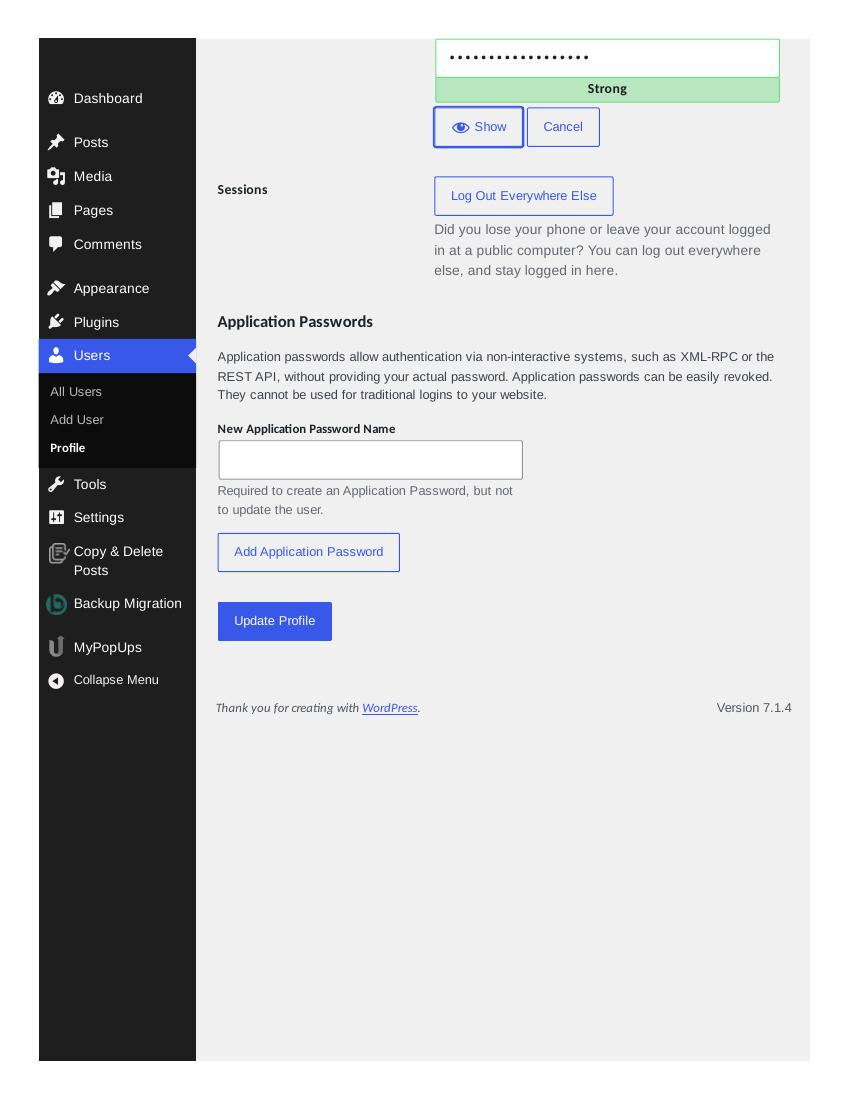
One thing to notice when you click Set New Password: WordPress first shows the generated password in plain text. If you are on a shared screen, type your own password straight away or click the Hide button — the screenshot above shows the field after the password was hidden, with dots and a “Strong” rating.
Method 2: Reset your password from the login page (tested, failed on our test install)
Use this when you cannot log in at all.
- Go to your login page — normally yoursite.com/wp-login.php.
- Click “Lost your password?” under the login form.
- Enter your username or the email address on your account, then click Get New Password.
- WordPress sends a reset link to that email address. Open it and choose a new password.
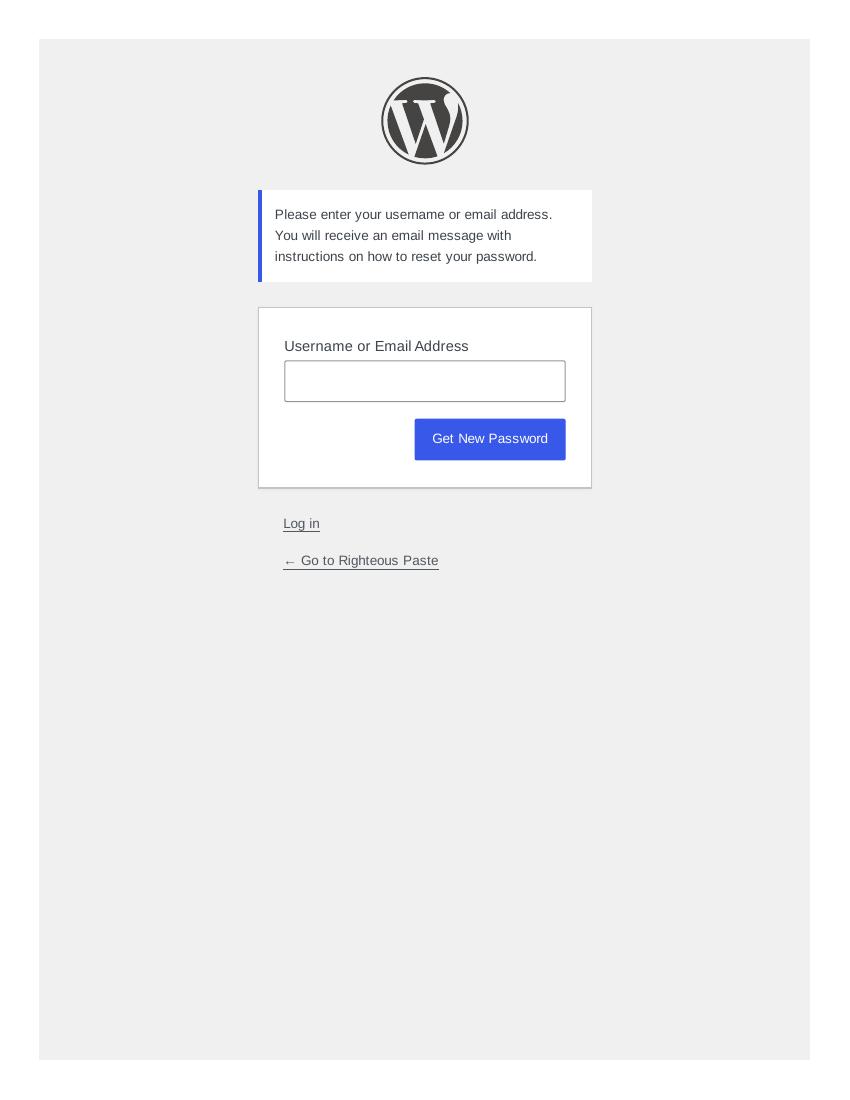
What happened when we tested it: on our WordPress test install, step 3 failed. After entering the username “admin” and clicking Get New Password, WordPress showed “Error: The email could not be sent. Your site may not be correctly configured to send emails. Check your email for the confirmation link.” No reset email arrived, and we tested it twice with the same result.
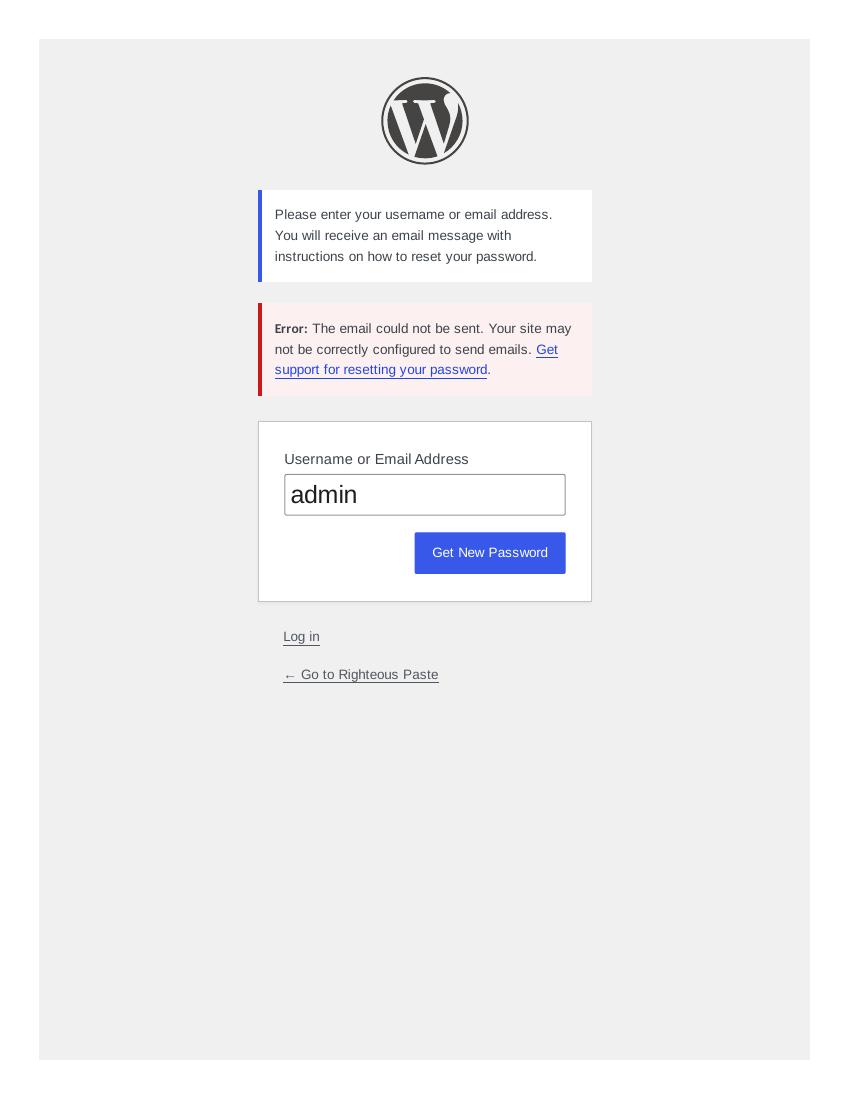
That failure is about the test install, not about the method: the test install has no working mail setup, so WordPress could not send anything. On a real site with working email, the reset link should arrive within a few minutes — check your spam folder if it does not. But if your site cannot send email at all, this method will never work, and you need Method 3 or 4 below. Our guide on how to fix WordPress not sending email covers the mail side of the problem.
Also note: the reset link goes only to the email address stored on your user account. If that address is an old one you no longer use, the email will go there and not to you — another reason to keep the email on your admin account up to date.
Method 3: Reset the password in phpMyAdmin (documented, not tested here)
Use this when you cannot log in and the reset email never arrives, and your host gives you phpMyAdmin or a similar database tool. This method was not tested on our test install — the test install has no database tool — so the steps below are the standard documented ones, not steps we ran ourselves. Back up your database before you touch it.
- Open phpMyAdmin from your hosting panel and open your site’s database.
- Open the wp_users table (the prefix may differ if your install uses a different one).
- Find the row for your admin user and click Edit.
- In the user_pass field, delete the old value and type your new password in plain text.
- In the Function dropdown next to it, choose MD5, then click Go to save.
- Log in with the new password. WordPress accepts the MD5 value and replaces it with its stronger hash the first time you log in.
Do not leave the new password in plain text anywhere else, and do not change any other field in the row — the user_login, user_email and other values must stay exactly as they are.
Method 4: Reset the password with WP-CLI (documented, not tested here)
Use this if your host gives you SSH access and WP-CLI is installed. Like Method 3, this was not tested on our test install, which has no command-line access.
Run this command, replacing 1 with your user ID if your admin user is not user 1, and the password with your new one:
wp user update 1 --user_pass="YourNewSecurePassword"WP-CLI uses WordPress’s own password functions, so the hash it stores is always in the format WordPress expects. Log in with the new password afterwards to confirm it worked.
After changing your password
- Log out everywhere if the old password may have leaked. On your Profile page, under Sessions, click Log Out Everywhere Else. That ends every other logged-in session except the one you are using now.
- Update your password manager — and anywhere else the old password was saved, such as a browser-saved password.
- If you were locked out, check why. A forgotten password is one thing; if the reset email never arrives, your site’s email is broken, and that will affect other things too, like order emails and form notifications. Fix the mail problem as well as the password.
- Still locked out? Our guide on how to fix WordPress login problems covers the other lockout causes, such as a wrong username or a security plugin blocking the login page.
Which method should you use?
- You can log in: Method 1, the dashboard. It is the quickest and the one we verified end to end.
- You cannot log in, but your site sends email: Method 2, the “Lost your password?” link.
- You cannot log in and no email arrives: Method 3, phpMyAdmin, if your host provides it — or Method 4, WP-CLI, if you have SSH access. Both are documented above and were not tested on our test install, so take a backup first and follow the steps exactly.