
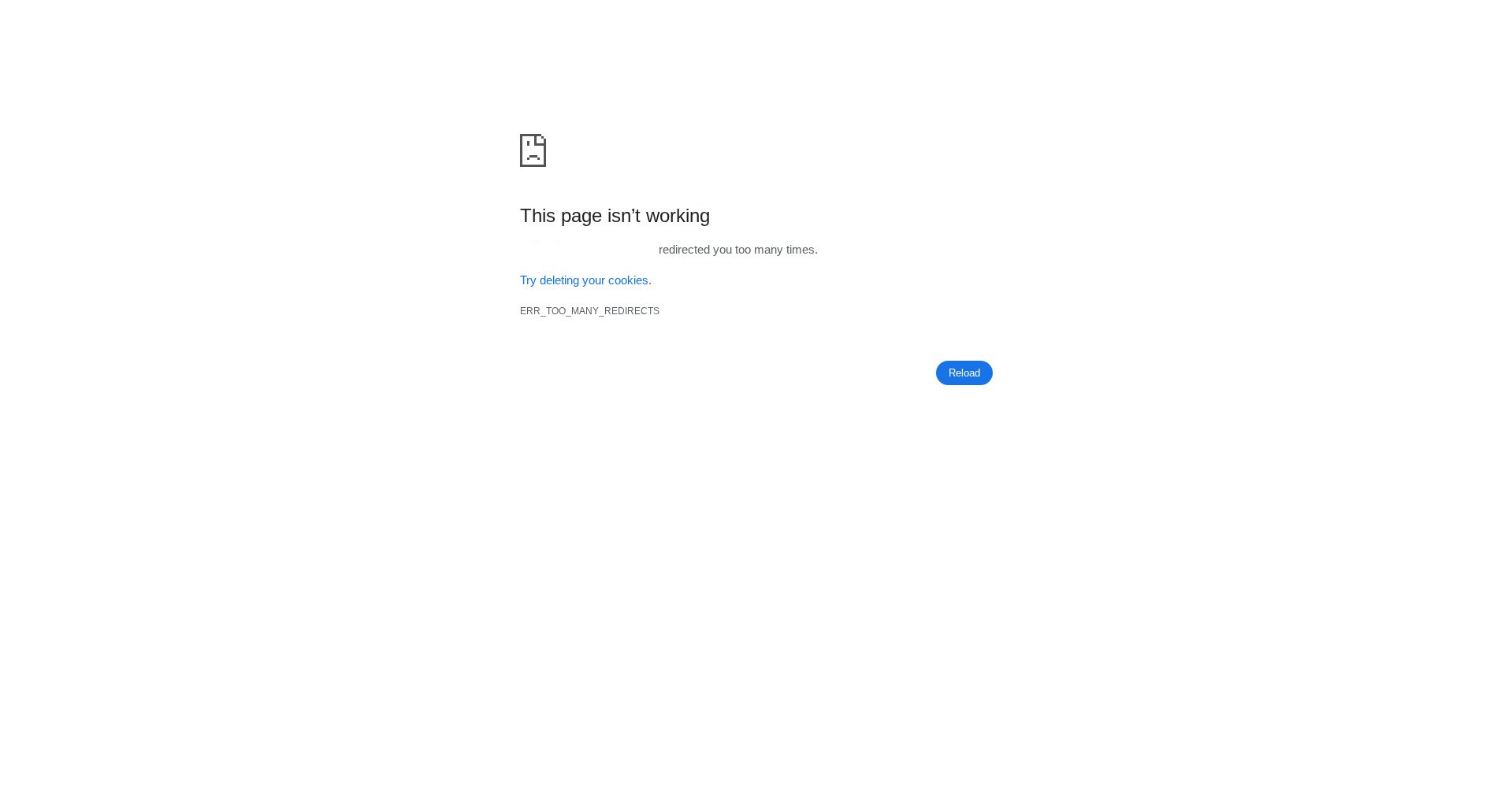
You open a page and the browser refuses to show it: “This page isn’t working… redirected you too many times.” with the code ERR_TOO_MANY_REDIRECTS underneath. It means your site is sending the browser in a circle — page A redirects to page B, and page B redirects back to page A, so the browser gives up. We recreated exactly that loop on a WordPress test install on 19 November 2026, and fixed it three ways. The first fix we tried — deleting the rules — did not work, and that failure is in the article too.
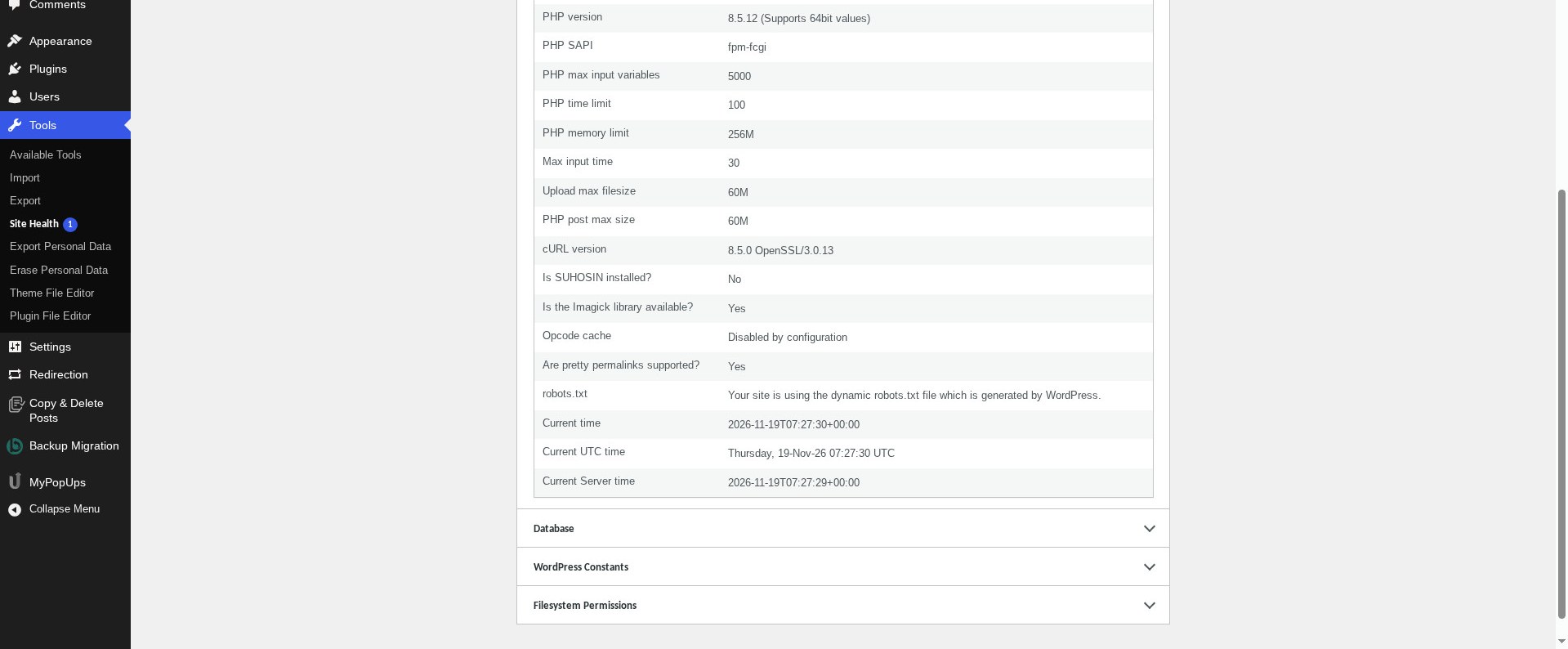
Tested on: WordPress 7.1.5, Twenty Twenty-Three theme version 1.7, PHP 8.5.12, on a server running an nginx fork. Tested on 19 November 2026 on a WordPress test install. Plugin used: Redirection 5.10.1 by John Godley (free).
Before you start
- Do not delete things at random. The loop is almost always one pair of rules pointing at each other, or one plugin doing the redirecting. Find it first, then remove only that.
- Your browser caches redirects. A 301 redirect is cached by the browser, so after you fix the loop the same address can still show the error until the cache is cleared. Test in a private window, or add a fresh query string such as
?test=1to the address, to see the real result. - Back up before you change redirect rules if your site is live. On our test install we could experiment freely; on a live site, a wrong rule can take pages down.
Method 1: Find the loop in your redirect rules
If you use a redirect plugin, open its rules list first. That is where our loop was.
- Go to Tools > Redirection.
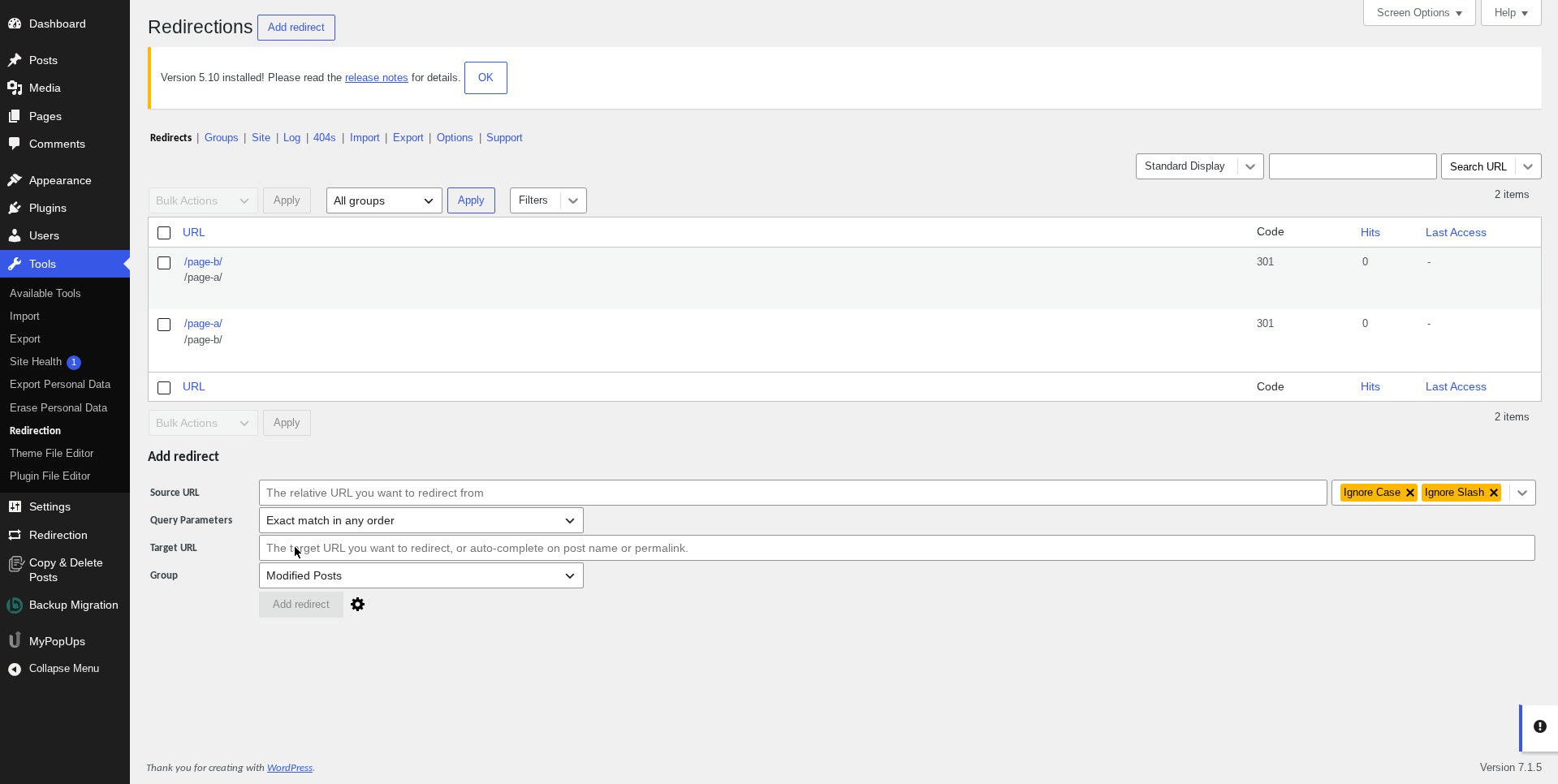
- Look at the rules list. On our test install we had created two rules:
/page-a/to/page-b/and/page-b/to/page-a/, both 301. Each rule on its own looks harmless; together they are a circle.
- Visit the page. On our test install, opening Page A showed the browser error page: “This page isn’t working… redirected you too many times.” with ERR_TOO_MANY_REDIRECTS underneath.
If you can see two rules pointing at each other like that, you have found the loop. Go to Method 2.
Method 2: Break the loop by disabling the rules
Our first attempt was to delete both rules. It failed — and this is worth knowing before you try it yourself. In Redirection 5.10.1, the row Delete link, the bulk Delete action and the group Delete all did nothing: no confirmation appeared, no message appeared, and both rules stayed in the list. By then each rule had 21 hits from the loop. Disabling the rules worked instead.
- In Tools > Redirection, tick the checkbox next to each rule in the loop.
- Open the Bulk Actions dropdown, choose Disable, and click Apply.
- Open the page again. On our test install the plain address still showed the loop error, because the browser had cached the 301 — so we opened the page with a fresh query string,
/page-a/?test=1, and it loaded normally.
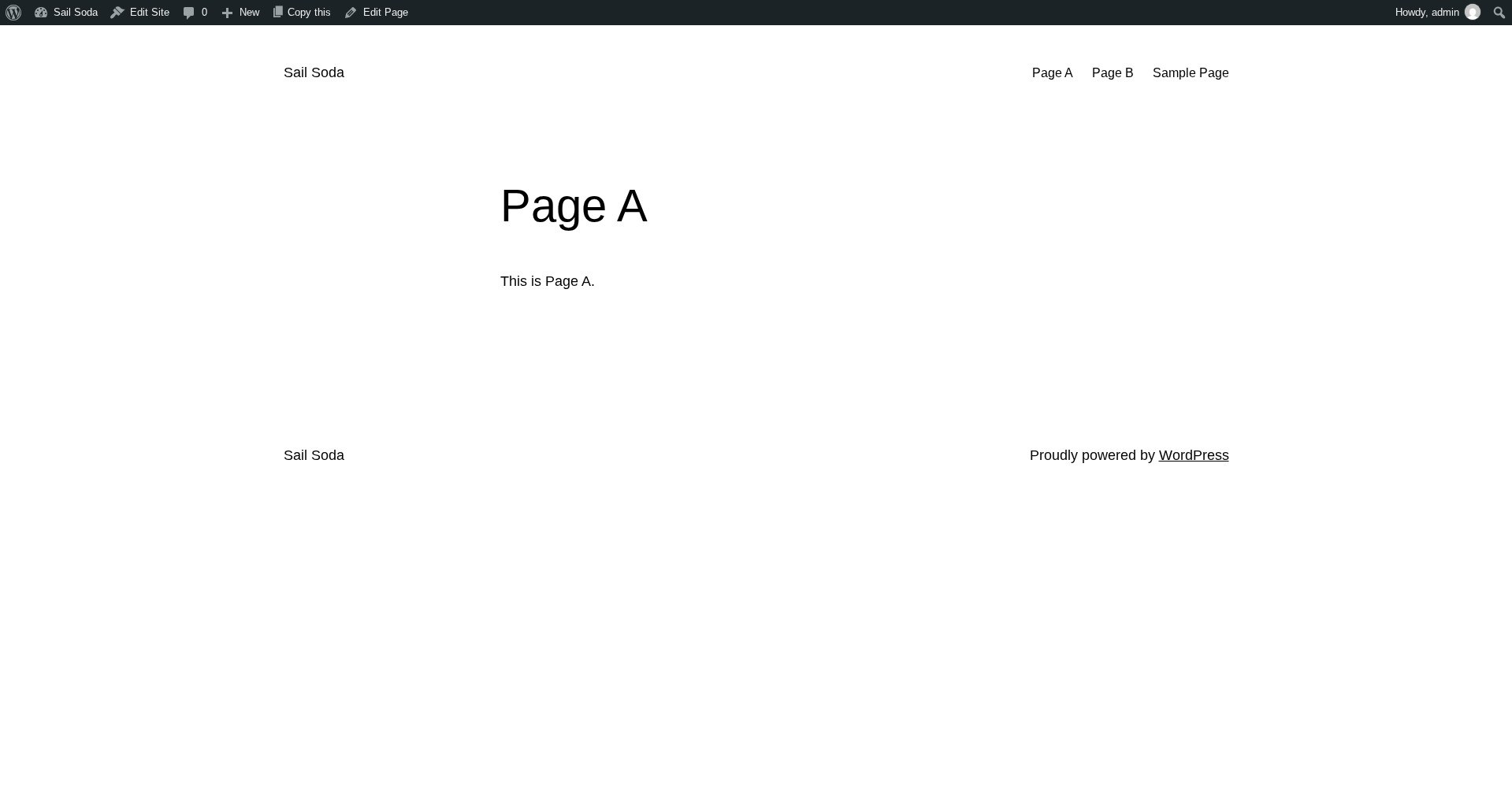
If disabling the rules fixes the page, the loop was in those rules. You can leave them disabled, or delete them later once you have confirmed the site is fine. If the page still loops with the rules disabled, the loop is somewhere else — go to Method 3.
Method 3: Deactivate the redirect plugin
If the loop comes from a plugin rather than one bad rule, switching the plugin off breaks the loop at once. This also tells you whether the plugin was the cause.
- Go to Plugins > Installed Plugins.
- Tick the checkbox next to the redirect plugin — on our test install, Redirection.
- Open the Bulk actions dropdown, choose Deactivate, and click Apply. WordPress showed “Selected plugins deactivated.”
- Open the page again. On our test install, Page A loaded normally once Redirection was deactivated.
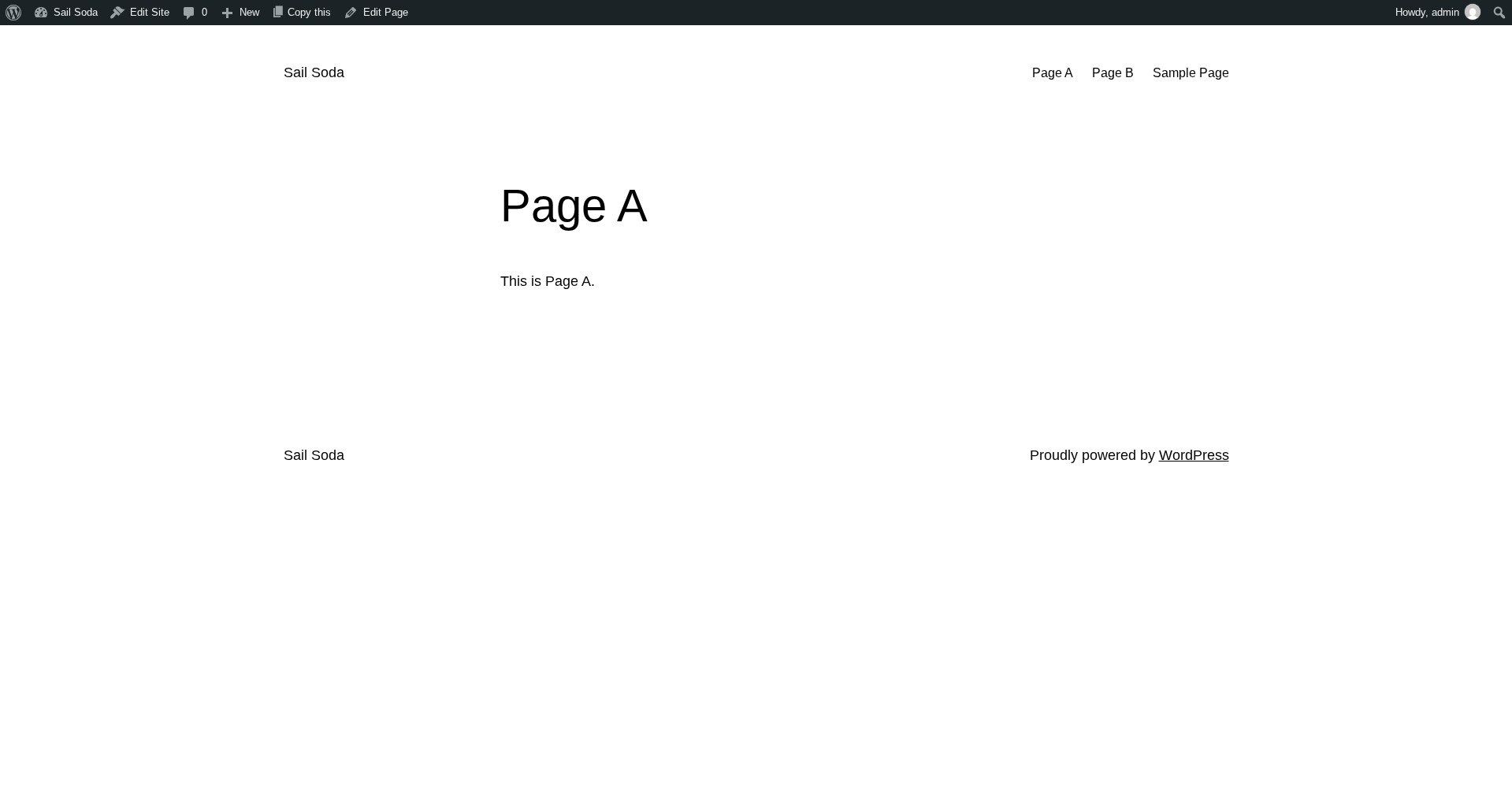
If the page loads with the plugin off, the plugin was causing the loop — either its rules, or a setting inside it. Check its rules before you switch it back on, and remove the pair that points at each other. If the page still loops with the plugin off, the loop is not in the plugin at all — check Method 4, and the untested items below.
Method 4: Check the two addresses in Settings → General
A common cause of a loop on the whole site, rather than one page, is the two address fields disagreeing with each other.
- Go to Settings > General.
- Compare WordPress Address (URL) and Site Address (URL). They should show the same address, including the same
https://at the start. - If one says
http://and the other sayshttps://, or one haswww.and the other does not, fix them so they match, save, and test the page again.
On our test install the two addresses matched, so this was not the cause there — but it is a two-minute check that catches a whole class of loops, so do it before you go deeper.
If the loop is not from a plugin
Two other places can cause a redirect loop, and neither was tested on our install — read the honest note below.
- The .htaccess file. On Apache hosting, a redirect rule in .htaccess can loop with a rule in WordPress. If your host uses Apache, check .htaccess for redirect lines and remove the pair that points at each other. Our test install runs on an nginx server, so it has no .htaccess file and this step could not be tested.
- Cloudflare or another proxy. If your site sits behind Cloudflare, its SSL setting can fight with your site’s SSL setting and loop every page. The usual fix is to set Cloudflare’s SSL mode to Full, not Flexible, when your site already has SSL. We did not test this: our test install has no Cloudflare in front of it.
What we could not verify
- The .htaccess step. Our test install runs on an nginx fork, so there was no .htaccess file to check or edit. The .htaccess advice above is the standard fix for Apache hosting, but we did not test it ourselves.
- Cloudflare settings. No Cloudflare in front of the test install, so nothing about its SSL modes was tested.
- A server cron job or hosting-panel fix. Not applicable to this error, and not tested.
- Deleting rules in Redirection 5.10.1. As described in Method 2, every Delete option failed silently on our test install and the rules stayed in place. Disabling the rules worked. We do not know whether the Delete failure is a bug in this version or something about our install, so we report it as we found it: if Delete does nothing for you, disable instead.
Which method should you use?
- One page loops, and you use a redirect plugin: Method 1 to find the pair, then Method 2 to disable it. Remember the browser cache — test in a private window or with a fresh query string, or you will think the fix failed when it worked.
- The whole site loops, or disabling the rules did not help: Method 3, deactivate the redirect plugin. If the site comes back, the loop was inside the plugin.
- The loop affects every page and no plugin is involved: Method 4, check the two addresses in Settings > General, then look at .htaccess or Cloudflare as above.
Whichever method fixes it, the lesson from our test is the same: a redirect loop is two things pointing at each other, and the fix is to break the circle in one place — not to keep adding more redirects on top of it.