
You schedule a post for 7:45 am, and at 8:00 am it still is not live. In Posts > All Posts the date column says “Missed schedule” in red. The post is not lost — WordPress simply did not publish it at the time you set, and you can publish it yourself in two minutes. We recreated the error on a WordPress test install on 19 November 2026, and the first fix we tried — Quick Edit straight to Published — did not work, because WordPress 7.1.5 does not offer that option. The workaround that did work is in Method 1.
Tested on: WordPress 7.1.5, Twenty Twenty-Three theme version 1.7, PHP 8.5.12, on a server running an nginx fork, timezone UTC+0. Tested on 19 November 2026 on a WordPress test install. Plugins used: File Manager 8.0.7 (to edit wp-config.php) and WP Crontrol 2.0.0 (free). The error was reproduced by switching off WP-Cron on the test install — do not do that on your own site; it causes this exact problem.
Before you start
- The post is safe. A missed post is still a draft in your Posts list with all its content. Nothing is deleted, and you do not need to write it again.
- Check the clock first. A wrong timezone is the most common cause of a post publishing at the wrong time. Method 2 takes thirty seconds and rules it out.
- Understand why it happens. WordPress does not have a real clock that wakes up on its own. It checks for due posts only when somebody visits your site — that check is called WP-Cron. If nobody visits around the scheduled time, or if something stops WP-Cron from running, the post misses its slot and WordPress marks it “Missed schedule”.
Method 1: Publish the missed post now
This is the fix for the post that already missed. Do it first, then use Methods 2 to 4 to find out why it happened.
- Go to Posts > All Posts and find the post. It shows “Missed schedule” in red, with the time it was meant to publish.
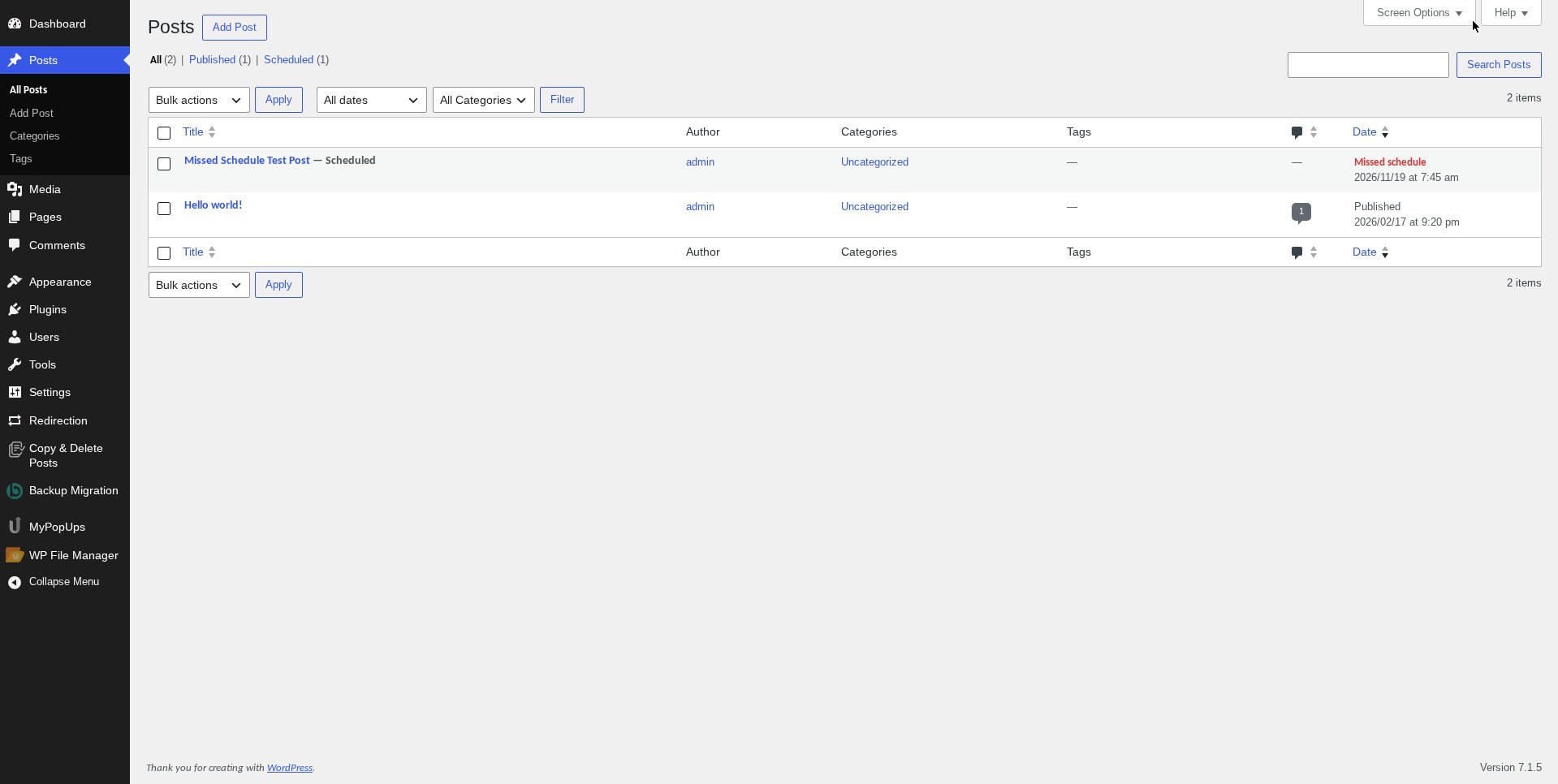
- Hover over the post and click Quick Edit.
- Look at the Status dropdown. This is where our first attempt failed: for a scheduled post, WordPress 7.1.5 offers only Scheduled, Pending Review and Draft — there is no Published option to pick.
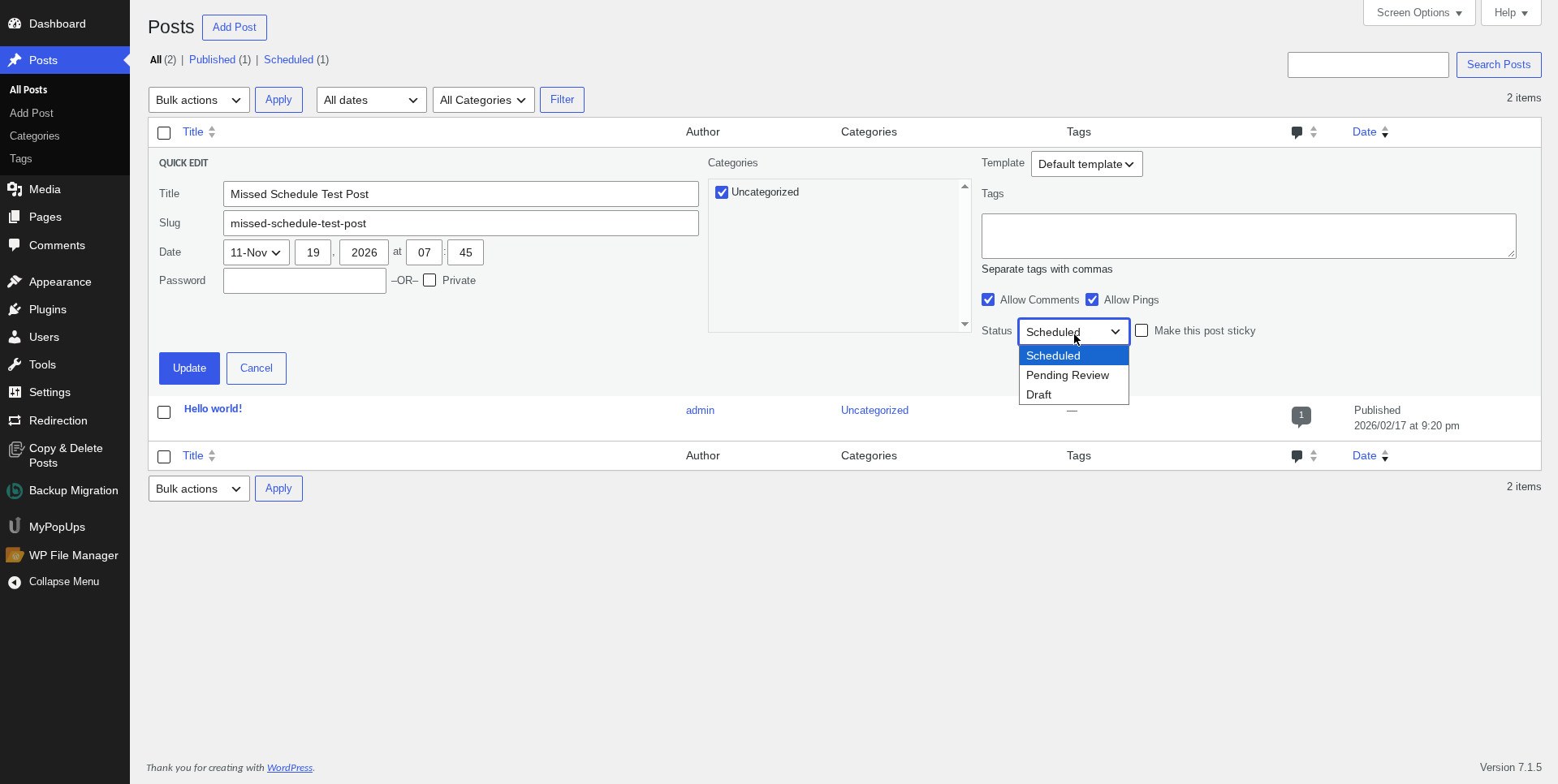
- Choose Draft and click Update. The post is now a draft, not a scheduled post.
- Hover over the post again and click Quick Edit a second time. Now the Status dropdown does offer Published.
- Choose Published and click Update. WordPress shows “Changes saved.” and the post is live, keeping its original scheduled date and time.
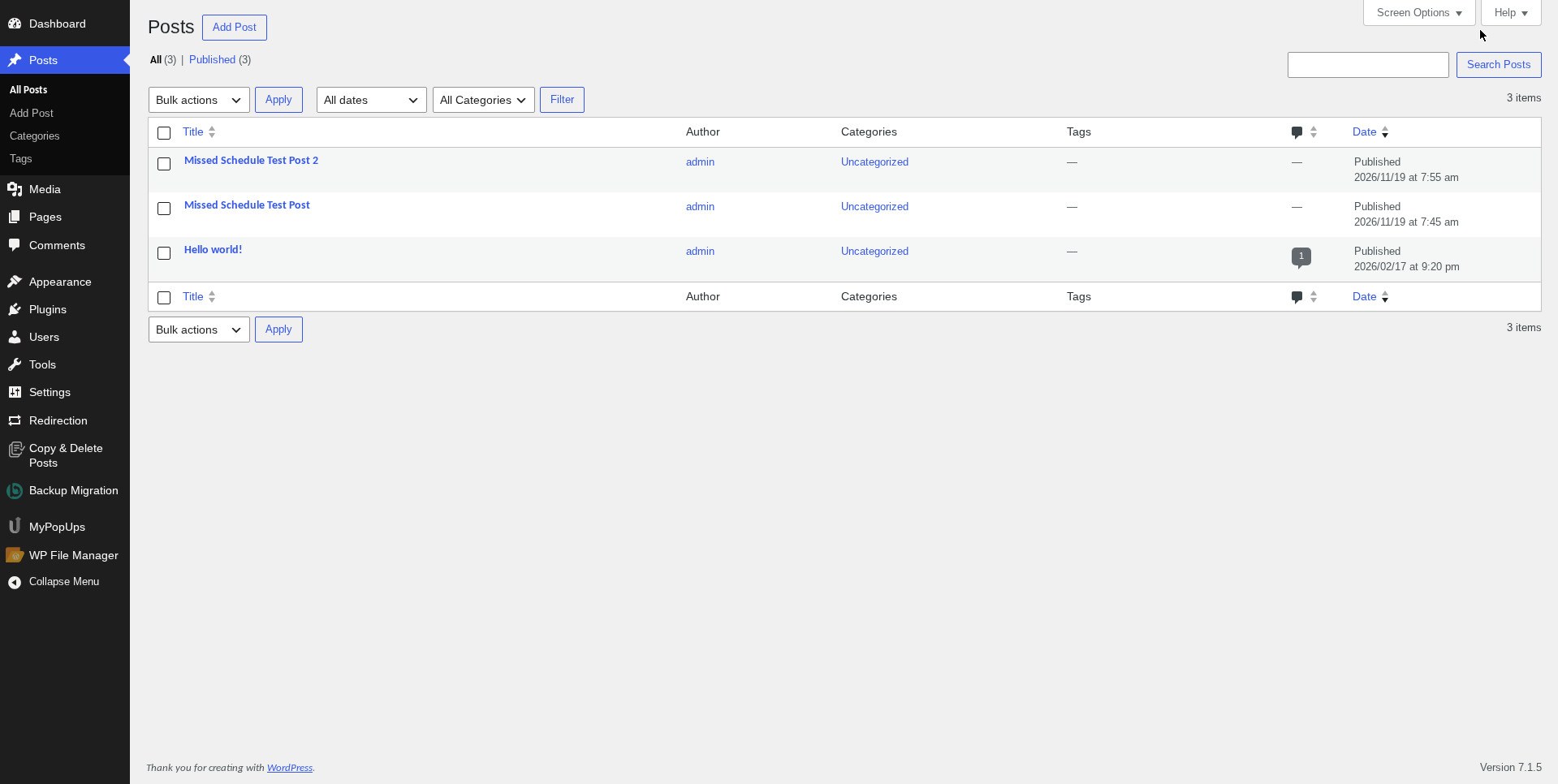
On our test install the post showed Published, 2026/11/19 at 7:45 am after this two-step workaround.
If you have several missed posts, repeat the same steps for each one. There is no bulk way to do it from the Posts list.
Method 2: Check the timezone
If your timezone is wrong, a post scheduled for “7:45 am” can be due at a time you did not expect, and WP-Cron can miss it.
- Go to Settings > General.
- Find the Timezone dropdown. It should show your own timezone — or the UTC offset you actually work in.
- Check the “Universal time is” line underneath it. It should show the current time.
On our test install the timezone was UTC+0 and the universal time read 2026-11-19 07:58:14 at the moment of the check, which was correct — so the timezone was not the cause there.

If the timezone is wrong, set it right and save. Then schedule a new test post a few minutes ahead and see whether it publishes on time.
Method 3: Check Site Health for cron and loopback problems
WordPress can tell you itself whether its scheduling system is healthy.
- Go to Tools > Site Health > Status.
- Look for warnings about loopback requests or scheduled events. On our test install there were none: the passed tests included “Scheduled events are running” and “Your site can perform loopback requests”.
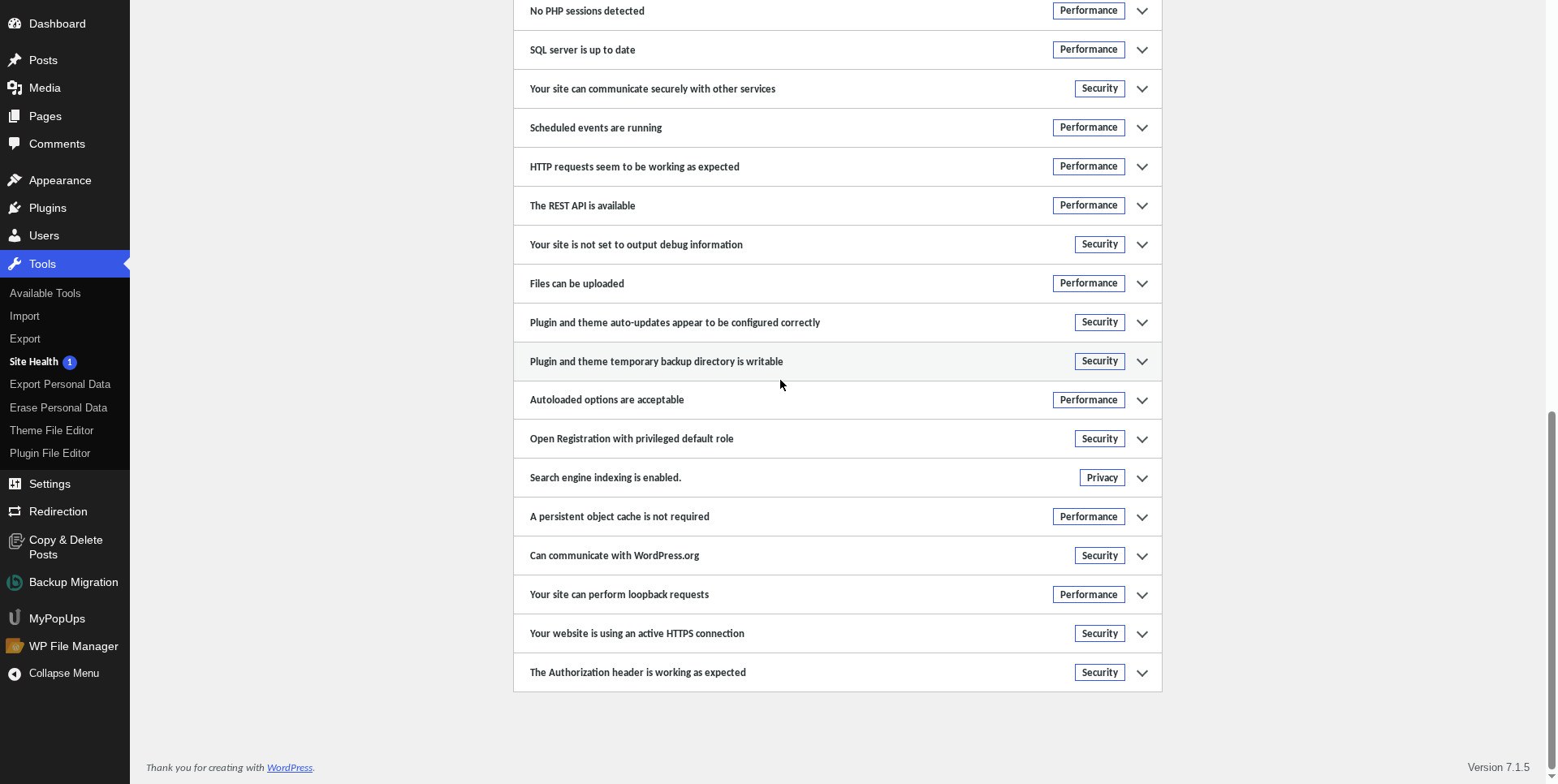
- If Site Health does show a loopback or scheduled-events warning, that is your cause: WordPress cannot reach itself to run WP-Cron, and scheduled posts will keep missing. The usual culprits are a security plugin blocking loopback requests, or a host that blocks them — check those before anything else.
A note on what else Site Health showed us: after a re-run it reported 1 critical issue, “Background updates are not working as expected”, and 4 recommended improvements. That is a quirk of the test install, not the cause of the missed post — the scheduling checks still passed, and the next test post published on time. Do not chase every Site Health item; chase the loopback and scheduled-events ones.
Method 4: Check the scheduled event with WP Crontrol
If you want proof that the publish event exists and is due, WP Crontrol shows you the cron queue.
- Install the free WP Crontrol plugin from Plugins > Add Plugins — see our guide on how to install a WordPress plugin — and activate it.
- Go to Tools > Cron Events.
- Look for the publish_future_post hook. For a post that is still scheduled, it shows when it will run next. On our test install, for a post scheduled for 8:10 am, it showed “In 9 minutes, Today at 8:10 am, Non-repeating, check_and_publish_future_post()”.
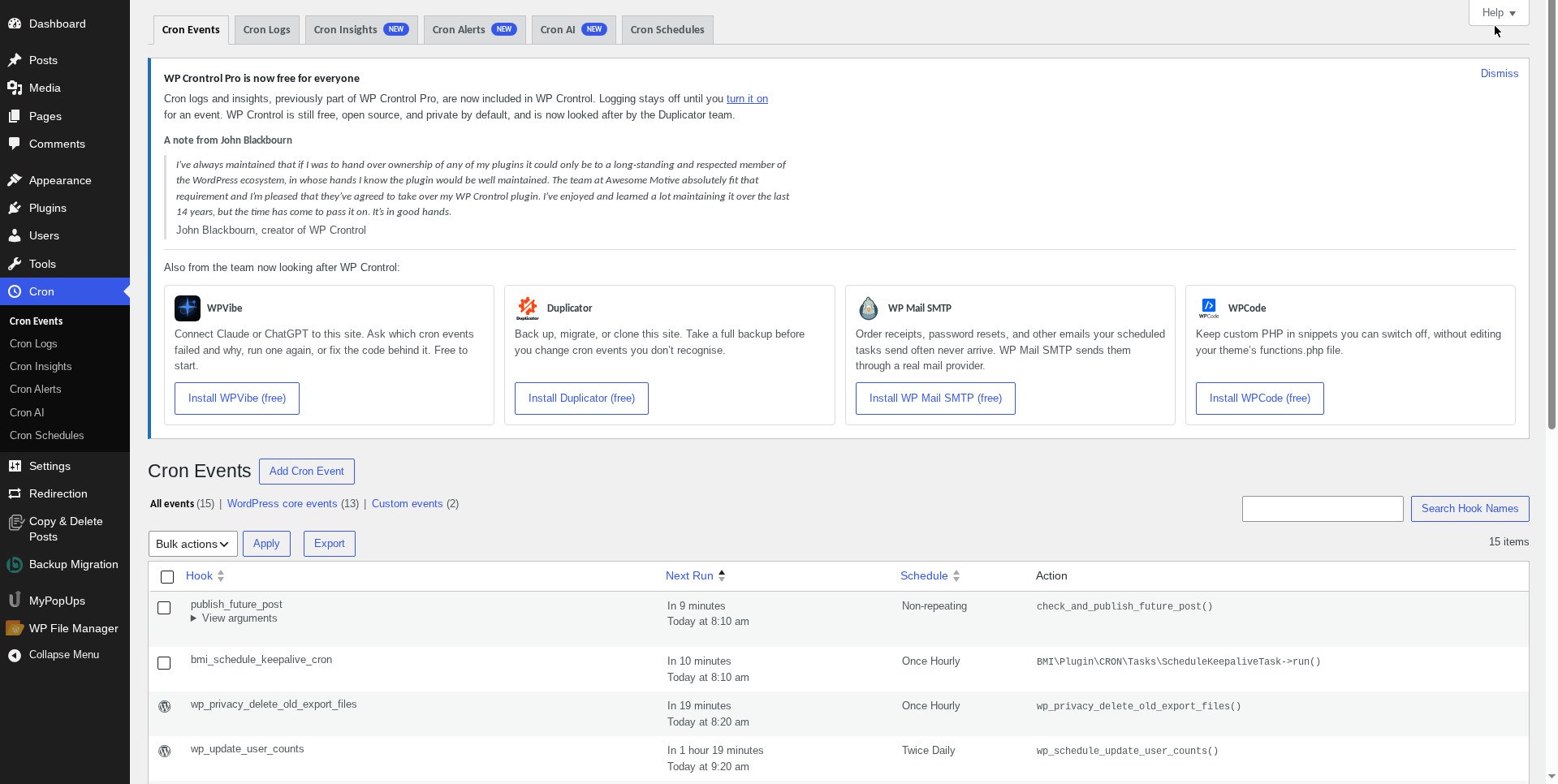
- If there is no publish_future_post event for your scheduled post, WP-Cron has lost it — the post will never publish on its own, so publish it by hand with Method 1 and check your timezone and Site Health as above.
Before and after: the proof the fix works
To be sure the cause was WP-Cron being switched off, and not something else, we removed the line that switched it off from wp-config.php and scheduled a second post for 7:55 am. That post published on time: the editor showed “is now live” before we even visited the front end, and the Posts list showed it Published, 2026/11/19 at 7:55 am, next to the first post published at 7:45 am.
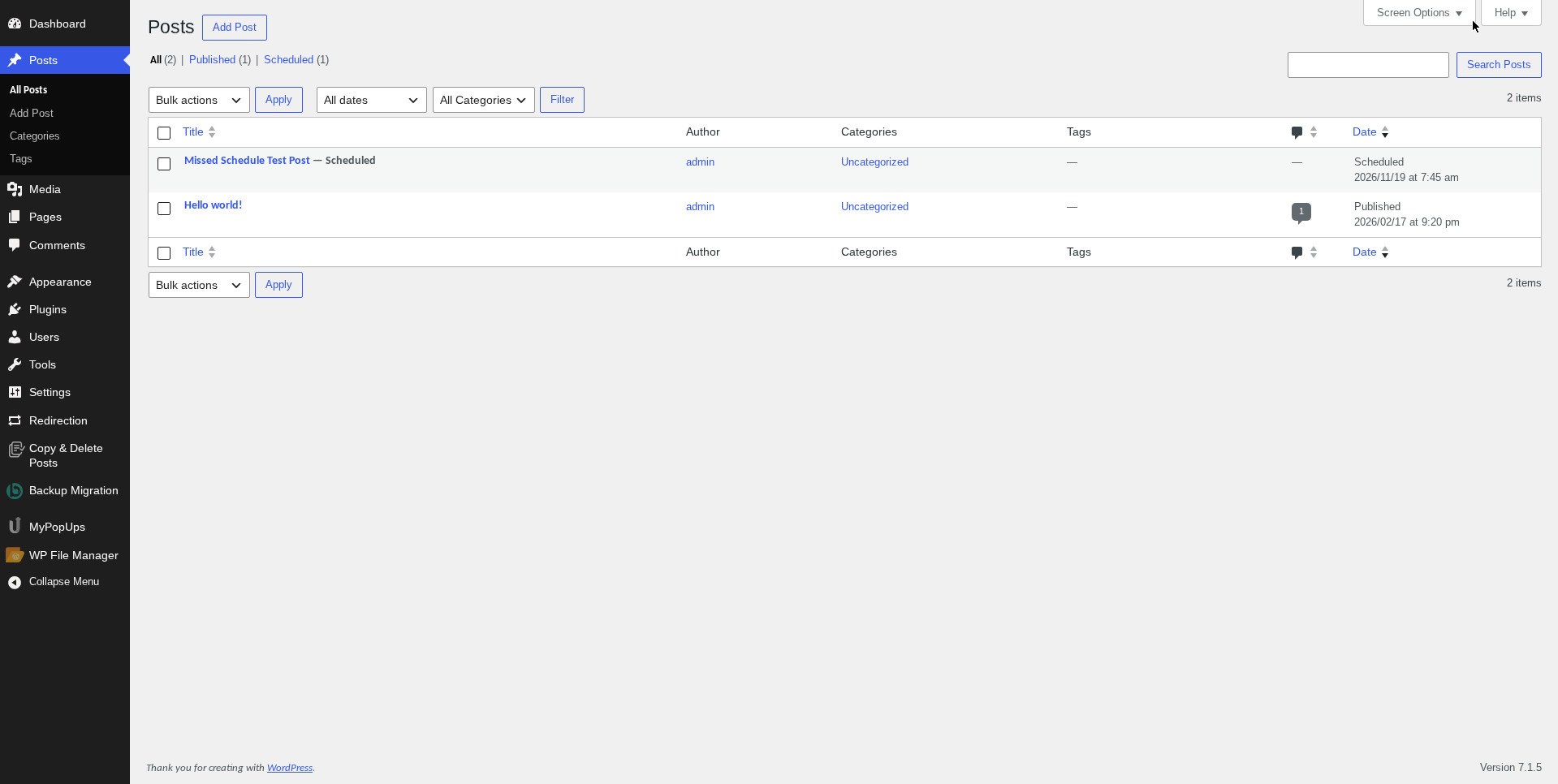
The first post, before the fix, looked like this when it was scheduled — a normal scheduled post, nothing wrong with it on the surface:
What we could not verify
- A server cron job. The proper long-term fix for a site where WP-Cron keeps missing is a real cron job set up in your hosting panel, which visits wp-cron.php on a schedule. That needs a real host, so it was not tested on the test install. If missed schedules keep happening after you have checked the timezone and Site Health, ask your host how to set one up.
- The “Background updates are not working as expected” warning. It appeared on the test install’s Site Health re-run, as noted in Method 3. We did not investigate it, because the scheduling checks passed and the follow-up post published on time.
- Quick Edit straight to Published. We tried it first and it failed: WordPress 7.1.5 does not offer Published in the Status dropdown for a scheduled post. The Draft-then-Published workaround in Method 1 is the route that worked.
Which method should you use?
- A post has already missed: Method 1, publish it now with the Draft-then-Published workaround. Do not re-schedule it — re-scheduling the same post can miss again for the same reason.
- It keeps happening: Method 2, check the timezone, then Method 3, check Site Health for loopback and scheduled-events warnings. Those two checks find the cause in most cases.
- You want to see the event itself: Method 4, WP Crontrol, and look for publish_future_post. If it is missing, the post will not publish on its own.
- It still keeps happening after all that: ask your host about a server cron job — the one fix we could not test, because it needs a real hosting panel.
The error looks alarming in red, but it is a missed alarm, not a lost post. Publish it by hand, check the timezone and Site Health once, and the next scheduled post should go out on time.