
Quick answer
This is part of the Grow and Protect Your WordPress Site hub, which covers keeping a WordPress site fast, backed up and up to date. Before you change plugins or settings, make a backup — see how to back up your WordPress website — and once the site is fast, keep it that way with how to update WordPress safely; to see whether the speed work brings more visitors, use how to add Google Analytics to WordPress. To speed up WordPress: measure the site first with PageSpeed Insights, then fix what the measurement actually shows — usually oversized images, too many or heavy plugins, no caching, and slow hosting. Work in that order and re-measure after each change, so you know which change helped and by how much. There is no single plugin that fixes a slow site; speed comes from removing the real causes one at a time.
On the test install used for this guide, these steps took the home page from 99 to 100 on mobile and from 99 to 100 on desktop, and the shop page from 98 to 99. The biggest change was in Speed Index: the home page went from 2.9 to 1.7 seconds on mobile and the shop page from 3.9 to 2.7 seconds. That is a modest gain, because the test site was already fast — a fresh install with a light theme starts near the top. The numbers below are the real measurements, including the one metric that went the other way.
Tested on: WordPress 7.1.4 · Theme: GeneratePress 3.6.1 · WooCommerce 11.3.0 · PHP 8.5.12 · WP Super Cache 3.1.5 · EWWW Image Optimizer 8.9.2 · Autoptimize 3.1.7 · Tested 17 November 2026 on a WordPress test install with 26 posts, 13 pages and 20 WooCommerce products. See “What was not tested” at the end.
What you need before you start
- Access to the WordPress admin.
- A backup of the site. If you do not have one yet, read How to Back Up Your WordPress Website first. Speed work changes plugins and settings, and a backup lets you undo any of it.
- A way to measure. Use Google’s free PageSpeed Insights (pagespeed.web.dev) — paste your homepage URL, run the test, and write down the mobile and desktop scores and the load time before you change anything. That “before” number is the only way to know if a change helped.
How to speed up WordPress, step by step
Step 1: Measure first, and find the real cause
Run PageSpeed Insights on your homepage and on one article page. Write down the scores and, more importantly, the top items in the “Insights” list — that list names the actual causes on your site, in order of impact. (This version of PageSpeed Insights calls the list “Insights”, not “Opportunities”.) Common ones are “Render-blocking requests”, “Use efficient cache lifetimes”, “Legacy JavaScript” and “Reduce unused CSS”. Do not start installing optimisation plugins before you have this list — you would be guessing.
On the test install, the baseline was measured on 17 November 2026 with PageSpeed Insights (Lighthouse 13.6.0), before any optimisation plugin was installed. The home page scored 99 on mobile and 99 on desktop, and the shop page scored 98 on mobile. First Contentful Paint was 1.3 seconds on mobile and 0.3 seconds on desktop, and Largest Contentful Paint matched it on both. Total Blocking Time was 0 ms and Cumulative Layout Shift was 0 everywhere. The biggest single item was render-blocking requests: an estimated 980 ms of savings on the home page on mobile and 540 ms on the shop page. The test install was already fast — a fresh WordPress install with a light theme and WooCommerce starts near the top — so the baseline left little room for the scores to rise. The gains below are in the timings, not the scores.
Step 2: Turn on page caching
Caching means WordPress builds each page once and serves the saved copy to the next visitor, instead of building the page from scratch on every visit. For most sites it is the single biggest speed win, and it is also the easiest to get wrong — because a caching plugin only helps if your host actually supports the kind of caching it uses.
On the test install, WP Super Cache 3.1.5 was used. Go to Settings → WP Super Cache, open the Easy tab, choose “Caching On (Recommended)” and save. Then run the plugin’s own cache test from the same page: it fetches the home page and reports whether a cached copy was served. On the test install the test fetched the home page three times, each returning 200, and cache files were created; the two copies it compared differed only by their own generation timestamps, which is expected. LiteSpeed Cache was not used here: its page cache needs a LiteSpeed server, and the test install does not run on one — the same situation as this live site, where LiteSpeed Cache’s page cache is unavailable for the same reason. If your host runs LiteSpeed, LiteSpeed Cache is the right tool there; if it does not, WP Super Cache is the free alternative.
Step 3: Optimise your images
Images are the most common cause of a slow WordPress site. Before uploading an image, resize it to the size it will actually be shown at — a photo displayed at 800 pixels wide does not need to be 4000 pixels wide. In the Media Library, check the file size of your largest images: a photo over 500 KB is worth resizing, and anything over 1 MB almost always is. Re-upload the resized version and re-measure. If your theme or a plugin offers image compression, use it — but resize first, because compression cannot fix a photo that is four times bigger than it needs to be.
On the test install, EWWW Image Optimizer 8.9.2 was used. Go to Settings → EWWW Image Optimizer → Bulk Optimize and run “Optimize Local Images” for the whole Media Library. The test install’s library held 34 uploads, which is 216 image files once you count the sizes WordPress generates. The bulk run optimised all 216 files and saved 207.54 KB in total — the JPEGs shrank by up to 28.6%, while the small WooCommerce placeholder PNGs had no savings. One limit worth knowing: the free local compression was not available on this server, because the tools it needs were not installed, so EWWW used its free cloud compression for JPEGs instead. On a host where the local tools are available, the same bulk optimiser runs locally.
Step 4: Minify and defer CSS and JavaScript
CSS and JavaScript files block the page from showing until the browser has read them. Minifying them — removing the spaces and comments — makes them smaller, and deferring JavaScript lets the page show first and run the scripts afterwards. Do both, but change one thing at a time and check the site still looks and works as it should — aggressive combining of CSS or JavaScript is the most common cause of a broken-looking site after optimisation.
On the test install, Autoptimize 3.1.7 was used with its default settings: JavaScript is minified and deferred (including inline JavaScript), CSS is minified and HTML is minified. The plugin reported 4 optimised files totalling 131.31 KB. The effect showed up in the measurements: render-blocking requests fell from an estimated 980 ms to 580 ms on the home page on mobile, from 540 ms to 150 ms on the shop page, and from 210 ms to 90 ms on the home page on desktop.
Step 5: Re-measure
After each change, run PageSpeed Insights again on the same pages and write down the new scores. Run each test twice and compare like with like — the same page, the same device type — because scores vary between runs. The table below is the full result from the test install, measured on 17 November 2026 with PageSpeed Insights (Lighthouse 13.6.0).
| Page | Performance before → after | Speed Index before → after | Largest Contentful Paint before → after |
|---|---|---|---|
| Home, mobile | 99 → 100 | 2.9 s → 1.7 s | 1.3 s → 0.9 s |
| Home, desktop | 99 → 100 | 1.2 s → 0.8 s | 0.3 s → 0.3 s |
| Shop, mobile | 98 → 99 | 3.9 s → 2.7 s | 1.2 s → 1.7 s |
The scores barely moved, because the baseline was already 99, 99 and 98. The real gains are in the timings: Speed Index improved on all three pages, and First Contentful Paint on the home page on mobile fell from 1.3 to 0.9 seconds. One number went the other way: on the shop page, First and Largest Contentful Paint rose from 1.2 to 1.7 seconds between the two sessions, even though render-blocking requests fell from 540 ms to 150 ms and Speed Index improved from 3.9 to 2.7 seconds. The LCP breakdown for the shop page showed the server response at 0 ms — the delay was in rendering the page, not in the server — and the largest element was the WooCommerce placeholder image. PageSpeed results vary between runs, and the shop page was measured in a different session from the baseline, so treat the 1.2 to 1.7 seconds as run-to-run variation on a shared test server rather than a real slowdown from the optimisations.

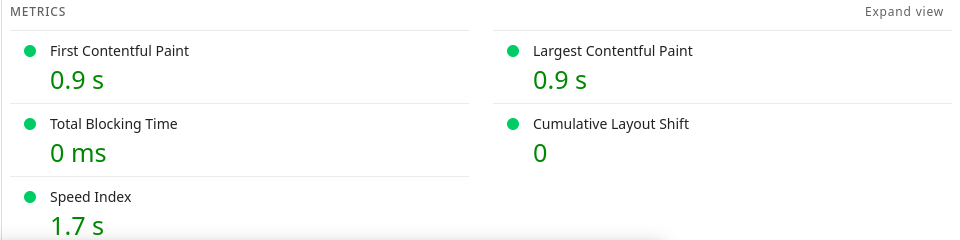
Total Blocking Time was 0 ms and Cumulative Layout Shift was 0 on all three pages, before and after. Unused CSS fell from an estimated 13 KiB to 11 KiB. Image delivery savings fell from 21 KiB to 20 KiB on the home page on mobile, because the images had already been optimised.
Step 6: Keep it fast
Speed is not a one-off fix. Re-measure after every change — a new plugin, a new theme, a batch of large images — and keep only the changes that help. Remove plugins you do not need: every active plugin adds code that runs on every page load, so deactivate and delete anything the site no longer uses, and check that nothing visible depended on it first. If the images are sized, the unused plugins are gone and caching is on, and the site is still slow, check the server response time in the PageSpeed report: if “Reduce initial server response time” is high, the hosting is the bottleneck, and no plugin will fix that — ask the host about limits, or consider a host that fits the site.
What was not tested
This test was done on a fresh WordPress test install with a light theme, so it does not cover everything. It did not test: a live store with real traffic — the test install had no visitors, so caching and server load under traffic were not measured; the checkout or payment pages — only the home and shop pages were measured; a content delivery network (CDN) — none was used; server-level caching or a different host; a heavier theme or page builder; or real product photos — the shop used WooCommerce placeholder images. The results show what these three plugins do on a fast, light install. On a heavier site the gains would likely be larger, and on a slower host the server response time would matter more.
What this means for your site
If your Media Library has large images, resize them before uploading — on the test install the images were already small, so image optimisation saved only 207.54 KB, but on a real site with phone photos this is usually the first and biggest fix. If your site already scores 99 or 100, do not chase the last point — check the timings instead, and fix the single biggest item in the Insights list. If a caching plugin shows a warning that its functions are unavailable, that is the plugin telling you the host does not support it — do not ignore the warning, and do not install a second caching plugin on top of it.
What can go wrong
| Symptom | Likely cause | Fix |
|---|---|---|
| Scores do not improve after installing a caching plugin | The host does not run the matching server software, or caching is not actually enabled | Check the plugin’s settings page for a warning; check what your host supports |
| Images look blurry after resizing | Resized below the size they are displayed at | Re-upload at the display size — resize to the size shown, not smaller |
| The site breaks after removing a plugin | The plugin was doing something visible (a form, a widget, a shortcode) | Restore it from the backup, check what it was doing, then replace it properly |
| PageSpeed score is good but the site still feels slow | The score measures the lab test, not your connection or your host’s response time | Check “Reduce initial server response time” in the report — if that is high, it is the hosting |
| Scores jump around between tests | PageSpeed results vary between runs | Run the test three times and take the middle result; compare like with like (same page, same device type) |
| A speed plugin makes the site look broken | It is combining or minifying CSS/JS aggressively | Turn off the CSS/JS combining first, then re-enable features one at a time |
Frequently asked questions
How do I speed up my WordPress site?
Measure first with PageSpeed Insights, then fix what it shows: resize oversized images, remove unused plugins, turn on caching and check your hosting.
What is the fastest way to speed up WordPress?
Removing what the site does not need: oversized images and unused plugins. Those two fixes cost nothing and usually help more than any new plugin.
Do I need a speed plugin for WordPress?
Not necessarily. A caching plugin helps if your host supports it, but it cannot fix oversized images or a slow host. Measure first, then add only what the measurement points to.
Why is my WordPress site slow?
The usual causes, in order: oversized images, too many or heavy plugins, no caching, and slow shared hosting. PageSpeed Insights lists them in order of impact for your site.
Will changing my host make WordPress faster?
It can, if the host is the bottleneck — PageSpeed Insights shows this as “Reduce initial server response time”. If that item is large, a faster host helps more than another plugin.
How fast should my WordPress site load?
There is no single number Google requires. Aim for the homepage to feel instant on a phone and for PageSpeed Insights to show no large “Insights” items — a Performance score of 90 or above on mobile is a good target.
Recap checklist
- Measured the home page and the shop page with PageSpeed Insights and wrote down the “before” scores
- Turned on page caching with WP Super Cache and ran its cache test
- Optimised all images with EWWW Image Optimizer — 216 files, 207.54 KB saved
- Minified and deferred CSS and JavaScript with Autoptimize
- Re-measured after each change, more than once per change, and kept only the changes that helped
- Checked the server response time and asked the host about limits if it is high
What to read next
- Back up before changing plugins or settings — How to Back Up Your WordPress Website
- Remove a plugin safely — How to Install a WordPress Plugin
- If a change breaks the site — How to Fix the WordPress White Screen of Death
- Keep WordPress fast — How to Update WordPress
Written by Mohd Shah Ahmad, Learn WordPress Online. He builds and runs live WooCommerce stores in Pretoria, South Africa, and designed the websites for Aaliyah Perfumes and Stanley’s Bakery.