
Quick answer
This guide is part of the Fix WordPress Errors hub. If a plugin is not the cause, also see how to fix the WordPress white screen of death, how to fix the 500 internal server error in WordPress, and how to fix WordPress stuck in maintenance mode. When WordPress breaks after a plugin update or a new install, the cause is usually one plugin fighting with another — or with the theme. The safe way to find it is Health Check & Troubleshooting’s Troubleshooting Mode: it turns all plugins off for you only, while visitors still see the normal site. Then turn plugins back on one at a time until the problem returns — the last one you turned on is the culprit. This guide does exactly that, on a real test install, and it works on WordPress 7.1.4.
Tested on: WordPress 7.1.4 · WooCommerce 11.3.0 · Theme: GeneratePress 3.6.1 · PHP 8.4.27 · Health Check & Troubleshooting 1.7.1 · Contact Form 7 (the broken plugin) · Tested 15 November 2026 on a WordPress test install.
What you need before you start
- Admin access to WordPress. Only an administrator can install plugins and use Troubleshooting Mode.
- A backup of the site. If you do not have one yet, read How to Back Up Your WordPress Website first. You will be deactivating plugins, and a backup is how you get back if anything goes wrong.
- The free Health Check & Troubleshooting plugin. Install it from Plugins → Add New if it is not already installed — the steps are in How to Install a WordPress Plugin.
What a plugin conflict is
Two plugins can break each other when they both try to do the same thing — load the same script, change the same setting, or run code that expects the other one to behave a certain way. A plugin can also fight with the theme, or with WordPress itself after an update. The result is usually one of these: a white screen, a critical-error page, a feature that stops working, or the dashboard misbehaving.
The hard part is not fixing the conflict. It is finding which plugin is responsible, when there may be twenty installed. Turning them all off on a live site is not an option — visitors would see a broken site. That is what Troubleshooting Mode is for.
How to find the conflict, step by step
Step 1: Reproduce the problem, then open Troubleshooting Mode
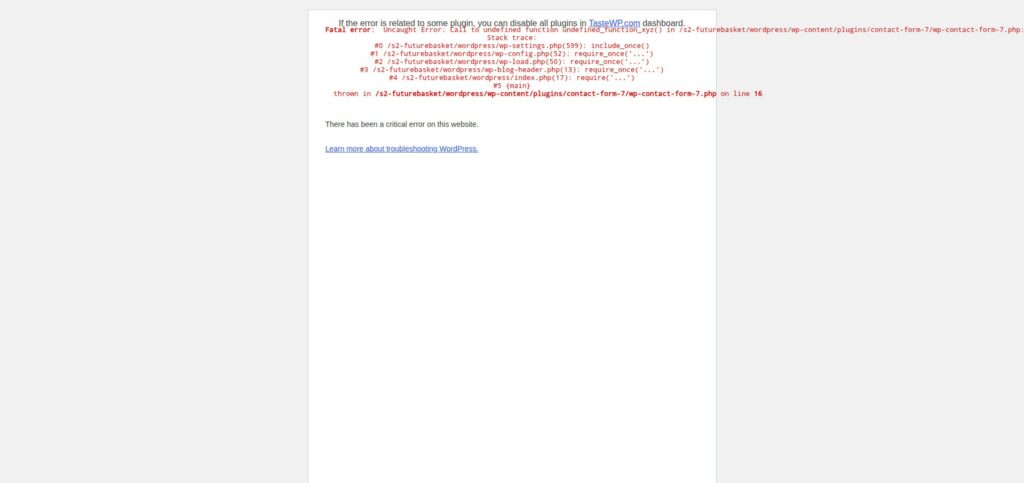
First, confirm the problem is real and note exactly what happens — which page breaks, and what error (if any) appears. In this test the problem was a real one: Contact Form 7 was deliberately broken, and the site showed the critical-error page with the fatal-error line naming it:
Fatal error: Uncaught Error: Call to undefined function undefined_function_xyz() in /s2-futurebasket/wordpress/wp-content/plugins/contact-form-7/wp-contact-form-7.php … on line 16
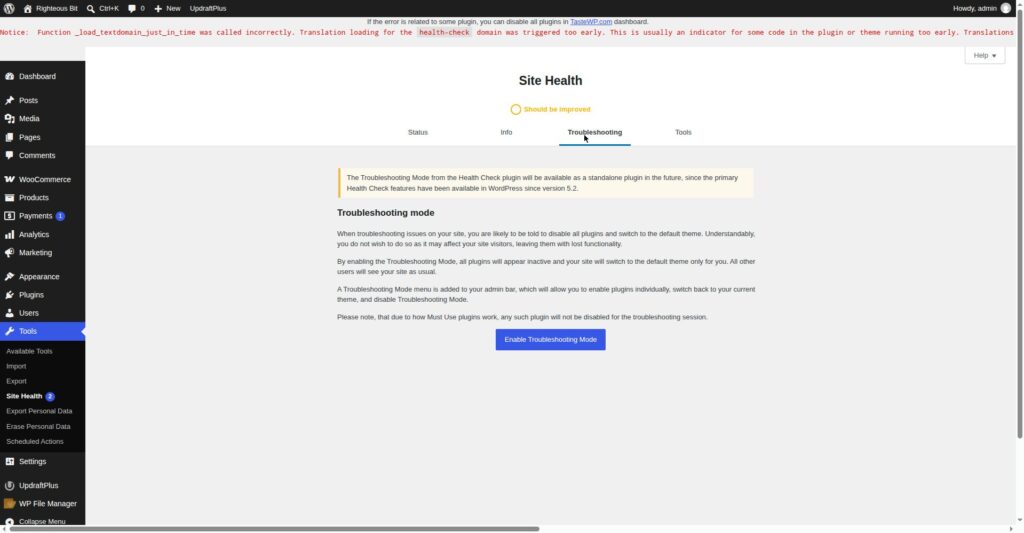
Then go to Tools → Site Health → Troubleshooting and click Enable Troubleshooting Mode. This turns off all plugins and switches to a default theme — but only for you, in your browser session. Visitors keep seeing the normal site with all plugins running.
Step 2: Turn the plugins off and confirm the problem is gone
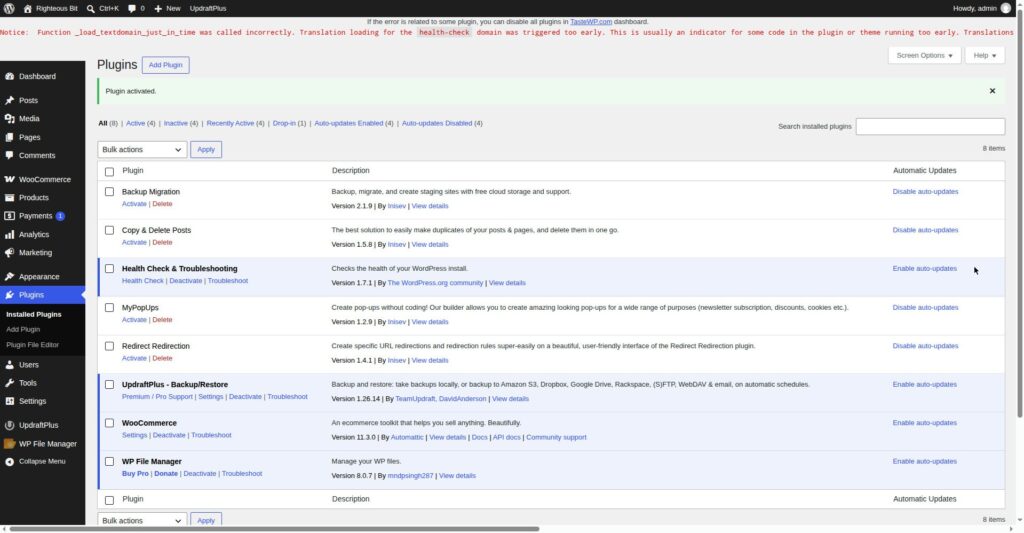
With Troubleshooting Mode on, open the page that was broken. If it now loads, the problem is a plugin (or the theme) — not the server, not the database. In this test the Plugins list showed all plugins deactivated under Troubleshooting Mode.
Step 3: Turn plugins back on one at a time — the binary search
Now turn plugins back on one at a time (or in small groups, if there are many) and reload the broken page after each one. When the problem returns, the last plugin you turned on is the culprit.
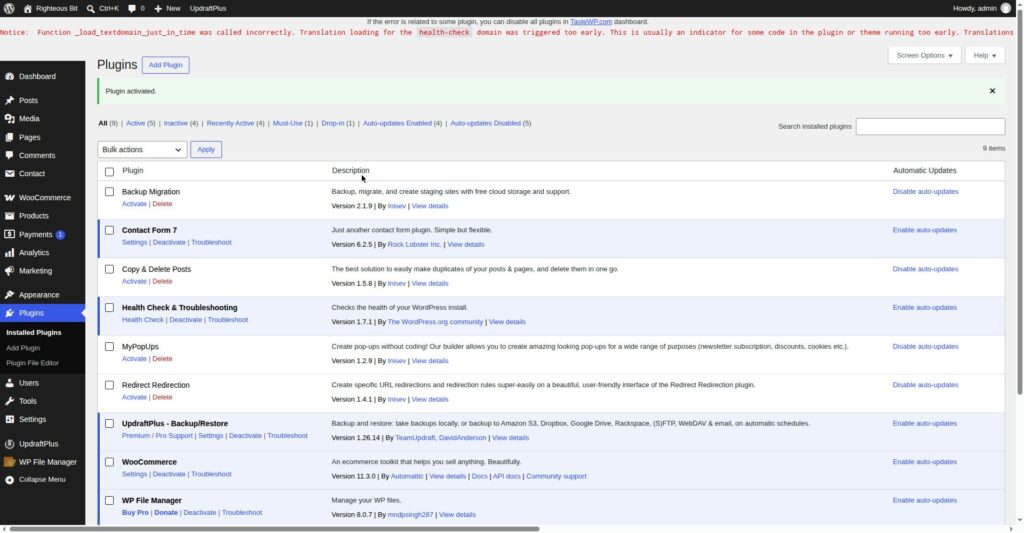
In this test the binary search ran on the healthy test install and came back clean — no plugin there caused a problem, because the culprit was the broken Contact Form 7 on the other test install, already identified by its fatal-error line. The search itself worked as described: plugins were reactivated one at a time, and the site stayed healthy throughout.
A faster way, if you have many plugins: turn on half of them. If the problem returns, the culprit is in that half — turn those off and test the other half. Keep halving until one plugin is left. That is the binary search, and it finds the culprit in far fewer steps than testing one at a time.
Step 4: Confirm the culprit, then fix it
Once you have the culprit, confirm it: turn that plugin off again and check the problem is gone, then turn it on and check the problem returns. If it does, you have your answer.
Then fix it one of these ways:
- Update the plugin — the conflict may already be fixed in a newer version.
- Replace it — find another plugin that does the same job.
- Leave it off — if the site works without it, and nothing else needs it.
- Contact the plugin’s support — tell them the other plugin (or theme) it conflicts with, and the exact error.
Step 5: Check the debug log — and know when you cannot read it
Turn on logging in wp-config.php (see How to Fix the 500 Internal Server Error in WordPress) and read wp-content/debug.log. The log often names the plugin file and line, which confirms the culprit without any guessing.
In this test the debug log could not be read after the break — the file manager broke with the site, so the log file was unreachable. The fatal-error line was read from the critical-error page instead (Step 1). If your file manager still works, read the log — it holds the same line, with a timestamp.
The wp-config.php lines below are from the healthy test install, and they show the debug settings. Note there is no WP_DEBUG_DISPLAY line on this install.
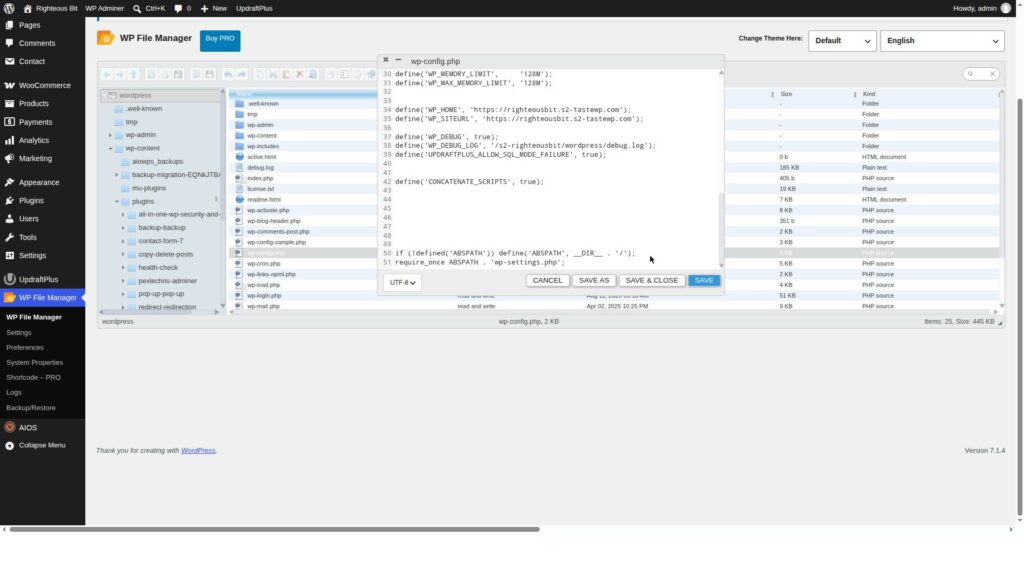
After the test, WP_DEBUG and WP_DEBUG_LOG were set back to false, and the log stopped growing — it froze at 199 KB. Turn debugging off when you are done, or the log keeps growing on every page load.
Step 6: The folder-rename fallback — NOT confirmed in this test
Not confirmed. Renaming the plugin’s folder in the file manager (for example,
contact-form-7tocontact-form-7-off) is the standard fallback when the dashboard will not load. In this test the rename FAILED — the file manager’s backend returned a 500 error and the test site was bricked, with no recovery route. So this guide cannot confirm the rename works; it can only say it is the documented fallback, and that you should have a tested backup before you try it, because a failed rename leaves you with only the backup.
If the dashboard does load, use Troubleshooting Mode (Step 1) instead of renaming folders — it is safer, and it does not affect visitors.
Step 7: Check the theme too
If no plugin is the culprit, the theme may be. In Troubleshooting Mode, the theme is switched to a default one for your session only. If the problem disappears with the default theme and returns with your theme, the theme is the cause. One nuance from this test: after the plugin break, the theme fallback did not happen immediately — the error appeared first, and the fallback only happened after loading wp-admin → Themes. So if you switch themes and the site still errors, load the Themes screen once more before concluding the theme is not the problem.
Step 8: Turn Troubleshooting Mode off and check the site
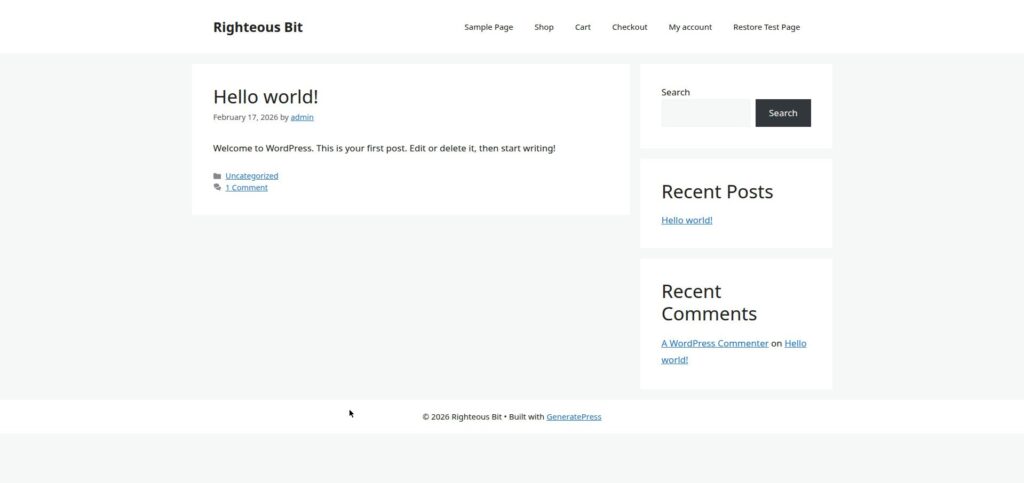
Click Disable Troubleshooting Mode (or log out and back in). All plugins come back on, the theme returns, and the site is exactly as it was — except you now know which plugin caused the problem. Load the front page and confirm it looks right.
In this test the front page loaded normally after the plugins were reactivated.
What can go wrong
| Symptom | Likely cause | Fix |
|---|---|---|
| Problem disappears in Troubleshooting Mode but you cannot find which plugin | Too many plugins tested at once, or the problem is intermittent | Test one at a time, or use the binary search (halve the list each time) |
| Problem stays even with all plugins off | The theme, or the server, not a plugin | Switch to a default theme in Troubleshooting Mode; if it still fails, check the server |
| Folder rename fails and the site is bricked | The file manager broke with the site | Restore from a backup — this happened in this test, and there was no other route |
| Debug log cannot be read after the break | The file manager broke with the site | Read the fatal-error line from the critical-error page instead |
| Deactivating a plugin loses its settings | It should not — deactivating keeps settings | Confirmed in this test: Contact Form 7’s form survived being deactivated and reactivated. If a plugin’s settings do disappear, that plugin stores them in a way that is deleted on deactivation — check its documentation before you deactivate it again |
One reassurance, confirmed in this test: deactivating a plugin keeps its settings. Contact Form 7 was deactivated along with every other plugin, then reactivated, and its form was still there, unchanged. Deactivating is safe to do during a search. Deleting a plugin is different — that can remove its settings, so do not delete anything during the search.
Frequently asked questions
How do I find which WordPress plugin is causing a problem?
Enable Troubleshooting Mode in Tools → Site Health → Troubleshooting, then turn plugins back on one at a time (or in halves, for a binary search) until the problem returns. The last plugin you turned on is the culprit. Health Check & Troubleshooting 1.7.1 works on WordPress 7.1.4 — an older warning that it was only compatible to WordPress 6.6 is out of date.
What is Troubleshooting Mode in WordPress?
It is a session-only mode from the free Health Check & Troubleshooting plugin. It turns off all plugins and switches to a default theme for you only — visitors still see the normal site. Turn it off when you are done and everything comes back.
Will deactivating a plugin delete its settings?
No — deactivating keeps settings. Confirmed in this test: Contact Form 7’s form survived a full deactivation and reactivation. Deleting a plugin can remove its settings, so deactivate during a search, never delete.
What if the plugin folder rename fails?
Restore from a backup. In this test the rename failed and bricked the test site, with no other recovery route. That is why the backup comes first, and why Troubleshooting Mode — which does not touch the file system — is the safer first step.
Recap checklist
- Reproduced the problem and noted the exact error
- Enabled Troubleshooting Mode (Tools → Site Health → Troubleshooting)
- Confirmed the problem is gone with all plugins off
- Binary-searched the plugins until the culprit was found (or confirmed by the fatal-error line, as in this test)
- Confirmed the culprit by turning it off and on again
- Fixed it — updated, replaced, or left it off
- Turned Troubleshooting Mode off and checked the front page
What to read next
- Back up before you change anything — How to Back Up Your WordPress Website
- When a plugin breaks the whole site — How to Fix the 500 Internal Server Error in WordPress
- When the site shows nothing at all — How to Fix the WordPress White Screen of Death
- Install the plugin this guide uses — How to Install a WordPress Plugin
Written by Mohd Shah Ahmad, Learn WordPress Online. He builds and runs live WooCommerce stores in Pretoria, and designed the websites for Aaliyah Perfumes and Stanley’s Bakery. Tested on a WordPress test install — see the “Tested on” box at the top.