
This guide is part of the Start with WordPress hub. Before you start, learn how to install a WordPress theme, how to install a WordPress plugin, and how to create a menu in WordPress. If you have ever edited your theme’s files directly and lost all your changes the next time the theme updated, you already know why child themes exist. A child theme inherits everything from your parent theme — the layout, the templates, the styles — but your changes live in the child theme’s own files. When the parent theme updates, your changes stay exactly where you left them.
This guide shows you two ways to make one: the easy way with a free plugin, and the manual way with a file manager. Both were tested step by step on 16 November 2026.
Tested on: WordPress 7.1.4, Twenty Twenty-Three theme version 1.7, PHP 8.5.12. Tested on 16 November 2026 on a WordPress test install. Plugins used: Child Theme Configurator 2.6.7 and WP File Manager 8.0.7.
Before you start
A child theme is safe to make, but do this first:
- Make a backup. If anything goes wrong you can put it back in minutes. See our guide on how to back up your WordPress website.
- Know your parent theme’s exact name. Go to Appearance > Themes and note the name of the theme your site is using right now — for example, Twenty Twenty-Three. You will need its folder name too, which is usually the same name in lowercase with hyphens, like
twentytwentythree. - If your site is live and earning, test on a copy first. Make the child theme, switch to it, and check your pages look right before you call it done.
Method 1: Create a child theme with a plugin (easiest)
This is the quickest way, and it is the one most beginners should use. We used Child Theme Configurator, a free plugin with more than 300,000 active installations.
Step 1: Install Child Theme Configurator
Go to Plugins > Add Plugin, search for “child theme configurator”, then click Install Now and Activate. The plugin shows a note that it is “Untested with your version of WordPress” — it still worked fine on WordPress 7.1.4 in our test, so do not let that message stop you. Check that the plugin was updated recently and has good ratings before you install it.
Step 2: Open the Child Themes screen
After activation, a new item called Child Themes appears under Tools in the left menu. Go to Tools > Child Themes. (It is under Tools, not under Appearance — that catches a lot of people out.)
Step 3: Analyse your parent theme
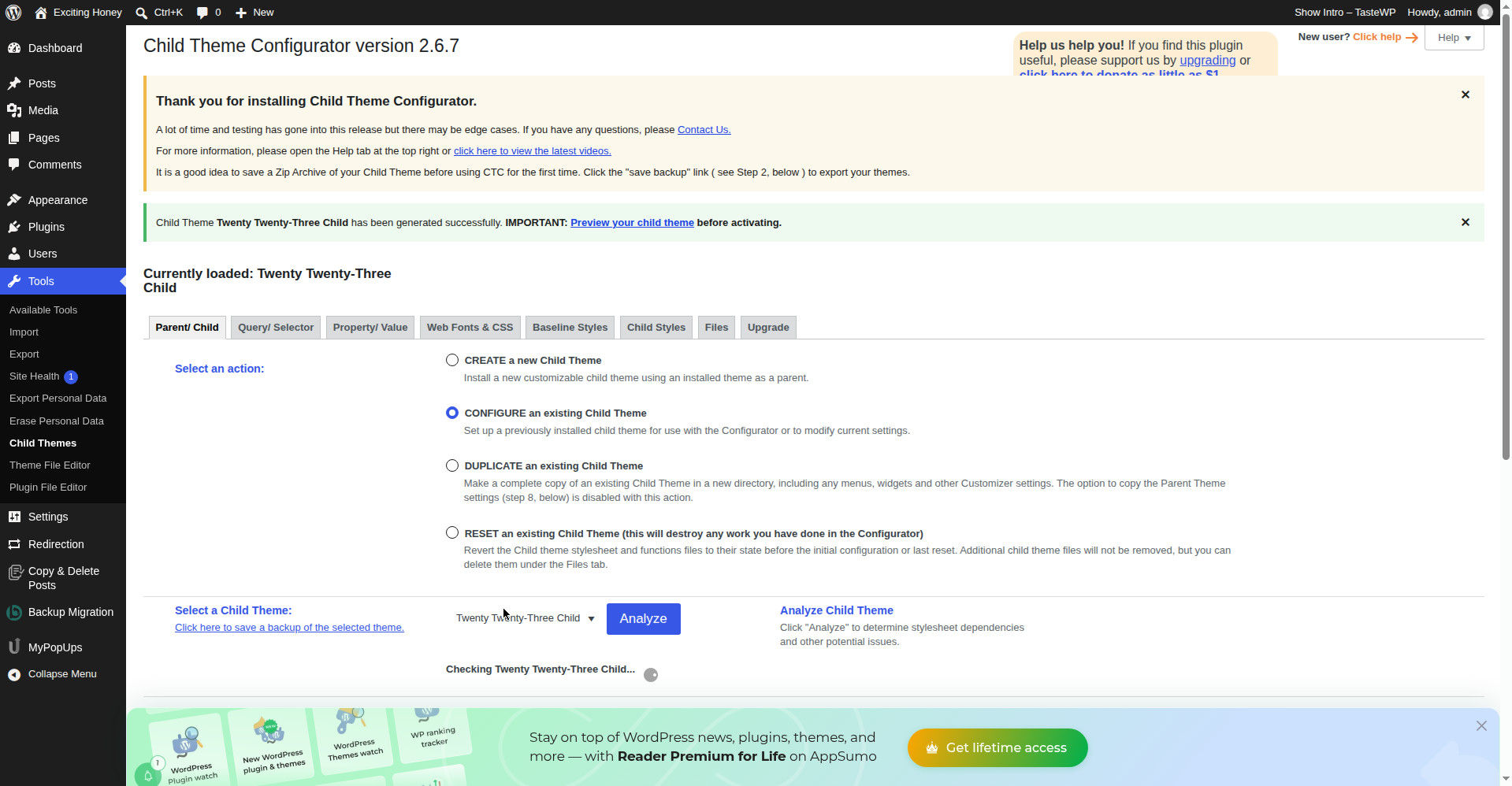
Leave “Select an action” on CREATE a new Child Theme. Choose your parent theme — in our test that was Twenty Twenty-Three — then click Analyze. The plugin checks the theme and reports back. In our test it said: “This theme appears OK to use as a Child theme.” It also said the theme “does not require the parent theme’s style.css file for its appearance”, and it automatically chose “Do not add any parent stylesheet handling”. The folder name was pre-filled as twentytwentythree-child. Leave those settings as they are unless you know why you are changing them.
Step 4: Create the child theme
Click Create New Child Theme. The plugin generates the child theme’s files — a style.css and a functions.php — and shows a green confirmation: “Child Theme Twenty Twenty-Three Child has been generated successfully. IMPORTANT: Preview your child theme before activating.”
Step 5: Preview, then activate
Click Preview your child theme. The Customizer opens, showing your site with the child theme active. In our test the front page looked identical to the parent theme, which is exactly what you want — a child theme changes nothing until you change something. Click Activate & Publish.
Go to Appearance > Themes to confirm. In our test the screen showed “Active: Twenty Twenty-Three Child”, with the parent theme still installed next to it.
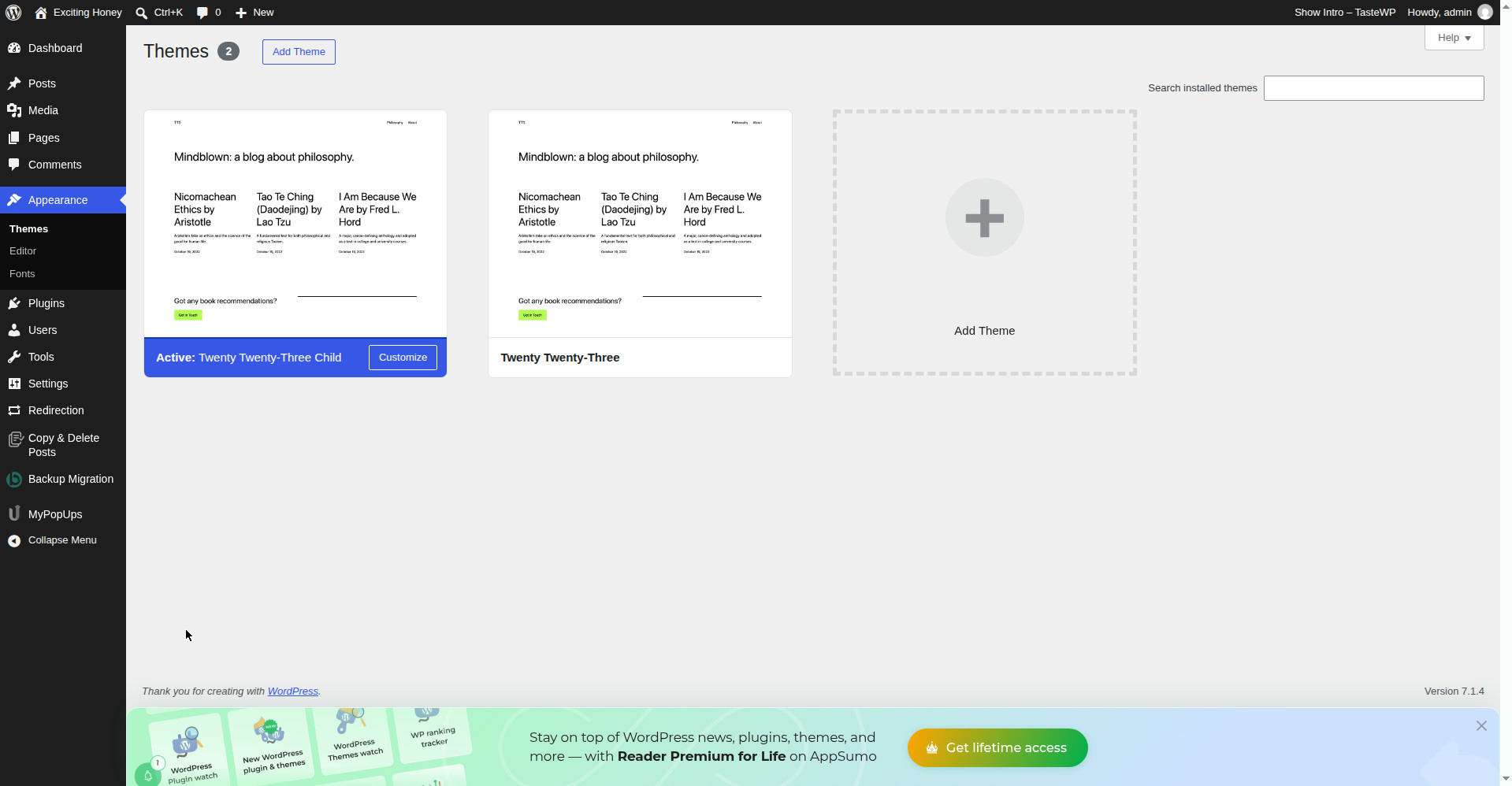
That is it. Your child theme is live, and any changes you make to it will survive parent theme updates.
Method 2: Create a child theme by hand
If you would rather not add another plugin, you can make a child theme yourself with two small files. We did this with WP File Manager, a free plugin that lets you create folders and files from inside WordPress. (You can also do it over FTP or in your host’s file manager — the files are the same.)
Step 1: Install WP File Manager
Go to Plugins > Add Plugin, search for “wp file manager”, then Install Now and Activate. Decline the newsletter popup if it appears.
Step 2: Create the child theme folder
Open WP File Manager, go to wp-content > themes, right-click on an empty space and choose New folder. Name it after your parent theme plus -child — in our test, twentytwentythree-child-manual.
Step 3: Create style.css
Inside your new folder, right-click and choose New file, then CSS, and name it style.css. Open the editor and paste in this header. Change the Theme Name and Author to your own — the Template line is the important one, and it must match your parent theme’s folder name exactly.
/*
Theme Name: Twenty Twenty-Three Child Manual
Theme URI: https://wordpress.org/themes/twentytwentythree
Description: A child theme of Twenty Twenty-Three, created manually for testing
Author: Learn WordPress Online test
Author URI: https://learnwordpressonline.co.za/
Template: twentytwentythree
Version: 1.0.0
*/
Save and close. In our test the file saved at 316 bytes.
Step 4: Create functions.php
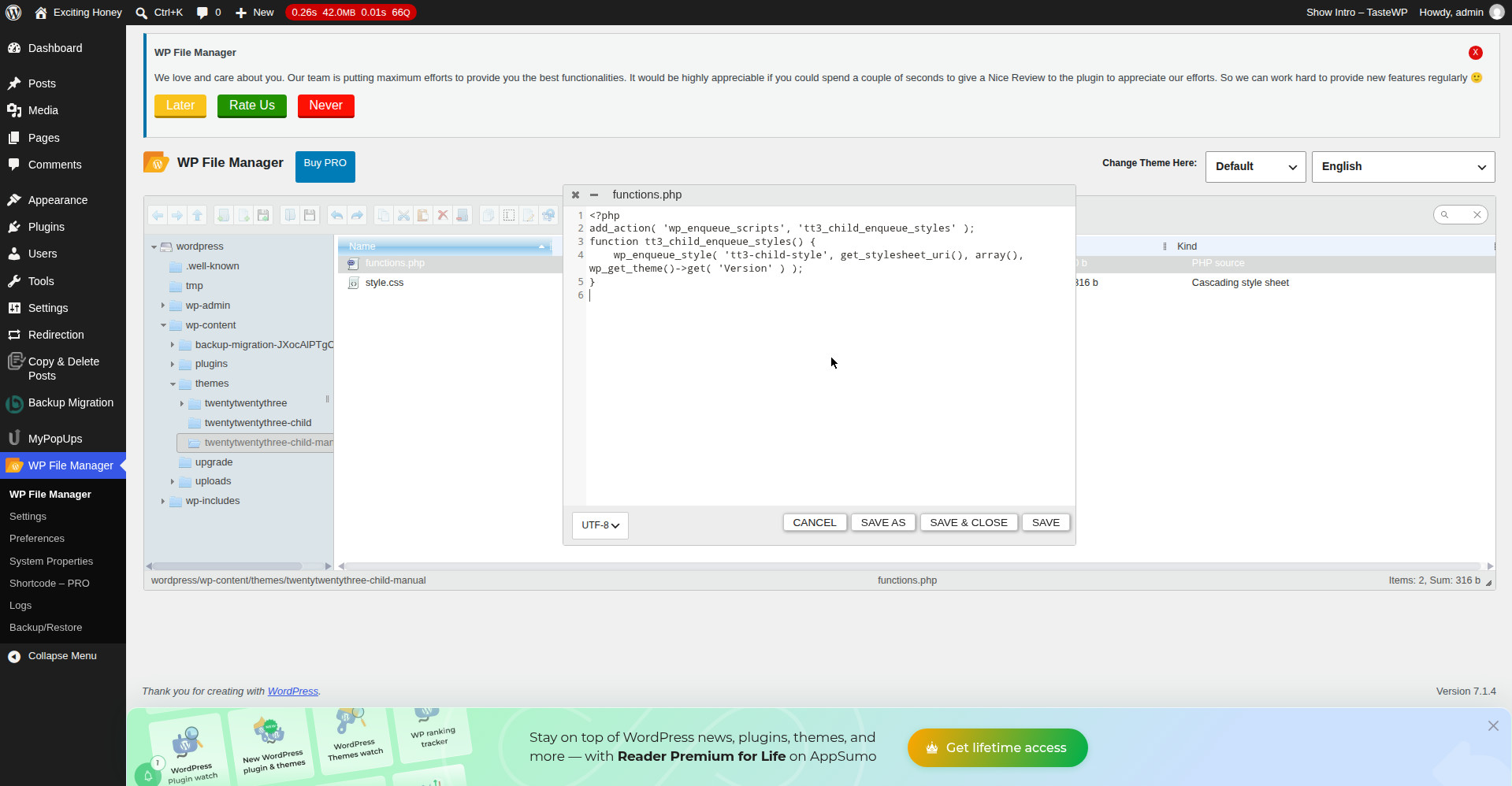
This file loads the child theme’s stylesheet. In WP File Manager, right-click and choose New file, then TXT, and name it functions.php. (The file manager’s New file menu only offers TXT, CSS and HTML — a PHP file is made by creating a TXT file and renaming it.) Open the editor and paste in this code:
<?php
add_action( 'wp_enqueue_scripts', 'tt3_child_enqueue_styles' );
function tt3_child_enqueue_styles() {
    wp_enqueue_style( 'tt3-child-style', get_stylesheet_uri(), array(), wp_get_theme()->get( 'Version' ) );
}
Save and close. In our test the file saved at 214 bytes.
Step 5: Activate the child theme
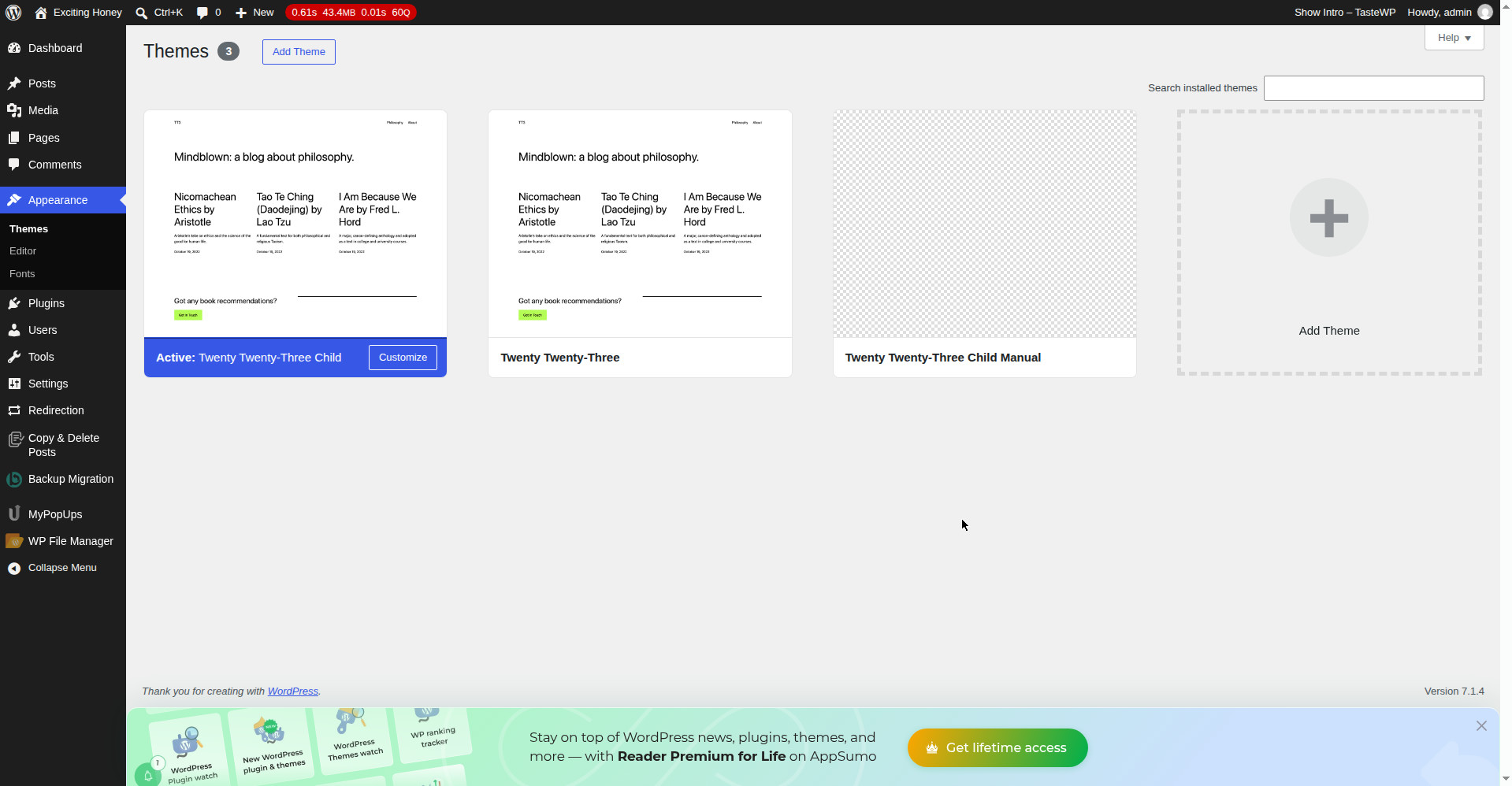
Go to Appearance > Themes. Your new child theme appears there — with a plain checkered placeholder image, which is normal when a theme has no screenshot. Click Activate. In our test the screen then showed “Active: Twenty Twenty-Three Child Manual”, and the front end of the site loaded correctly.
Changing how your site looks with a child theme
This is the part most guides skip, so here is what actually happened in our test.
We edited the child theme’s style.css directly — adding a red colour for headings, a background colour, and a few other rules — and saved the file. The file on the server was correct, and we confirmed with Query Monitor that the child stylesheet was loading in the page. But none of those rules visibly changed the site. The headings stayed black and the background stayed white, even after hard refreshes and on fresh pages. We ruled out browser cache, server cache, CSS specificity and the version number — the cause was not established.
What did work, straight away, was Customizer > Additional CSS. The same CSS typed there turned the heading red in the live preview immediately.
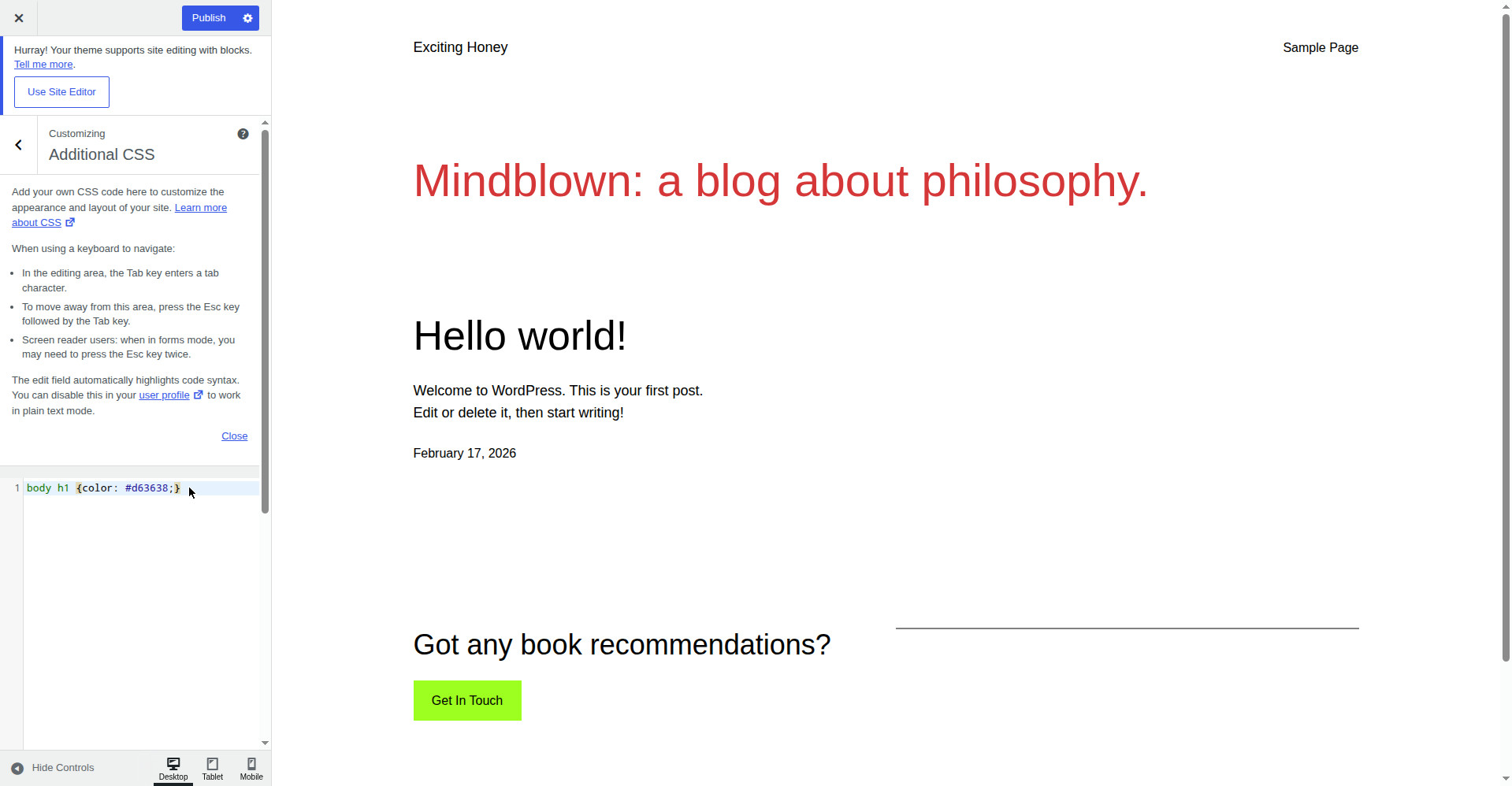
So here is the practical advice:
- For colours, fonts and spacing, use Appearance > Customize > Additional CSS, or Site Editor > Styles if you use a block theme. It works immediately and you can see the result before you publish.
- For template changes and PHP functions, use the child theme’s files. That is what a child theme is really for — changing how templates behave, adding functions, and overriding theme files.
- If you do edit style.css directly and nothing changes, hard-refresh the page (Ctrl + Shift + R), clear any caching plugin, and try raising the version number in the style.css header — for example from 1.0.0 to 1.0.1. That forces browsers to fetch the new file.
What can go wrong
“Sorry, you are not allowed to access this page.” This happened to us when we guessed the Child Themes screen address. Do not type the address by hand — go through the menu: Tools > Child Themes.
Your child theme does not appear in Appearance > Themes. The folder name and the Template line must match the parent theme’s folder name exactly. For Twenty Twenty-Three, the Template is twentytwentythree — one word, no hyphens, no spaces. If either is wrong, WordPress will not list the child theme.
The plugin says “Untested with your version of WordPress”. That is a warning, not an error. Child Theme Configurator showed it on WordPress 7.1.4 and still worked. Check the plugin’s last update date and ratings before installing — if it was updated recently, it is fine.
You switched to the child theme and something looks different. Check your menus and widgets after switching, because some themes store them per theme. Your posts, pages and media are not affected — they stay exactly where they were.
Frequently asked questions
Do I need a child theme if I only want to change colours?
No. Small visual changes belong in Customizer > Additional CSS, which needs no child theme at all. Make a child theme when you want to change templates, add PHP code, or make changes you need to keep through theme updates.
Will a child theme slow my site down?
No. A child theme adds one small stylesheet to the page. The effect on loading time is too small to measure.
What happens when the parent theme updates?
That is the whole point of a child theme. The update replaces the parent theme’s files only. Your child theme’s files are separate, so your changes stay. We could not test an actual parent update during this test because no update was available for the parent theme at the time.
Can I delete the parent theme once the child theme is active?
No. A child theme does not contain the parent’s templates — it borrows them. If you delete the parent theme, the child theme breaks. Keep both installed.
Which method should I use — plugin or manual?
The plugin is faster and checks your work as it goes, so use it if you are new to this. The manual method teaches you what a child theme actually is — two files and a folder — and it means one less plugin on your site. Both give you the same result.