
This guide is part of the Fix WordPress Errors hub. If the 404 is not your error, also see how to fix the 403 Forbidden error in WordPress, how to fix the 500 internal server error in WordPress, and how to fix the WordPress white screen of death. A 404 error means WordPress received the request but could not match the address to any content. The page may have been deleted, moved, or renamed — or WordPress may simply have lost the rewrite rules that turn addresses into pages. Either way, visitors see a “Page not found” screen instead of your content, and Google drops the address from its index if it stays broken.
The good news is that most WordPress 404 errors are fixed in under two minutes. This guide works through the fixes in order, from the quickest to the most thorough, and every step was tested on 17 November 2026.
Tested on: WordPress 7.1.4, Twenty Twenty-Three theme version 1.7, PHP 8.5.12. Tested on 17 November 2026 on a WordPress test install. Plugin used: Redirection 5.10.1. Note: the test install runs on an nginx server, so it has no .htaccess file — the .htaccess step below is marked where it only applies to Apache servers.
Before you start
Work out how wide the problem is before you touch anything:
- Is it one page, or every page? If every page except the homepage shows a 404, the rewrite rules are broken — start with Fix 1. If only one page shows a 404, that page itself is the problem — start with Fix 2.
- Make a backup. A backup means you can put everything back if a fix makes things worse. See our guide on how to back up your WordPress website.
- Check the address carefully. A single wrong letter in a link gives a 404. Copy the address from the page that links to it, rather than typing it from memory.
What a WordPress 404 page looks like
When a visitor opens an address that does not exist, the theme shows its own 404 page. On Twenty Twenty-Three it is a plain page with a large “404”, the words “This page could not be found.”, and a search box.
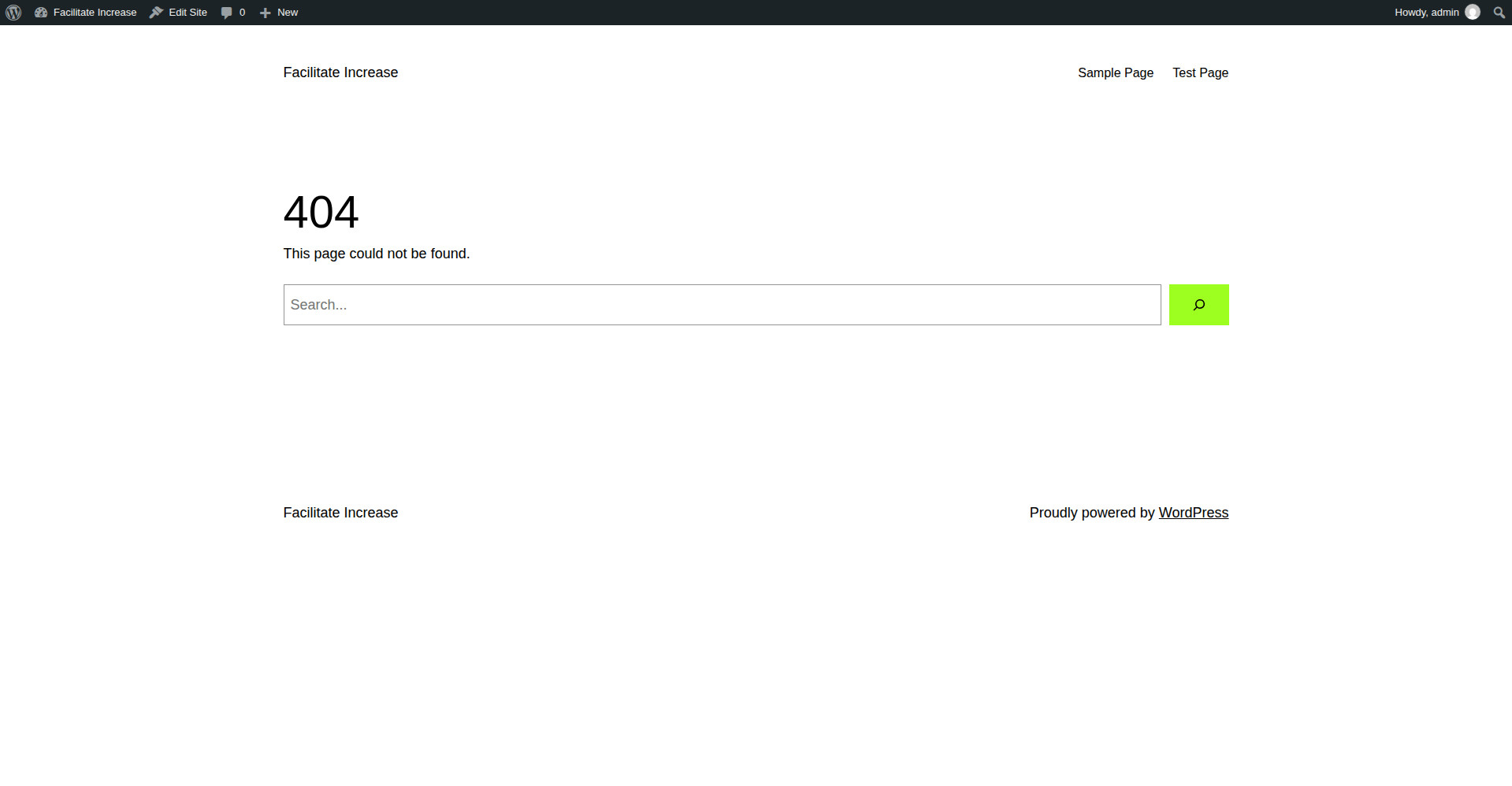
That is the screen your visitors see. The fixes below get them back to real content.
Fix 1: Reset your permalink settings (fixes most site-wide 404s)
This is almost always the right first move when every page except the homepage returns a 404. WordPress stores rewrite rules from your permalink settings, and those rules sometimes get lost during a plugin update, a hosting change, or a core update. Re-saving the settings rebuilds them.
- Log in to your WordPress admin.
- Go to Settings > Permalinks.
- Do not change anything. Just click Save Changes.
WordPress shows “Permalink structure updated.” and the site keeps working.
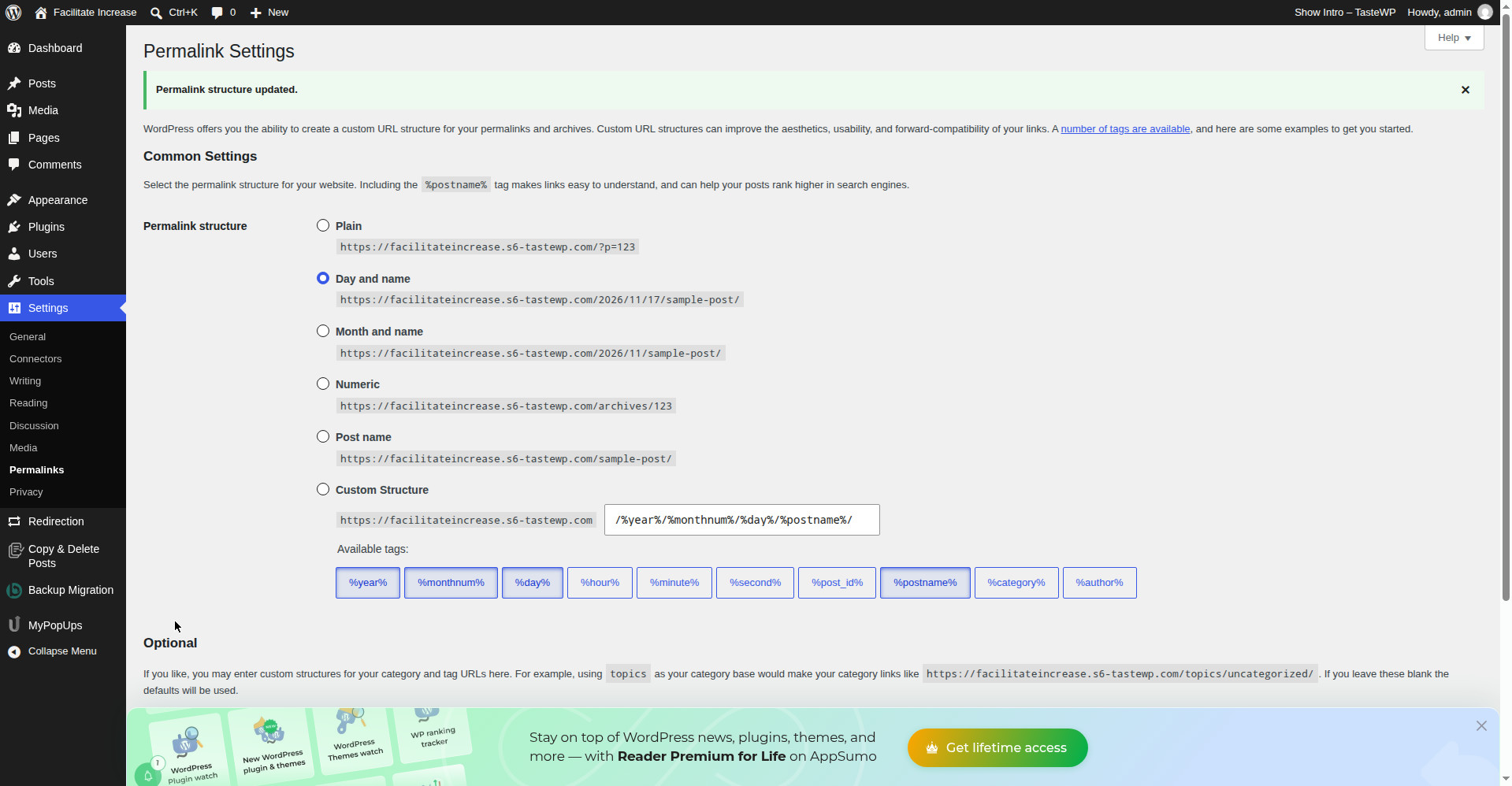
We tested this on 17 November 2026: the settings were saved with nothing changed, the “Permalink structure updated.” message appeared, and the homepage loaded normally afterwards. If your pages come back after this step, you are done — no other fix is needed.
Fix 2: Check the page itself — trashed, or slug changed?
If only one page shows a 404, the page itself has usually changed. Check these two things.
The page is in the Trash
A page in the Trash shows a 404 to visitors. WordPress keeps trashed items for 30 days before deleting them for good.
- Go to Pages > All Pages and click Trash above the list.
- If your page is there, hover over it and click Restore.
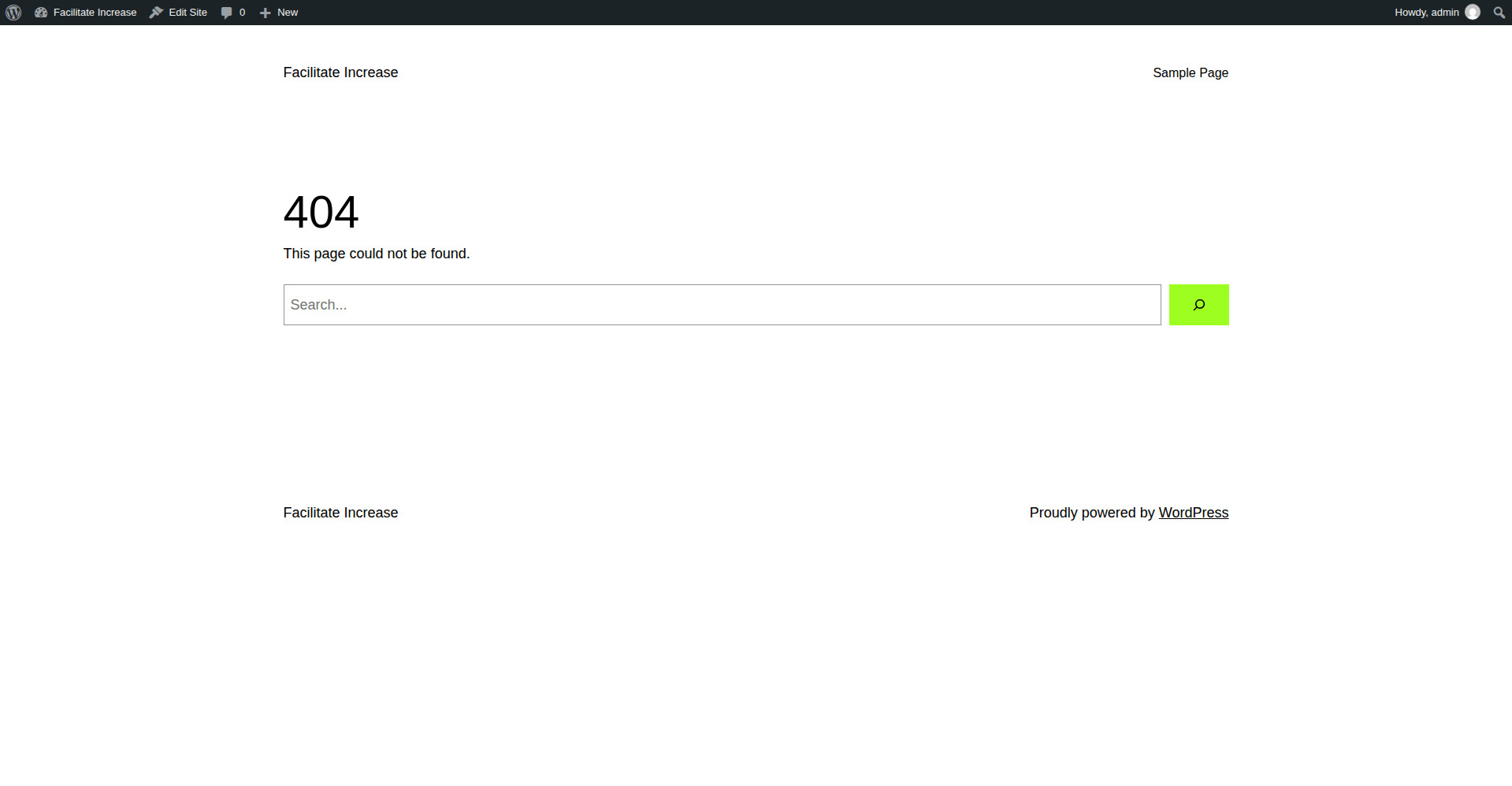
We tested this: a test page was moved to Trash, and its address immediately showed the theme’s 404 page.
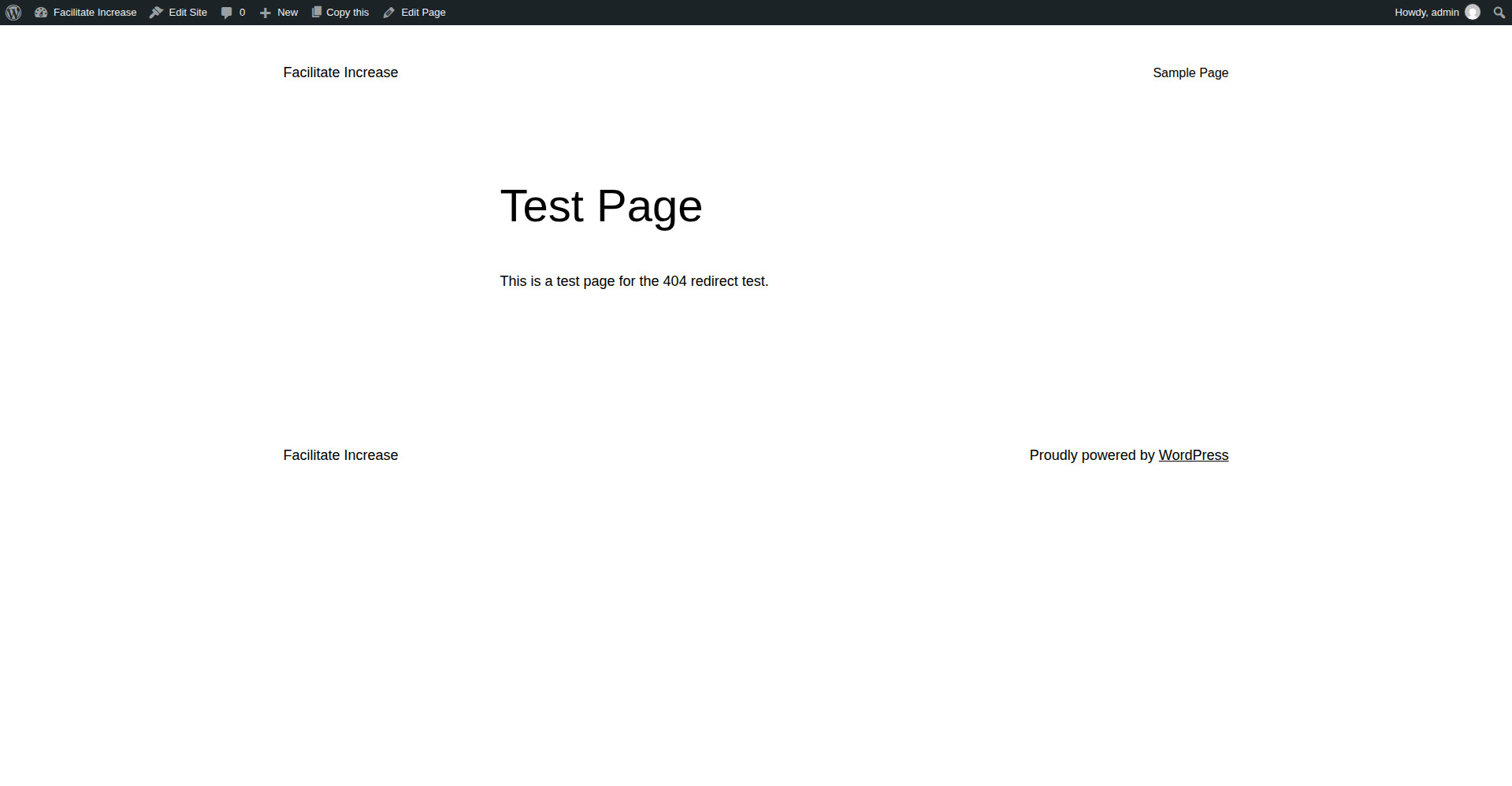
The same page was then restored from Trash, and the address loaded the page again straight away.
The page’s slug changed
The slug is the last part of a page’s address — for example, test-page in example.com/test-page/. If someone edited it, the old address stops working. But here is something our test showed that most guides do not mention: changing a page’s slug did not produce a 404 at the old address in our test. WordPress redirected the old address to the new one itself, using its built-in canonical redirect. So if you renamed a page and the old address still works, that is WordPress doing its job, not a problem.
If the old address does show a 404 instead — which can happen when the change was made another way, for example by a migration or a bulk edit — add a redirect for it. That is Fix 3.
Fix 3: Add a 301 redirect for a moved or deleted page
When a page has moved for good, or is gone and its visitors should land somewhere useful instead, redirect the old address to the closest page that still exists. A 301 redirect is permanent: it sends visitors and search engines to the new address and passes on the old page’s search ranking.
WordPress has no redirect screen of its own, so we used the free Redirection plugin (by John Godley, version 5.10.1 in our test).
- Go to Plugins > Add Plugin, search for “Redirection”, then install and activate it.
- Go to Tools > Redirection and complete its short setup.
- Click Add redirect. In Source URL, type the old address, starting with a slash — for example, /test-page/. In Target URL, type the new address — for example, /test-page-renamed/.
- Click Add Redirect.
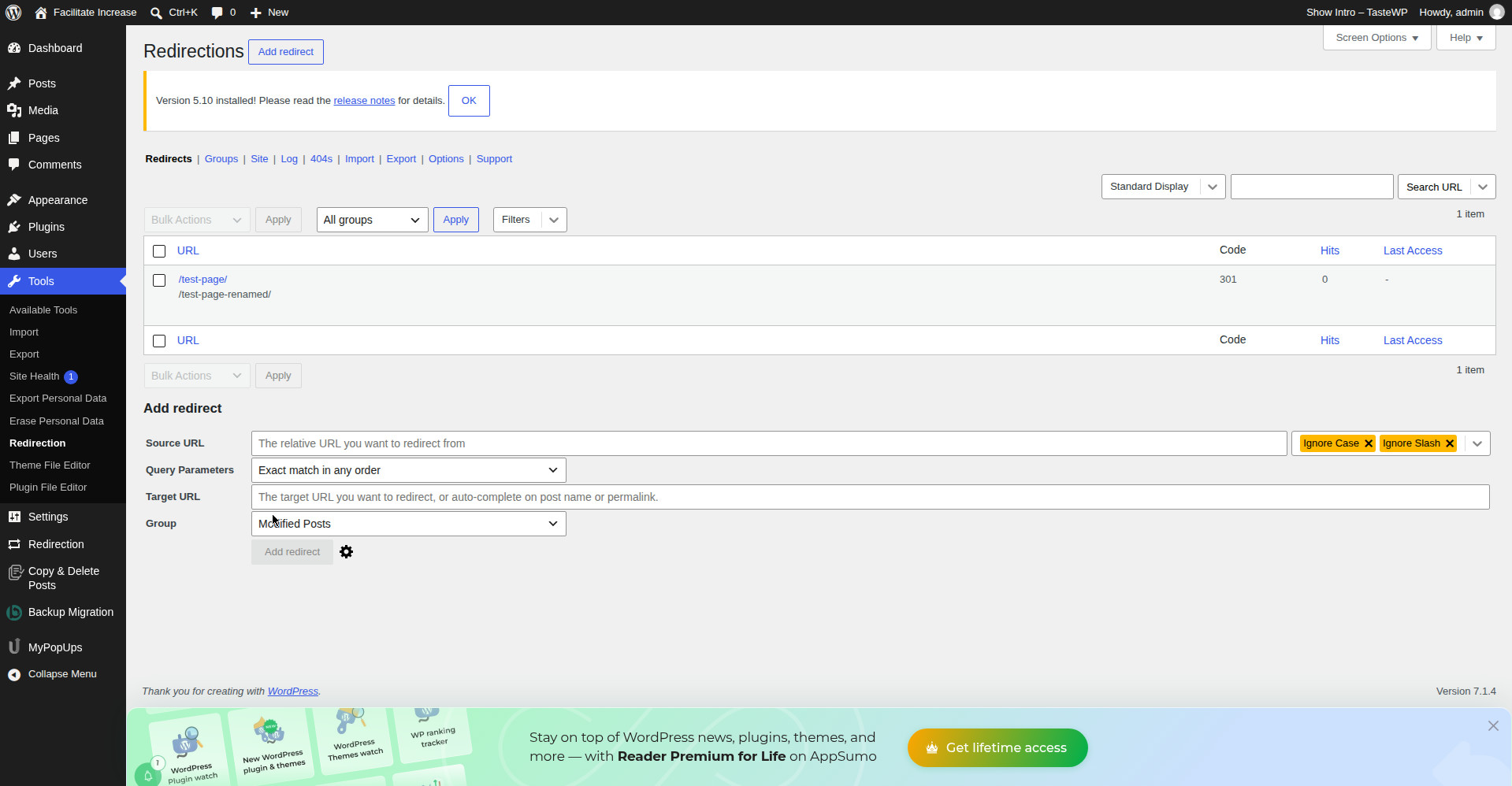
We tested this on 17 November 2026. After adding the redirect, the old address loaded the renamed page.
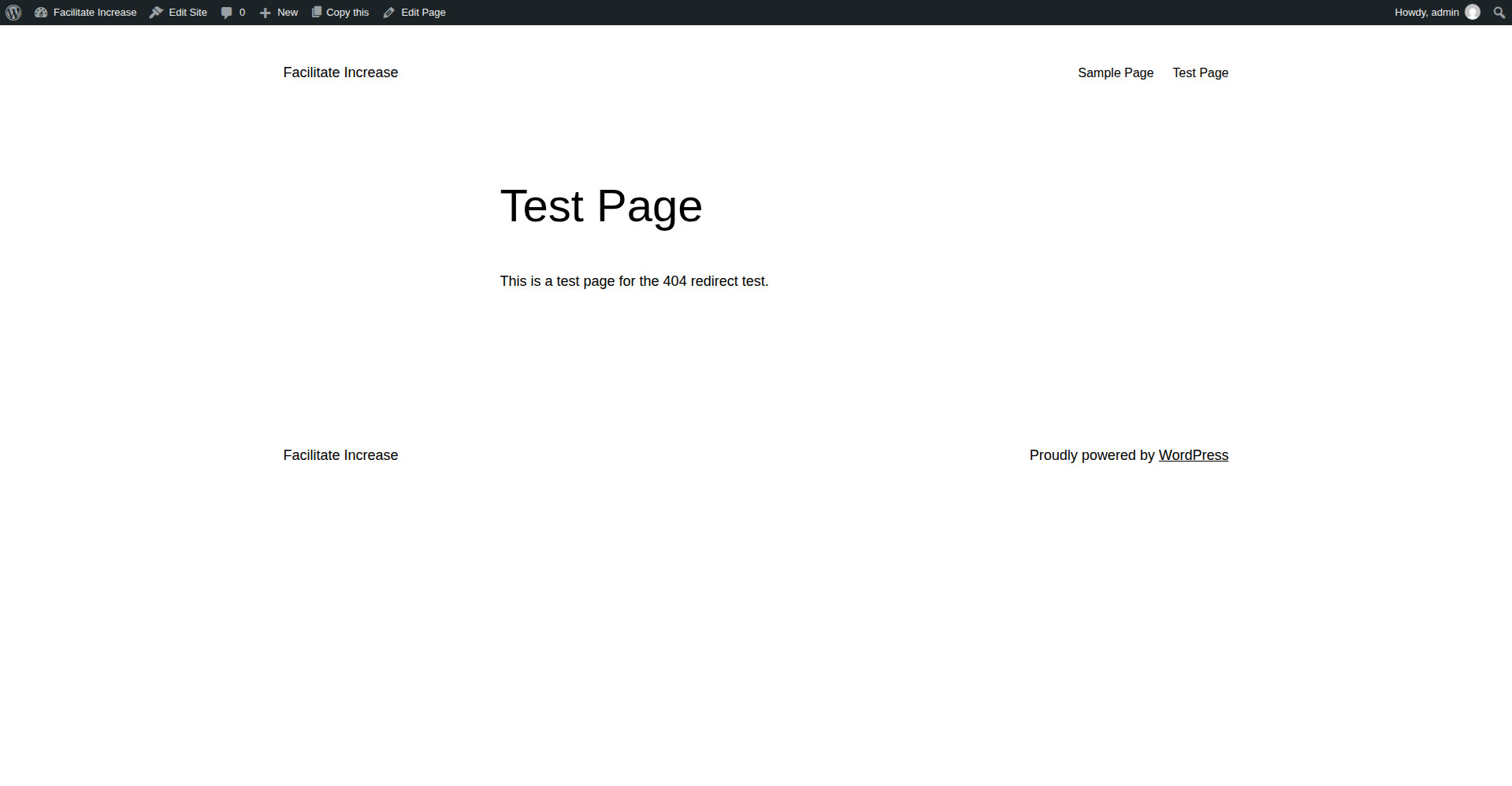
Two honest notes from the test. First, the plugin’s list still said “Nothing to display” right after the redirect was created — it only appeared after the page was reloaded, so do not worry if your new redirect does not show up immediately. Second, the plugin’s log later showed 1 hit on the rule, proving the rule itself fired. (For this particular slug, WordPress’s own redirect would have produced the same visible result — see Fix 2 — but the plugin rule is what protects the old address when WordPress does not redirect it itself.)
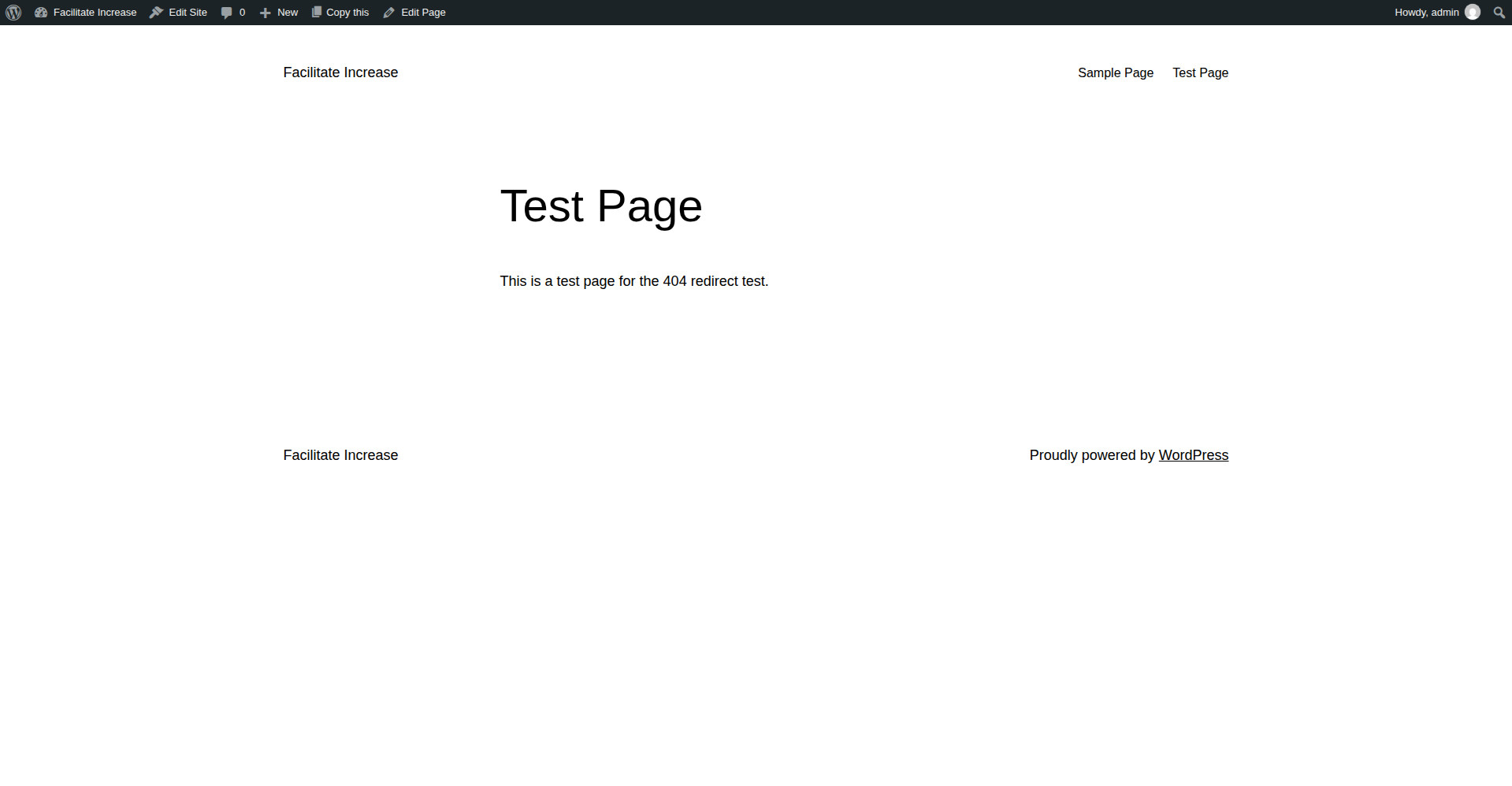
For completeness, here is the test page the redirect pointed to, loading normally at its original address before the slug was changed:
Fix 4: Find every 404 on your site
If you have more than one broken address, find them all instead of fixing them one by one as visitors report them.
- In Redirection: the plugin’s 404s tab logs the addresses visitors hit that returned a 404. Check it after a week and redirect the ones that keep appearing.
- In Google Search Console: go to Pages and look for “Not found (404)”. Every address Googlebot found returning a 404 is listed there, with the date Google last saw it.
We did not test the 404 log or the Search Console report during this test run — they are the standard way to find broken addresses once the fixes above are in place, and they need real visitor traffic to fill up.
Fix 5: Check for a plugin or theme conflict
A plugin or theme can break your rewrite rules too, usually right after an update. If the 404s started after you installed or updated something, deactivate your plugins one at a time and test the broken page after each one, then switch to a default theme such as Twenty Twenty-Three and test again. Our full process is in how to find a WordPress plugin conflict.
What we tested, and what we did not
- Tested on 17 November 2026: creating a page and loading it; the theme’s 404 page on a genuinely missing address; trashing a page (address 404s) and restoring it (address loads again); re-saving permalink settings (“Permalink structure updated.”, site still loads); installing Redirection 5.10.1 and adding a 301 redirect (old address loads the new page, 1 hit logged).
- Found during testing, not in most guides: changing a page’s slug does not always 404 the old address — WordPress redirects it itself. And Redirection’s list needs a page reload before a new redirect appears.
- Not tested in this run: the .htaccess regeneration step, because the test install runs on nginx and has no .htaccess file. On Apache servers, re-saving permalinks regenerates .htaccess automatically, and a missing or damaged .htaccess is a common cause of site-wide 404s. If your host uses Apache and Fix 1 does not work, ask your host to check that .htaccess exists and contains the WordPress rewrite rules.
- Not tested in this run: finding 404s in Search Console or in Redirection’s 404 log, which need real traffic over time.
What can go wrong
Re-saving permalinks fixed nothing. That usually means the problem is one page, not the rewrite rules — go to Fix 2 and check whether the page is trashed or its slug changed. If every page still 404s after a resave, your server may not be reading the rewrite rules at all; on Apache that points to a missing .htaccess file, and on nginx the rules live in the server configuration, which only your host can change.
The old address still shows a 404 after you added a redirect. Clear your browser cache and try a private window, then check the redirect in Tools > Redirection — the source address must start with a slash and match the old address exactly. Remember that the list needs a page reload before a new redirect appears.
You deleted the page and do not want it back. Do not leave it 404ing if other sites link to it. Redirect it to the closest page that still exists, as in Fix 3. A 404 for a page that never existed is normal; a 404 for a page people still link to wastes those links.
Frequently asked questions
What is the difference between a 404 and a soft 404?
A 404 is a real “not found” response: the server says the page does not exist. A soft 404 is a page that loads successfully (a 200 response) but contains so little useful content that Google treats it as a 404 anyway — an empty category page, for example. Fix a real 404 with the steps above; fix a soft 404 by adding real content to the page or redirecting it.
Will a 404 hurt my search rankings?
One 404 on a page that never existed does not hurt anything. A 404 on a page that used to rank, or that other sites link to, loses that traffic and ranking until you redirect it. Fix those first.
Should I redirect every 404 to the homepage?
No. Redirect each old address to the closest matching page. Sending everything to the homepage confuses visitors and Google treats it as a soft 404 anyway.
How long does Google take to stop showing a fixed 404?
After the fix, Google usually re-checks the address within a few days. You can speed it up by requesting indexing for the fixed address in Search Console’s URL Inspection tool.