
This guide is part of the Start with WordPress hub. If you have not built your site yet, start with how to make a website with WordPress, then learn how to create a menu in WordPress and how to install a WordPress plugin. A WhatsApp button lets visitors message you instead of filling in a form or hunting for your email address. They tap a green button, WhatsApp opens, and they are already chatting to your number. For a small business or a shop, that one tap can be the difference between a question asked and a customer lost.
This guide adds the button with Joinchat, a free plugin with more than 700,000 active installations. Every step below was tested on 16 November 2026.
Tested on: WordPress 7.1.4, Twenty Twenty-Three theme version 1.7, PHP 8.5.12. Tested on 16 November 2026 on a WordPress test install. Plugin used: Joinchat 6.4.4.
Step 1: Install Joinchat
Go to Plugins > Add Plugin, search for “joinchat”, then click Install Now and Activate. When it activates, Joinchat shows a notice: “You only need to add your WhatsApp number to contact with your users. Go to settings.”
Step 2: Skip the onboarding wizard
Clicking “Go to settings” opens Joinchat’s “Welcome to Joinchat” onboarding wizard — but in our test the wizard’s content did not load. It was a blank page with only one working link: “Exit the wizard and go to Joinchat Settings”. Click that link. It takes you straight to the real settings page, which is where everything happens anyway.
If the wizard loads for you, you can use it — but the settings page is simpler, and it is what this guide follows.
Step 3: Enter your WhatsApp number
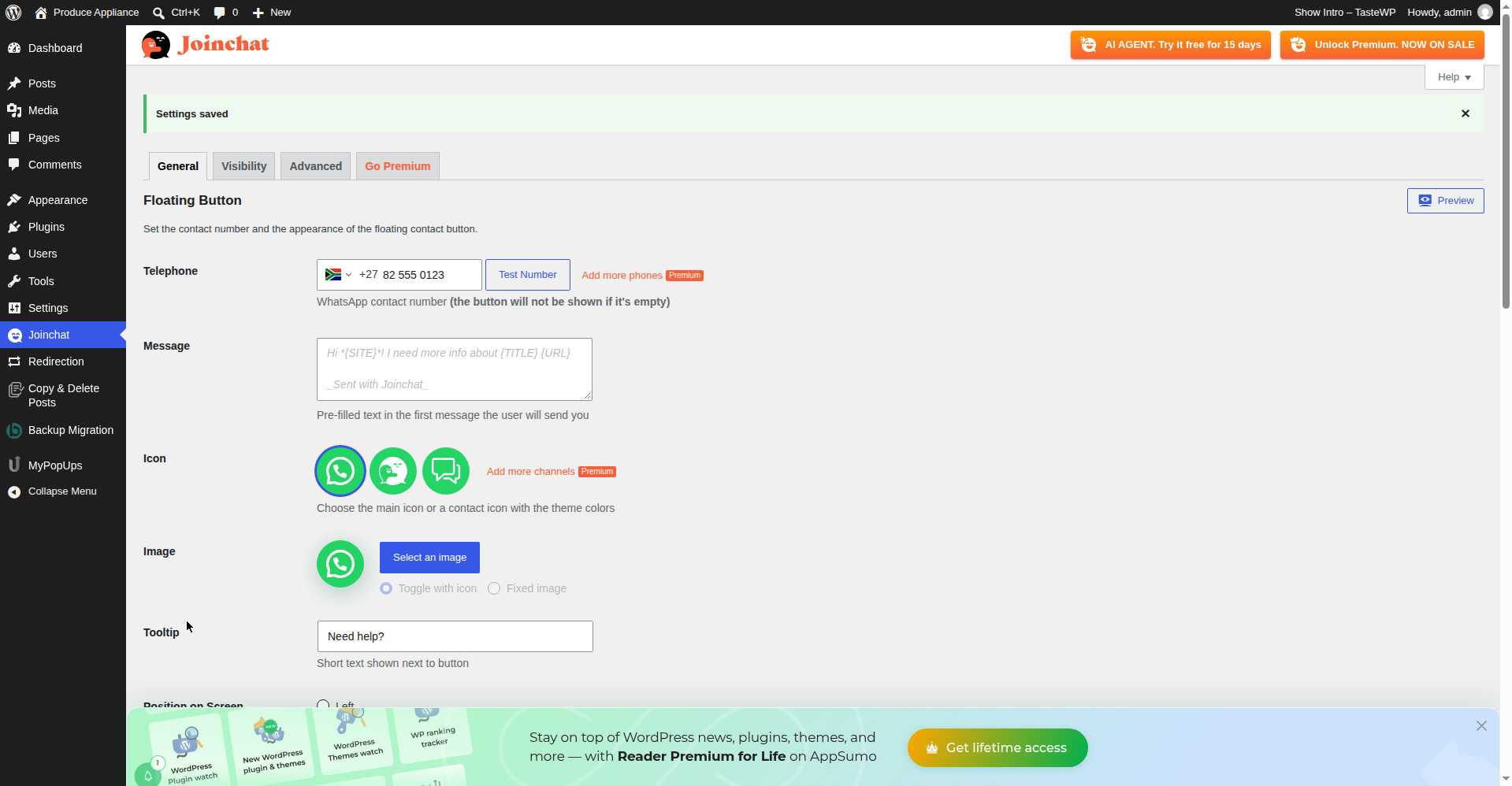
On the Joinchat Settings page, under the General tab, find the Telephone field. Enter your WhatsApp number in national format, with the leading zero — for example, a South African number typed as 0825550123.
This matters: when we typed the full international form first (27825550123), the field cut it off to 9 digits. Typing the national format with the leading zero worked, and Joinchat added the country code itself — it detected South Africa (+27) and turned our number into 27825550123 for WhatsApp.
Use your own number. The number in our test screenshots (082 555 0123) is a test number, not a real business number. Enter the number you actually want messages to reach.
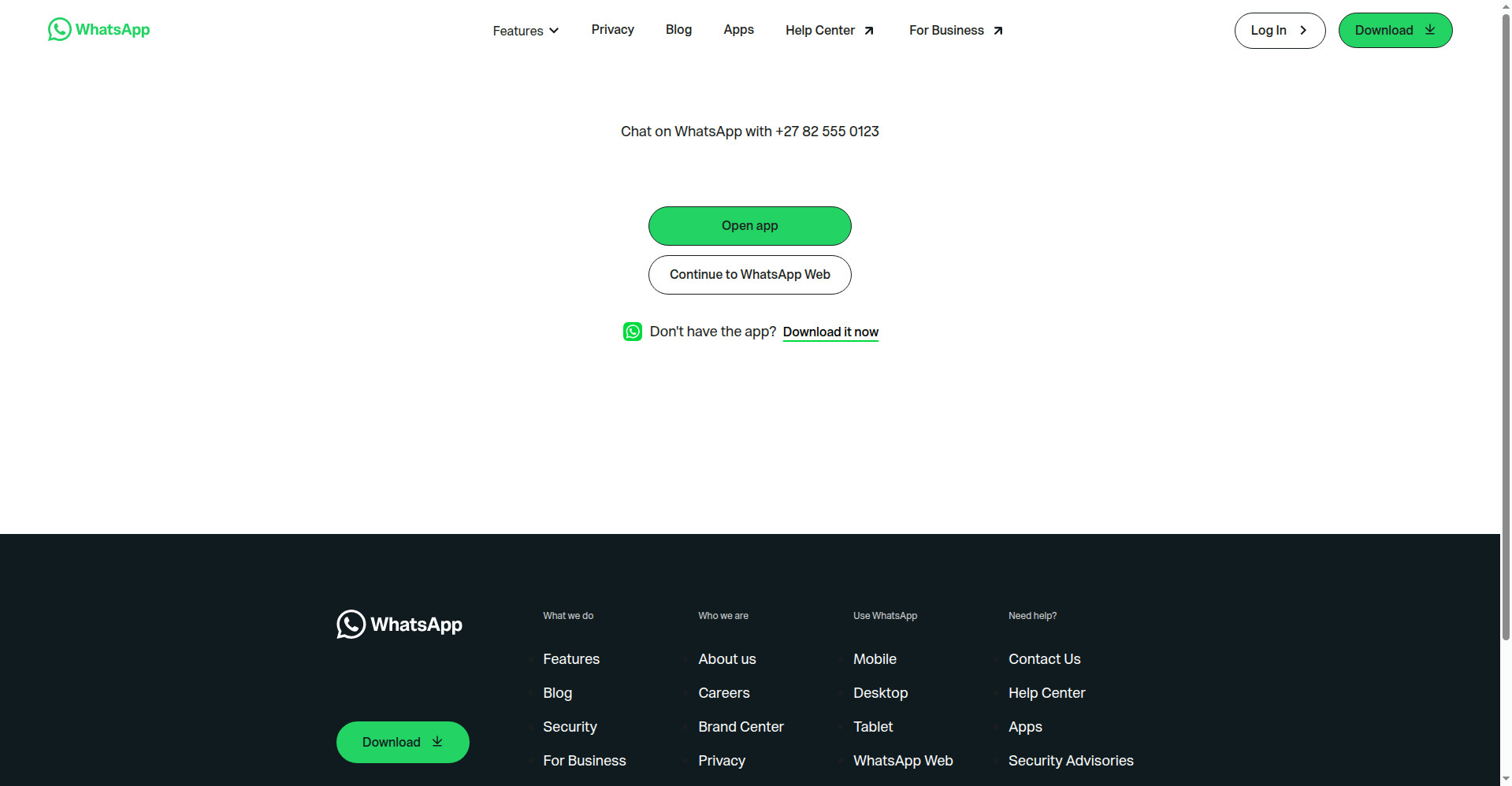
Click Test Number to check it. It opens WhatsApp’s own page for your number, so you can see exactly what a visitor will see.
Step 4: Set the tooltip text
Below the number is the Tooltip field — the short text that appears next to the button. We set it to “Need help?” You can write anything short and inviting, like “Chat to us” or “Questions? Message us”.
Step 5: Save your settings
Click Save Changes. Joinchat shows a green “Settings saved” message, and the values stay saved when you reload the page.
Step 6: Check the button on your site
Visit your site’s front end. A green circular WhatsApp button appears at the bottom right, after a short delay of about 3 seconds. That is the default Button Delay.
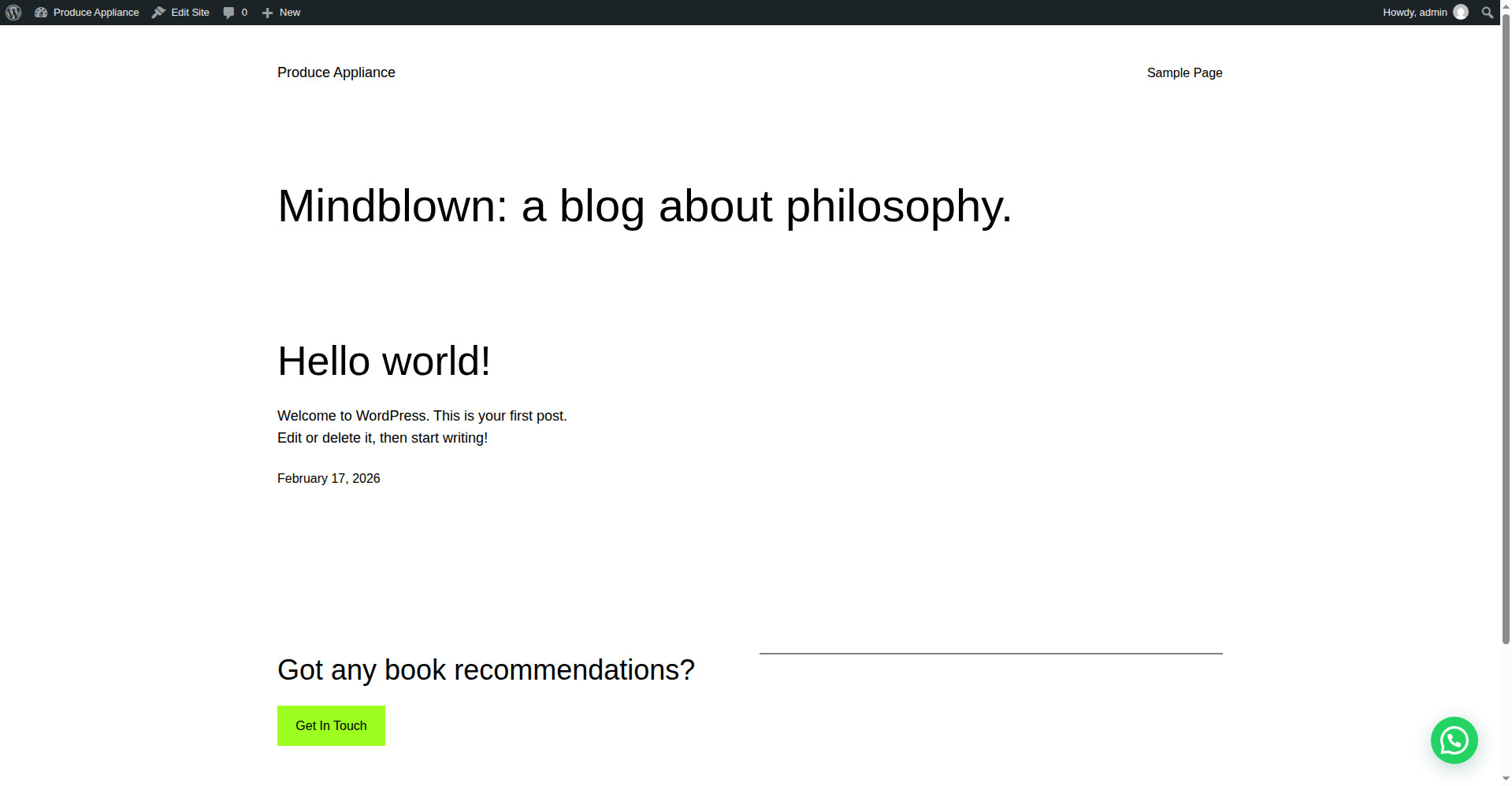
With no chat message set, tapping the button takes the visitor straight to WhatsApp. That already works — but the chat window below makes it friendlier.
Step 7: Add a chat window with a greeting
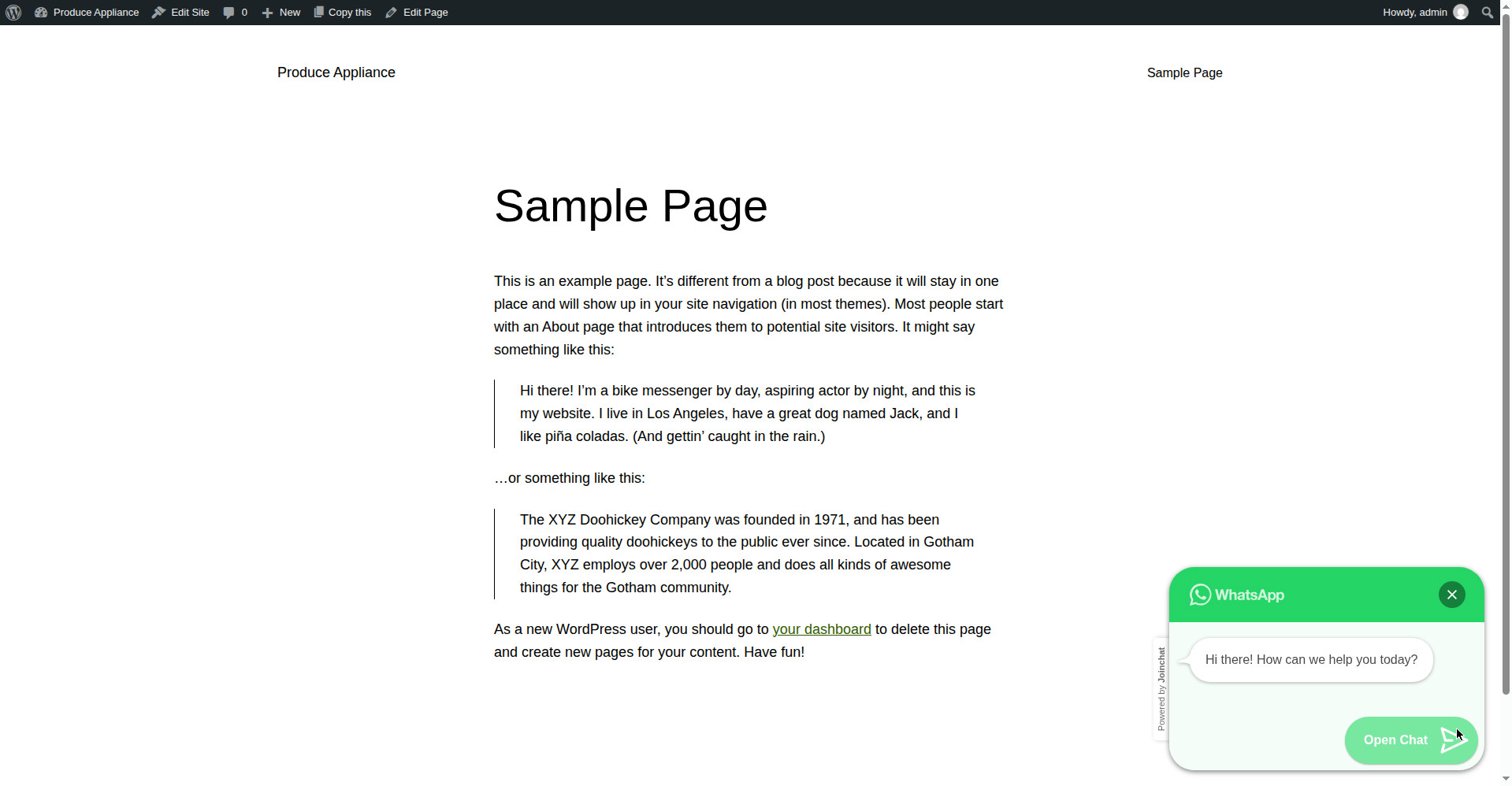
On the Joinchat Settings page, open the Chat Window section and set the Call to Action — the greeting a visitor sees. We used “Hi there! How can we help you today?” Save your changes.
Now the button reads Open Chat. Tapping it opens a small chat window on your site: a green WhatsApp header, your greeting in a bubble, and an Open Chat button. Tapping Open Chat takes the visitor to WhatsApp, ready to message your number.
Settings worth knowing
These are the defaults Joinchat ships with, all confirmed during our test:
- Position on Screen: Right (you can move it to the left).
- Button Delay: 3 seconds before the button appears.
- Mobile Only: Off — the button shows on desktop too.
- On Desktop: visitors can scan a QR code with their phone, or open WhatsApp Web directly.
- Theme Color: WhatsApp green (#25d366).
- Auto Open: On — the chat window opens by itself after 10 seconds, once a visitor has viewed at least 2 pages.
- Pre-filled message: visitors start with “Hi {SITE} I need more info about {TITLE} {URL} — Sent with Joinchat —”, so you can see which page they were on.
You do not need to change any of these to get the button working. Adjust them once the button is live and you know how visitors use it.
What can go wrong
The button does not show at all. The button only appears when the Telephone field has a number in it — if the field is empty, there is no button. Check that you saved your settings and that the number is still there after a reload.
Typing your number in full international form gets cut off. We hit this in our test: the field truncated 27825550123 to 9 digits. Type the national format with the leading zero instead, and let Joinchat add the country code.
Tapping the button goes straight to WhatsApp instead of opening the chat window. That happens when no Call to Action is set. Set one in the Chat Window section and save. If the button still behaves the old way on a page you have already visited, check a fresh page or hard-refresh (Ctrl + Shift + R) — a cached page can show the old behaviour.
The onboarding wizard is blank. It was blank in our test too. Click “Exit the wizard and go to Joinchat Settings” and use the settings page instead — nothing is lost.
Frequently asked questions
Is Joinchat free?
Yes — everything in this guide uses the free version. Joinchat also sells a Premium version with more channels and options, but the WhatsApp button, the tooltip, the chat window and the greeting all work without paying.
Do visitors need WhatsApp installed?
On a phone, tapping the button opens the WhatsApp app. On a computer, visitors get the choice to open WhatsApp Web or scan a QR code with their phone — both were shown in our test.
Does it work with any WhatsApp number?
We tested with a normal South African mobile number format, and Joinchat normalised it to the international form WhatsApp needs. Enter the number that should receive the messages — it can be your business number or a personal one.
Will the button show on every page?
Yes, it shows site-wide once it is set up. You can limit it per page in the Visibility tab if you only want it in certain places.
Can I change the button colour or position?
Yes. The theme colour and the screen position are both in the settings — position is under the General tab, and the colour is in the Chat Window section. The default WhatsApp green is the one visitors recognise instantly, so only change it if it clashes badly with your site.