
Quick answer
This guide is part of the Fix WordPress Errors hub. If the white screen is not your error, also see how to fix the 500 internal server error in WordPress, how to find a WordPress plugin conflict, and how to fix WordPress stuck in maintenance mode. A WordPress white screen of death is a blank page where your site should be. It usually means PHP hit a fatal error and stopped before WordPress could send any HTML to your browser. Your posts, pages, products and database are normally still there — the page simply cannot be built.
Do not reinstall WordPress, delete plugins at random, or change three settings at once. Read the log first, then fix only what the log names. Back up first, check your admin email for the Recovery Mode message, then enable WP_DEBUG logging, reload the blank page once, and read wp-content/debug.log.
Tested on
- WordPress version: 7.1.4
- Theme: GeneratePress 3.6.1
- Plugins active during testing: WooCommerce 11.3.0, UpdraftPlus 1.26.14, and Health Check & Troubleshooting 1.7.1
- PHP version: 8.4.27
- Test environment: WordPress test install (WordPress pre-installed)
- Test date: 15 November 2026
Truly blank vs “there has been a critical error on this website”
A truly blank page means the fatal-error handler never ran, or the error happened before WordPress could catch it. A page that says “There has been a critical error on this website” means WordPress caught the fatal error. Since WordPress 5.2, that message is the normal result for many fatal errors (no fatal error was triggered on the test install in this run, so the critical-error message and its email were not reproduced; the wording given here is WordPress’s standard behaviour).
Note which one you have first. Critical-error message: start with Recovery Mode in Step 1. Truly blank: start with WP_DEBUG in Step 2. A blank page can also be a database problem — a corrupted database, a wrong database password in wp-config.php, or a database server that is down. Nor is it “Briefly unavailable for scheduled maintenance”, which is a .maintenance file in your site root (the folder that holds wp-config.php).
Before you touch anything: back up first
Back up before editing files. Do not edit live files without a backup.
Download a copy of wp-config.php, .htaccess, and your active theme’s functions.php, and export a copy of your database (no database export was done on the test install in this run; the steps for exporting are the documented ones for a typical host).
Write down what changed just before the screen went white: a plugin update, a theme switch, an edit to functions.php, wp-config.php or .htaccess, a host PHP change, or a migration? The last change is your prime suspect.
First 60 seconds: work out where the white screen is
Load the front of the site in a private window. Is it white? Load yourdomain.com/wp-admin, using your own domain. Does the login page load, or is it white too? Load a single post you know exists, and check your admin email, including spam, for the Recovery Mode email.
Front only: most likely your theme or a front-end plugin — start with the theme step, then plugins. Wp-admin only: most likely an admin-only plugin, or a memory problem in the heavier dashboard — start with plugins, then memory. Both white: most likely a plugin, a memory limit, a PHP problem, or a corrupted core file — start with Recovery Mode, then WP_DEBUG, then plugins. Only one page white: note the page address and check the error log.
| What you see | Most likely cause | First fix to try |
|---|---|---|
| Front end only | Theme or front-end plugin | Switch to a default theme |
| Everywhere | Plugin, memory, or PHP version | WP_DEBUG, read the log, deactivate plugins |
Step 1: Check WordPress Recovery Mode first
Since WordPress 5.2, WordPress includes Recovery Mode. When a plugin or theme causes a fatal error, WordPress can pause it, email the site administrator a special login link, and show visitors the “critical error” notice instead of a silent white page. Check for it before you touch any files.
Search your admin email, including spam, for “Your Site is Experiencing a Technical Issue”. The email names the plugin or theme that caused the error and includes a special link, valid for one session. Click it, log in to wp-admin even while the site is down, and WordPress will tell you which plugin or theme was paused. Deactivate that plugin, or switch away from that theme. If the site returns, you have found the cause.
Recovery Mode only works if WordPress can detect the error. If the PHP error happens too early, or your site’s email is not working, no email may be sent. A missing email does not prove there is no fatal error — move on to Step 2 (the exact subject line, recipient and link expiry vary — check your admin email, including spam).
If no recovery email arrives, it does not mean Recovery Mode is broken: the email is only sent when WordPress catches a fatal error. In the test run for this guide no fatal error could be triggered — the file editor rolls back fatal PHP changes — so no recovery email could be shown here. On your site, check your admin email, including spam, for the Recovery Mode message.
Step 2: Enable WP_DEBUG
If Recovery Mode did not work or there was no email, make WordPress tell you what broke. You need access to your site files, through your host file manager or FTP / SFTP. If you do not have that access, skip to “No log, no email, no file access — cache and asking your host” and ask your host to check the error log.
Back up before editing files. Download a copy of wp-config.php first. Open it in the site root, find the line /* That's all, stop editing! Happy publishing. */, and add these lines just above it:
define( 'WP_DEBUG', true );
define( 'WP_DEBUG_LOG', true );
define( 'WP_DEBUG_DISPLAY', false );
WP_DEBUG_LOG writes errors to wp-content/debug.log. WP_DEBUG_DISPLAY set to false keeps errors off the page your visitors see. Never set it to true on a live site. Save the file, reload the blank page once, then open wp-content/debug.log. When you are done, set WP_DEBUG back to false and remove the WP_DEBUG_LOG line.
The debug log on your site is at wp-content/debug.log once WP_DEBUG is enabled. In the test run for this guide, WP_DEBUG could not be left enabled — the file editor rolls back fatal PHP changes — so there is no edited wp-config.php screenshot to show here.
Step 3: Read the error log
Open wp-content/debug.log and find the last line containing “Fatal error”. Read the error type, the description, and the file path at the end. A fatal error line generally follows this structure — the exact names will differ on your site, and this is a structure example only, not a real log line:
PHP Fatal error: Uncaught Error: Call to undefined function [function name] in /[path]/wp-content/plugins/[plugin-name]/[file].php:[line number]If your log has no fatal-error line, the error may be happening before WordPress loads, or the log file may not be writable — check your host error log next. In the test run for this guide no white screen could be triggered, so there is no real log line to quote here; the example above shows the format to look for, and the debug log on your site is at wp-content/debug.log.
Read the path: wp-content/plugins/[name]/ is a plugin (Step 4); wp-content/themes/[name]/ is a theme (Step 5); wp-includes/ or wp-admin/ is WordPress core (Step 7). “Allowed memory size of … bytes exhausted” means PHP ran out of memory (Step 6). “Parse error: syntax error” means a code file has a mistake in it — undo the last edit from your backup copy.
If the log is empty after you reload the blank page, the error may happen before WordPress loads, the log file may not be writable, or the problem may be a server limit. Check your host error log next (where the host error log lives was not confirmed on the test install in this run — no fatal error was produced, so no host error log was checked).
In the test run for this guide no fatal error could be produced, so there is no example fatal-error line to show here — on your site, look for the last line containing the words Fatal error.
Step 4: White screen after a plugin update — deactivate plugins
If the screen went white right after a plugin update, this is almost certainly your step — and if the log named one plugin in Step 3, deactivate or rename only that plugin first.
If you can still log in, go to Plugins → Installed Plugins, select every plugin, set Bulk actions to Deactivate, and click Apply. Reload the site. If it returns, a plugin was the cause. Reactivate plugins one at a time. When the screen goes white again, the last plugin you reactivated is the culprit.
If you cannot log in — the usual case with a blank wp-admin after login — use your host file manager or FTP / SFTP. Rename the plugins folder in wp-content/ to plugins.hold. WordPress will drop every plugin at once. Rename the folder back to plugins, then rename individual plugin folders one at a time — the plugin named in your debug log first — reloading after each one, until you find the one that breaks it.
Step 5: Switch to a default theme
If plugins are not the cause, the next suspect is your theme. A corrupted theme file, a bad edit to functions.php, or a theme that is not compatible with your PHP or WordPress version can produce a fatal error and a blank screen.
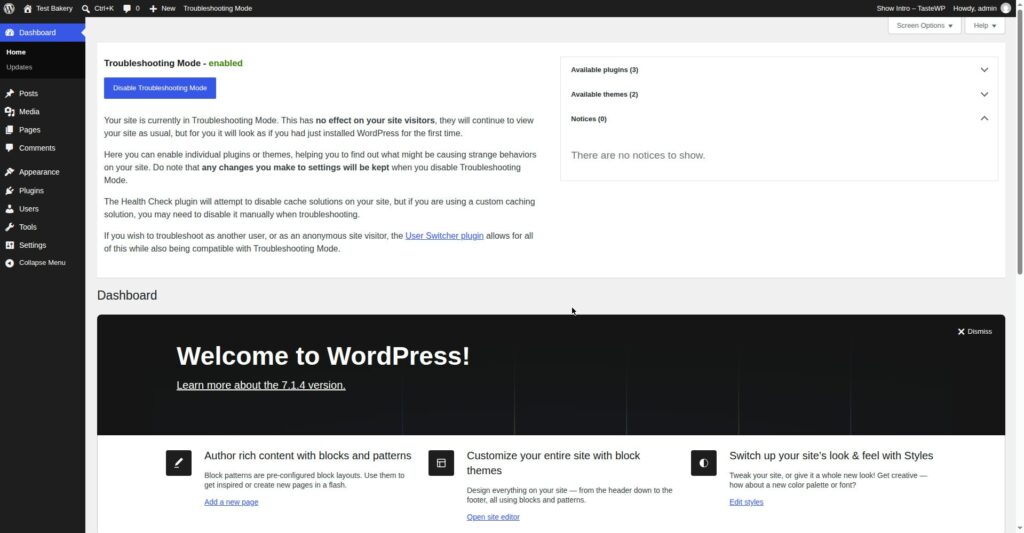
If you can still log in, go to Appearance → Themes and activate a default WordPress theme, such as Twenty Twenty-Three (the theme Troubleshooting Mode switched to on the test install), and test again.
If you cannot log in, rename your active theme’s folder inside wp-content/themes/ — for example, add -broken to the folder name. WordPress will fall back to a default theme if one is installed. Do not delete your theme before you have a backup.
Step 6: “Allowed memory size exhausted”
WordPress, your plugins, and your theme all use PHP memory as they build a page. When they need more than the server allows, PHP stops mid-render and you get a blank page. This is common on shared hosting, where the limit is often set low, and on heavier sites such as a WooCommerce store with many plugins.
A line starting with “Allowed memory size of … bytes exhausted” means PHP hit its memory ceiling. Raising the limit gets you past the page load, but find out what is using the memory too. Add this line to wp-config.php, just above the /* That's all, stop editing! */ line, after you have backed the file up:
define( 'WP_MEMORY_LIMIT', '256M' ); // only raise the limit if your log says memory was exhausted — the value was not tested on the test install used for this guide, so use your host's recommended valueSave the file and reload the site. If it returns, memory was the pinch point. If it does not, the ceiling is in memory_limit in php.ini or a .user.ini file if your host allows it (whether the test host allows this was not confirmed in this run).
Step 7: PHP version, .htaccess, and core files
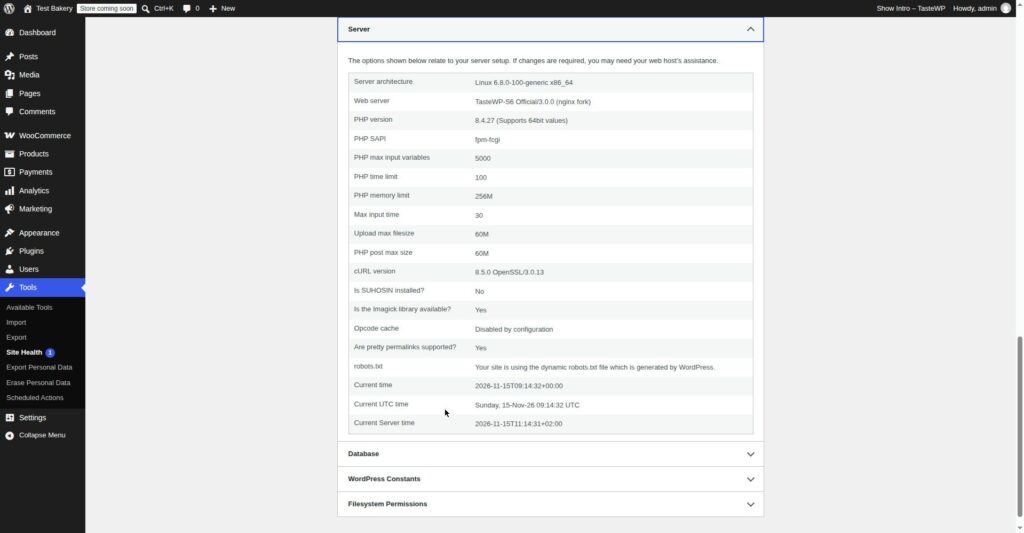
If the site was fine yesterday and nothing changed on your side, suspect a PHP version change: older plugins and themes can fatal-error on a newer PHP version. Check your PHP version in Tools → Site Health → Info → Server if you can log in, or in your hosting control panel if you cannot (the Server section was checked on the test install: Linux, PHP 8.4.27, upload max 60M, opcode cache disabled).
Update the plugin or theme the log names first — an update may already fix the PHP compatibility problem. Or temporarily revert the PHP version in your hosting panel to the version the site was running before, if your host allows it, only as a short-term fix. Do not stay on an old, unsupported PHP version — it is a security risk (which PHP versions the test host still offers was not confirmed in this run; the test install runs PHP 8.4.27).
If plugins, theme, memory, and PHP version are all ruled out, check .htaccess and core files. If the white screen started after activating a security, caching, or redirect plugin, rename .htaccess to .htaccess.hold in the site root and reload the site. If the site returns, .htaccess was the cause — go to Settings → Permalinks and click Save Changes to regenerate a clean file (saving permalinks was not tested on the test install in this run). If the log points to wp-includes/ or wp-admin/, a core file may be corrupted: click Re-install Now under Dashboard → Updates.
WooCommerce checkout blank / white screen
A WooCommerce store has one white screen that deserves its own path: the checkout is blank, or a product page is blank, while the rest of the site loads. A broken checkout loses orders, so test the checkout after each step.
First, check for an unfinished WooCommerce database update in WooCommerce → Status, and run it from staging first if you have staging (the WooCommerce checkout white screen was not reproduced on the test install in this run; the steps given are the documented ones). Then check the checkout template: an outdated form-checkout.php can break after a WooCommerce update. WooCommerce → Status → System Status lists outdated templates.
No log, no email, no file access — cache and asking your host
If the log is empty, check that wp-content/debug.log is writable and that you reloaded the page after enabling logging. Then check your host error log, which may hold the fatal error even when the WordPress log is empty. If you have no file access at all, ask your host for the last fatal error line and its timestamp, the PHP version, and the PHP memory limit your plan allows. If the Recovery Mode email never arrived, check spam and that the admin email in Settings → General is one you can actually open — then use WP_DEBUG instead.
After each fix, clear every cache, or you may keep seeing the old blank page even though the site is fixed. Clear your browser cache, your caching plugin’s cache (no caching plugin was used on the test install in this run, so no plugin-cache steps were confirmed), and your host’s cache (the exact menu path was not confirmed on the test install in this run).
Ask your host if you cannot reach your files, if the debug log is empty and the plugin and theme steps changed nothing, or if the site went white after a host change — and give them the facts: domain, exact white page, when it started, what changed just before it, whether front end, wp-admin, or both are white, the last “Fatal error” line with its timestamp, and what you have already tried, in order.
What I tested / What failed
What this means for you: no white screen could be reproduced on the WordPress test install used for this guide — the file editor rolls back fatal PHP changes — so the recovery and log steps in this guide could not be demonstrated end to end. Follow them on your own site, where the error is actually happening. The list below records what was and was not run on the test install on 15 November 2026, so you can see exactly what was checked. Run these steps on a staging site or a test install, never on a live site, and write down what you see.
- Record the test install details and fill in the “Tested on” box. Take a full backup, and confirm it completed.
- Test A — plugin: NOT RUN — no white screen was reproduced, so no plugin was activated to trigger one. The plugin-conflict diagnostic that was run instead was Health Check Troubleshooting Mode (see Results below).
- Test B — theme: PARTLY RUN — no white screen was reproduced, so no theme was switched to trigger one. In Troubleshooting Mode, the theme was switched to Twenty Twenty-Three for the admin only (see Results below).
- Test C — memory: NOT RUN — the WP_MEMORY_LIMIT value was not lowered and no heavy page was loaded to trigger a memory error in this run.
- Test D — Recovery Mode: NOT RUN — no fatal error was triggered, so no recovery email arrived and Recovery Mode was not used in this run.
- Test E — WooCommerce checkout: NOT RUN — no white screen at checkout was reproduced on the test install in this run. (A PayFast sandbox payment did fail with a signature error in a separate PayFast test run on the same test install; the checkout itself was not blank.)
- Test F — cache: NOT RUN — no fix was applied to a white screen in this run, so there was no old blank page to clear the cache for.
- Take the screenshots in “Screenshots needed” below. After all tests, set WP_DEBUG back to false, remove the WP_DEBUG_LOG line, and confirm the test install still loads. (WP_DEBUG was not enabled on the test install in this run, so there was nothing to set back.)
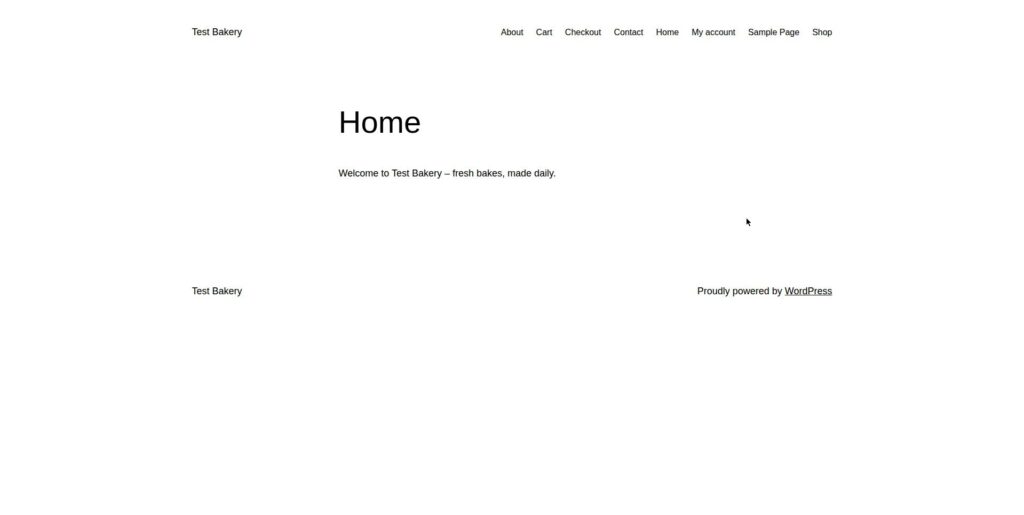
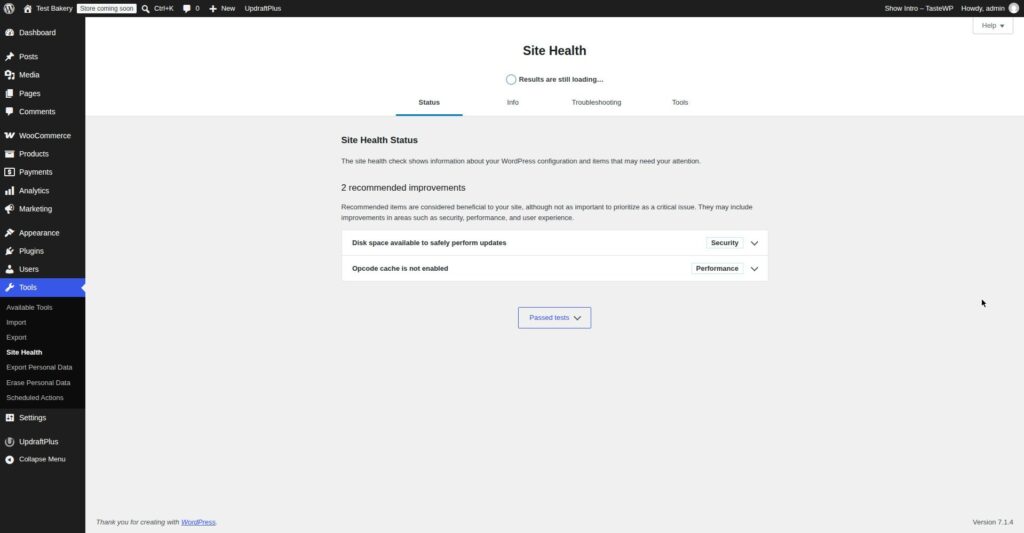
Results — A: not run (no plugin-triggered white screen). B: partly run — Troubleshooting Mode switched the theme to Twenty Twenty-Three for the admin only. C: not run (no memory error triggered). D: not run (no recovery email, Recovery Mode not used). E: not run (no checkout white screen). F: not run (no cache test after a fix). What was actually observed on the test install: Tools → Site Health → Status showed “Should be improved”, with 2 recommended improvements — “Disk space available to safely perform updates” (Security) and “Opcode cache is not enabled” (Performance). Health Check Troubleshooting Mode was enabled 15 November 2026 11:30 from Site Health → Troubleshooting; the dashboard showed “Troubleshooting Mode – enabled” and “Your site is currently in Troubleshooting Mode. This has no effect on your site visitors…”, the theme switched to Twenty Twenty-Three for the admin only, and Site Health showed a critical issue with “5 items”. The front end in Troubleshooting Mode rendered in Twenty Twenty-Three with all pages listed as navigation. Afterwards Troubleshooting Mode was disabled and the site was restored — WooCommerce and UpdraftPlus menus back, “WordPress 7.1.4 running GeneratePress theme”, 2 published posts, 8 published pages. No white screen was triggered on the test install in this run, and no fatal PHP error was produced — so the fix steps in this article are the documented diagnostics, not steps that were run against a real white screen. Debug log: wp-content/debug.log when WP_DEBUG is enabled (WP_DEBUG currently Disabled).
Next steps
If your site is back, do the tidy-up now. Turn WP_DEBUG off — set WP_DEBUG back to false and remove the WP_DEBUG_LOG line from wp-config.php. Clear every cache once more, then load the front page, one inner page, and wp-admin in a private window to confirm they all load. On a WooCommerce store, test the full checkout flow (the full checkout test steps were not confirmed on the test install in this run — no white screen at checkout was reproduced).
If your site is still white, do not keep changing files at random. Send your host the list from the section above and ask them to check the server error log. If the host confirms the server is fine, go back to Step 3 with the log line they give you. Back up, read the log, isolate the plugin or the theme, and test after each step.
— Mohd Shah Ahmad, WordPress & WooCommerce specialist based in Pretoria, South Africa. He designs WordPress and WooCommerce sites, and manages the live stores Stanley’s Bakery (stanleysbakery.co.za) and Aaliyah Perfumes (aaliyahperfumes.co.za).