
Every new WordPress post comes with comments switched on. That is fine for a blog that wants discussion, but for a business site, a brochure site or a shop it usually means one thing: spam. On our WordPress test install a brand-new post showed the full comment form — “Leave a Reply”, a comment box and a Post Comment button — with nothing switched on to invite it. The good news is you can turn comments off in three places, depending on how far you want to go: for new posts only, for posts you have already published, or everywhere at once with a plugin. We tested all three on 20 November 2026, and each one worked.
Tested on: WordPress 7.1.5, Twenty Twenty-Three theme version 1.7, PHP 8.5.12. Tested on 20 November 2026 on a WordPress test install. Plugin used: Disable Comments 2.9.2 (free).
Before you start
- Turning comments off does not delete anything. Your posts stay exactly as they are — only the comment form disappears. We did not test what happens to comments that were already posted before you switch comments off, so if your site already has comments showing, check one of those posts after you make the change.
- Pick the right method for your goal. If you only want future posts to be comment-free, Method 1 is enough. If old posts still show the form, you need Method 2 as well. If you want comments gone from the whole site, including pages and the admin menu, use Method 3.
- You can turn comments back on. Every method below is reversible — tick the box again, or deactivate the plugin, and the form comes back.
Method 1: Turn comments off for new posts
This stops the comment form appearing on posts you publish from now on. It does nothing to posts you have already published — those keep their form until you use Method 2.
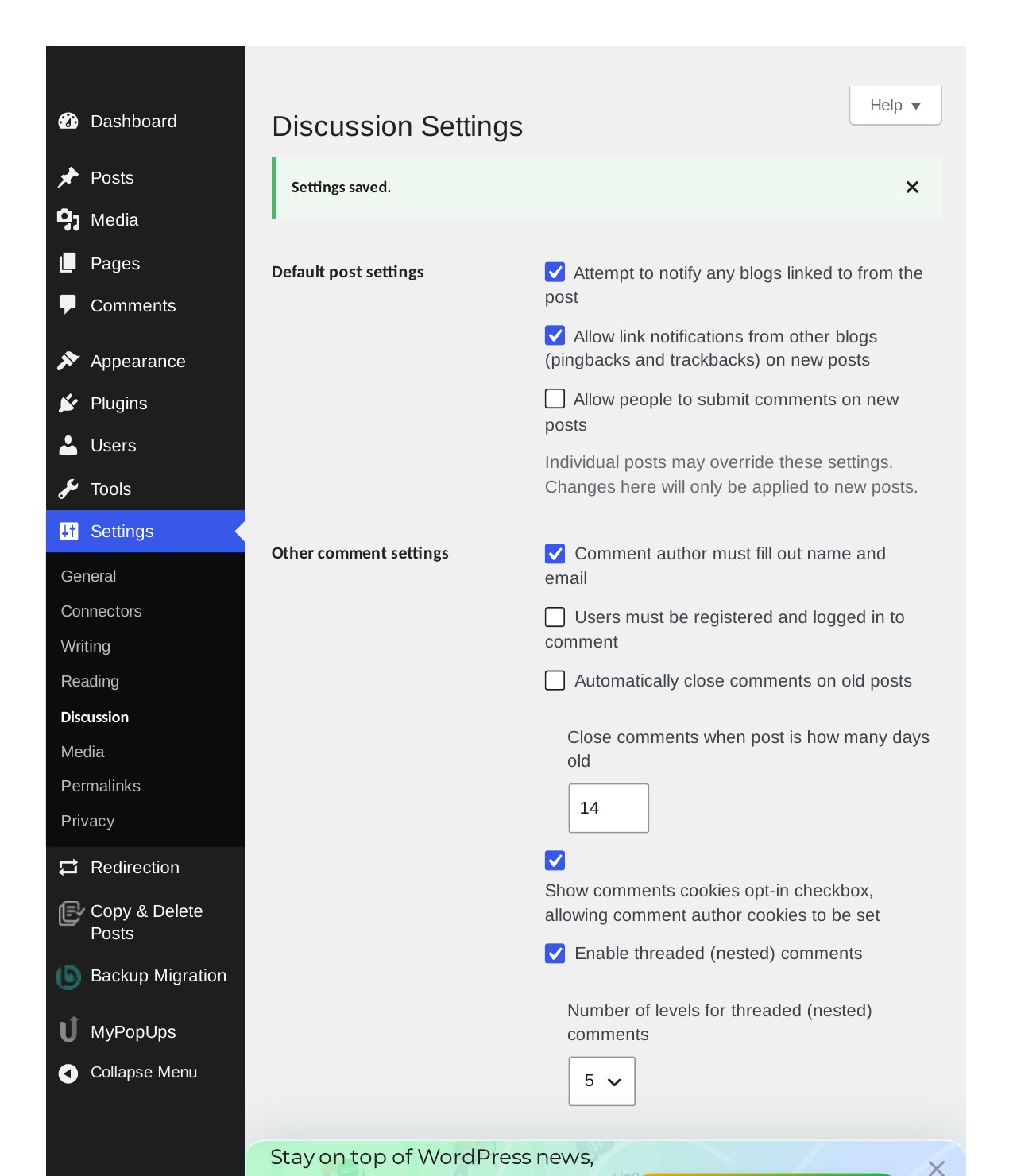
- Go to Settings > Discussion.
- Under Default post settings, uncheck “Allow people to submit comments on new posts”.
- Scroll down and click Save Changes. WordPress shows “Settings saved.”
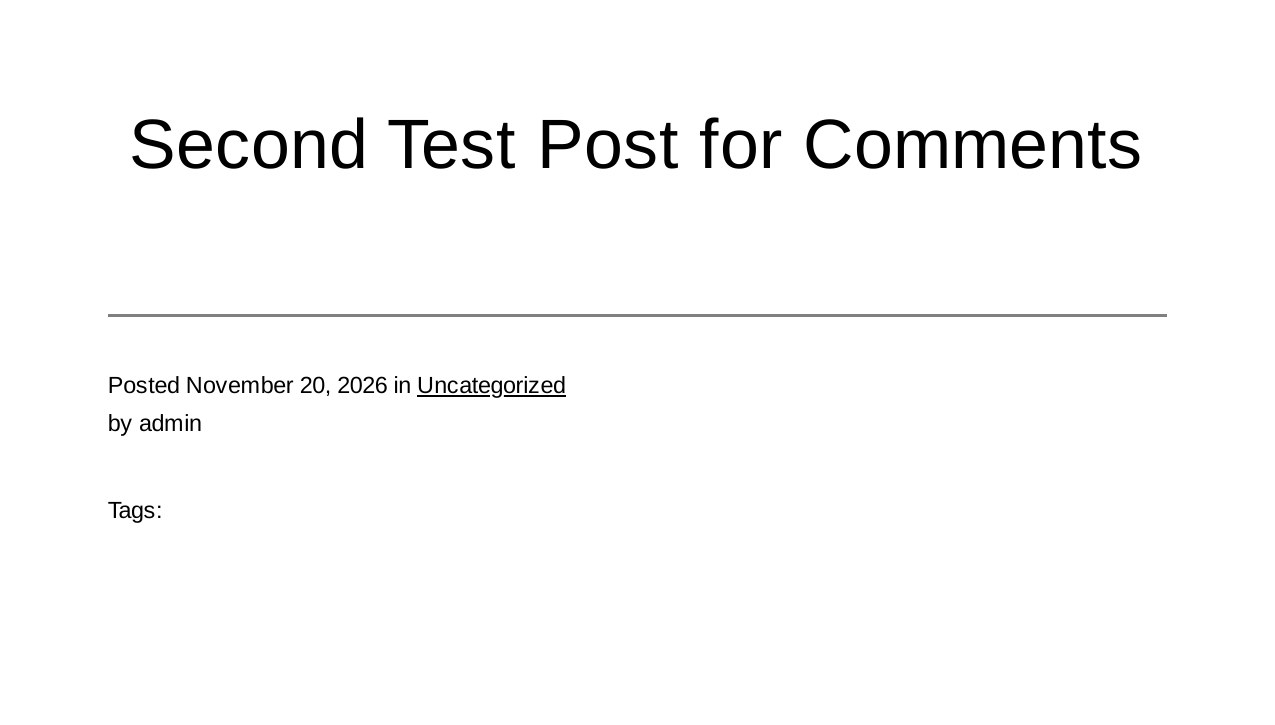
- Publish a new post and open it on the front end. There is no comment form — no “Leave a Reply”, no comment box, no Post Comment button.
On our test install the second test post showed no comment form at all after this change, while the first post — published before the change — still had its form. That is the expected behaviour: the setting only applies to new posts. The new post’s Discussion panel also showed “Pings only”, which confirms comments were off by default for it.
Method 2: Close comments on posts you have already published
Method 1 leaves old posts untouched, so close them yourself with bulk edit. You can do many posts at once.
- Go to Posts > All Posts.
- Tick the checkbox next to each post you want to close comments on — or tick the top checkbox to select them all.
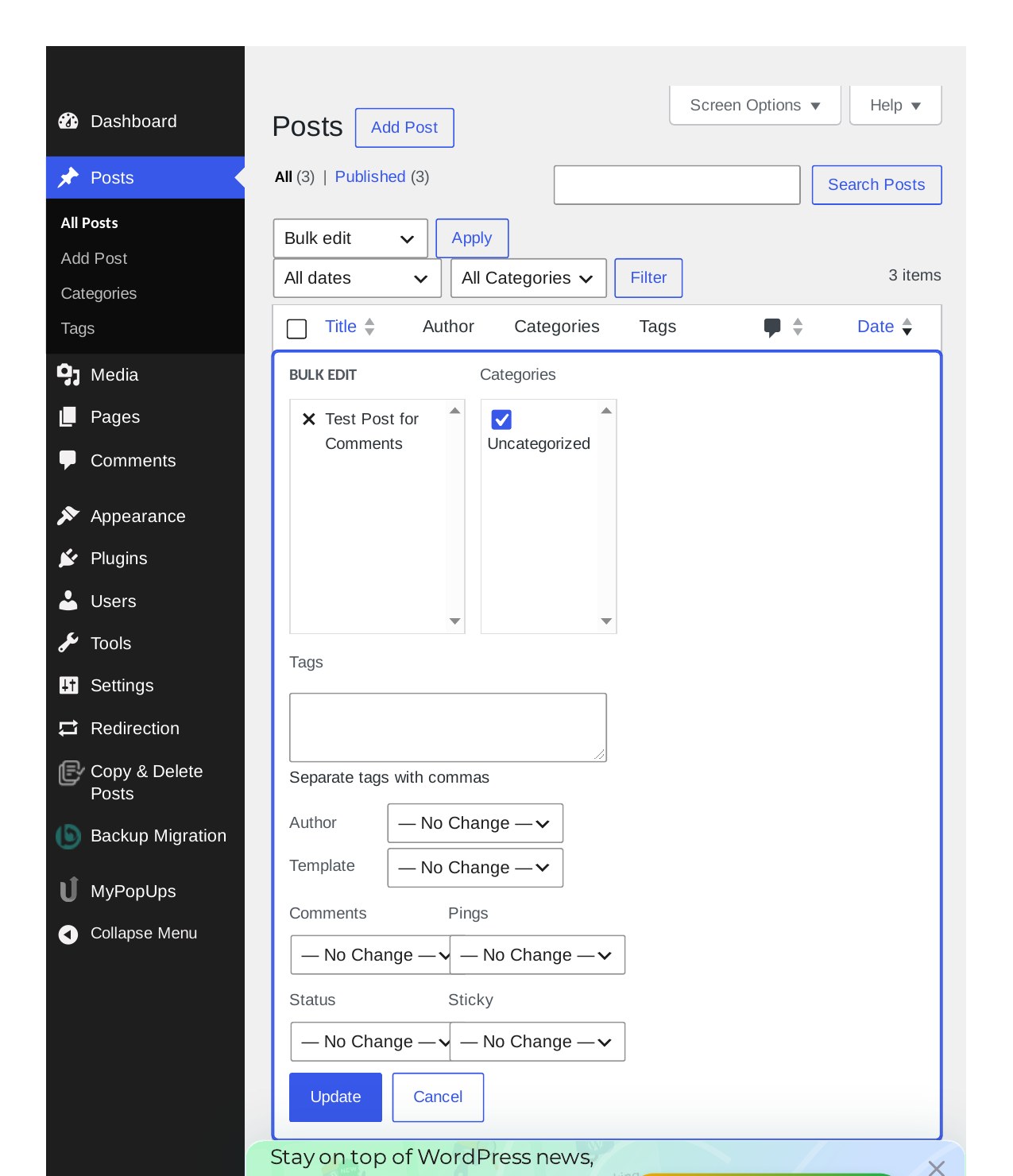
- Open the Bulk actions dropdown, choose Edit, and click Apply. The bulk-edit panel opens.
- Find the Comments dropdown in the panel and set it to Do not allow.
- Click Update. WordPress shows how many posts were updated — on our test install it said “1 post updated.”
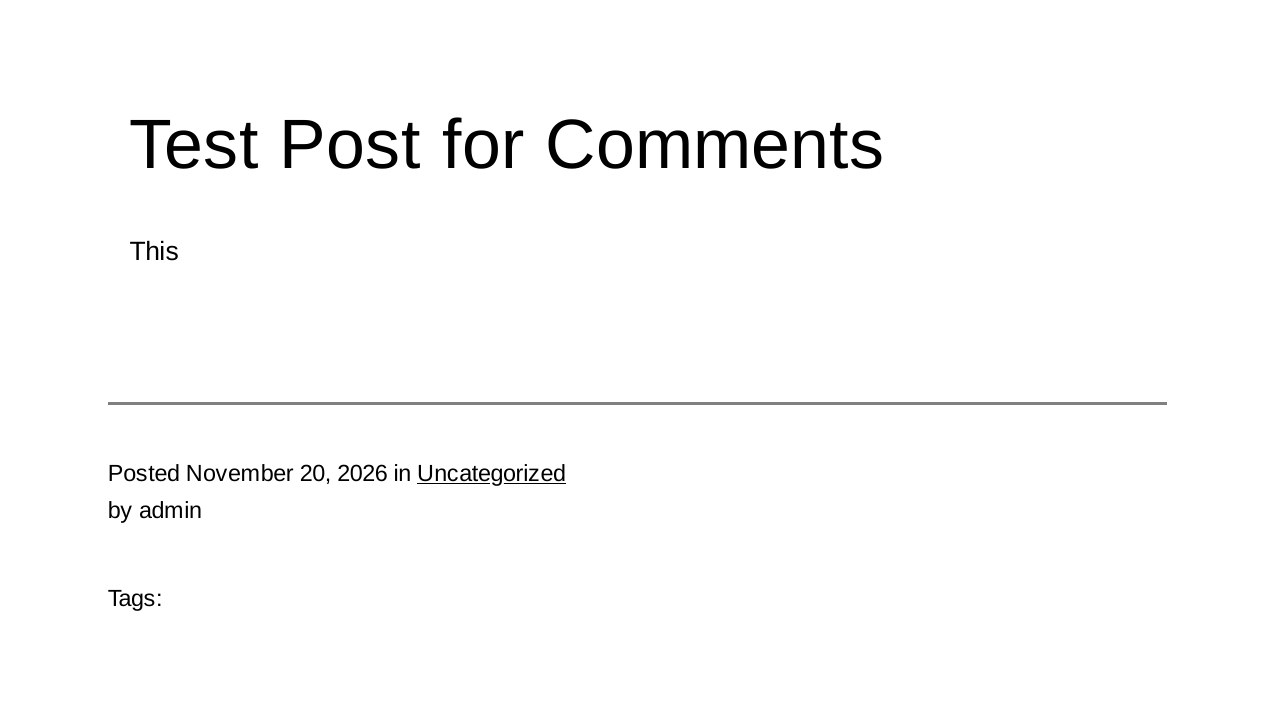
- Open one of those posts on the front end. The comment form is gone.
On our test install the first test post, which had shown the full comment form before, showed no Comments section at all after the bulk edit.
If you only have one or two old posts to fix, you can do the same thing one post at a time: open the post in the editor, open the Discussion panel in the sidebar, and uncheck “Allow comments”.
Method 3: Disable comments everywhere with a plugin
Methods 1 and 2 stop the form, but the Comments menu stays in your dashboard and the comment count stays in the toolbar. If you want comments gone completely — from posts, pages and the admin — use the free Disable Comments plugin.
- Install the free Disable Comments plugin from Plugins > Add Plugins — see our guide on how to install a WordPress plugin — and activate it. The version we tested is 2.9.2, listed in the WordPress directory under WPDeveloper.
- Go to Settings > Disable Comments.
- Choose Everywhere. This is important: the plugin’s default is “On Specific Post Types” with Posts, Pages and Media all unchecked, which disables nothing until you tick something. “Everywhere” is the option that disables comments globally.
- Click Save Settings.
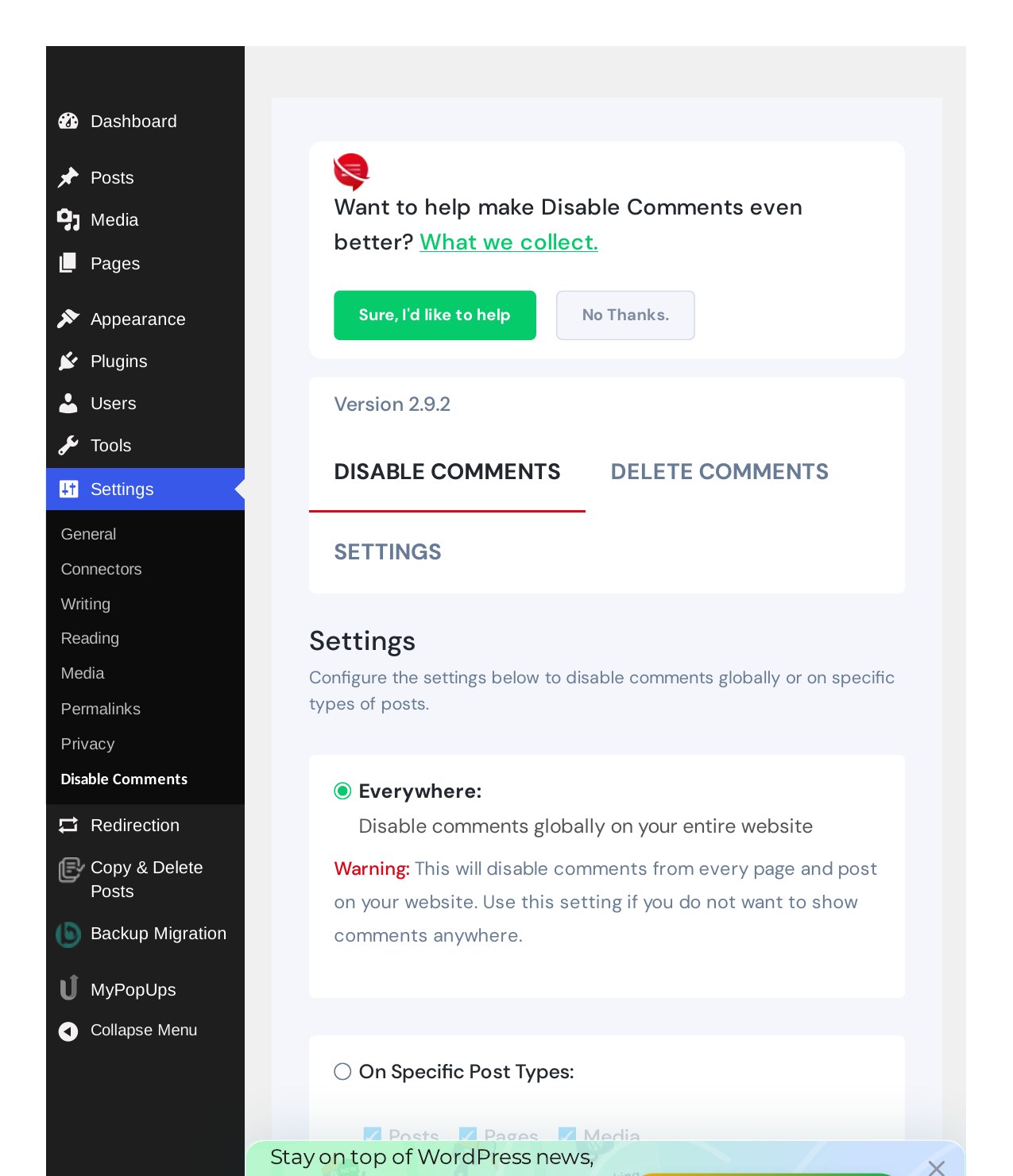
- Reload the dashboard. The Comments menu item is gone from the admin sidebar, and the front-end toolbar no longer shows a comments count.
One thing we noticed: straight after saving, the Comments menu was still visible on the page we were already looking at — the page was stale. It disappeared as soon as we reloaded. So if the menu is still there after you save, reload the page before deciding it did not work.
Before and after: the proof it works
Before any change, the test post showed the full comment form on the front end:
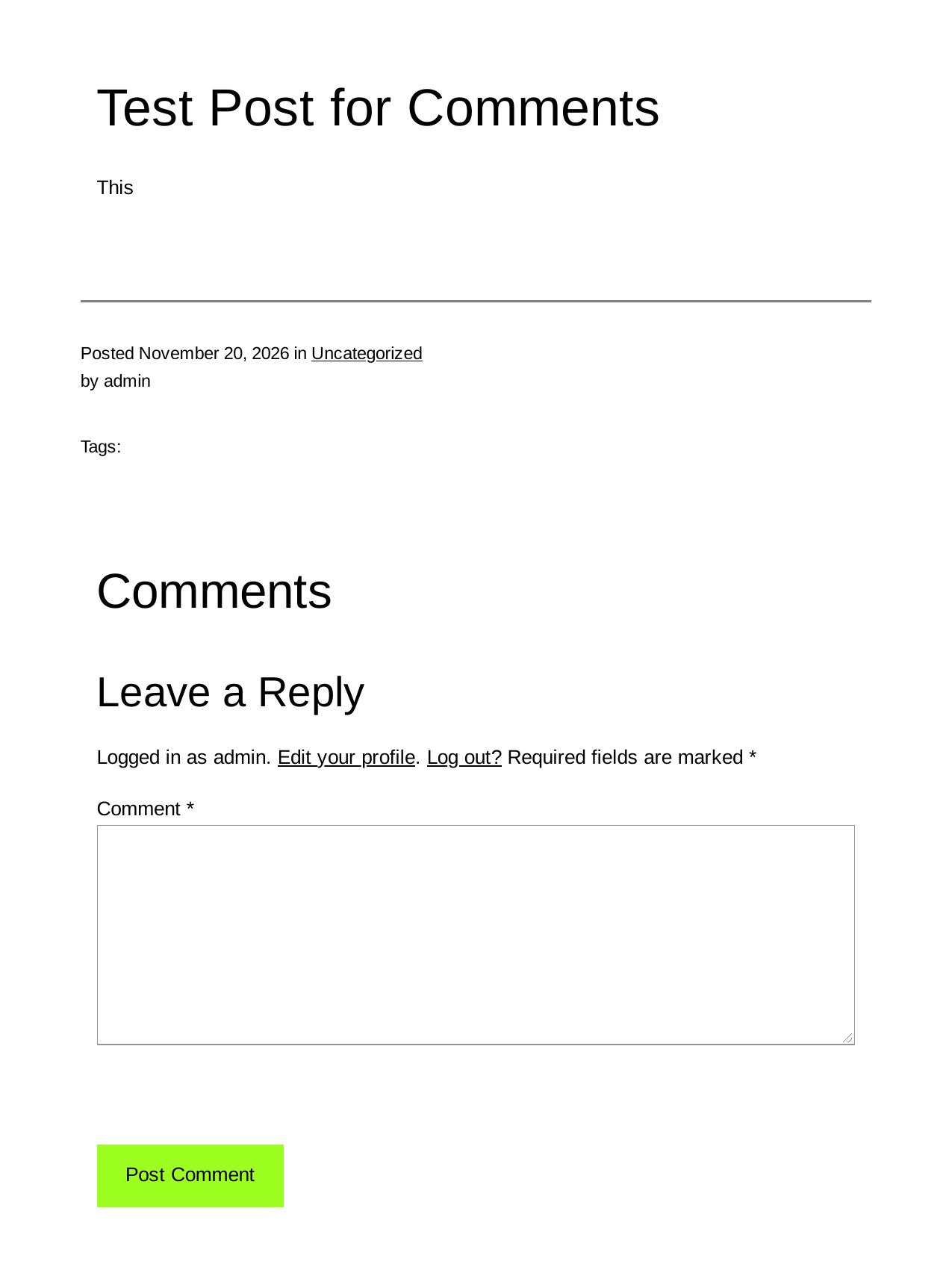
After Method 1, a new post had no form. After Method 2, the old post had no form either. After Method 3, the Comments menu itself was gone from the dashboard. Each step did exactly what its setting promised, and nothing else on the site changed — the posts, the theme and the rest of the dashboard were untouched.
What we could not verify
- Comments that were already posted. We never posted a comment on the test install, so we did not check whether comments posted before you disable them stay visible or disappear. If your site already shows comments, check one of those posts after you make the change — and if you want them removed, the plugin has a separate Delete Comments tab, which we did not test either.
- Closing comments on a single post from the editor. We closed existing posts with bulk edit, which worked. The per-post route — the Discussion panel in the post editor — was not tested step by step, though it changes the same setting for one post.
- Comments on pages. The plugin’s “Everywhere” option is described as disabling comments on your entire website, and the comment form was gone from posts after we set it. We did not create a test page with comments to check pages separately.
Which method should you use?
- New posts only, and you are happy for old posts to keep their form: Method 1, one checkbox in Settings > Discussion.
- Old posts still show the form: Method 2, bulk edit them to “Do not allow”. Do this after Method 1, not instead of it.
- You never want comments anywhere, and you want the Comments menu gone too: Method 3, the Disable Comments plugin set to “Everywhere”.
- You want comments back later: re-tick the Discussion checkbox, or deactivate the plugin — both reverse cleanly.
Comments are on by default because WordPress assumes you want a conversation. If you do not, one checkbox handles the future, a bulk edit handles the past, and a plugin removes the whole thing.

About the author
Learn WordPress Online is written by Mohd Shah Ahmad, a WordPress & WooCommerce specialist based in Pretoria, South Africa, who builds and runs live WooCommerce stores and designed the websites for Aaliyah Perfumes and Stanley’s Bakery. Every guide is tested step by step on a WordPress test install before it is published.